belbo
  • Overview
    • Getting to know Belbo
    • Location Settings
    • Switch to Belbo
    • Calendar View & Navigation
    • Recurring Appointments & Courses
    • Appointment Entry & Management
    • Logins & Permissions
    • Multiple Locations & Head Office
    • Manage Employees
    • Absences & Holidays
    • General
    • Working Hours
    • Time Tracking
    • Data Protection (GDPR)
    • Customer Communication (Email, SMS)
    • Customer Management & Records
    • Bonus & Loyalty Programs
    • Campaigns (Newsletter & SMS)
    • Marketing Consents (GDPR)
    • Tracking & Analytics
    • Overview
    • Services & Prices
    • Products
    • Service Packages & Subscriptions
    • Vouchers
    • Purchasing & Suppliers
    • Stock & Inventory
    • Scanning & Sales
    • Cost of goods & expenses
    • Design & Texts
    • Setup & Settings
    • Integration (Website, Google, Instagram, Facebook)
    • Online payment
    • Accounting & Exports
    • Cash Register Settings & Hardware
    • Checkout process
    • Daily Closing & Reports
    • TSE & Cash Register Anti-Tampering Ordinance
    • Export Overview
    • Employee Utilization
    • Revenue & Reports
    • Belbo Satellite
    • Printer
    • EC Terminal & Card Payment
    • Troubleshooting Hardware
    • Scanner & POS Devices
    • General Settings
    • API & Integrations
    • Notifications & Emails
    • Contracts & Legal
Skip to content

Everything about: Vouchers

Pay out voucher remaining balance

If a customer does not want to redeem the remaining value of a voucher for a service, but instead wants to have it paid out – for example in cash or by bank transfer – you can process this via a standing customer payment transaction.

You can access this area via Cash register > Process standing customer payment

Process for voucher remaining value payout

  1. Click on „Cash register" and select „Process standing customer payment".
  2. Optionally select the customer name to assign the payout to the customer file.
  3. Click on „Redeem voucher" and enter the voucher number. Details on voucher identification can be found here.
  4. Enter the amount to be paid out.
  5. Click on „Payment" and select the payment method that corresponds to the actual payout method – for example „Invoice" if the amount is transferred, or „Cash" if the money is taken from the cash register.
  6. Complete the payment transaction.
Example:
Your customer still has a voucher worth €50 remaining, but does not want to use any further services and instead wants to have the remaining value paid out. You pay her the €50 in cash and select „Cash" as the payment method in the payment transaction.

Why is the payment transaction negative?

Since no revenue is generated in this booking, but money is paid out to the customer, the payment transaction is negative. This is correct: In the daily settlement, the amount is shown as a payout and is not counted as revenue.

If the appropriate payment method (e.g. „Invoice" for bank transfers) is not yet available in your cash register, you can create it yourself under Add payment method.

Performance package residual value paid out as voucher

In the following video, we would like to show you how to pay out the remaining value of a sold service package as a voucher.


Gift vouchers

Would you like to give vouchers as gifts to friends, VIPs, or employees? Then you need to consider tax aspects. Various solutions are presented here. However, discuss the option with your tax office to clarify the tax consequences.


If these are individual person-bound vouchers that should be redeemable online:

  1. Voucher sale with 100% discount

    • You sell a voucher regularly and provide a 100% discount.
    • However, in most cases this can result in you having to pay taxes on the voucher value upon redemption or sale (depending on the voucher type). Please discuss this process with your tax office.

  2. Voucher sale with different voucher value

    • In the voucher settings, a different value can be defined than the selling price. In this case, the difference may be tax-free depending on how your tax office books it. Discuss this with your tax office.

If these are general discount campaigns that should be redeemable online:

  1. Discount with discount code

    • Create a discount instead of a voucher. No tax is due upon "issuance". Upon redemption, it may also result in taxes.

Value Vouchers and Service Vouchers

Depending on when you tax your vouchers, you can create templates for value vouchers or service vouchers in Belbo, which are used when selling via the Belbo cash system.

  • Service voucher: Template contains a VAT rate and is taxed at the time of sale.
  • Value voucher: Template contains no VAT rate and is taxed at the time of redemption.

You can access this area via Settings > Prices & Skills > Vouchers or in Switzerland Settings > Services / Products > Vouchers
If this function is not activated, it can be activated via "Settings > Add function".
Please ask your tax office whether you need to tax your vouchers at the time of sale or redemption and edit your voucher templates accordingly.

The timing of taxation is also the timing at which the revenue is shown in the cash register's revenue statistics.

Create templates

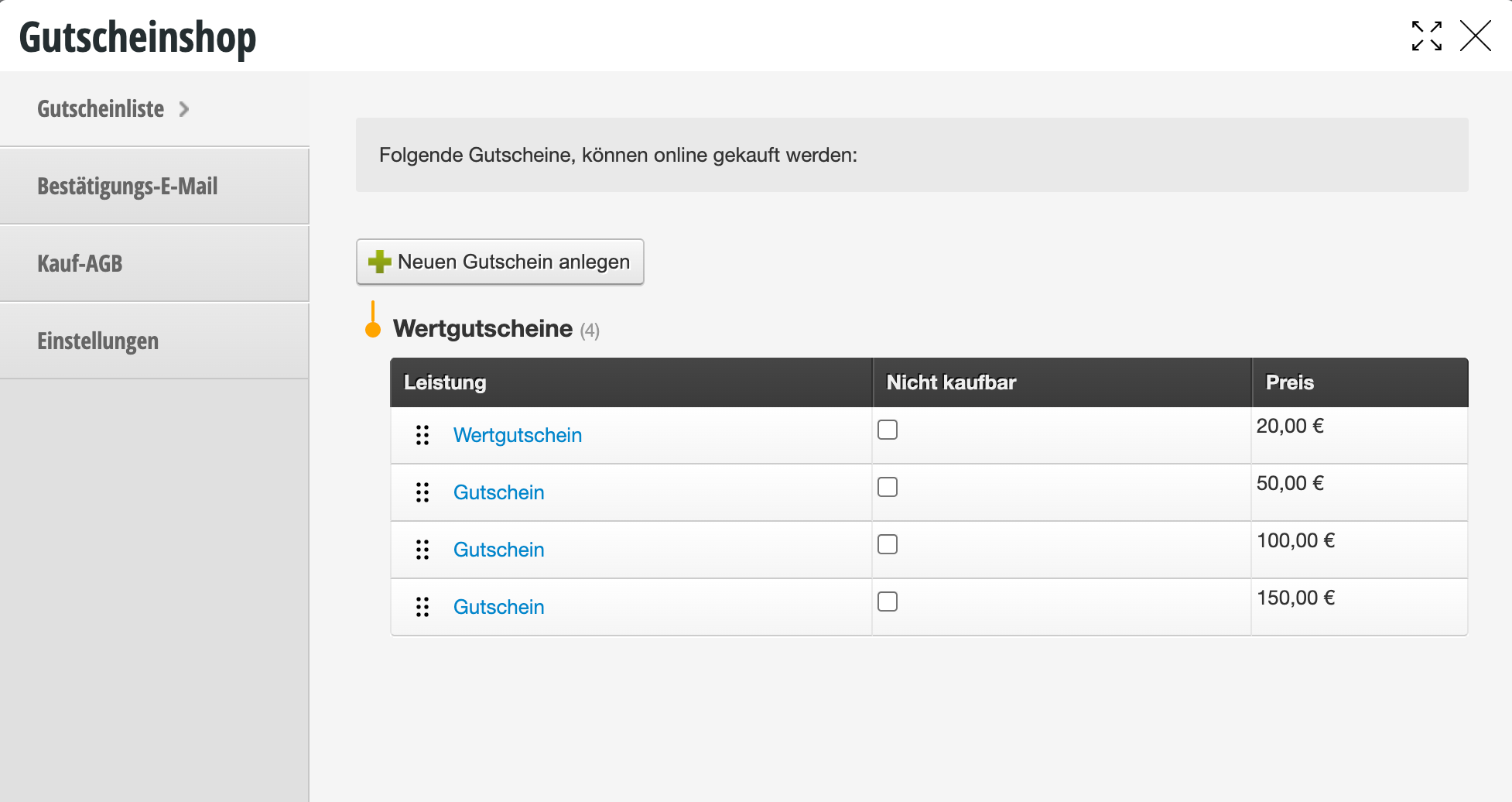
Under Settings > Prices & Skills > Vouchers or in Switzerland Settings > Services / Products > Vouchers you will find the voucher templates.

Value voucher

If taxation and revenue are to occur at redemption, enter no tax in the template:

Service voucher

If taxation and revenue are to occur at the time of sale, enter the VAT rate applicable to the service in the template:

Voucher sales in the checkout process

When you use these templates in the checkout process, the tax used in the template is correctly shown:

  • Service vouchers are taxed immediately and count towards revenue.
  • Value vouchers are not yet taxed and do not count towards revenue for now.

Voucher redemption in the checkout process

When the sold vouchers are redeemed, tax is also correctly calculated here:

  • Service vouchers already taxed at the time of sale are not taxed again and do not count towards revenue.
  • Value vouchers not taxed at the time of sale are now taxed and count towards revenue.

Vouchers in the daily closing

In the daily closing, vouchers and their taxation are correctly displayed.

  • Service voucher sales are included in total revenue (1).
  • Service voucher redemptions are deducted from total revenue (2).
  • Value voucher sales are not counted in total revenue but are explicitly shown (3).
  • Value voucher redemptions are added to total revenue and shown in the payment method overview (4).

Vouchers in the revenue overview

In the monthly overview of the cash register, voucher sales and redemptions are shown.

  • Service voucher sales are immediately added to the revenue of the selling person.
  • Service voucher redemptions are not added to the revenue of the redeeming person but are explicitly shown.
  • Value voucher sales are not added to the revenue of the selling person but are explicitly shown.
  • Service voucher redemptions are added to the revenue of the redeeming person.

Voucher Export

You can export vouchers created in Belbo.

  1. In Belbo, click on the "Vouchers" button and then on "Options".
  2. Follow the export wizard.
  3. If you want to export all vouchers sold so far, select today's date in the wizard. If you only want to export vouchers that were created up to a specific day, select that date.

Send vouchers via email to the customer

If you sell vouchers via the Belbo cash register, you can send the voucher to the customer as a PDF via email.

Examples of use:

  • A customer transfers you the amount for a voucher and wants to receive it via email.
  • A customer pays for the voucher in cash on site but doesn't want to take a paper voucher with them because they plan to give the voucher to a friend via email.

Redeem voucher

  1. Sell the voucher as normal, as described under Voucher sales via the cash register system.
  2. In the completed cash transaction, click the colorful printer icon and then click "Print voucher".
  3. A dialog box opens that allows you to download the voucher as a PDF to your computer.
  4. Save the voucher and then send it to the customer via email using an email program.

Create your own voucher design

In Belbo you can sell vouchers to your customers via the cash register and your own online voucher shop. We provide you with some colorful designs. If you would like to use your own design, you can upload it to Belbo.


You can access this area via Settings > Vouchers > Voucher Design
If this function is not activated, it can be activated via "Settings > Add Function".


You can commission your graphics agency to create a custom design for you following these instructions. Alternatively, you can create a design yourself. If you don't have suitable graphics software, you can use a tool like Canva or EDIT.org.
We appreciate your understanding that we cannot support you with the operation of third-party software.

Basics of Voucher Designs

Format

  • The voucher design must be saved in PDF format. Only PDFs can be uploaded.
  • The design must be created on a single page. If you upload a multi-page PDF, you must then specify one page as the design.
  • We recommend a size that can be easily printed with a standard A4 printer.

Placeholders

In Belbo you can store one voucher design for all purchasable voucher values – or individual designs for each voucher template. This means that placeholders should be used for flexible elements such as price or voucher name. The correct value will be inserted here when the voucher is sold.

Available placeholders are:

  • Voucher number (mandatory)
  • Creation date*
  • Voucher value*
  • Voucher name*
  • Name of the buyer and recipient, as well as a free text field for greetings
  • Online code for redemption in online booking (note: this is not the voucher number)
  • Location name

* recommended placeholders

Design Your Voucher

Your voucher can be designed freely. The placeholders can be moved to the correct position in Belbo after upload. Make sure you arrange the placeholders so that the later black text is easily readable on them. We recommend including the company's address in the template.

PDF template with designated placeholders

Voucher with filled placeholders


How to upload your template and set the placeholders correctly you can find out here.

Sample Files for Download

We have created a simple sample template for you to use as a reference if you wish.


Voucher Template as PDF download: Download here.


Voucher Template as Adobe Indesign download: Download here.


Enter existing voucher

Vouchers that were not created via Belbo can be imported. If you do not have an import file available, you can enter legacy vouchers directly during the checkout process.

You can activate this feature under Settings > Voucher Module

If a customer wants to pay with a voucher, you can enter the voucher number during the checkout process to select and redeem the voucher. If the voucher was issued before you started using the POS system, this voucher number cannot be found by the system.

Requirement for entering legacy vouchers

All employees who are to be allowed to enter legacy vouchers require the corresponding permission. You can grant this under Settings > Employees > POS Permissions.

Entering legacy vouchers during the checkout process

Check out the appointment as usual and select the payment method "Vouchers". Use the "Enter legacy voucher" button displayed during voucher entry:

In the following dialog, you then enter the data taken from the voucher brought in by the customer.

Once you have saved the voucher, it can be used for redemption immediately.

Legacy vouchers are scrutinized very closely by tax auditors. The original of every legacy voucher must be kept. The reason is that these have often been misused in the past to reduce revenue.

Discounts

In Belbo you can create discounts that can be used in the cash register system and, if desired, can also be entered by your customers online.

You can access this area via Settings > Vouchers > Discounts
If this function is not activated, it can be activated via "Settings > Add function".

Create discount templates

In principle, discounts can be given freely during checkout (if this is permitted for the respective user). To simplify data entry and also allow users without the right to "Edit prices in the billing process" to enter discounts, you can create discount templates.

  1. Under Settings, go to the "Vouchers" module. If it is not activated, you can activate it under "Add function".
  2. Click the "+ Discount" button and enter the basic data for your discount template.
  3. After saving, you can specify the details of the template.

Configure discount templates

There are numerous ways to customize your discounts. To learn how you can configure your discounts after saving, click here.

Accounting

You can set an accounting account to which this discount should be posted. This is useful if you want to distinguish this discount from other discounts in accounting.
Caution: Be sure to discuss any changes with your tax advisor.

Uses

You can see how often and on which dates a discount was used.

Discounts in the cash register

In the cash register you now have the option to select the discount templates. The following options are available to you:

  • Click the discount button next to a product/service to apply the desired discount to that item only.
  • Click the discount button next to the total amount to either apply a discount to the total amount or, if you have limited the discount template that way, only the desired items will be discounted automatically.

Vouchers: create general PDF template

If you use vouchers that you want to sell in your voucher shop or print on-site for your customers, you can create a template that will be used automatically.

You can access this area via Settings > Vouchers.
If this function is not enabled, it can be activated via "Add function".

Template Design

  • First, select one of our templates under "Design".
  • If you want to upload your own PDF template, select "Custom Template". You can then select the desired font in the "PDF Template" tab or upload your own PDF. Learn more about creating your own templates here.
Please note that only single-page PDFs can be uploaded, not multi-page PDFs.

Customize Design

Once you have selected a ready-made template, all voucher fields are already filled in correctly. However, you can modify the elements, for example edit font or font size.

If you have uploaded your own PDF template, you must place the existing elements in the correct location. To do this, drag the elements to the desired position:

Some elements must be placed on the voucher. These include voucher value, voucher code, and voucher name. Other elements can be used as needed. These include purchaser name, purchaser free text, or location.

The placed elements can be fine-tuned in the menu items "Voucher Fields" and "Additional Voucher Fields".

Filling in individual content during the sales process

When you sell a voucher, you can enter the customer's name and personal message so that they will be printed on the voucher. After you have selected the voucher in the checkout process, you can click on the printer icon to add the name and message – if these are set up in your template.

Post navigation

← Older posts
This manual is a service by belbo. Legal notice