belbo
  • Overview
    • Getting to know Belbo
    • Location Settings
    • Switch to Belbo
    • Calendar View & Navigation
    • Recurring Appointments & Courses
    • Appointment Entry & Management
    • Logins & Permissions
    • Multiple Locations & Head Office
    • Manage Employees
    • Absences & Holidays
    • General
    • Working Hours
    • Time Tracking
    • Data Protection (GDPR)
    • Customer Communication (Email, SMS)
    • Customer Management & Records
    • Bonus & Loyalty Programs
    • Campaigns (Newsletter & SMS)
    • Marketing Consents (GDPR)
    • Tracking & Analytics
    • Overview
    • Services & Prices
    • Products
    • Service Packages & Subscriptions
    • Vouchers
    • Purchasing & Suppliers
    • Stock & Inventory
    • Scanning & Sales
    • Cost of goods & expenses
    • Design & Texts
    • Setup & Settings
    • Integration (Website, Google, Instagram, Facebook)
    • Online payment
    • Accounting & Exports
    • Cash Register Settings & Hardware
    • Checkout process
    • Daily Closing & Reports
    • TSE & Cash Register Anti-Tampering Ordinance
    • Export Overview
    • Employee Utilization
    • Revenue & Reports
    • Belbo Satellite
    • Printer
    • EC Terminal & Card Payment
    • Troubleshooting Hardware
    • Scanner & POS Devices
    • General Settings
    • API & Integrations
    • Notifications & Emails
    • Contracts & Legal
Skip to content

Discounts

In Belbo you can create discounts that can be used in the cash register system and, if desired, can also be entered by your customers online.

You can access this area via Settings > Vouchers > Discounts
If this function is not activated, it can be activated via "Settings > Add function".

Create discount templates

In principle, discounts can be given freely during checkout (if this is permitted for the respective user). To simplify data entry and also allow users without the right to "Edit prices in the billing process" to enter discounts, you can create discount templates.

  1. Under Settings, go to the "Vouchers" module. If it is not activated, you can activate it under "Add function".
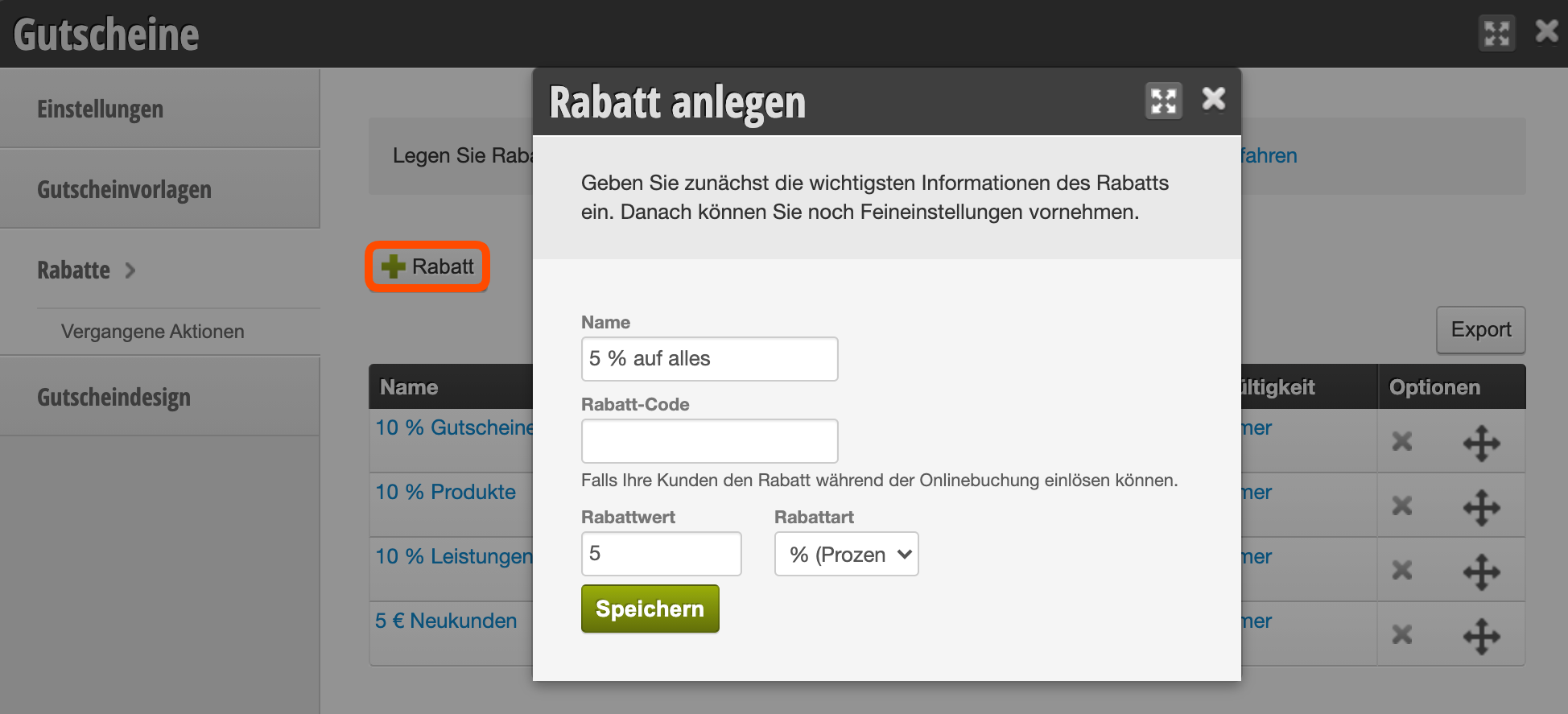
  2. Click the "+ Discount" button and enter the basic data for your discount template.
  3. After saving, you can specify the details of the template.
Configure discount templates

There are numerous ways to customize your discounts. To learn how you can configure your discounts after saving, click here.

Accounting

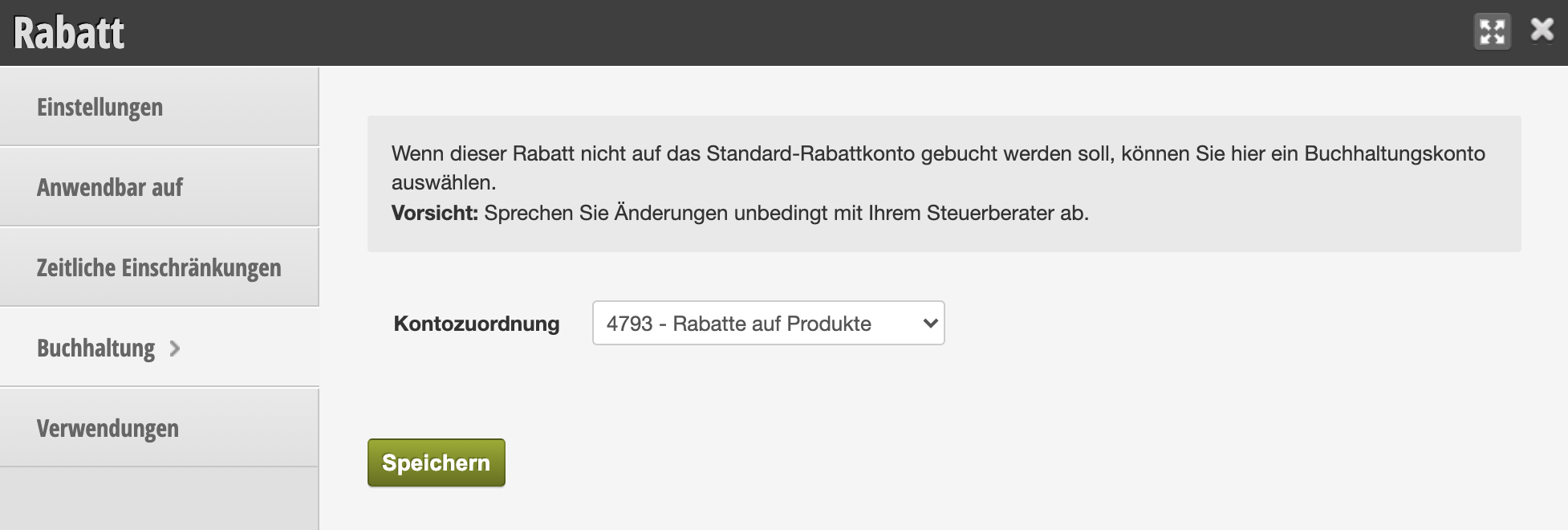
You can set an accounting account to which this discount should be posted. This is useful if you want to distinguish this discount from other discounts in accounting.
Caution: Be sure to discuss any changes with your tax advisor.
Uses

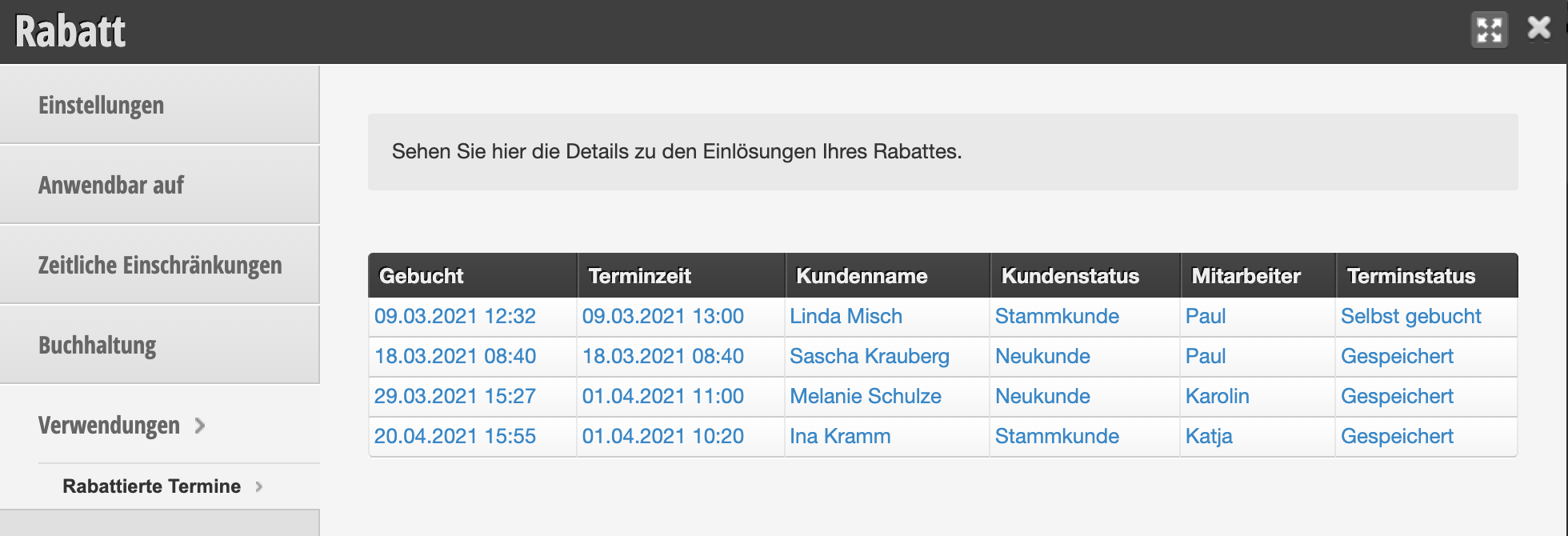
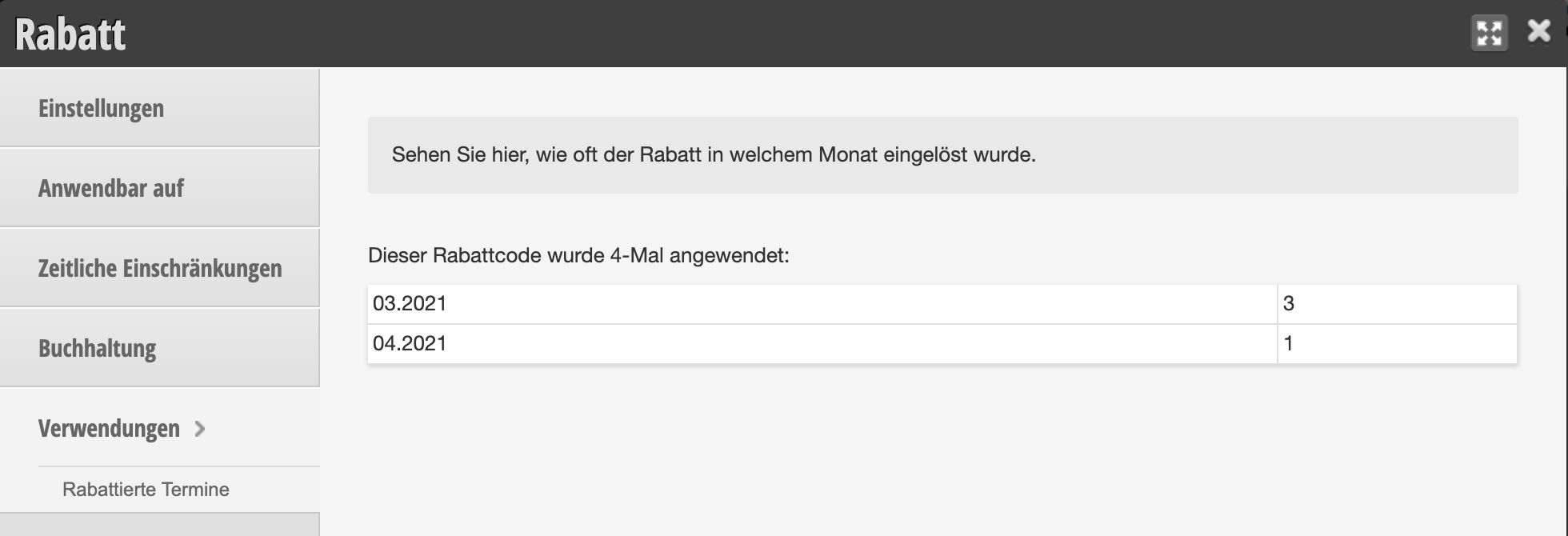
You can see how often and on which dates a discount was used.
Discounts in the cash register

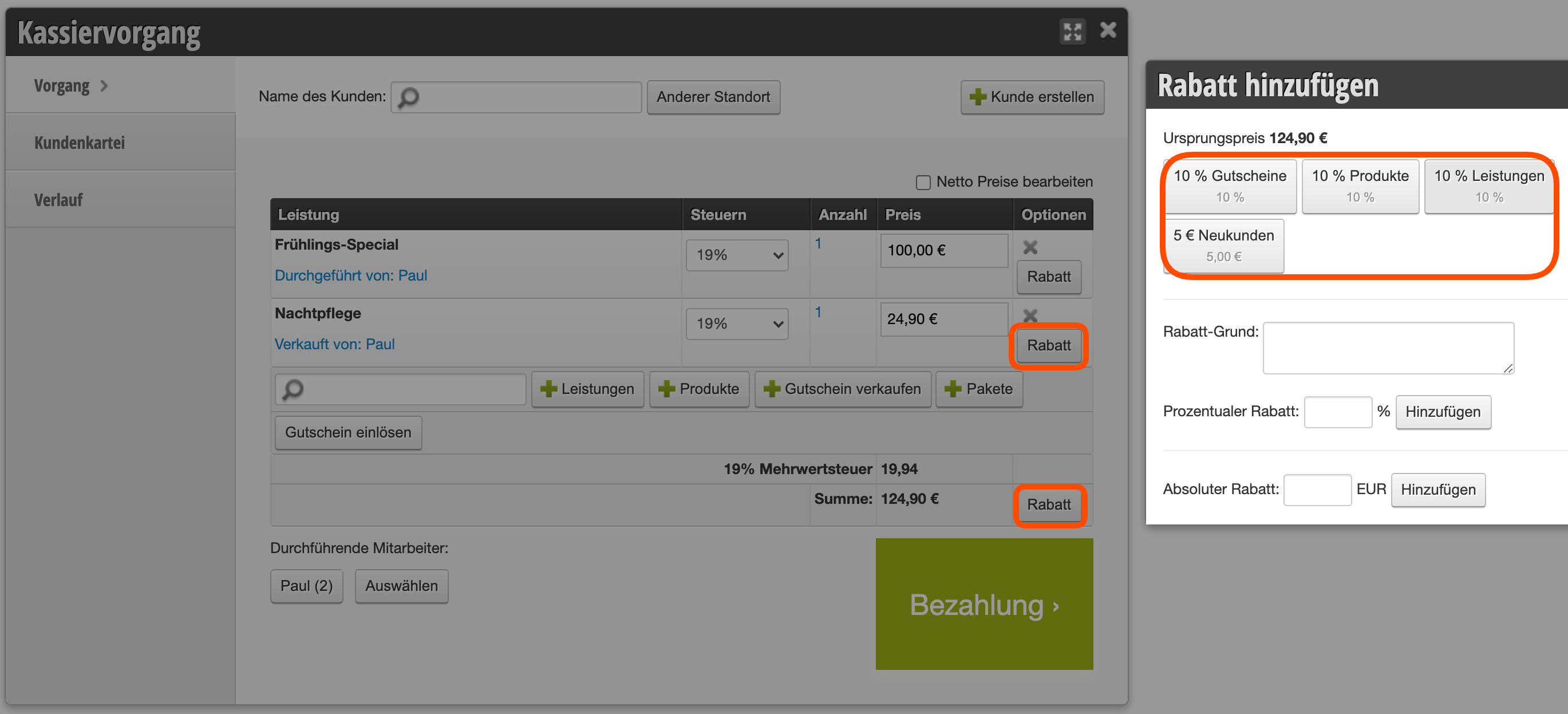
In the cash register you now have the option to select the discount templates. The following options are available to you:

  • Click the discount button next to a product/service to apply the desired discount to that item only.
  • Click the discount button next to the total amount to either apply a discount to the total amount or, if you have limited the discount template that way, only the desired items will be discounted automatically.
Categories: Vouchers
This manual is a service by belbo. Legal notice