
belbo
  • Overview
    • Getting to know Belbo
    • Location Settings
    • Switch to Belbo
    • Calendar View & Navigation
    • Recurring Appointments & Courses
    • Appointment Entry & Management
    • Logins & Permissions
    • Multiple Locations & Head Office
    • Manage Employees
    • Absences & Holidays
    • General
    • Working Hours
    • Time Tracking
    • Data Protection (GDPR)
    • Customer Communication (Email, SMS)
    • Customer Management & Records
    • Bonus & Loyalty Programs
    • Campaigns (Newsletter & SMS)
    • Marketing Consents (GDPR)
    • Tracking & Analytics
    • Overview
    • Services & Prices
    • Products
    • Service Packages & Subscriptions
    • Vouchers
    • Einkauf & Lieferanten
    • Lagerbestand & Inventur
    • Scanning & Sales
    • Cost of Goods & Expenses
    • Design & Texts
    • Setup & Settings
    • Integration (Website, Google, Instagram, Facebook)
    • Online payment
    • Accounting & Exports
    • Cash Register Settings & Hardware
    • Checkout process
    • Daily Closing & Reports
    • TSE & Cash Register Anti-Tampering Ordinance
    • Export Overview
    • Employee Utilization
    • Revenue & Reports
    • Belbo Satellite
    • Printer
    • EC Terminal & Card Payment
    • Troubleshooting Hardware
    • Scanner & POS Devices
    • General Settings
    • API & Integrations
    • Notifications & Emails
    • Contracts & Legal
Skip to content

Everything about: Online payment

Refund for online paid appointments

If you offer online payment, customers can pay for your appointments online. If an appointment is cancelled in time, the deposit must be refunded. You can decide yourself whether this should happen automatically or not.


You can access this area via Settings > Online Payment.
If this function is not activated, it can be activated via "Add function".


Option 1: Manual Refund

You can specify that the deposit will not be refunded automatically. In case of a refund, proceed as described here. In the online payment settings, the Appointment Cancellation option is set to "no action".

  • Disadvantage: If customers cancel unnoticed within the deadline, they will not receive the refund automatically and must contact you.
  • Advantage: You have an overview of the refunds

The payment can be refunded directly via the appointment.

If the appointment has already been removed, it can be refunded via the payment module under Settings > Online Payment:

Option 2: Automatic Refund

To automatically refund payments when the customer cancels the online appointment, the Appointment Cancellation option must be set to "Payment Reversal":

If this option is selected, you must specify under "Cancellation Deadlines" until when an appointment can be cancelled in time:

Alternative: Replacement Voucher (in the future)

We are planning to enable the issuance of a voucher as an alternative to refunds. However, as of 11/2025, this function is not yet available.

Important Prerequisite

To ensure that the deposits paid can be refunded to customers, you must set a sufficiently high minimum balance in your PayPal or Stripe payment account that always remains in the account.

  • Help article on Minimum balance at Stripe
  • At PayPal, the minimum balance is set up as part of setting up an automatic transfer. Help article on Automatic transfer at PayPal

Refund online payments manually

If customers cancel an appointment that has already been paid (or partially paid) online, the money is not automatically refunded to the customer.


Refund payment

Go to "Settings" and select "Online Payment", then choose the desired payment provider under "Payment Transactions". Then click on the amount:

The amount can then be (partially) refunded:

Advance payments for future appointments

This function gives you the ability to accept advance payments on-site for appointments in the future and record them correctly.


You can activate this function via Settings > Add Function > Cash Register System > Advance Payments.


1. If you want to record an advance payment for an appointment, open the corresponding appointment and click on Cash Register.

2. Then click on the "Record Advance Payment" button:

3. In the subsequent dialog, select the payment method with which the advance payment should be made and the advance payment amount:

4. Subsequently, a walk-in appointment opens for today, which can be settled with the desired payment method.

5. Your advance payment has now been recorded and is noted accordingly in the appointment. On the day of the appointment that was paid in advance, redemption is then possible:


Send Advance Payment Link via Email

If the customer makes the appointment by phone and is not on-site to make the advance payment directly, a payment link can be sent to her via email. Prerequisite: Online payment is set up.

After clicking on Cash Register > Advance Payment, the message can be sent using the "Send Advance Payment Request via Email" option.

Automatische Verbuchung bei Onlinebezahlung

In den Onlinebezahlungseinstellungen kann festgelegt werden, dass Onlinezahlungen automatisch in der Kasse verbucht werden sollen. Wir erklären hier, was die Vor- und Nachteile dieser Verbuchung sind und was die Alternative ist.

In diesen Bereich gelangen Sie über Einstellungen > Onlinebezahlung > Verbuchung
Sollte diese Funktion nicht aktiviert sein, kann sie über „Einstellungen > Funktion hinzufügen“ aktiviert werden.

Read more →

Split Payment with Online Payment

If you offer online payment, it can happen that customers have already paid part of the invoice amount online and want to settle the rest on-site with a different payment method.

Prepaid appointments in the calendar

If a customer has already paid for the appointment, you can see this from the icon on the appointment. This displays the payment method that the customer selected online.

Process split payment

  1. After you have added all invoice items, click on "Payment" in the checkout process
  2. First click on the payment method that the customer has already settled online, for example "Card" or "PayPal".
  3. Then select the amount paid on the number pad.
  4. Click on the payment method that the customer chooses on-site, for example "Cash".
  5. Select the green button to complete.
Example:
A customer books an appointment worth 90 € and has already paid 45 € online by credit card and the rest on-site in cash. This appointment is recorded as follows:

Please click on the video to start it:

/wp-content/uploads/2021/04/belbo-splitzahlung.mp4

Online payment

You can enable online payment for customers who book appointments with you online.


You can access this area via Settings > Online Payment.
If this function is not enabled, it can be activated via "Add function".


Payment Methods

Before you can offer online payment, you need an account with the payment service provider of your choice. In Belbo online booking, you can offer the following payment methods:

  • Credit card & Klarna with Stripe
  • Online payment with PayPal

Configuration Options

After you have set up a Stripe or PayPal merchant account, you can configure online booking according to your needs. You have the following options:

  • All customers must pay online or make a deposit for all services.
  • Customers can pay online or make a deposit for services, but don't have to.
  • Only specific services must be paid or deposited directly online.
  • Above a certain service value, customers must pay or make a deposit online.
  • Customers who already pay online for services receive a discount.
  • Customers with a specific customer status must always pay online (suitable for unreliable customers).
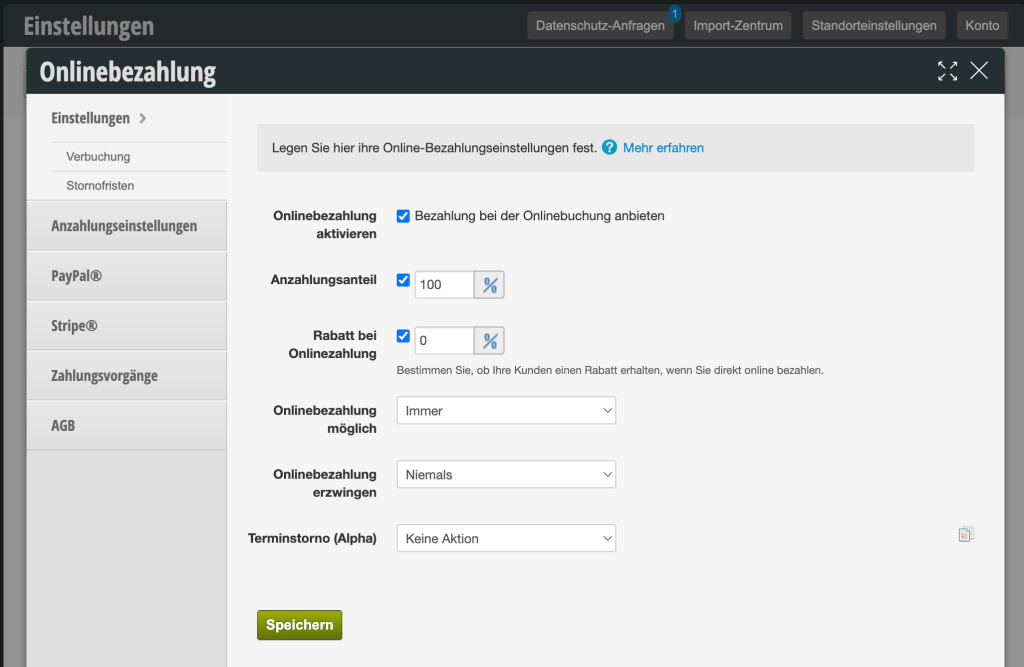

Enable online payment
In the online payment overview, you can enable payment.

Deposit amount
The deposit amount determines how much of the final price must be paid online. With a deposit amount of "100%", the entire service must be paid online.

Discount for online payment
To encourage your customers to pay online, you can offer a discount if a customer pays directly.

Force online payment
You can determine that your customers must always pay online. In this case, activate the field "Appointments should always be paid online" and enter the value above which online payment must be made. This way you can determine that only appointments above a high value must be paid directly. If you enter "0" as the value, all appointments must always be paid online. Customers will then no longer have the option to pay on-site.

Terms and Conditions
Enter your online payment terms and conditions.
Please note that we cannot advise you on the content of your terms and conditions. Please discuss this with a legal advisor or your legal counsel.

Appointment cancellation
You can determine whether the amount is automatically refunded or not in case of timely cancellation. Learn more here.


You can set special regulations for online payment for each of your services. You will find these in the online settings of each of your services.


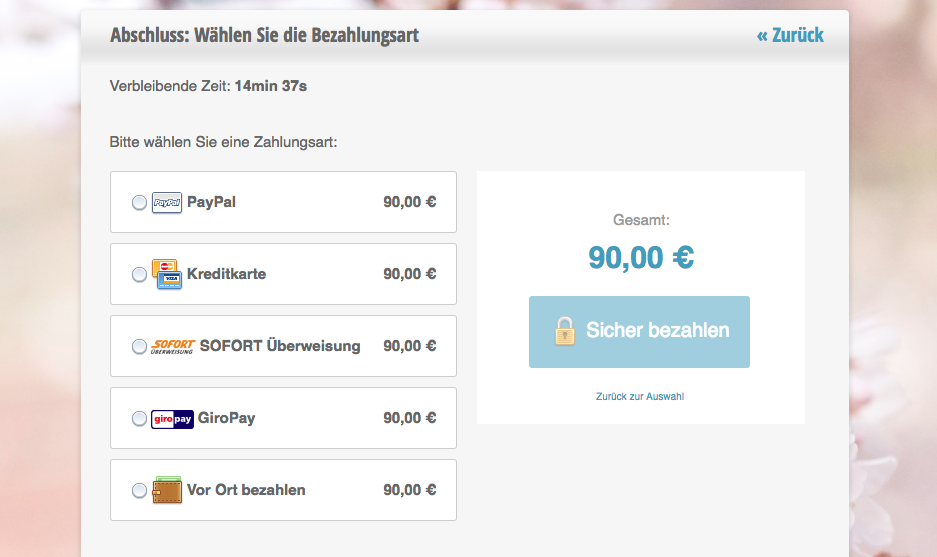
Example of online payment at the end of a booking:
Find out here how to set up your own gift certificate shop, so your customers can buy and print gift certificates online themselves.


Please note that fees apply to online payments according to your contract with Stripe or PayPal. Belbo does not charge extra for integrating online payment into your booking page.


Online payment with Stripe


You can find your online payment settings under Settings > Online Payment.

With Stripe, you can accept online payments via credit card, Apple Pay, Google Pay, TWINT, Klarna and SEPA direct debit.

You can find all information on how to set up Stripe's payment functions for your online booking in our video.


Update to the video as of 03/2025: In the current version of Stripe, the required codes can be found using the search term "API" in the search field at the top of the Stripe overview page:

Search field in Stripe

Overview page with displayable secret key

Links from the video:
Stripe homepage
Stripe Docs test card numbers


Please note that fees apply to online payments according to your contract with Stripe.
Belbo does not charge extra for integrating online payment into your booking page.

Activate payment methods in Stripe

In Stripe, the desired payment methods (credit cards, Klarna, Twint, etc.) can be found via the "Payment Methods" menu item. The easiest way to reach this is to enter this term in the search field:

Here you can select the desired methods from the extensive list. In the Belbo online booking or in the shop, only those payment methods can be offered that are also activatable in Belbo. In Belbo they must also be activated under Settings > Online Payment > Stripe:

If you want to activate online payment via PayPal, you can find more information here.

Tip: Configure minimum credit balance

So that your customers automatically receive their money refunded in case of a cancellation, we recommend depositing a minimum credit balance in your Stripe account settings:

Online payment with PayPal

You can offer your customers who book appointments online the option to pay online via PayPal.

You can access this area via
Settings > Online Payment.
If this function is not activated, it can be activated via "Add Function".

1) Set up PayPal merchant account

If you do not yet have a PayPal merchant account, you will need to set one up first. This process takes only a few minutes. Please note that a private PayPal account is not sufficient for receiving payments.

Click on the PayPal business account page and first click on "Open a business account" and enter your information in the following steps. Then confirm the setup by clicking on the link that PayPal will send you to the email address you provided.

2.) Set up PayPal payment in Belbo Calendar

To set up online payment with PayPal, you will need the API credentials of your merchant account. The API is a programming interface that allows Belbo Calendar to communicate with your merchant account and verify payments.

View API credentials

  1. Log in to your PayPal merchant account and click on "Your Name" > "Account Settings" in the top right corner.
  2. Then click on "Edit" in the "API Access" section.
  3. On the following page, under "NVP/SOAP API Integration", click on "Manage API Permissions".
  4. Depending on the security settings you have configured, a code may be sent to your mobile phone, which you will first need to enter on the PayPal website.
  5. On the following page, you can read the required fields after clicking "Show" for username, password and signature. If no signature has been created yet, you can request one with a click. You will then see the following fields:

Insert API credentials into Belbo Calendar

You can access this area via Settings > Online Payment > PayPal.
  1. Open your Belbo Calendar in a new browser tab and click on "Settings" then "Online Payment > PayPal"
  2. Activate the checkbox next to "Offer PayPal" and enter the API credentials displayed in the previous step for API username, password and signature.
    Please make sure not to enter any spaces after the signature when inserting. This can easily happen by accident when copying and pasting.
  3. Click on "Save"

Activate online payment

Your PayPal merchant account is now linked to Belbo Calendar and can be offered as a payment option for appointments and vouchers.

To activate online payment, please continue on this page.

Please note that fees according to your agreement with PayPal apply to online payments. Belbo does not charge separately for integrating online payment into your booking page.
For detailed information on online payment with PayPal, credit cards, Sofort transfer, Apple Pay and Google Pay, please see here.
This manual is a service by belbo. Legal notice