belbo
  • Overview
    • Getting to know Belbo
    • Location Settings
    • Switch to Belbo
    • Calendar View & Navigation
    • Recurring Appointments & Courses
    • Appointment Entry & Management
    • Logins & Permissions
    • Multiple Locations & Head Office
    • Manage Employees
    • Absences & Holidays
    • General
    • Working Hours
    • Time Tracking
    • Data Protection (GDPR)
    • Customer Communication (Email, SMS)
    • Customer Management & Records
    • Bonus & Loyalty Programs
    • Campaigns (Newsletter & SMS)
    • Marketing Consents (GDPR)
    • Tracking & Analytics
    • Overview
    • Services & Prices
    • Products
    • Service Packages & Subscriptions
    • Vouchers
    • Purchasing & Suppliers
    • Stock & Inventory
    • Scanning & Sales
    • Materials & Costs
    • Design & Texts
    • Setup & Settings
    • Integration (Website, Google, Instagram, Facebook)
    • Online payment
    • Accounting & Exports
    • Cash Register Settings & Hardware
    • Checkout process
    • Daily Closing & Reports
    • TSE & Cash Register Anti-Tampering Ordinance
    • Export Overview
    • Employee Utilization
    • Revenue & Reports
    • Belbo Satellite
    • Printer
    • EC Terminal & Card Payment
    • Troubleshooting Hardware
    • Scanner & POS Devices
    • General Settings
    • API & Integrations
    • Notifications & Emails
    • Contracts & Legal
Skip to content

Advance payments for future appointments

This function gives you the ability to accept advance payments on-site for appointments in the future and record them correctly.


You can activate this function via Settings > Add Function > Cash Register System > Advance Payments.


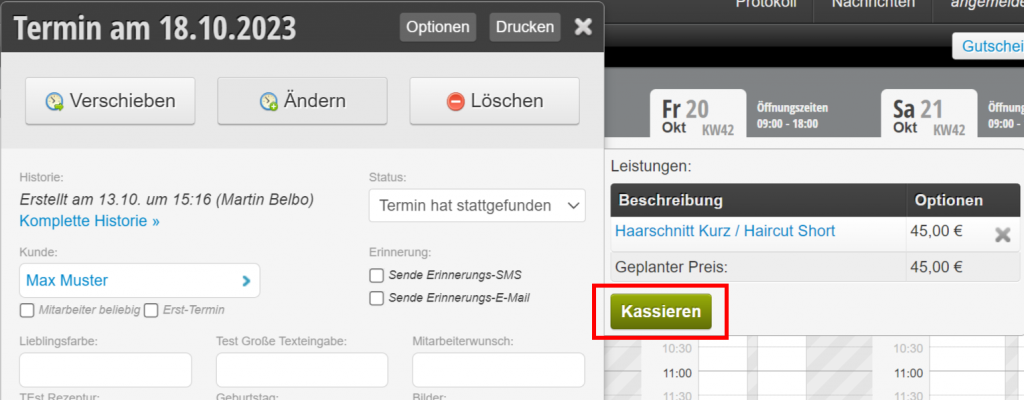
1. If you want to record an advance payment for an appointment, open the corresponding appointment and click on Cash Register.

2. Then click on the "Record Advance Payment" button:
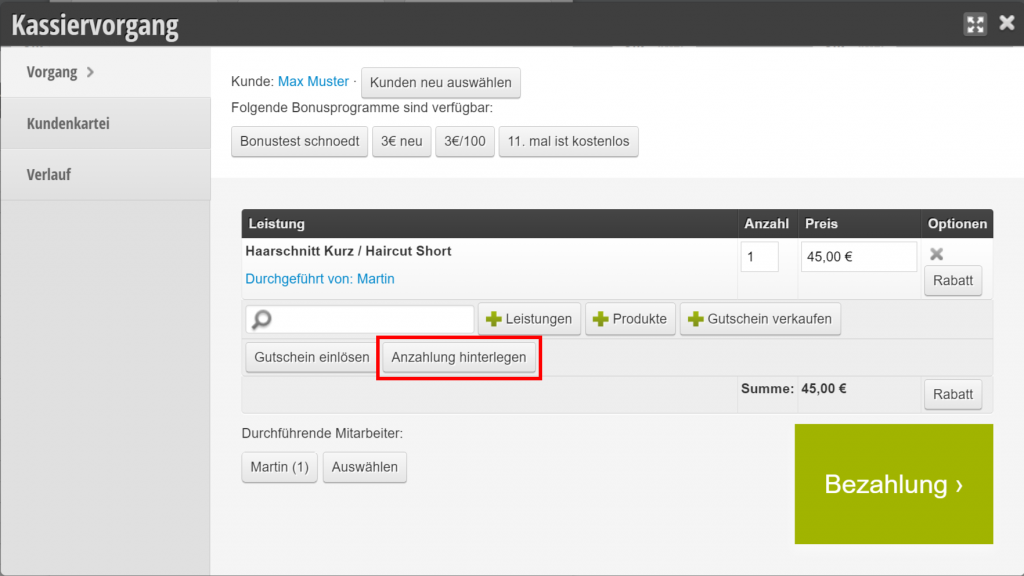
3. In the subsequent dialog, select the payment method with which the advance payment should be made and the advance payment amount:
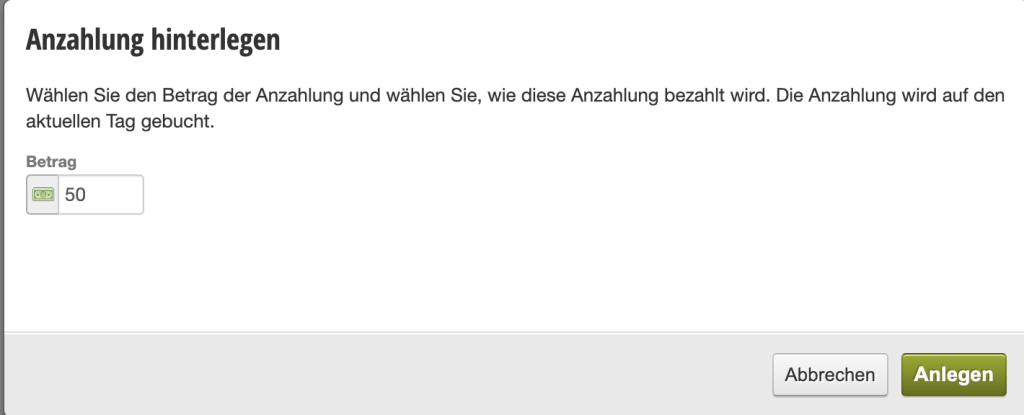
4. Subsequently, a walk-in appointment opens for today, which can be settled with the desired payment method.
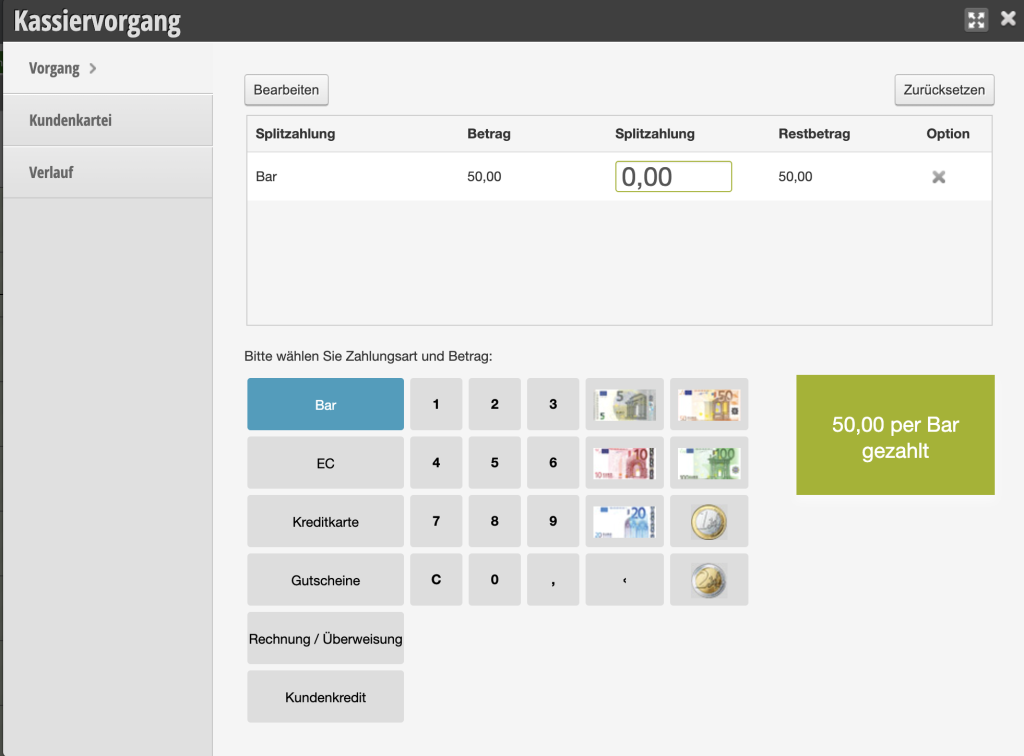
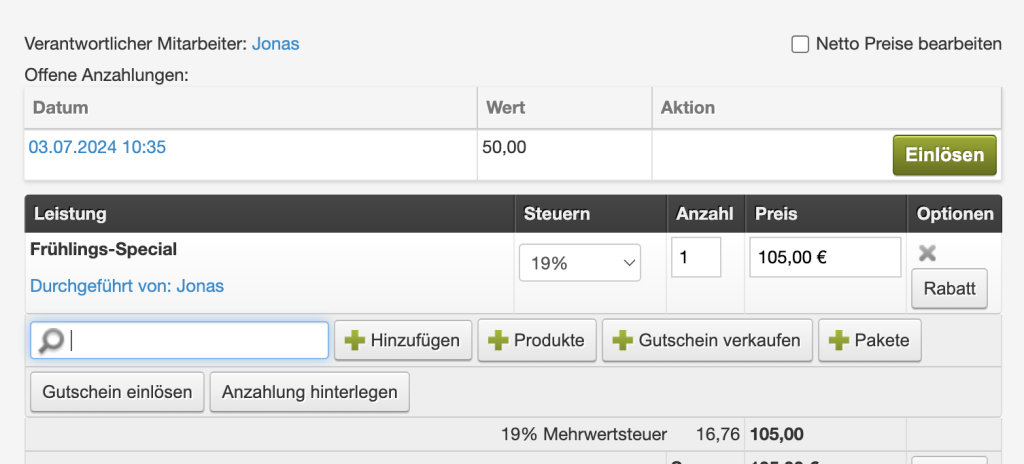
5. Your advance payment has now been recorded and is noted accordingly in the appointment. On the day of the appointment that was paid in advance, redemption is then possible:


Send Advance Payment Link via Email

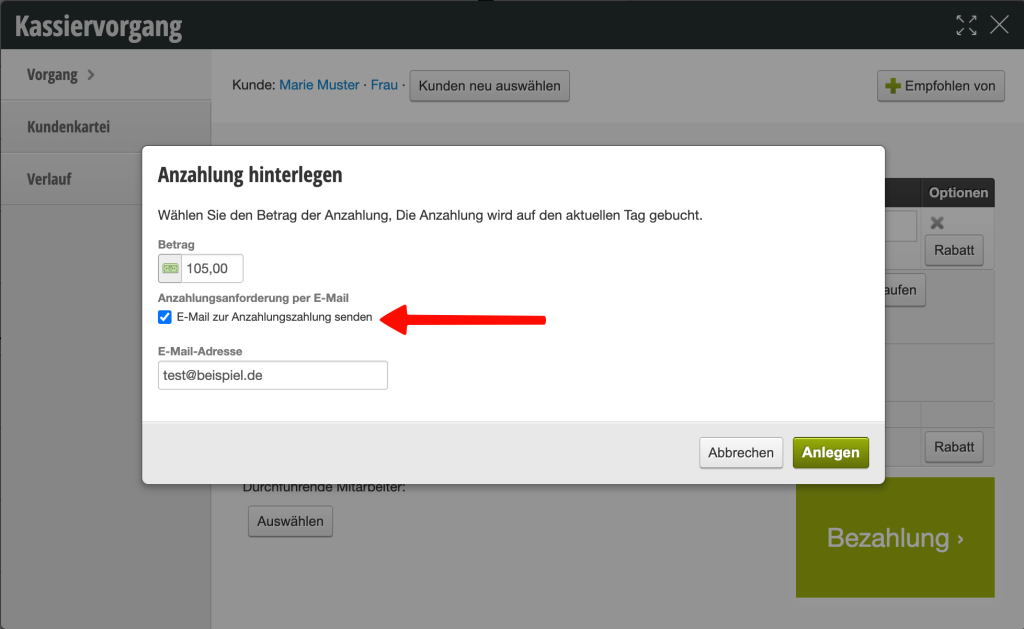
If the customer makes the appointment by phone and is not on-site to make the advance payment directly, a payment link can be sent to her via email. Prerequisite: Online payment is set up.

After clicking on Cash Register > Advance Payment, the message can be sent using the "Send Advance Payment Request via Email" option.

Categories: Online payment
Tags: Anzahlung
This manual is a service by belbo. Legal notice