
belbo
  • Overview
    • Getting to know Belbo
    • Location Settings
    • Switch to Belbo
    • Calendar View & Navigation
    • Recurring Appointments & Courses
    • Appointment Entry & Management
    • Logins & Permissions
    • Multiple Locations & Head Office
    • Manage Employees
    • Absences & Holidays
    • General
    • Working Hours
    • Time Tracking
    • Data Protection (GDPR)
    • Customer Communication (Email, SMS)
    • Customer Management & Records
    • Bonus & Loyalty Programs
    • Campaigns (Newsletter & SMS)
    • Marketing Consents (GDPR)
    • Tracking & Analytics
    • Overview
    • Services & Prices
    • Products
    • Service Packages & Subscriptions
    • Vouchers
    • Purchasing & Suppliers
    • Stock & Inventory
    • Scanning & Sales
    • Cost of goods & expenses
    • Design & Texts
    • Setup & Settings
    • Integration (Website, Google, Instagram, Facebook)
    • Online payment
    • Accounting & Exports
    • Cash Register Settings & Hardware
    • Checkout process
    • Daily Closing & Reports
    • TSE & Cash Register Anti-Tampering Ordinance
    • Export Overview
    • Employee Utilization
    • Revenue & Reports
    • Belbo Satellite
    • Printer
    • EC Terminal & Card Payment
    • Troubleshooting Hardware
    • Scanner & POS Devices
    • General Settings
    • API & Integrations
    • Notifications & Emails
    • Contracts & Legal
Skip to content

Online payment

You can enable online payment for customers who book appointments with you online.


You can access this area via Settings > Online Payment.
If this function is not enabled, it can be activated via "Add function".


Payment Methods

Before you can offer online payment, you need an account with the payment service provider of your choice. In Belbo online booking, you can offer the following payment methods:

  • Credit card & Klarna with Stripe
  • Online payment with PayPal

Configuration Options

After you have set up a Stripe or PayPal merchant account, you can configure online booking according to your needs. You have the following options:

  • All customers must pay online or make a deposit for all services.
  • Customers can pay online or make a deposit for services, but don't have to.
  • Only specific services must be paid or deposited directly online.
  • Above a certain service value, customers must pay or make a deposit online.
  • Customers who already pay online for services receive a discount.
  • Customers with a specific customer status must always pay online (suitable for unreliable customers).
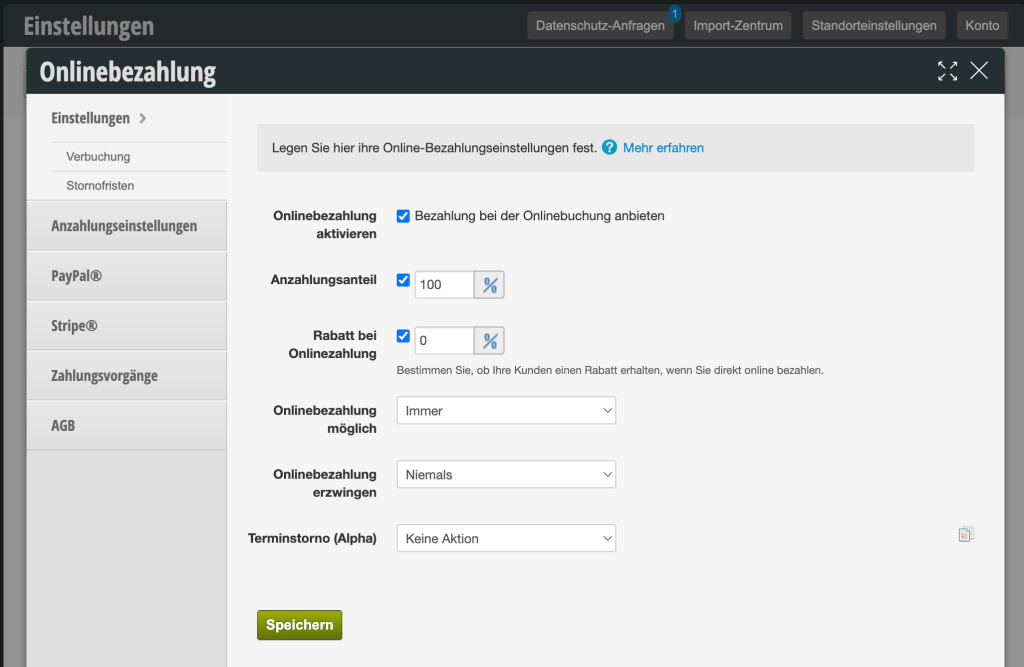

Enable online payment
In the online payment overview, you can enable payment.

Deposit amount
The deposit amount determines how much of the final price must be paid online. With a deposit amount of "100%", the entire service must be paid online.

Discount for online payment
To encourage your customers to pay online, you can offer a discount if a customer pays directly.

Force online payment
You can determine that your customers must always pay online. In this case, activate the field "Appointments should always be paid online" and enter the value above which online payment must be made. This way you can determine that only appointments above a high value must be paid directly. If you enter "0" as the value, all appointments must always be paid online. Customers will then no longer have the option to pay on-site.

Terms and Conditions
Enter your online payment terms and conditions.
Please note that we cannot advise you on the content of your terms and conditions. Please discuss this with a legal advisor or your legal counsel.

Appointment cancellation
You can determine whether the amount is automatically refunded or not in case of timely cancellation. Learn more here.


You can set special regulations for online payment for each of your services. You will find these in the online settings of each of your services.


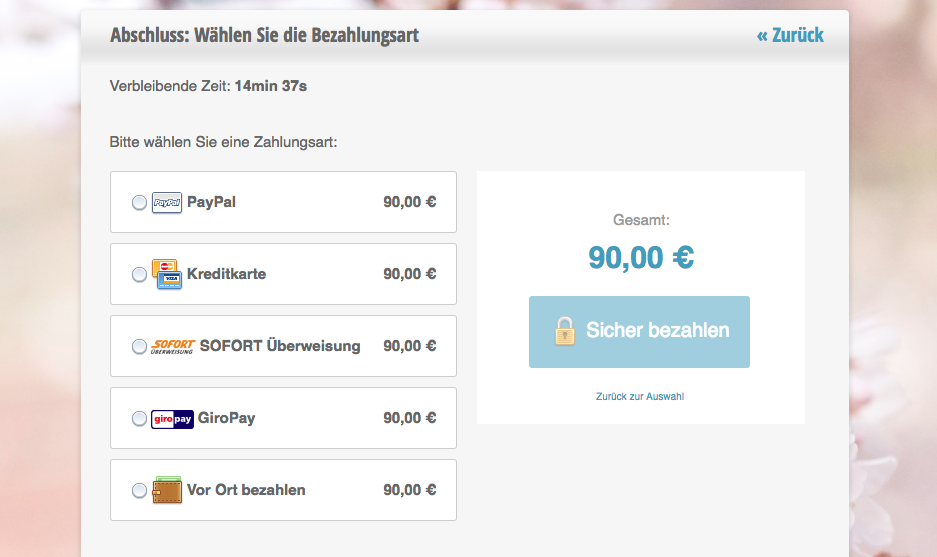
Example of online payment at the end of a booking:
Find out here how to set up your own gift certificate shop, so your customers can buy and print gift certificates online themselves.


Please note that fees apply to online payments according to your contract with Stripe or PayPal. Belbo does not charge extra for integrating online payment into your booking page.


Categories: Online payment
Tags: Onlinebezahlung, Zahlungseinstellungen
This manual is a service by belbo. Legal notice