belbo
  • Overview
    • Getting to know Belbo
    • Location Settings
    • Switch to Belbo
    • Calendar View & Navigation
    • Recurring Appointments & Courses
    • Appointment Entry & Management
    • Logins & Permissions
    • Multiple Locations & Head Office
    • Manage Employees
    • Absences & Holidays
    • General
    • Working Hours
    • Time Tracking
    • Data Protection (GDPR)
    • Customer Communication (Email, SMS)
    • Customer Management & Records
    • Bonus & Loyalty Programs
    • Campaigns (Newsletter & SMS)
    • Marketing Consents (GDPR)
    • Tracking & Analytics
    • Overview
    • Services & Prices
    • Products
    • Service Packages & Subscriptions
    • Vouchers
    • Purchasing & Suppliers
    • Stock & Inventory
    • Scanning & Sales
    • Cost of Goods & Expenses
    • Design & Texts
    • Setup & Settings
    • Integration (Website, Google, Instagram, Facebook)
    • Online payment
    • Accounting & Exports
    • Cash Register Settings & Hardware
    • Checkout process
    • Daily Closing & Reports
    • TSE & Cash Register Anti-Tampering Ordinance
    • Export Overview
    • Employee Utilization
    • Revenue & Reports
    • Belbo Satellite
    • Printer
    • EC Terminal & Card Payment
    • Troubleshooting Hardware
    • Scanner & POS Devices
    • General Settings
    • API & Integrations
    • Notifications & Emails
    • Contracts & Legal
Skip to content

Everything about: Scanner & POS Devices

mPOP Installation with Official Driver (MacOS)

If you want to use the mPOP cash register with the official driver, here are the instructions:


  1. Download the mPOP driver software: Download Driver. Select the following file: 
  2. Extract the downloaded file and open the file "starcupsdrv-4.8.0.pkg" in the "Driver" folder
  3. Complete the file according to the instructions. Your computer may need to be restarted.

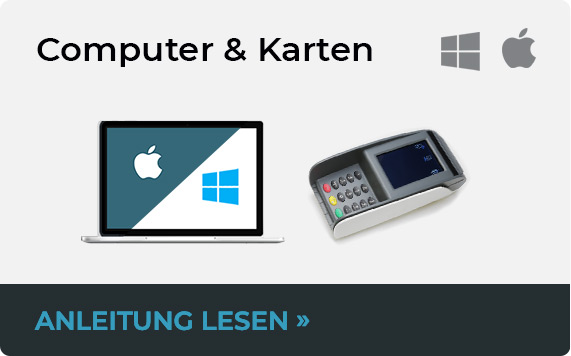
Computer and cash register hardware

Belbo offers the ability to directly integrate with a variety of external devices. You can seamlessly integrate printers, cash drawers, card payment terminals, and scanners into the system.

Find out about compatible devices via the following link:

Recommended accessories

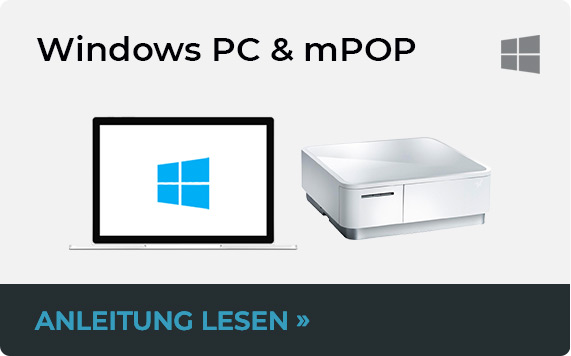
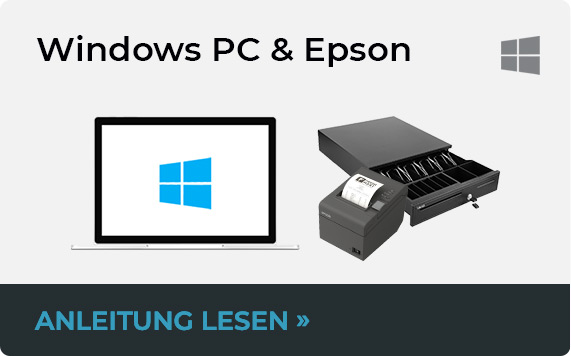
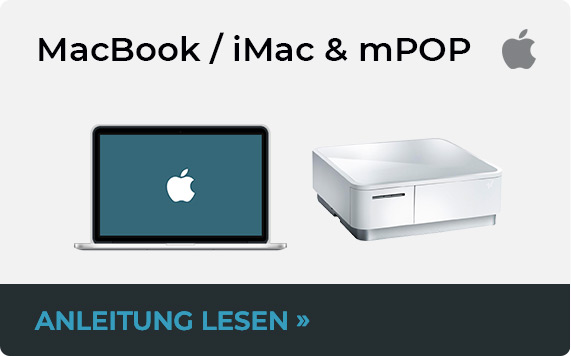
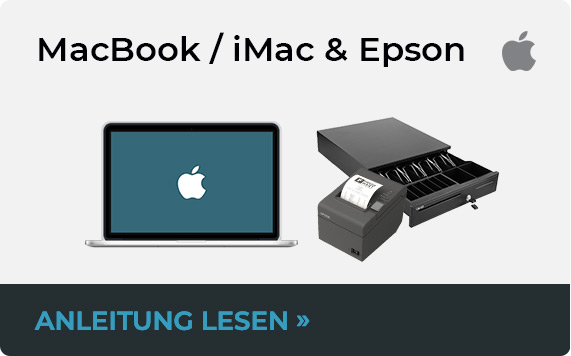
Installation guides

To successfully connect your devices to Belbo, certain instructions must be followed. These depend on the type of your computer and the respective device. You can find all necessary installation guides here:

Installation guides

Troubleshooting

If you have already installed a device and are still experiencing problems, we have developed comprehensive troubleshooting guides for you. These can be accessed via the following link:

Troubleshooting pages

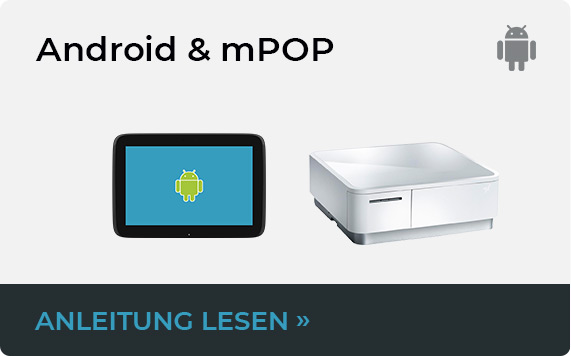
mPOP Cash Register Installation for Android

Cash register installation using an Android device is not intended. Please print receipts via computer or notebook. You can certainly use the Android device as a cash register device and prepare & collect the receipt. However, printing and cash drawer opening must then be done via the location computer.

Suitable Printers for the Belbo TSE

If your company is based in Germany, you will likely need a Technical Security Device. We recommend certain bond printers in connection with the TSE.

German flagThis article is particularly relevant for users from Germany.

Notes on Bond Printers and TSE

The TSE generates bar codes that are printed on every receipt. Older printers may not be able to print these codes. In this case, only a long number code is output, which however is not scannable. The number code is also valid, but a quick and easy verification of your TSE is not possible and could take somewhat more time during a tax audit.

Recommended Printers

To ensure that your printer displays the code correctly, please select one of the recommended devices listed here: https://belbo.com/zubehoer/

Example of receipt with long number code in the footer area:

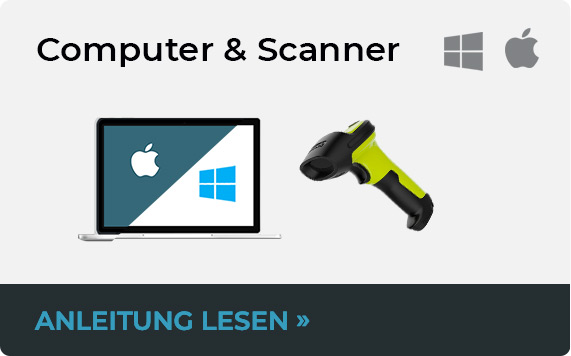
Installation and Use of the Socket Mobile Scanner

With the Mobile Socket Scanner CHS 7Ci you can scan barcodes both for selling products and for storing them in the system.
This article covers connecting to an iOS device (iPad or iPhone), Android device (e.g. Samsung), a Mac or a Windows PC.


Turning on:
Hold down the small on/off button until the LED lights up blue and the CHS emits a signal tone twice (low-high).

Important:
The device can only be connected to one device at a time via Bluetooth. Make sure that if you want to switch devices, you always stop the Bluetooth connection on the previous device. This applies in general to all Bluetooth devices and not just for this device configuration.

Note:
The Belbo software only supports HID mode. Please make sure that your barcode scanner is set to HID mode so that data can be transmitted correctly.

How to check and change the mode:

  1. Consult your scanner's user manual to enable HID mode.
  2. Scan the corresponding configuration barcode from the manual.
  3. Test the input in a text editor to ensure that HID mode is active.

Installation on an iOS device

Connect the device via Bluetooth. You can then use the device via browser & app.

Installation on an Android device

Connect the device via Bluetooth. You can then use the device via browser & app.

Installation on a Mac

Connect the device via Bluetooth. You can then use the device via browser & app.

Installation on a Windows PC

Connect the device via Bluetooth. You can then use the device via browser & app.

Testing the configuration

  1. Open any text editor
  2. Scan a barcode
  3. Is there visual or acoustic feedback?

    • Then the scanner is basically working.
    • Otherwise check the connection to the device or the battery level of the device.

  4. Does the barcode appear as text in the text editor?

    • Then everything is set up correctly!
    • Otherwise the scanner may not be in HID mode. Please reset the device according to the instructions or switch it to HID mode.

Scan incoming goods

You can store your product inventory in belbo to always keep an overview of your warehouse management. To update inventory more easily when receiving orders, newly received products can be scanned to increase inventory.

How to scan used products to reduce stored inventory you can find out here.

Goods receipt in Belbo

When you use the belbo ordering function, the number of ordered products is automatically added to the inventory of the respective product upon goods receipt.
However, you can also scan the received products.

Scan goods receipt

  • Go to Settings > Prices & Competencies > Products in your belbo system.
  • Click on "+Goods receipt" here.
  • Scan the product with your barcode scanner.
  • If the barcode has been correctly assigned to the product in belbo, it will be recognized and added to inventory. You can then simply continue scanning without performing any further confirmation.
  • If the recognized barcode has not yet been assigned to any product, a dialog will appear in which you can enter details such as the product name and price, thus adding the product to your inventory.

Scan inventory consumption

You can store your product inventory in belbo to always keep an overview of your goods management. To make updating inventory even easier when products are consumed, used product packaging can be scanned to reduce the stored inventory.

To find out how to scan newly received products to increase the stored inventory, click here.

Product consumption in Belbo

When products are sold via the cash register, the inventory of the sold goods is automatically reduced by the number of items sold.
For consumption on-site – for example with cabin goods – you can scan the consumed products. A common procedure is to collect the packaging of consumed cabin goods in a suitable container and scan them after a certain period of time (for example at the end of the day or weekend).

Scan consumed products

  • Go to Settings > Prices & Skills > Products in your belbo system
  • Click "+Product consumption" here
  • Scan the product with your barcode scanner
  • If the barcode has been correctly assigned to the product in belbo, it will be recognized and deducted from inventory.

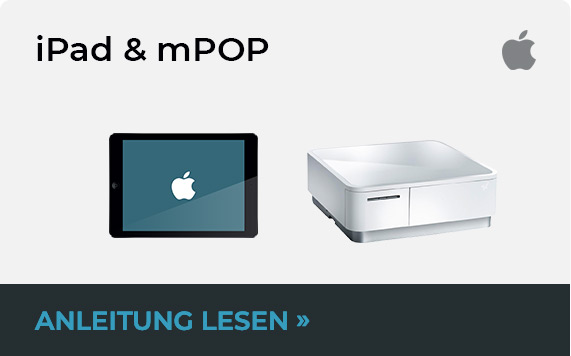
mPOP Cash Register Installation for iPad


Learn here how to use your mPOP cash drawer with an iPad.


You can connect your mPOP cash register with Belbo to print receipts faster and open the cash drawer with one click. Please follow these steps:

  • Step 1: Configure printer connection in Belbo
  • Step 2: Download Belbo App from the App Store
  • Step 3: Connect mPOP via Bluetooth to the iPad


Step 1 of 3: Install Belbo App

Now open the App Store on your iPad and download the Belbo App.

Step 2 of 1: Connect Cash Drawer via Bluetooth

  1. Turn on the cash register so it can be found via Bluetooth
  2. Open the iPad's Bluetooth settings and connect the cash register to the iPad
  3. Important: In the iPad's Bluetooth settings, you can now enable the Belbo App to access Bluetooth.

Step 3 of 3: Connect Cash Drawer in the Belbo App

  1. Tap the blue icon in the top left of the Belbo App
  2. Go to "Receipt Printer" in the menu and then to "Bluetooth Cash Register"
  3. The mPOP device should now be selectable

Now open the app you downloaded above and log in. In the side menu you will find the menu item "Receipt Printer > Bluetooth Cash Register". Here you can select the mPOP cash register.

Test

Now you can cash an appointment in the app and print the receipt.


If you encounter problems with the connection, you can find help here: Troubleshooting for iPad and mPOP cash register usage.

Passende Kassengeräte zur Belbo-Kasse

Wenn Sie die Belbo Kasse nutzen möchten, können Sie zwischen einer Vielzahl an Geräten auswählen. Hier finden Sie eine Übersicht über die möglichen Kombinationen und wie man sie einrichtet.

Read more →

Welche Geräte benötige ich für Belbo?

Wenn Sie Belbo im Unternehmen nutzen möchten, ist die richtige Hardware eine wichtige Komponente Ihrer Arbeitsgestaltung. Belbo bietet Ihnen die Möglichkeit, aus einer Vielzahl von Geräten zu wählen. Hier stellen wir Ihnen verschiedene Varianten vor.
Read more →

Post navigation

← Older posts
This manual is a service by belbo. Legal notice