
belbo
  • Overview
    • Getting to know Belbo
    • Location Settings
    • Switch to Belbo
    • Calendar View & Navigation
    • Recurring Appointments & Courses
    • Appointment Entry & Management
    • Logins & Permissions
    • Multiple Locations & Head Office
    • Manage Employees
    • Absences & Holidays
    • General
    • Working Hours
    • Time Tracking
    • Data Protection (GDPR)
    • Customer Communication (Email, SMS)
    • Customer Management & Records
    • Bonus & Loyalty Programs
    • Campaigns (Newsletter & SMS)
    • Marketing Consents (GDPR)
    • Tracking & Analytics
    • Overview
    • Services & Prices
    • Products
    • Service Packages & Subscriptions
    • Vouchers
    • Purchasing & Suppliers
    • Stock & Inventory
    • Scanning & Sales
    • Cost of goods & expenses
    • Design & Texts
    • Setup & Settings
    • Integration (Website, Google, Instagram, Facebook)
    • Online payment
    • Accounting & Exports
    • Cash Register Settings & Hardware
    • Checkout process
    • Daily Closing & Reports
    • TSE & Cash Register Anti-Tampering Ordinance
    • Export Overview
    • Employee Utilization
    • Revenue & Reports
    • Belbo Satellite
    • Printer
    • EC Terminal & Card Payment
    • Troubleshooting Hardware
    • Scanner & POS Devices
    • General Settings
    • API & Integrations
    • Notifications & Emails
    • Contracts & Legal
Skip to content

Scan incoming goods

You can store your product inventory in belbo to always keep an overview of your warehouse management. To update inventory more easily when receiving orders, newly received products can be scanned to increase inventory.

How to scan used products to reduce stored inventory you can find out here.

Goods receipt in Belbo

When you use the belbo ordering function, the number of ordered products is automatically added to the inventory of the respective product upon goods receipt.
However, you can also scan the received products.

Scan goods receipt

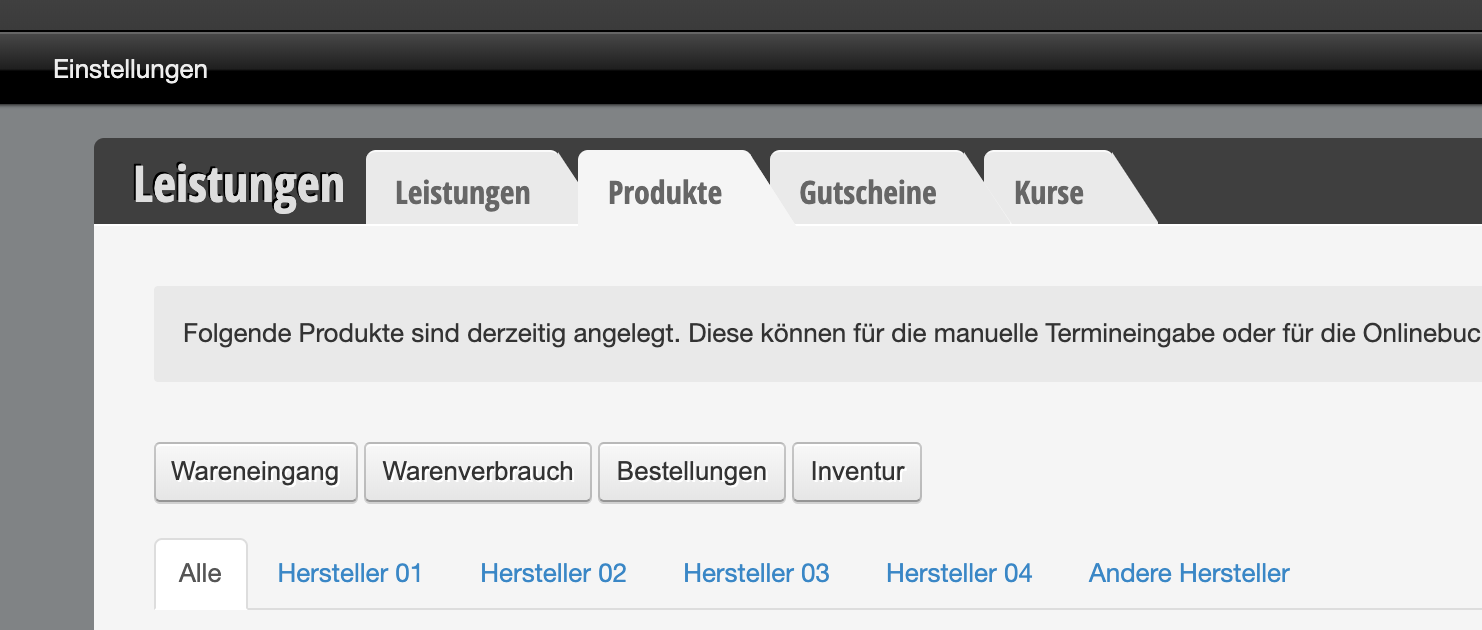
  • Go to Settings > Prices & Competencies > Products in your belbo system.
  • Click on "+Goods receipt" here.
  • Scan the product with your barcode scanner.
  • If the barcode has been correctly assigned to the product in belbo, it will be recognized and added to inventory. You can then simply continue scanning without performing any further confirmation.
  • If the recognized barcode has not yet been assigned to any product, a dialog will appear in which you can enter details such as the product name and price, thus adding the product to your inventory.
Categories: Scanner & POS Devices
This manual is a service by belbo. Legal notice