Der Arbeitszeitensaldo (Über-/Minusstunden) eines Teammitglieds wird zum Jahreswechsel nicht automatisch übernommen, sondern startet am 1. Januar immer wieder bei null. Hier erklären wir, warum das so ist, wie Sie einen bestehenden Saldo dennoch bewusst ins neue Jahr mitnehmen können und wie das auch mit Resturlaub aus dem Vorjahr funktioniert.
Everything about: Time Tracking
Time tracking: Settings
(Article in progress) Here we explain the configuration options for the "Time Tracking" function (or "Check-In" in Switzerland).

Automatic Breaks
In the shift plan settings, it is possible to activate automatic break times. If no breaks are entered for an employee on a given day, the legally required break time will be automatically assumed. This makes sense if your employees reliably take their breaks of the correct length spontaneously during the day without wanting to schedule them in advance. However, we recommend planning fixed breaks or always recording breaks when they are taken spontaneously.
If the function is active, you can recognize this by the asterisk markings in the evaluation:

If you do not want this function, you can disable it completely in the Shift Plan Settings. If you want to use this function only in the shift plan, but not in time tracking, you can activate the corresponding option in the Settings tab of time tracking:

Count Work Time Gaps as Work Time
If, as in the example above on the right side, you represent breaks by 2 or more work times in the calendar, you have the option to decide how the recording behaves. In the "Settings" tab of time tracking, you will find the "Work Time Gaps" option.

If this option is disabled, the full break time is always assumed, regardless of whether team members only log out and log back in for 10 minutes during a one-hour break. So if you want the exact logged-in time to be calculated when using multiple work times, activate this option. If a team member does not log out at all during the gap, it will then be counted as overtime.
All Articles at a Glance:
Evaluation of Time Recording
When you use time tracking with Belbo, all team members check in at the beginning of their work time and check out at the end. Here we explain what evaluations are available.
Working Time Report
Under Settings > Time Tracking > Report you will receive a comparison of the recorded and checked-in working times.
For the desired period (1) you will see the summary (2) as well as the results of the individual days (3), which add up to the current balance.

The report is prepared monthly and shows in a clear table the planned and actually worked time. Vacation or sick days are taken into account. Team members with appropriate admin rights can correct the recorded working times or make up for forgotten checkouts here (see section "Make Corrections" below).
Overview of recorded figures
In the table at the right edge of the employee line you will find the breakdown of planned working time, break times and checked-in times, as well as the number of overtime or undertime hours worked:

In the example above, 136 working hours minus breaks are scheduled for the employee in the work schedule. He does not log out and in during breaks. He was logged in for 136 hours and 49 minutes (5 days of vacation were automatically counted), which corresponds to 49 extra minutes for this month. In total, he has accumulated 1 hour and 45 minutes of overtime this year.
Daily Details & Balance
The table shows the individual days of the desired month with the planned and recorded hours. The total balance of overtime or undertime hours achieved on that day is also shown.
- Presence: Planned presence in the schedule. If you use the recording via target times, the target times entered in the employee file will be used for comparison instead.
- Breaks: The sum of break times scheduled in the work schedule
- Planned: The planned target time
- Checked In: The actual time checked in on this day ("actual time")
- Result: The difference between target and actual time on this day
- Balance: The total number of overtime or undertime hours achieved on this day since the beginning of the year

The color coding indicates that there is a significant deviation on a day compared to the target time. So significantly more (green) or significantly less (orange) work was done than planned.
Make Corrections
If check-in times contain errors, for example because a team member forgot to check in or out, a correction can be made. The requirement for this is that it is logged in with a login that has the appropriate rights.

To do this, simply click on the number in the "Checked In" row (1) on the incorrect day and correct the check-in and check-out times.
On the current day (2), this number (as well as the current overtime balance) can only be read correctly after a team member has checked out.
All Articles at a Glance:
Time tracking via schedule
With Belbo, you can record your team members' working hours down to the minute. In the calendar, in addition to the shifts entered in the work schedule, the actual start and end time of work for each team member is displayed. A monthly evaluation provides information about the hours worked.
This type of recording is suitable for freelancers and hourly workers who do not have fixed target hours. For employees with fixed target hours, recording via target hours is more appropriate.
Prerequisites
- You maintain the work schedule for your team. Only team members who have a scheduled working time on a day in the calendar can check in and out.
- We recommend using the Employee PIN function. This ensures that your team members can only check themselves in and out.
Time Tracking
Employees now check in and out at the start and end of their working time.

Absences for this type of recording
For paid absences such as vacation, sick leave, office day, etc., it must be documented that they count as paid working time. A separate template must be created for each type of shift. For example, if there are employees who work 4 hours on some weekdays and 8 hours on others, separate vacation or sick leave templates must be created for each of these shifts.
These templates can be created and edited under Settings > Schedule Settings > Absences.

In each template, you can specify that it counts as working time by entering the desired number of hours.

When a team member takes a week of vacation, the correct template must be entered for each day.
Overview of all articles:
Time tracking via target hours
With Belbo, you can record the working hours of your team members down to the minute. The calendar displays not only the target working hours entered in the employee profile, but also the actual start and end time of work for each team member. A monthly evaluation provides information about the hours worked.
This type of recording is suitable for permanently employed staff who have fixed target hours. For freelancers and hourly workers, recording via the schedule is more appropriate.
Prerequisites
- You have entered the target working hours in the employee records. Only team members who have recorded working hours on a day in the calendar can check in and out.
- We recommend using the Employee PIN function. This ensures that your team members can only check themselves in and out.
Storing target hours in the employee file
In each team member's file, the planned target hours for each day of the week can be entered.

If employees work on a 2-week rotation, this can also be set up correctly.

Time Tracking
Employees now check in and out at the start and end of their working hours.

Absences for this type of recording
Paid absences such as vacation, sick leave, office days, etc. can be recorded in such a way that they always align with the target hours entered in the employee file. These templates can be created and edited under Settings > Schedule Settings > Absences.

If the template is typically created for a full day when an employee is not present in the company and does not log in, the option "Consider target working hours as logged in (full day)" can be activated. The target hours planned for that day will then be automatically counted as fully fulfilled. Suitable for absences such as vacation full day or sick leave full day.
If the template is typically created for a half day when an employee is present at the company for half of the planned working hours and logs in for this reduced time, the option "Consider target working hours as logged in (half day)" can be activated. The target hours planned for that day will then be automatically counted as half fulfilled. Time tracking now compares the checked-in times with the other half of the target hours. Suitable for absences such as vacation half day or sick leave half day.
Note that the option "Counts as working time (minutes)" should remain empty in this case. This should only be used if the absence counts as a fixed duration of working time, regardless of the target hours entered in the employee file.
All articles at a glance:
Legally Required Break Times
As a rule, your employees are required to take a break after a certain length of working time. The duration of this break depends on the total length of the working time. If your employees take these breaks flexibly and you do not want to enter fixed breaks in the calendar, you can set up the system to automatically deduct this break from the working time in the statistics.
Enable automatic breaks
Under Settings > Shift Planning Settings you can activate the option "Breaks: Automatically add legally required break times in exports and reports."

No fixed breaks need to be planned in the shift plan or in the calendar.
Display in time tracking
You can see that automatic breaks are active in time tracking by the asterisk next to the break duration.

Note: When this feature is used in combination with time tracking, you can decide via a setting what the basis for the automatic breaks is. This option is located in the time tracking settings.

Start Time Tracking
To begin with time tracking, you must reset your work hour accounts so that missing logins from previous months do not enter your balances as minus hours.
Resetting Time Tracking
In Belbo, you can always start time tracking correctly on the 1st of a month. There's nothing wrong with the team already using check-in in the weeks before to practice. The reset of the tracking can only be done from the desired day of actual tracking.
Option 1: Set Times to Zero
With this option, a team member starts on the reference date at zero over- or minus hours. (By the way: Tracking always starts at zero at the beginning of the year. So if you want to start on 01.01., you don't need to do anything else.)
- Go to Settings > Time Tracking in the previous month before starting tracking
- Click on the number in the "Result since start of year (over-/minus hours)" line

- Enter the reason for the adjustment entry (1) and copy the suggested number
- Change the mode to "Build up hours" (2)
- Insert the number in the minutes field (3)
- Save the adjustment entry

The following month now starts at zero over- or minus hours.
Video
We also recorded this as a video:
Option 2: Transfer Times from Previous Records
To carry over overtime or minus hours from previous records, you can proceed as described above. Then click on the zero in the tracking and create another adjustment entry that contains the minute count of the actual over- or minus hours you have.

Video
We also recorded a video for this:
All Articles at a Glance:
Work Time Tracking Overview
With Belbo, you can record the working times of your team members down to the minute. In the calendar, in addition to the shifts entered in the schedule, the actual start and end time of work for each team member is displayed. A monthly evaluation provides information about the hours worked.
Types of time tracking in Belbo
You can record your employees' working time in various ways:
- Recommended Time tracking via target hours: This type of recording is suitable for permanent employees who have fixed target hours. Recording overtime and shortfall hours can be done down to the minute. Read more
- Time tracking via the schedule: This type of recording is suitable for freelancers and hourly workers who do not have fixed target hours. Read more
- Simple time tracking solely via the schedule: You enter the planned hours in the schedule and take the working hours from the schedule exports. This is only suitable for companies where no overtime or shortfall hours are taken.
After you have decided on one of the first two variants, your team members can use the check-in function directly in the calendar. Depending on which variant you have chosen, the working times entered in the schedule or the target hours in a team member's file will be used as the basis for calculating overtime and shortfall hours.
Work start and end time
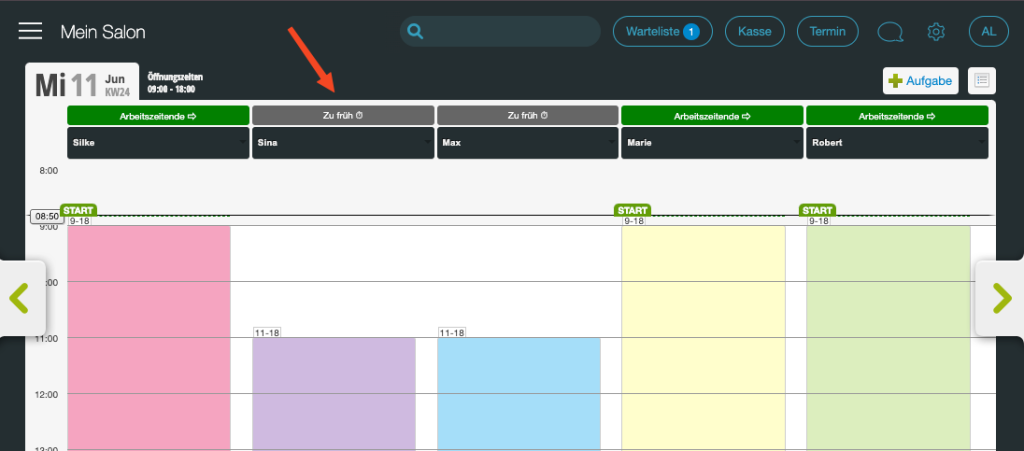
If working times are entered for a team member, the "Work start time" button is displayed in the upper area of the calendar. Until the person has logged in, their working times and appointments are displayed transparently. After work ends, your team members can check out so you can see when they leave the business.
Example of the buttons in the calendar:
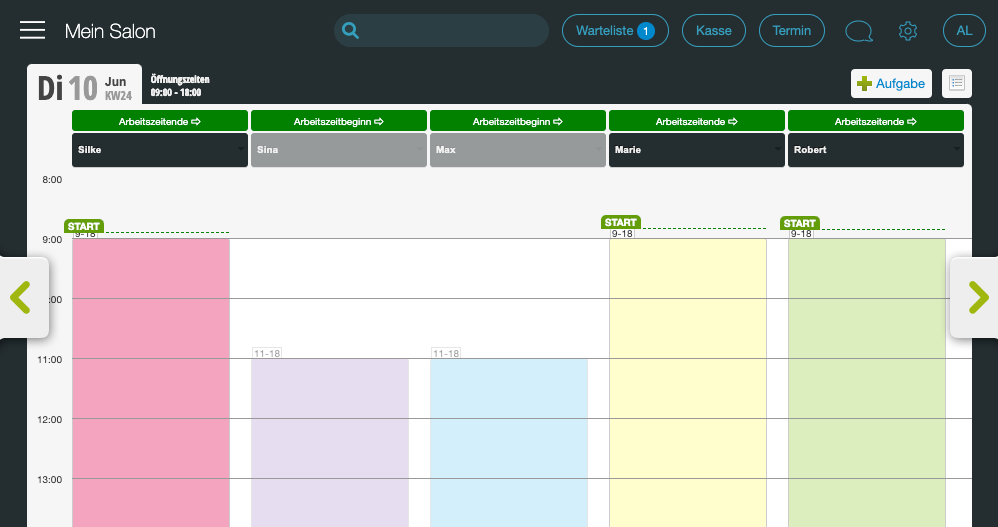
Depending on whether you use the target hours or the schedule as the basis for recording, the system compares the total checked-in time with the planned times after the evening checkout and calculates the overtime or shortfall hours for the day. An overview of the evaluations of the recording can be found here.
Restriction of check-in times
In the settings of the time tracking function, you can specify that team members can only check in within a certain time window before the start of work, for example, no earlier than 10 minutes before work starts. This prevents team members from accumulating overtime by checking in long before work begins.

Tip: If your employees have their own logins to log into Belbo on their personal phones, you can prevent them from checking in with this login while on the go. More on the topic of employee login with restricted rights here.
Break times
You can decide for yourself whether your team members should check in and out for their breaks:
- If you trust your team members to correctly follow the breaks entered in the calendar, they do not need to check in and out. Time tracking will record break times correctly.
- If you want to monitor whether your team members comply with statutory break times, you can also specify that they check out at the beginning of a break and check in when work resumes. If, for example, an employee takes a significantly longer or shorter break than planned, this will also be recorded correctly.
- It is up to you whether you enter your employees' breaks as an appointment type "Break" in the calendar, or whether you store multiple working times in the schedule. Time tracking takes both variants into account.
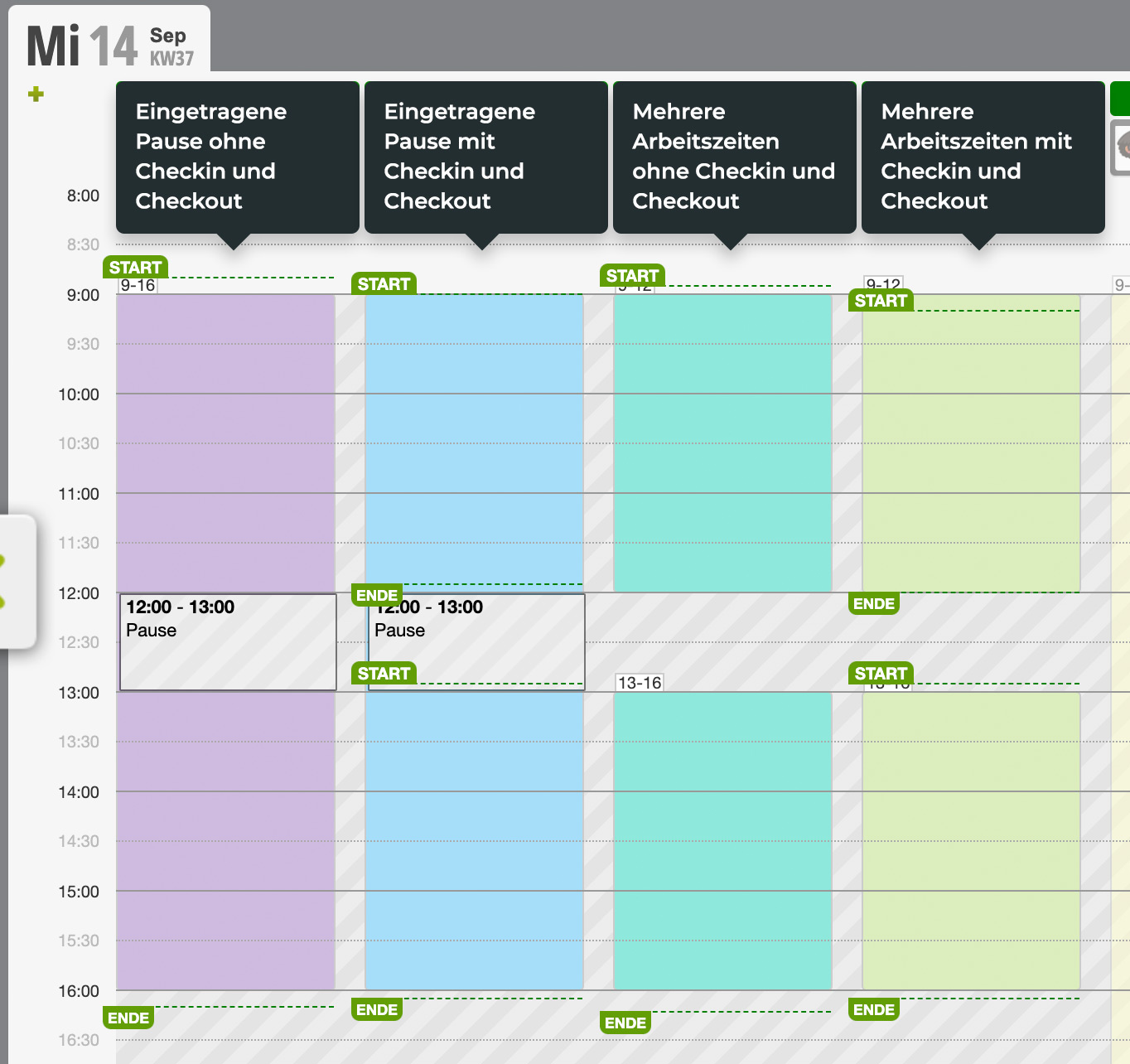
In the example above, in the evaluation of time tracking in all variants, it is assumed that team members take the planned breaks, even if they do not check out and back in during break times. If it happens in your team that people do not follow break times, we strongly recommend that they also log out and back in for breaks.