
When you use time tracking with Belbo, all team members check in at the start of their work and check out again at the end. Here we explain what reports are available.
Working Time Report
Under Settings > Time Tracking > Report you will receive a comparison of the entered and checked-in working times.
For the desired period (1) you will see the summary (2) as well as the results for individual days (3), which add up to your current balance.
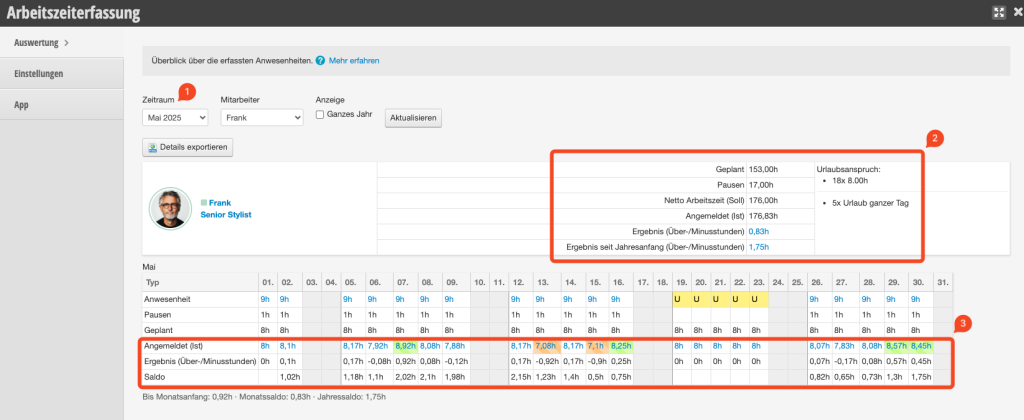
The report is compiled monthly and shows the planned and actual working hours in a clear table. Vacation or sick days are taken into account. Team members with appropriate admin rights can correct the recorded working times or add forgotten check-outs (see section "Making Corrections" below).
Overview of recorded figures
In the table on the right side of the employee line you will find the breakdown of planned working time, break times, checked-in times, and the number of overtime or undertime hours:
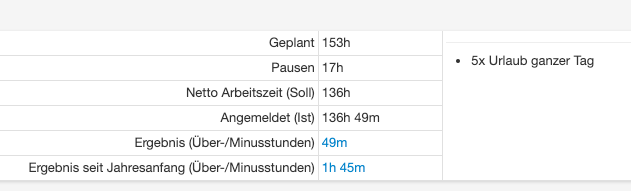
In the example above, 136 working hours minus breaks are scheduled for the employee in the roster. They do not log out and in for breaks. They were logged in for 136 hours and 49 minutes (5 days of vacation were counted automatically), which equals 49 extra minutes for this month. In total, they have accumulated 1 hour and 45 minutes of overtime this year.
Daily Details & Balance
The table shows the individual days of the desired month with the planned and recorded hours. The total balance of overtime or deficit hours achieved on that day is also displayed.
- Presence: Planned presence in the roster. If you use tracking via target hours, the target hours entered in the employee file will be used for comparison instead.
- Breaks: The sum of break times scheduled in the roster
- Planned: The planned target time
- Logged In: The actual time checked in on this day ("actual time")
- Result: The difference between target and actual time on this day
- Balance: The total number of overtime or deficit hours achieved on this day since the beginning of the year

The color coding indicates that there is a significant deviation on a day compared to the target time. So significantly more (green) or significantly less (orange) work was done than planned.
Making Corrections
If check-in times contain errors, for example because a team member forgot to check in or out, a correction can be made. The prerequisite is that it is logged in with a login that has the appropriate rights.
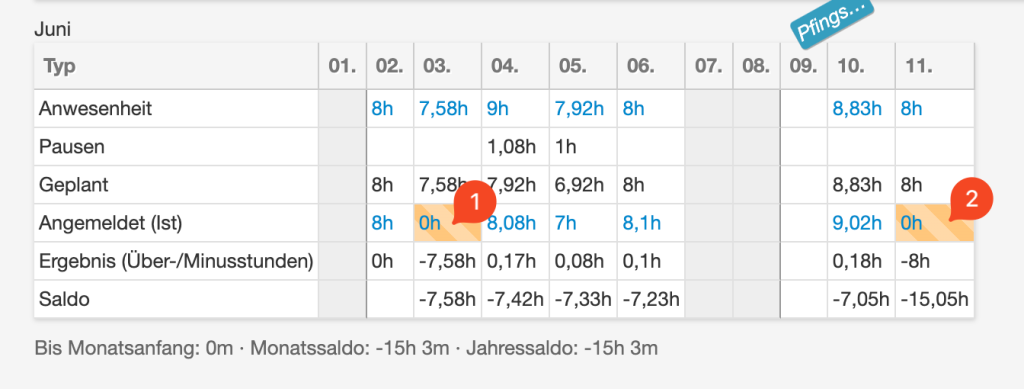
To do this, simply click on the number in the "Logged In" row (1) on the incorrect day and correct the check-in and check-out times.
On the current day (2), this number (as well as the current overtime balance) can only be read correctly after a team member has checked out.