belbo
  • Overview
    • Getting to know Belbo
    • Location Settings
    • Switch to Belbo
    • Calendar View & Navigation
    • Recurring Appointments & Courses
    • Appointment Entry & Management
    • Logins & Permissions
    • Multiple Locations & Head Office
    • Manage Employees
    • Absences & Holidays
    • General
    • Working Hours
    • Time Tracking
    • Data Protection (GDPR)
    • Customer Communication (Email, SMS)
    • Customer Management & Records
    • Bonus & Loyalty Programs
    • Campaigns (Newsletter & SMS)
    • Marketing Consents (GDPR)
    • Tracking & Analytics
    • Overview
    • Services & Prices
    • Products
    • Service Packages & Subscriptions
    • Vouchers
    • Purchasing & Suppliers
    • Stock & Inventory
    • Scanning & Sales
    • Cost of goods & expenses
    • Design & Texts
    • Setup & Settings
    • Integration (Website, Google, Instagram, Facebook)
    • Online payment
    • Accounting & Exports
    • Cash Register Settings & Hardware
    • Checkout process
    • Daily Closing & Reports
    • TSE & Cash Register Anti-Tampering Ordinance
    • Export Overview
    • Employee Utilization
    • Revenue & Reports
    • Belbo Satellite
    • Printer
    • EC Terminal & Card Payment
    • Troubleshooting Hardware
    • Scanner & POS Devices
    • General Settings
    • API & Integrations
    • Notifications & Emails
    • Contracts & Legal
Skip to content

Time tracking: Settings

(Article in progress) Here we explain the configuration options for the "Time Tracking" function (or "Check-In" in Switzerland).
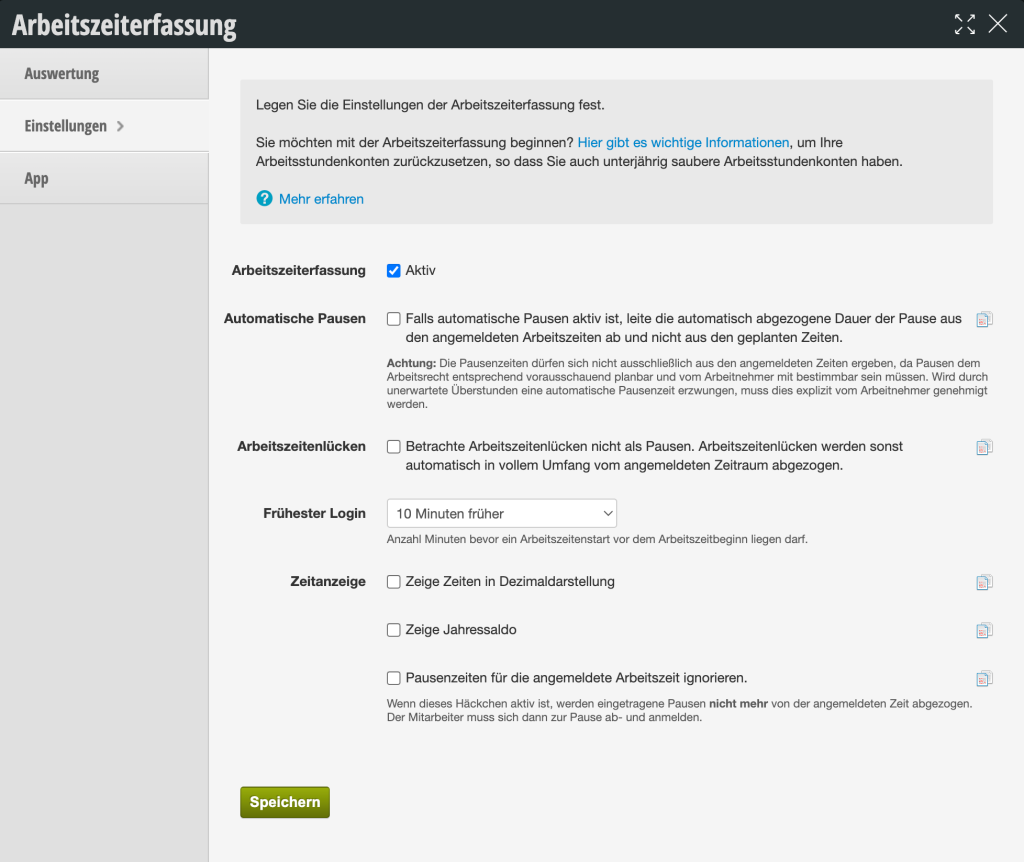
You can access this area via Settings > Time Tracking (or Check-In)
If this function is not activated, it can be activated via "Settings > Add Function".


Automatic Breaks

In the shift plan settings, it is possible to activate automatic break times. If no breaks are entered for an employee on a given day, the legally required break time will be automatically assumed. This makes sense if your employees reliably take their breaks of the correct length spontaneously during the day without wanting to schedule them in advance. However, we recommend planning fixed breaks or always recording breaks when they are taken spontaneously.

If the function is active, you can recognize this by the asterisk markings in the evaluation:
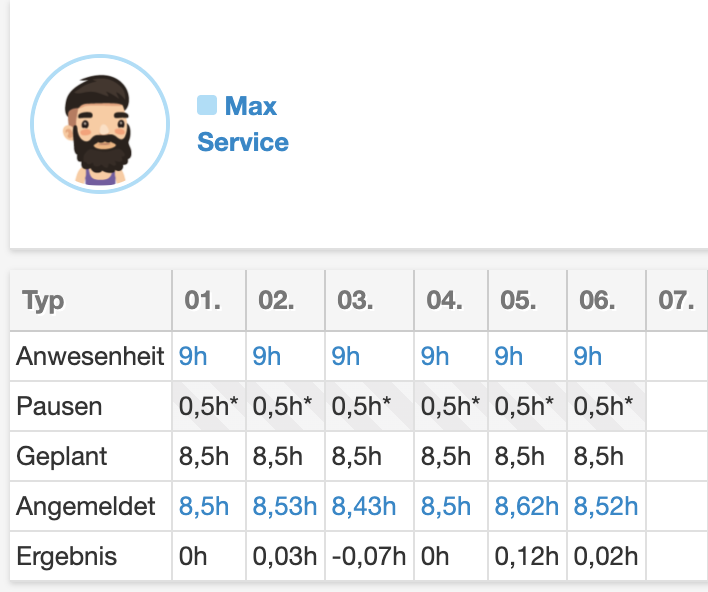
Dieses Bild hat ein leeres Alt-Attribut. Der Dateiname ist belbo-arbeitszeiterfassung-auto-pausen.png

If you do not want this function, you can disable it completely in the Shift Plan Settings. If you want to use this function only in the shift plan, but not in time tracking, you can activate the corresponding option in the Settings tab of time tracking:
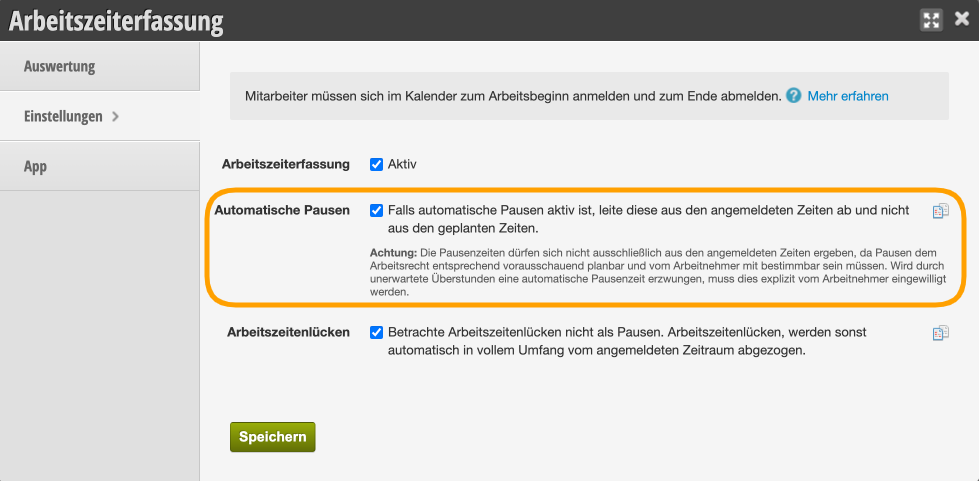
Dieses Bild hat ein leeres Alt-Attribut. Der Dateiname ist belbo-arbeitszeiterfassung-automatische-pausen-deaktivieren.png

Count Work Time Gaps as Work Time

If, as in the example above on the right side, you represent breaks by 2 or more work times in the calendar, you have the option to decide how the recording behaves. In the "Settings" tab of time tracking, you will find the "Work Time Gaps" option.

Dieses Bild hat ein leeres Alt-Attribut. Der Dateiname ist belbo-arbeitszeitenluecken-einstellung.png

If this option is disabled, the full break time is always assumed, regardless of whether team members only log out and log back in for 10 minutes during a one-hour break. So if you want the exact logged-in time to be calculated when using multiple work times, activate this option. If a team member does not log out at all during the gap, it will then be counted as overtime.

All Articles at a Glance:

Time Tracking Overview »

Recording via Target Times »

Time Tracking Evaluation »

  • Time Tracking: Settings
  • Time Tracking via Shift Plan
  • Getting Started with Time Tracking
  • Right: Edit Time Tracking Entries

Categories: Time Tracking
This manual is a service by belbo. Legal notice