belbo
  • Overview
    • Getting to know Belbo
    • Location Settings
    • Switch to Belbo
    • Calendar View & Navigation
    • Recurring Appointments & Courses
    • Appointment Entry & Management
    • Logins & Permissions
    • Multiple Locations & Head Office
    • Manage Employees
    • Absences & Holidays
    • General
    • Working Hours
    • Time Tracking
    • Data Protection (GDPR)
    • Customer Communication (Email, SMS)
    • Customer Management & Records
    • Bonus & Loyalty Programs
    • Campaigns (Newsletter & SMS)
    • Marketing Consents (GDPR)
    • Tracking & Analytics
    • Overview
    • Services & Prices
    • Products
    • Service Packages & Subscriptions
    • Vouchers
    • Purchasing & Suppliers
    • Stock & Inventory
    • Scannen & Verkauf
    • Materials & Costs
    • Design & Texts
    • Setup & Settings
    • Integration (Website, Google, Instagram, Facebook)
    • Online payment
    • Accounting & Exports
    • Cash Register Settings & Hardware
    • Checkout process
    • Daily Closing & Reports
    • TSE & Cash Register Anti-Tampering Ordinance
    • Export Overview
    • Employee Utilization
    • Revenue & Reports
    • Belbo Satellite
    • Printer
    • EC Terminal & Card Payment
    • Troubleshooting Hardware
    • Scanner & POS Devices
    • General Settings
    • API & Integrations
    • Notifications & Emails
    • Contracts & Legal
Skip to content

Time tracking via target hours

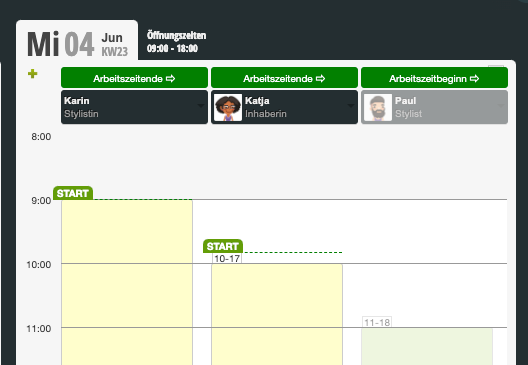
With Belbo, you can record the working hours of your team members down to the minute. The calendar displays not only the target working hours entered in the employee profile, but also the actual start and end time of work for each team member. A monthly evaluation provides information about the hours worked.

This type of recording is suitable for permanently employed staff who have fixed target hours. For freelancers and hourly workers, recording via the schedule is more appropriate.


You can access this area via Settings > Time Tracking
If this function is not enabled, it can be activated via "Settings > Add Function".


Prerequisites

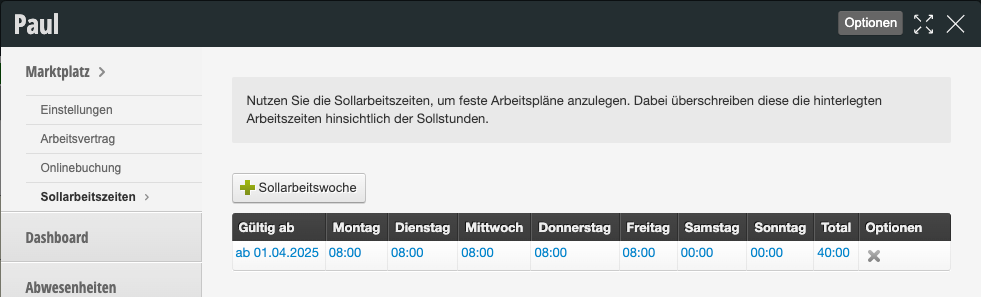
  1. You have entered the target working hours in the employee records. Only team members who have recorded working hours on a day in the calendar can check in and out.
  2. We recommend using the Employee PIN function. This ensures that your team members can only check themselves in and out.

Storing target hours in the employee file

In each team member's file, the planned target hours for each day of the week can be entered.

If employees work on a 2-week rotation, this can also be set up correctly.
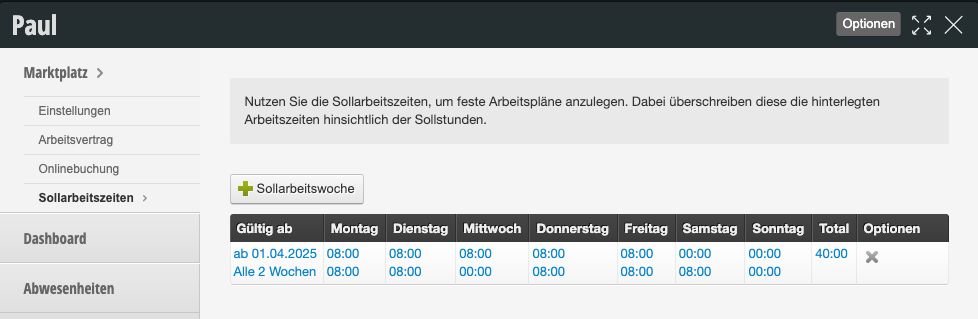
Make sure that the respective start date of the target working hours is entered correctly. Only then will the different week templates match the expected working hours.

Time Tracking

Employees now check in and out at the start and end of their working hours.
Absences for this type of recording

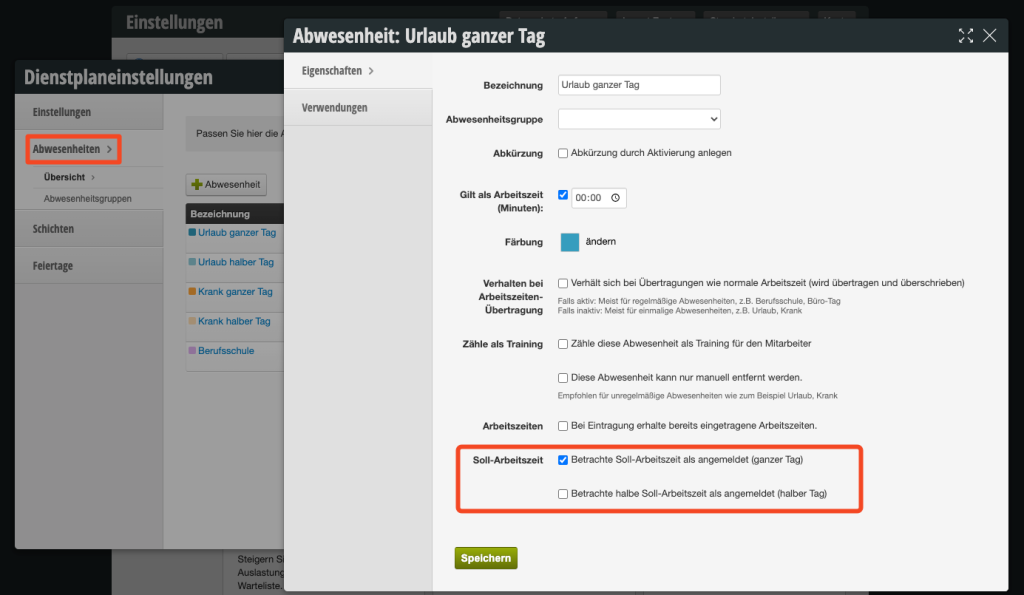
Paid absences such as vacation, sick leave, office days, etc. can be recorded in such a way that they always align with the target hours entered in the employee file. These templates can be created and edited under Settings > Schedule Settings > Absences.

If the template is typically created for a full day when an employee is not present in the company and does not log in, the option "Consider target working hours as logged in (full day)" can be activated. The target hours planned for that day will then be automatically counted as fully fulfilled. Suitable for absences such as vacation full day or sick leave full day.

If the template is typically created for a half day when an employee is present at the company for half of the planned working hours and logs in for this reduced time, the option "Consider target working hours as logged in (half day)" can be activated. The target hours planned for that day will then be automatically counted as half fulfilled. Time tracking now compares the checked-in times with the other half of the target hours. Suitable for absences such as vacation half day or sick leave half day.

Note that the option "Counts as working time (minutes)" should remain empty in this case. This should only be used if the absence counts as a fixed duration of working time, regardless of the target hours entered in the employee file.

If you are just starting with time tracking, the hour balance of your team members must either be set to zero, or any overtime and shortfall hours already collected in another system can be transferred. You can learn how to enter this one-time here: Getting started with time tracking.

To learn how to evaluate the recorded times and get an overview of the overtime and shortfall hours for individual team members, see here: Time Tracking Evaluation.

All articles at a glance:

Time Tracking Overview »

Recording via Target Hours »

Time Tracking Evaluation »

  • Time Tracking: Settings
  • Time Tracking via Schedule
  • Getting Started with Time Tracking
  • Right: Edit Time Tracking Times

Categories: Time Tracking
This manual is a service by belbo. Legal notice