With individual employee PINs, you can track which employee made changes in the system. If several colleagues share a computer and use a Team Login, the employee PIN can be used to track which employee made changes, even if everyone uses the same login.
You can access this area via Settings > Employee PIN
If this function is not activated, it can be activated via "Settings > Add Function".
Each employee enters a short PIN when making changes in the system and can thereby identify themselves. This ensures transparency in the team.
When assigning the PIN, access to certain functions can be restricted. Additionally, this function provides protection against unauthorized access.
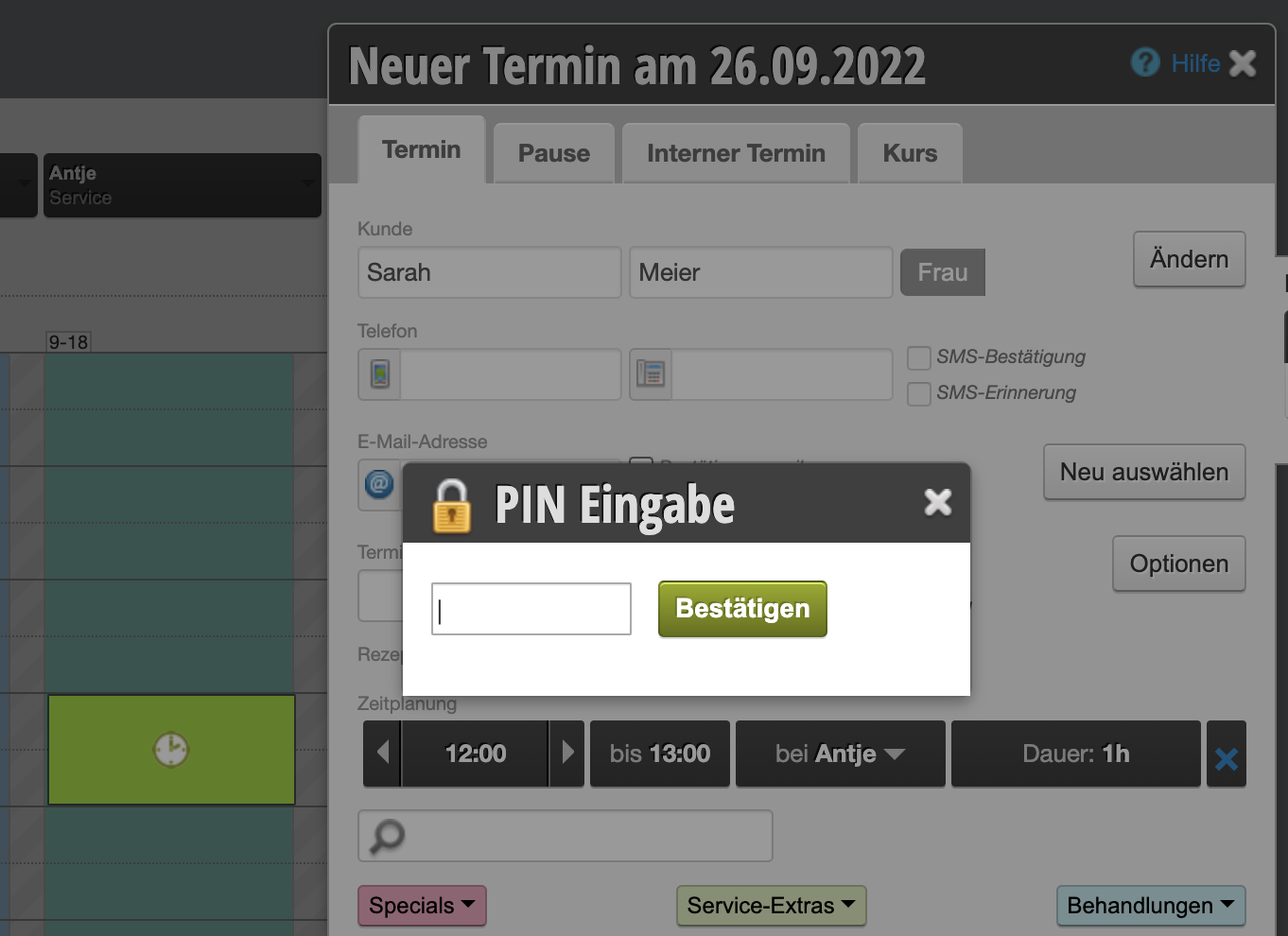
Activate Employee PIN
- Click on "Settings" in the main navigation.
- Go to "Add Function" or enter the term "Employee PIN" in the search field.
- Click on the "Employee PIN" function and activate it.
Attention: If you activate the Employee PIN but do not assign PINs to your employees, they will no longer be able to save appointments or make other changes in the calendar.
PIN Settings
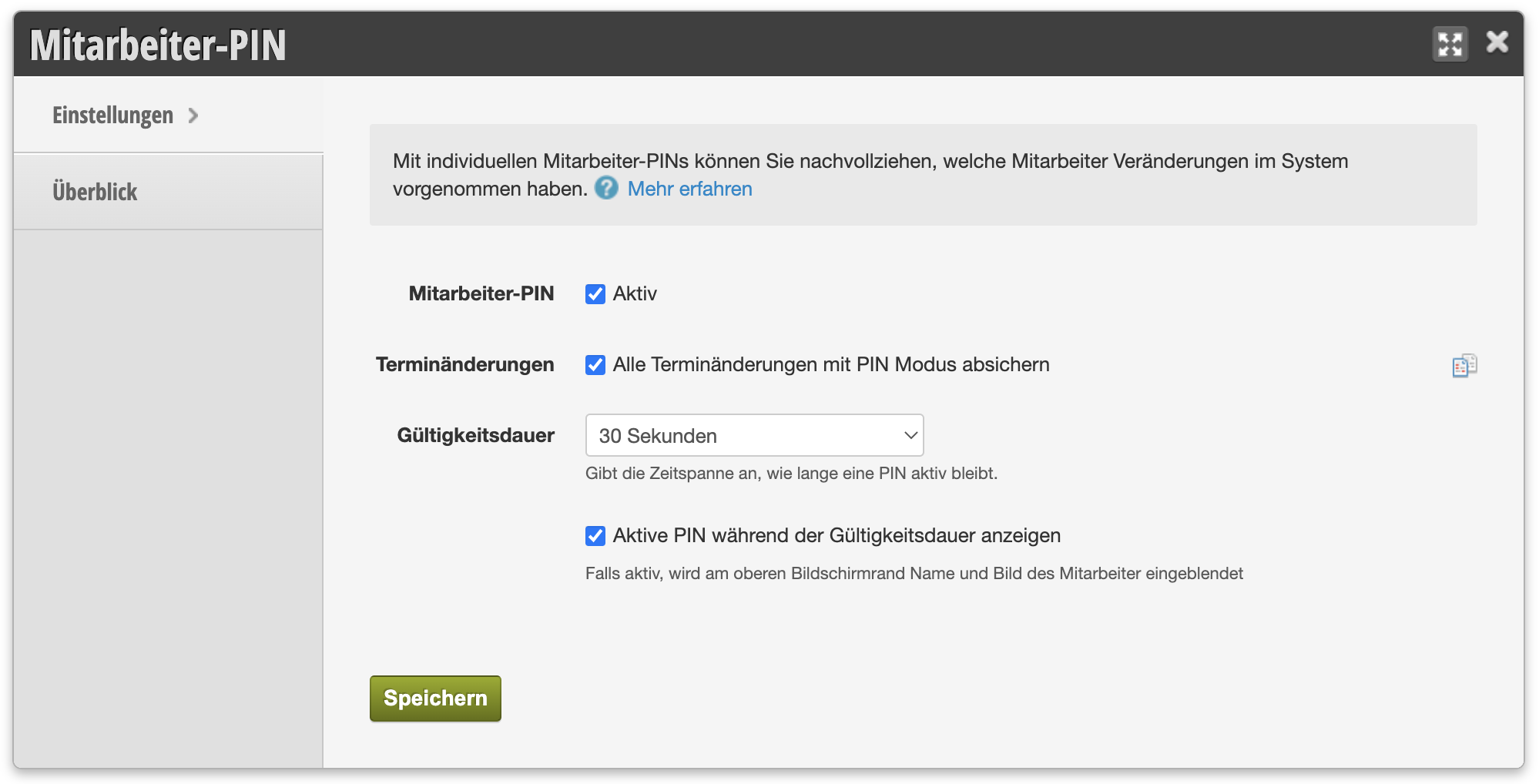
Appointment Changes
Only if this option is active, the PIN will be requested when an appointment is changed in the calendar.
Validity Period
Determine how long a PIN remains valid before a PIN is requested again. This time period should be kept short if many team members share a computer.
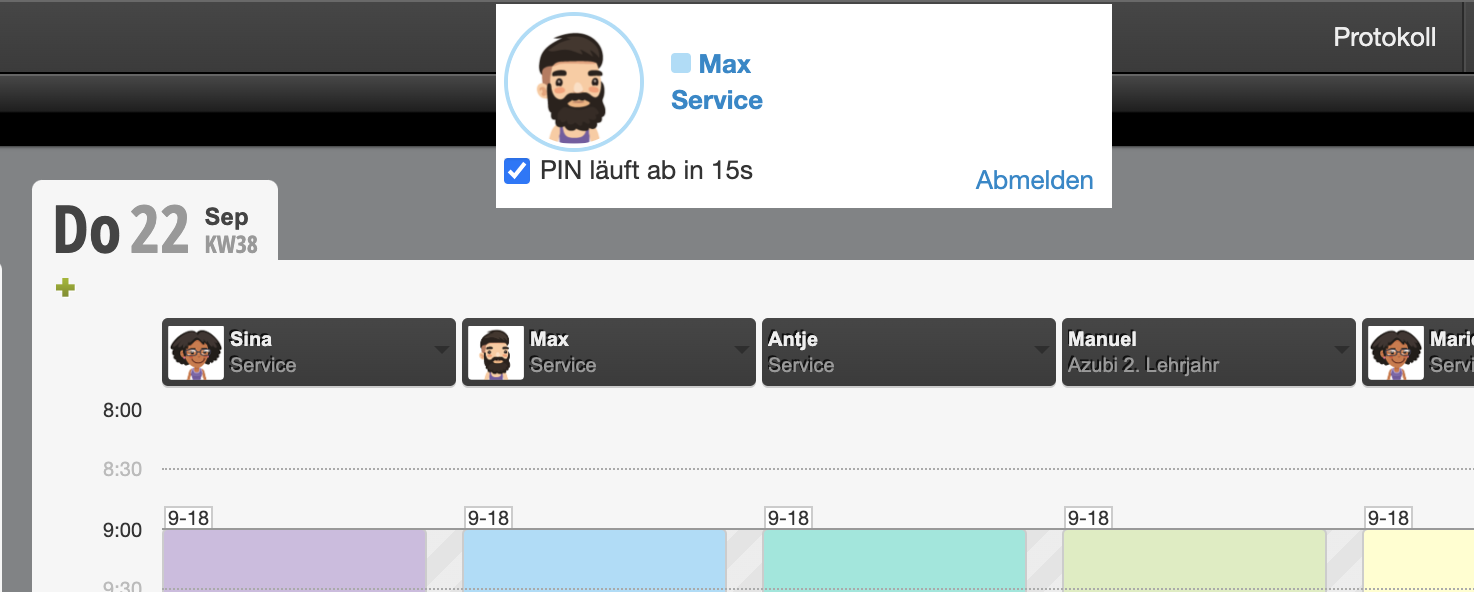
Show Active PIN During Validity Period
The currently valid PIN is displayed in the calendar. This way, with a longer validity period, each team member can see under which name the current changes are being logged.
How to Assign Each Employee Their Own PIN
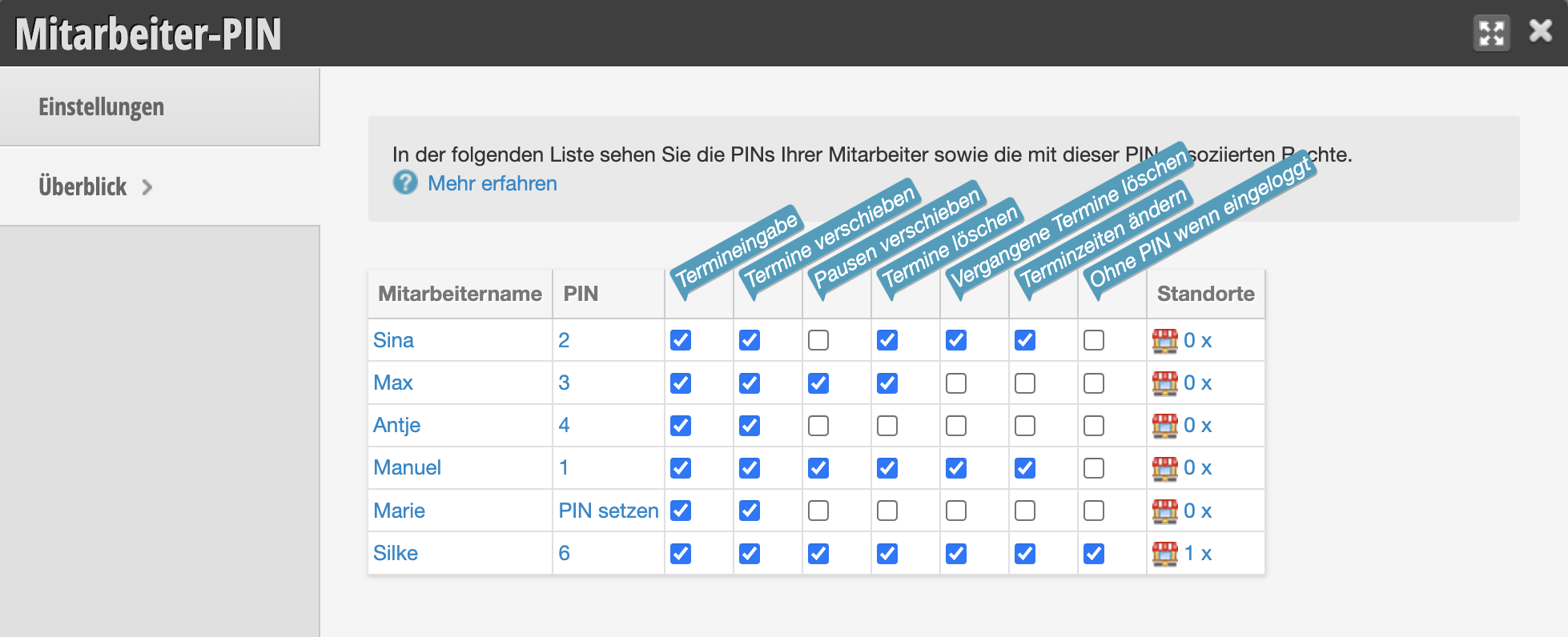
- Under Settings » Employee PIN switch to the "Overview" tab
- If you have the permission "Manage Employee PIN", you can see here the employees entered in the calendar and their existing PINs.
- If an employee has not yet been assigned a PIN, click "Set PIN" in their row.
- Assign the PIN and save your entry.
- Tell the team member the PIN.
Tips for PIN Assignment: The PIN identifies your employees at many different locations. It should be quick and easy to use in everyday work. PINs with many permissions should not be easily guessable. The PIN can be single or multi-digit, you can use numbers, letters and special characters or combine them. Short letter-number combinations (e.g. "ab45") have proven to be effective.
Assign Permissions for Each PIN
You can determine which actions an employee is allowed to perform with their PIN. For example, you can prevent a specific employee from deleting or moving appointments, while granting these rights to other employees.
Appointment Entry
Only if this permission is set can the team member create an appointment by clicking in the calendar. If the permission is not set, only the
Appointment Assistant can be used. As soon as a team member no longer has this permission, the PIN entry dialog opens directly when clicking in the calendar and the PIN must be entered before any appointment can be created. This ensures that only employees with appointment scheduling rights can create appointments directly in the calendar.
Shorten and Extend Appointment Times
This employee is allowed to extend or shorten appointment times.
Move Appointments / Breaks
Employees are allowed to move breaks independently.
Delete Appointments
May delete appointments
Delete Past Appointments
May delete appointments in the past
Move Breaks
May move breaks in the calendar.
If Logged In, Do Not Ask for PIN
PIN is only requested during the checkout process and for waitlist entries. Suitable for administrators with their own logins, which are not used in day-to-day business.
Viewing PINs
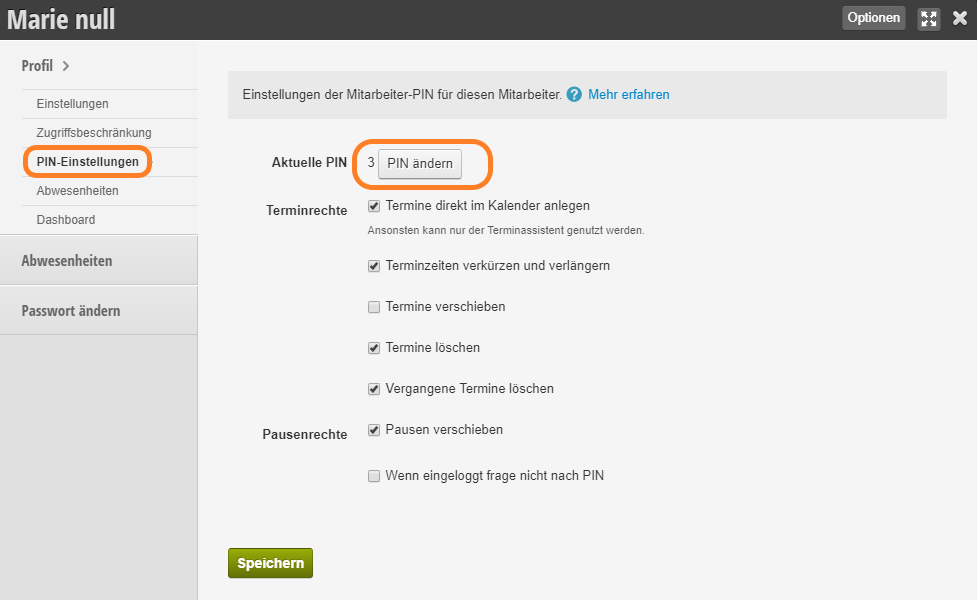
The PIN is displayed in every employee file. You can view the PIN of the respective employee under Employee Profile > PIN Settings.
Traceability of Changes
At various places in the system, you can see which of your employees made certain changes.
Appointments
The PIN is requested as soon as an employee saves, moves, deletes or changes an appointment.
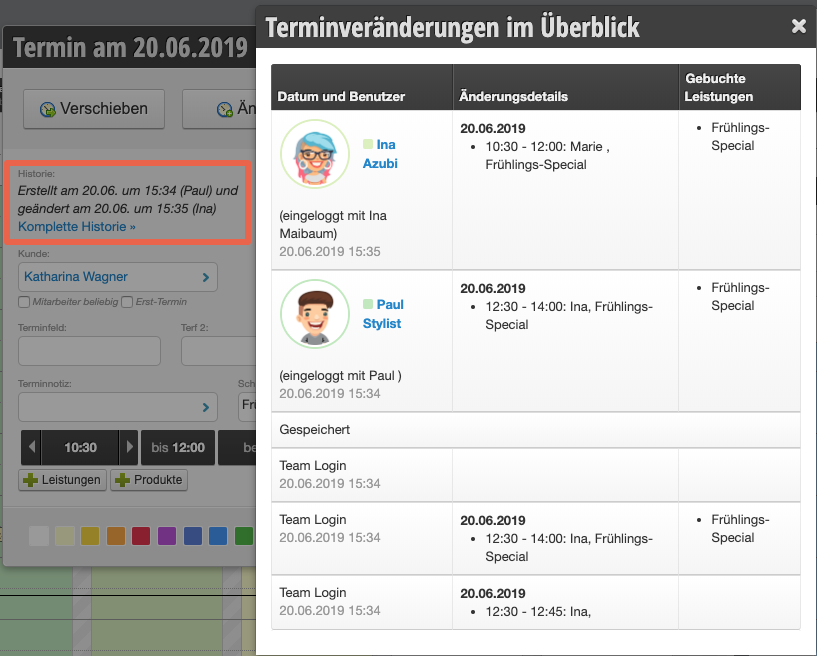
All changes can subsequently be viewed in the history of each appointment:
Cash Register and Daily Reconciliations
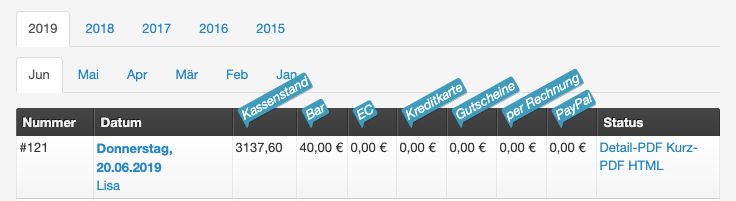
Employees who create the daily reconciliation identify themselves with their PIN and can thus be viewed in the daily reconciliation overview.
Protocol
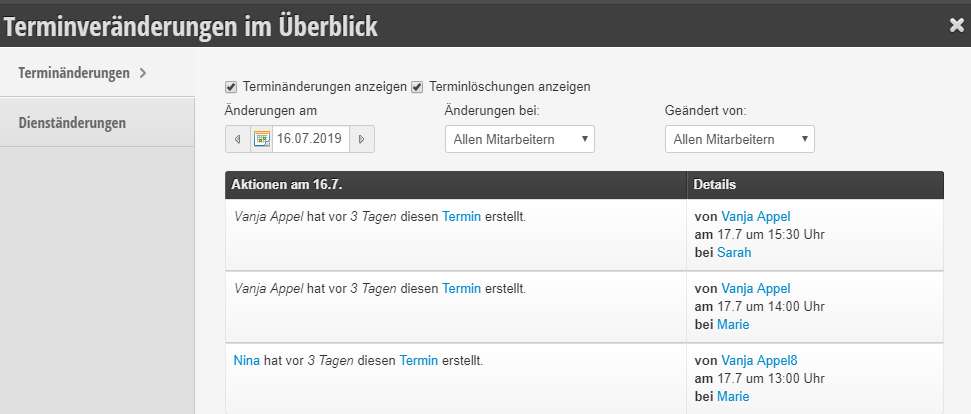
When you open the
Protocol, you can check which employee made which change:
Time Recording
If you have activated
Time Recording, employees can log in and out using their PIN.
