
If you don't work alone in your company, it makes great sense to create a separate login for your team. You can assign your own rights to this login and thus prevent all employees from having access to settings and statistics. This type of login, which is not directly linked to an employee, can be used by the entire team and is well suited when all your employees use the same computer or tablet in their daily work.
This type of login is also suitable for other types of employees who have access to the calendar and can enter appointments or change settings, but should not themselves be listed as bookable employees in the calendar. These include, for example:
- Business owners who do not serve customers themselves
- Marketing and sales employees who enter appointments
- Administrative staff such as reception or office staff
Create Team Login
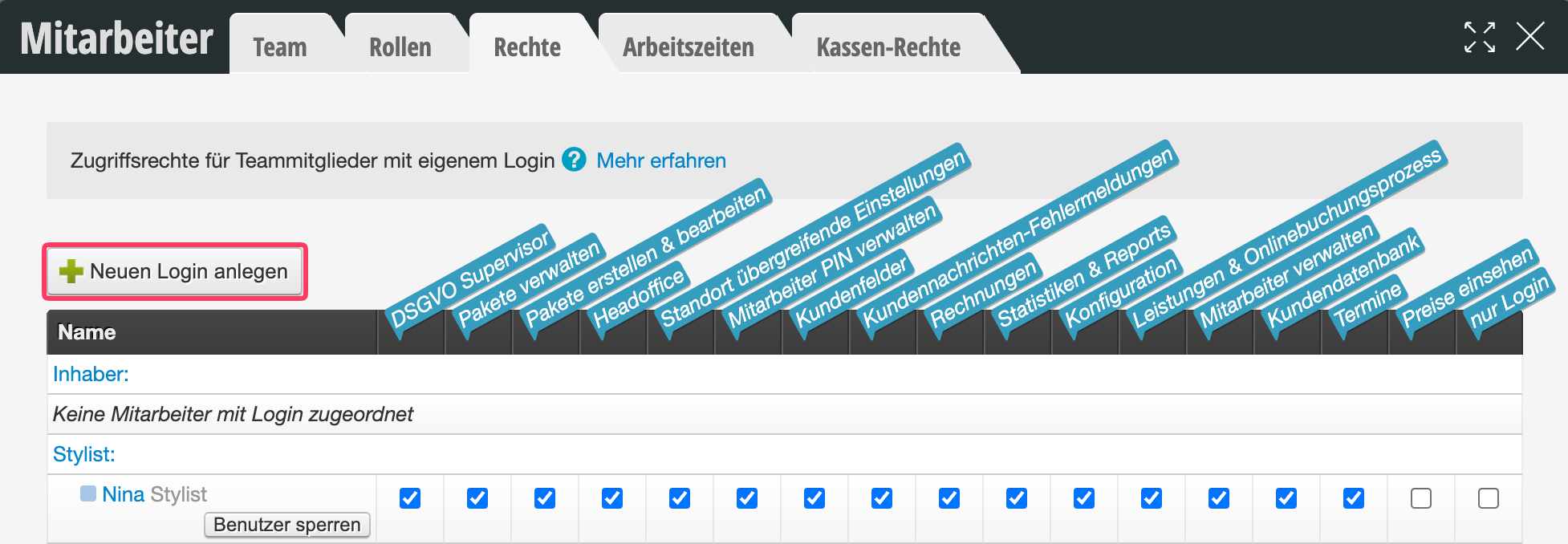
- Go to Settings > Employees > Rights
- Click on "Create New Login" there.
- Assign a name for the login, e.g. first name "Team", last name "Login". For administrative staff who do not share the login with colleagues, use the person's real name.
- If desired, assign a secure password
- Recommended for administrative staff: If you do not set a password, an email with a link will be sent to the specified address, which leads to password selection, so the person can choose their own secure password.
- Recommended for team login: If you set a password directly, no email will be sent and you can share the password with your team in another way.
After you have set the login, you can then set the access rights for this login under Settings > Employees > Rights.
Access Rights for the Team Login
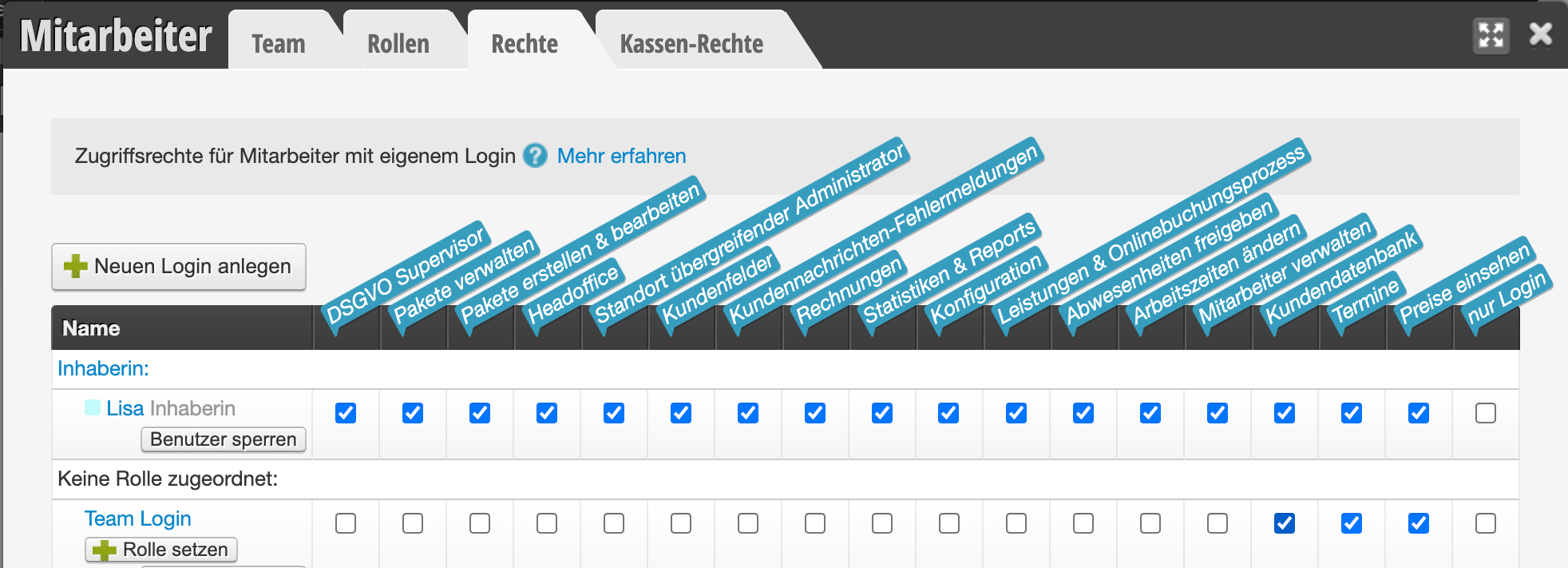
After you have set the team login, you can then set the access rights for this login under Settings > Employees > Rights. We recommend giving this login only a few rights.
Cash Register Rights for the Team Login
We recommend that the team be able to process appointments for payment and create current daily closings. However, statistics and cash register settings should remain management's responsibility.
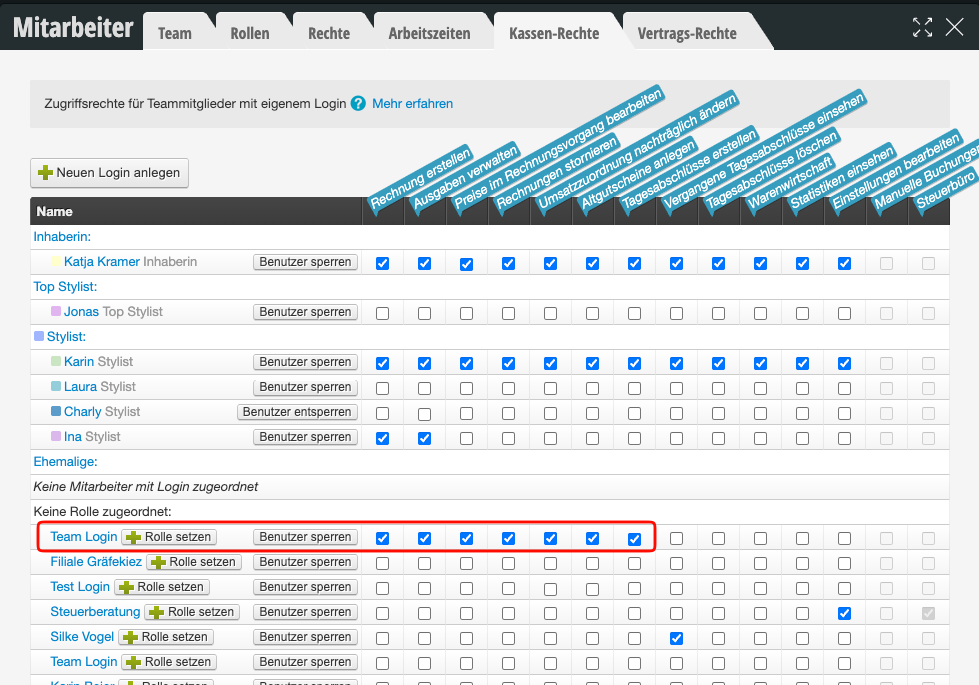
If there are employees to whom you would like to grant further rights, you can assign a separate login to these employees.
Identification of Team Members When Changing Appointments
If all employees use the same login, it is not easy to track which team member made which changes when creating and modifying appointments. We therefore recommend also using the employee PIN.
This allows exact identification of your employees despite the shared use of the same login. You can also use the employee PIN to fine-tune the rights of individual employees. Learn more about the employee PIN here.
Login Access Restriction
If you want to prevent your employees from logging in from other devices (for example from home or their personal mobile phone), you can use the login access restriction feature.
Two-Factor Authentication for the Team Login
Since the team login is shared by multiple people, you can additionally secure it with two-factor authentication (2FA). Please note that all people using the team login need access to the same device with the registered authenticator app.