
If you want to prevent employees from accessing certain data, you can restrict access. Belbo offers you various options for how you can limit your employees' permissions.
Terminology
The following terms are used in this article:
- Login: Combination of email address and password to log in to the calendar in the first place.
- Employee PIN: Short code required, for example, when entering or changing appointments.
Logins for Your Employees
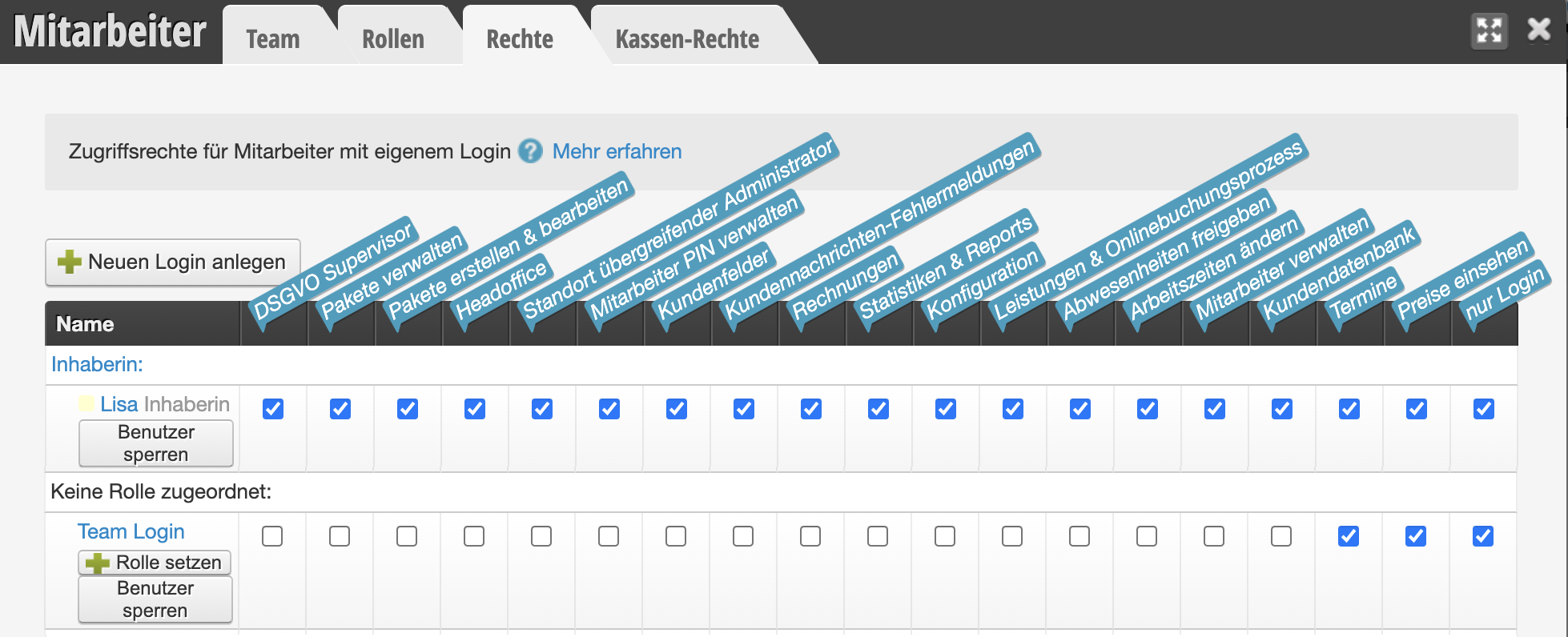
Team Login
In principle, owners have a login that allows access to all functions in Belbo. We recommend not sharing this login with your employees.
You can create a Team Login for your employees, whose permissions you can then set. All employees use the Team Login together in daily business. Therefore, it is recommended to activate the Employee PIN so you can see which employee created or moved an appointment.
Employee Login
If you want to give individual employees extended permissions, you can create their own login and then assign the desired rights.
→ This is suitable for supervisory employees or receptionists who should, for example, change settings or create daily closings.
Permissions
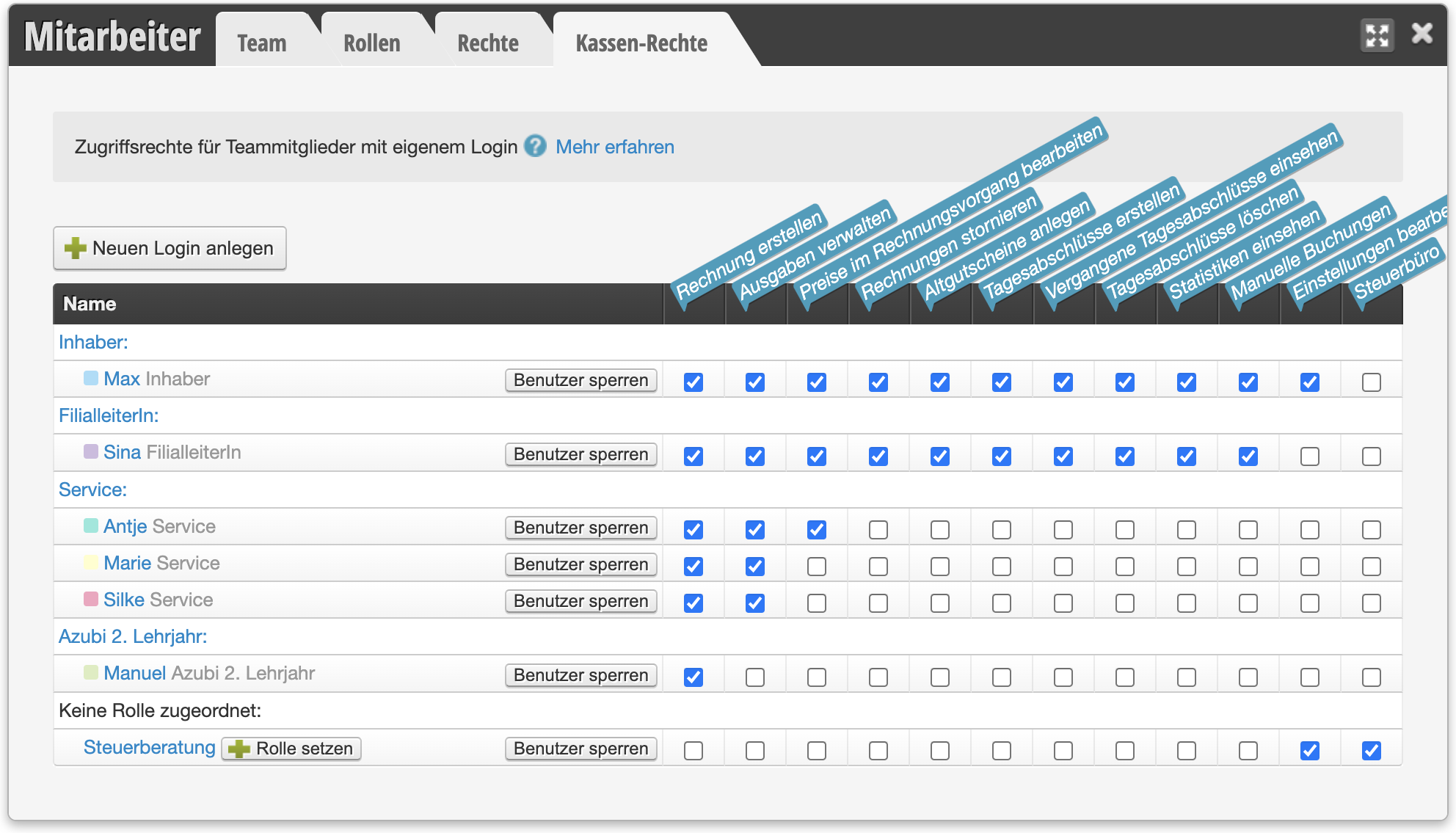
You can assign individual permissions to each login. This allows you to determine whether employees have access to certain areas or can change settings.
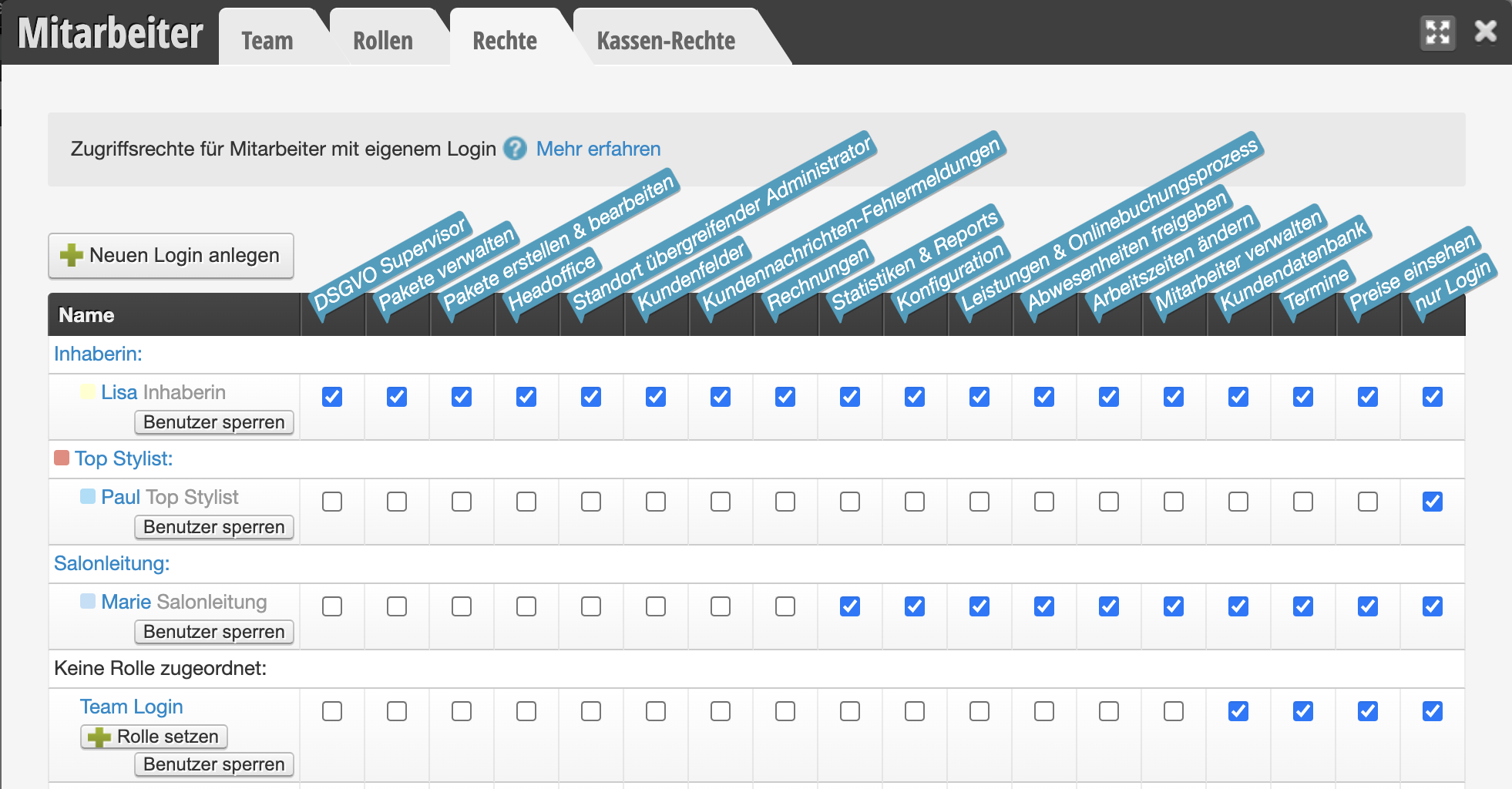
You should pay special attention to the following permissions:
Calendar Permissions
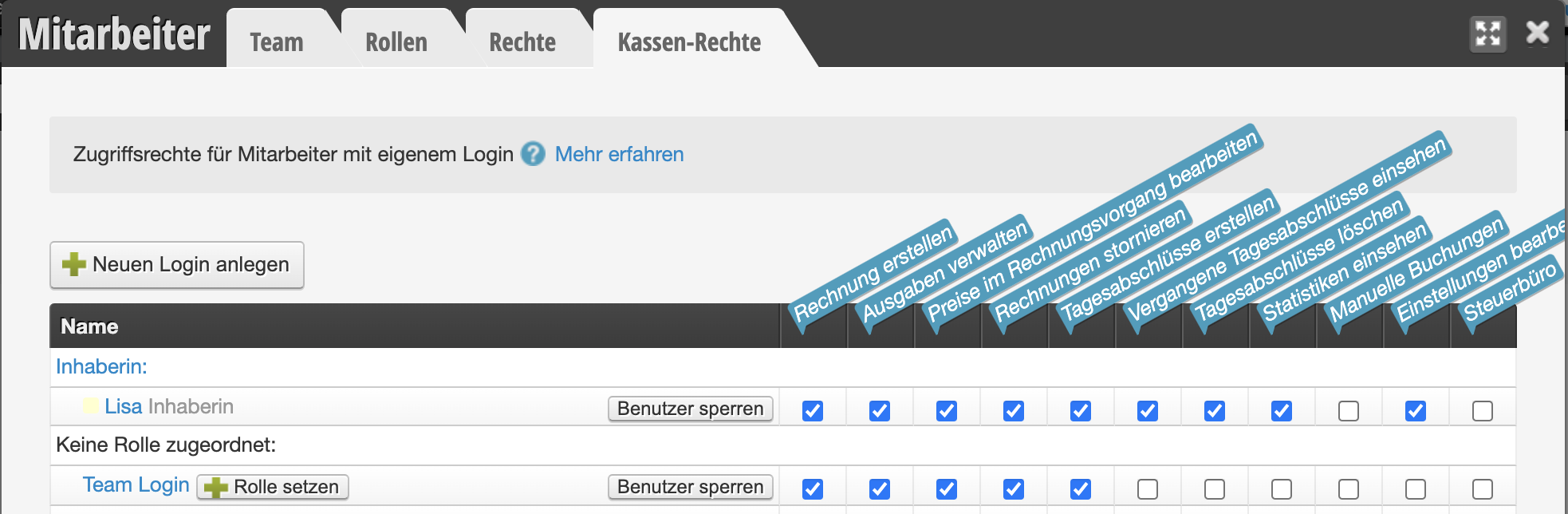
Cash Register Permissions
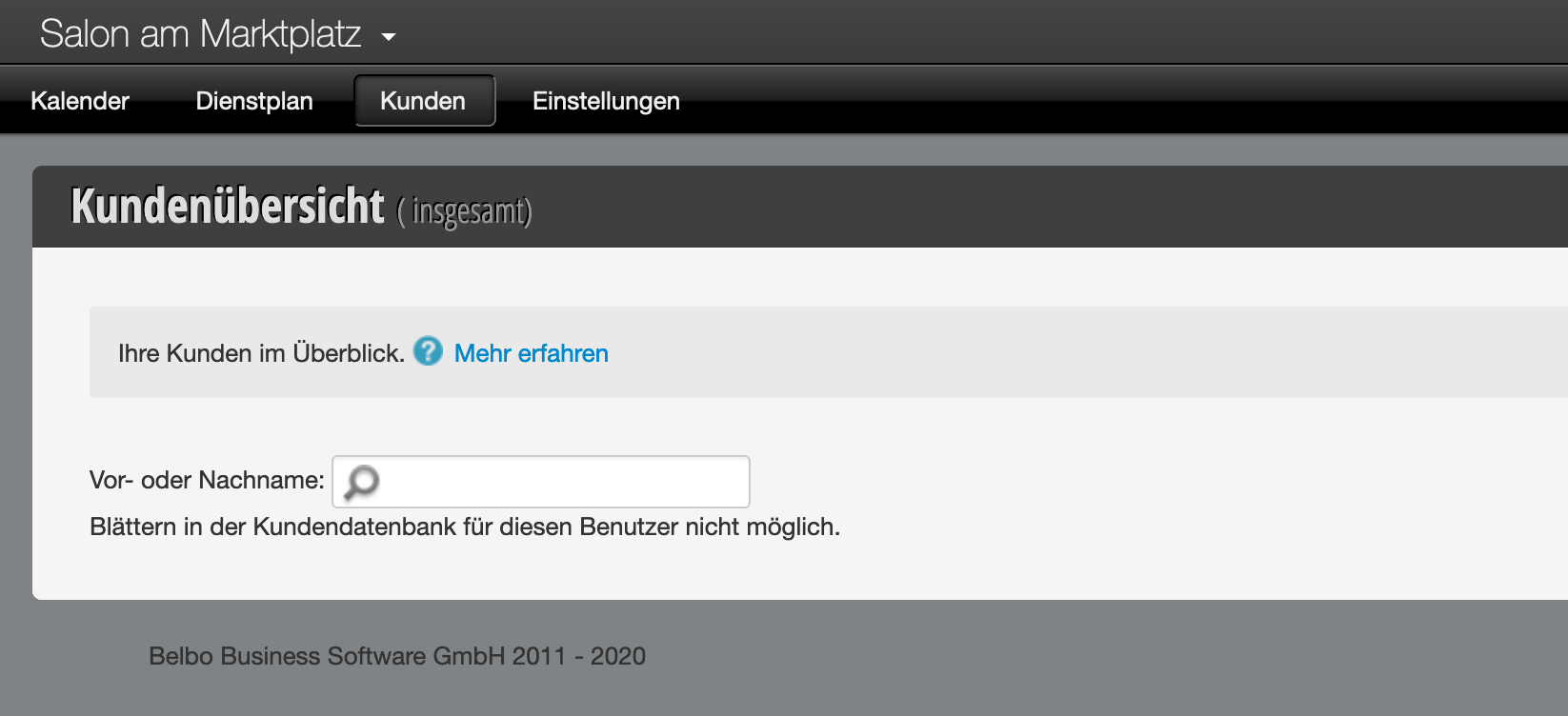
View Restriction
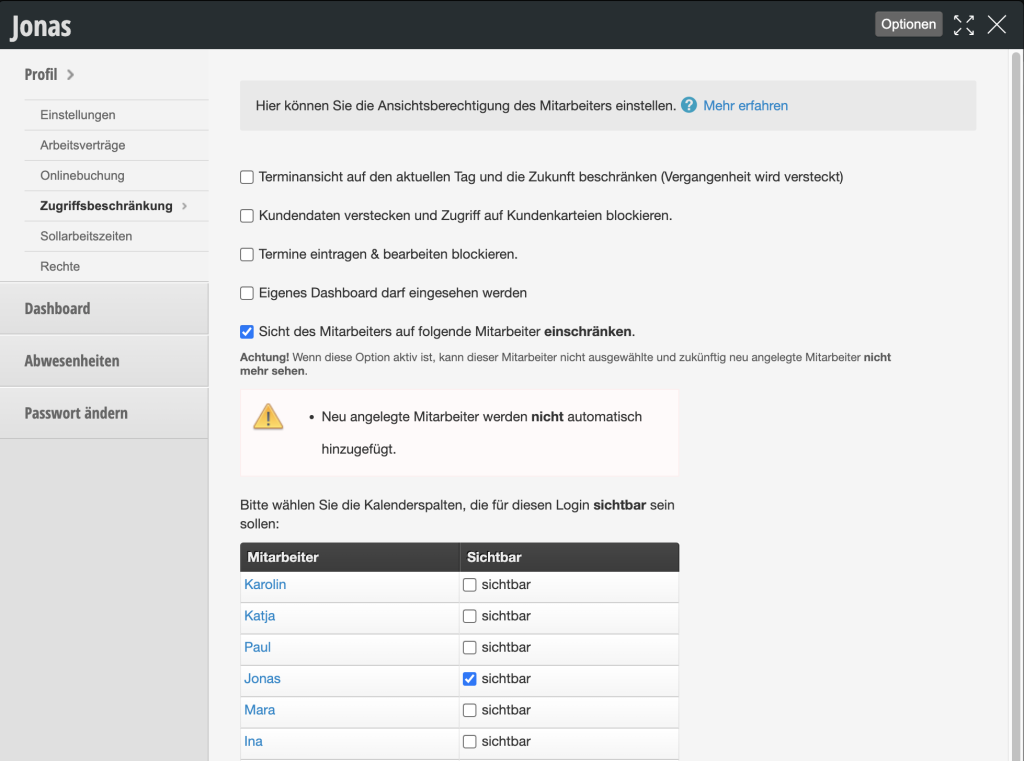
In the file of each employee who has their own login, you can set access restrictions. You can access your employees' files under Settings > Employees.
- Restrict Appointment View: You can specify that an employee with their own login is only allowed to view the current day and future days, but cannot scroll back into the past.
- Restrict Employee View: In each employee file, you can specify which colleagues an employee is allowed to see. For example, you can specify that an employee only sees themselves and their own appointments when logging in with their own credentials.
Employee PIN Permissions
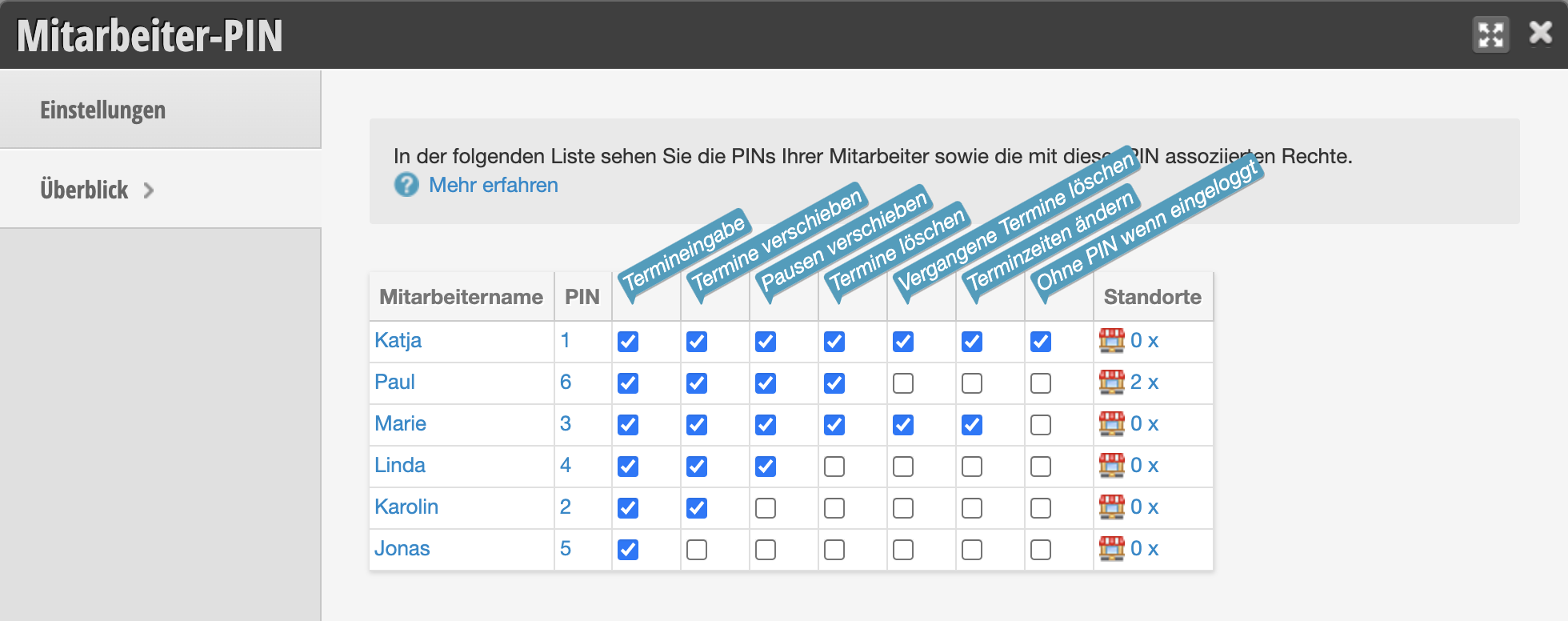
Each employee can receive their own PIN, which serves to identify individual employees. When PIN mode is activated, each employee enters their own PIN whenever they change or move an appointment, create breaks, collect payment for appointments, or enter product consumption.
The Employee PIN can in turn be equipped with certain permissions. This allows you to specify that certain employees cannot move breaks or delete appointments.
Login Access Restriction
You can set that employees with certain logins can only log in from a device you have specified. Use the Login Access Restriction function for this purpose.