
You can set up employee logins so that they can only log in from a device of your choice.
Set up access restrictions
After you have activated the function, you can enable the option "Logins with assigned device can no longer be used without device" in the Settings tab. Only then will logins from other devices be prevented.
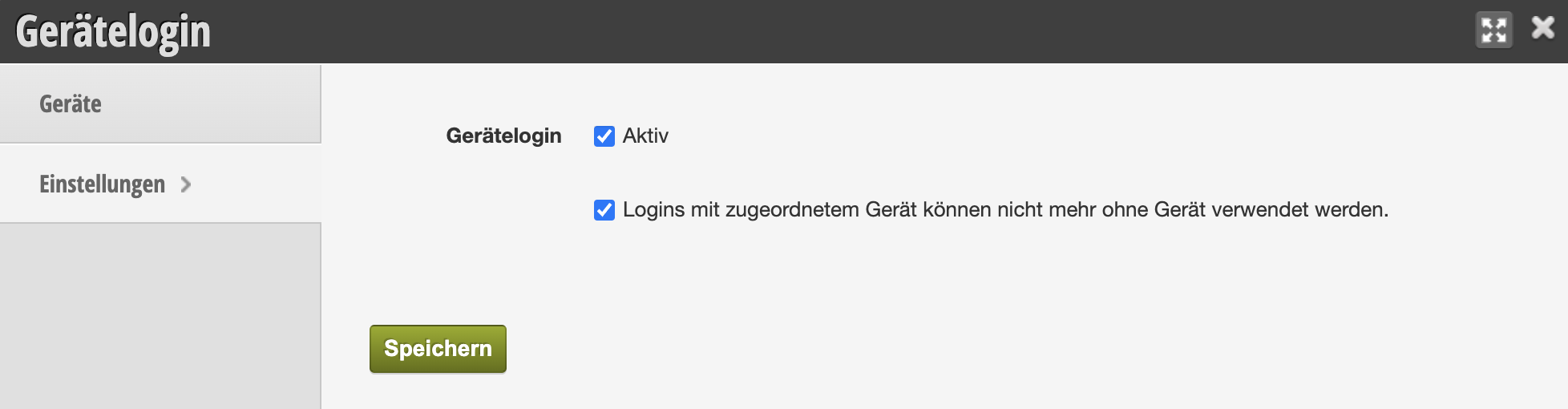
If you uncheck the box, all logins from all devices will have access again, even if restrictions have already been set up under "Devices".
Restrict individual logins
To prevent individual logins from accessing other devices, proceed as follows:
- Log in with your admin access from the device that should be allowed for a specific login. For example, the computer in your company that is used by your employees.
- Use the browser (Google Chrome, Microsoft Edge) that your team uses in everyday work.
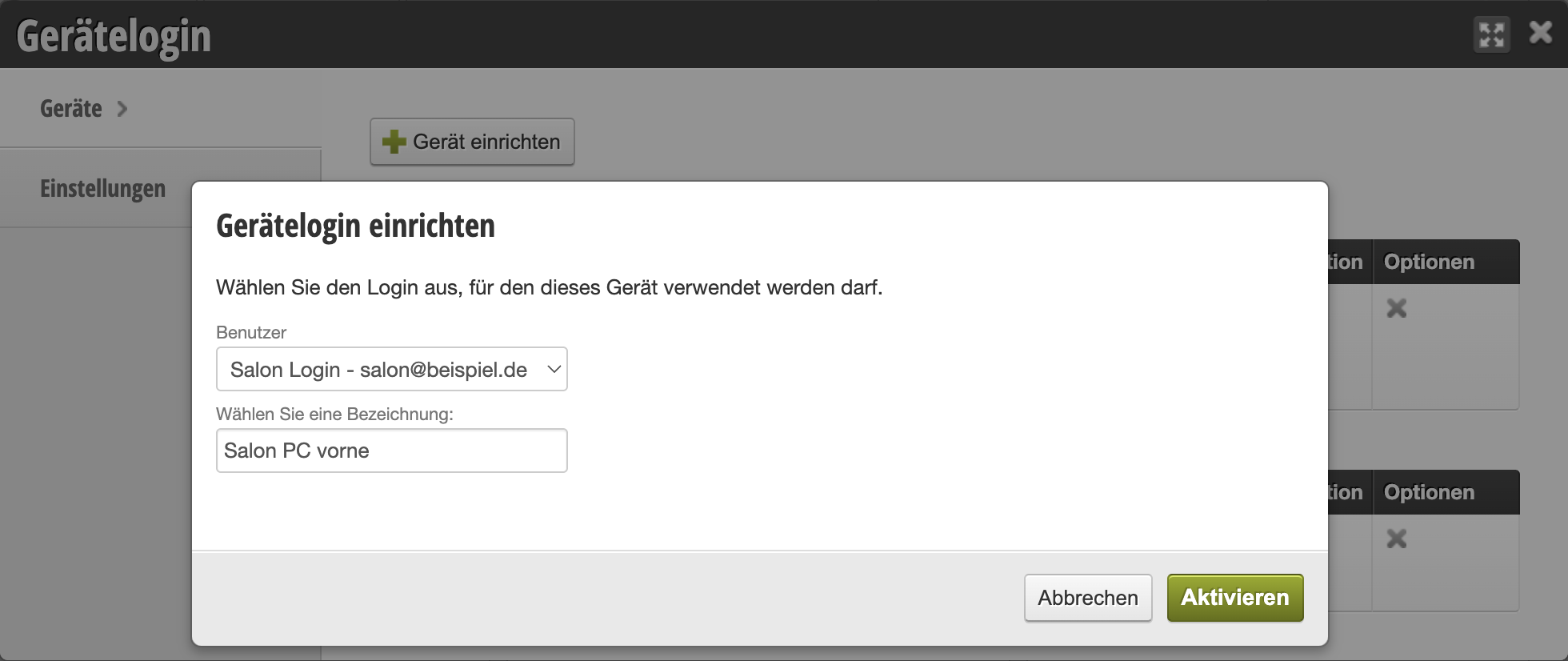
- Open the "Login Access Restrictions" function and click "+ Set up Device" under "Devices".
- Select the login that should be restricted.
- Assign a clear name for the computer you are currently using.
- Save your entry.
You will then see the list of restricted logins and the associated devices.
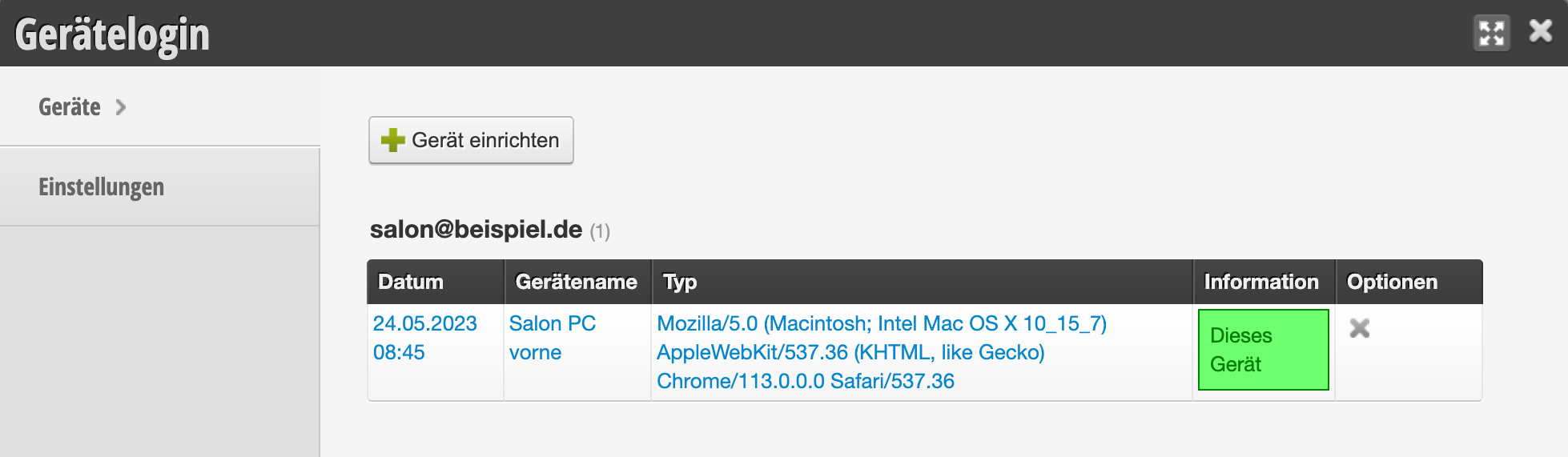
To assign additional devices to the same login, repeat this from the desired additional device. Users who subsequently log in from one of the assigned devices will see that it is a recognized device.
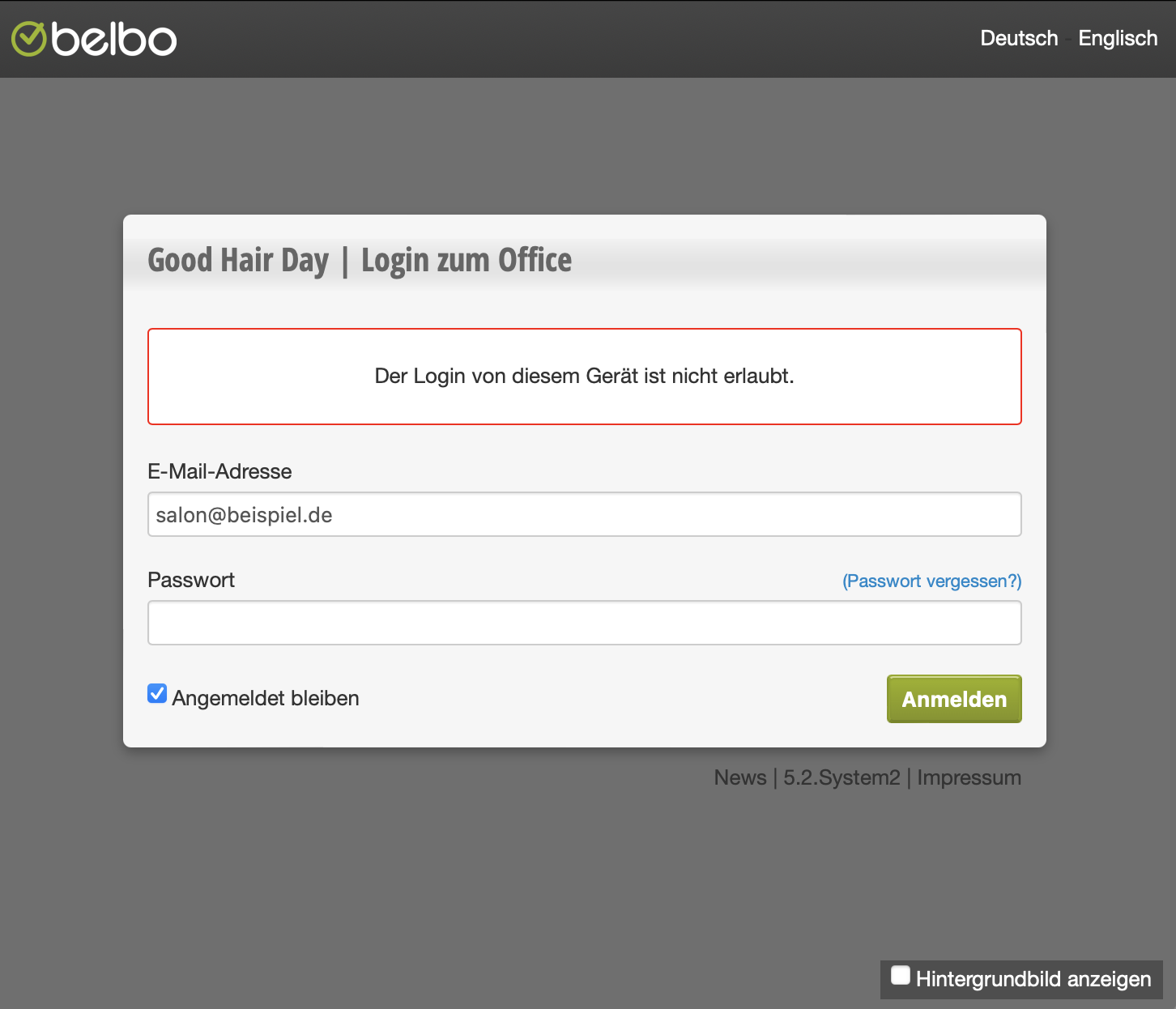
Users who log in with the restricted login from another device will see an error message and will not have access to the calendar. Note: This also applies to other browsers on the same device!
Recommendations
We recommend using this function for the Team Login, as well as for additional logins that you have assigned to your team members. This is useful, for example, if you want to prevent employees from checking in on their way to work.
Additionally: Two-Factor Authentication
Login access restrictions limit which device a login can log in from. If you additionally want to prevent a compromised password from being sufficient for login, you can additionally secure the affected login with two-factor authentication (2FA).