
If you want to allow your employees to log in to your Belbo calendar on a private mobile device, for example, they can receive their own logins. This type of login can be restricted in various ways. In everyday work, the Team Login continues to be used on the company computer.
Create a login
First, create a login for the person you want to grant access to. How to do this is described in more detail here.
Additional security with 2FA
Especially for logins used on private mobile devices, it is recommended to additionally activate two-factor authentication (2FA). This keeps the login protected even if the password falls into the wrong hands.
Permissions in the rights overview
We recommend giving private logins only the "login only" permission. Senior employees or admins are of course exempt from this. Logins with only this permission can view and create appointments, but cannot log into time tracking or view the cash register function.
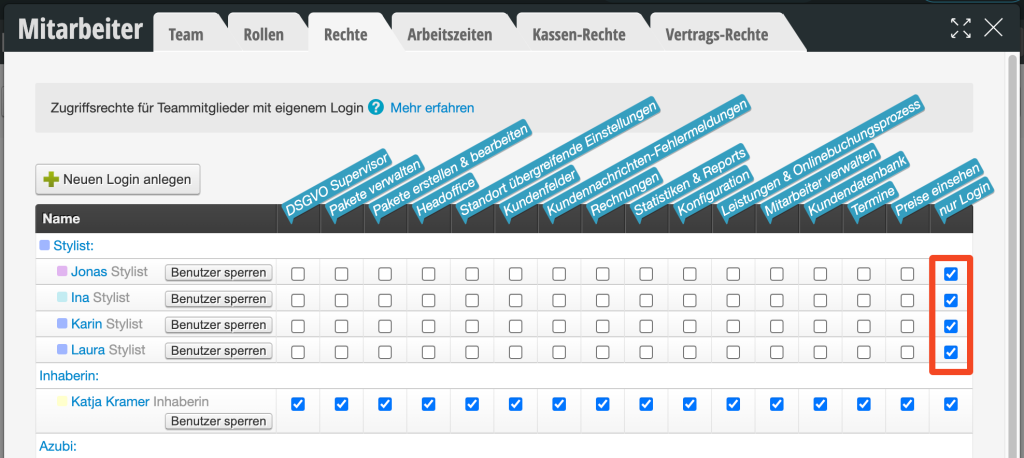
If you don't have this right as an admin to assign it yourself, please contact us via the help chat or info@belbo.com.
Permissions in the employee profile
In addition to permissions, further restrictions or authorizations can also be stored in the person's profile under "Access restrictions", after the login has been created.
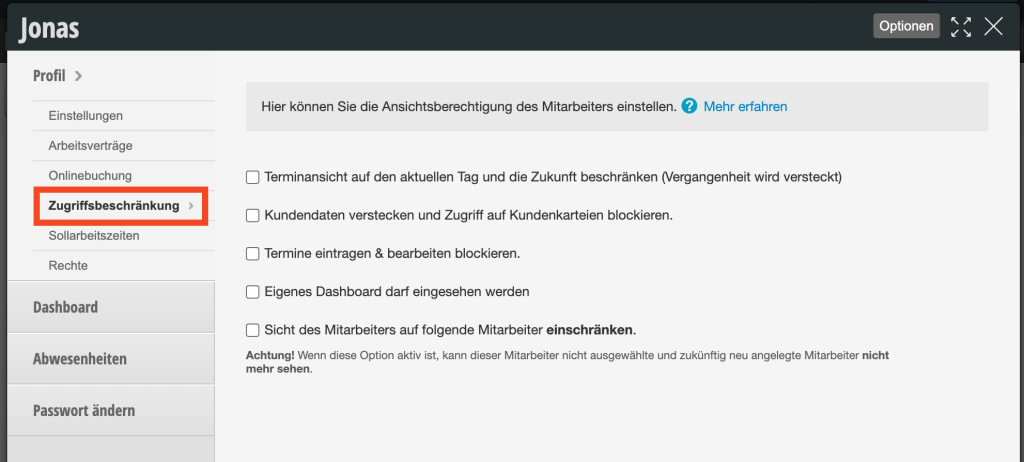
Restrict appointment view
If you want a login to not be able to scroll back in the past, but only see today and the future, activate this restriction in the team member's profile.
Hide customer data
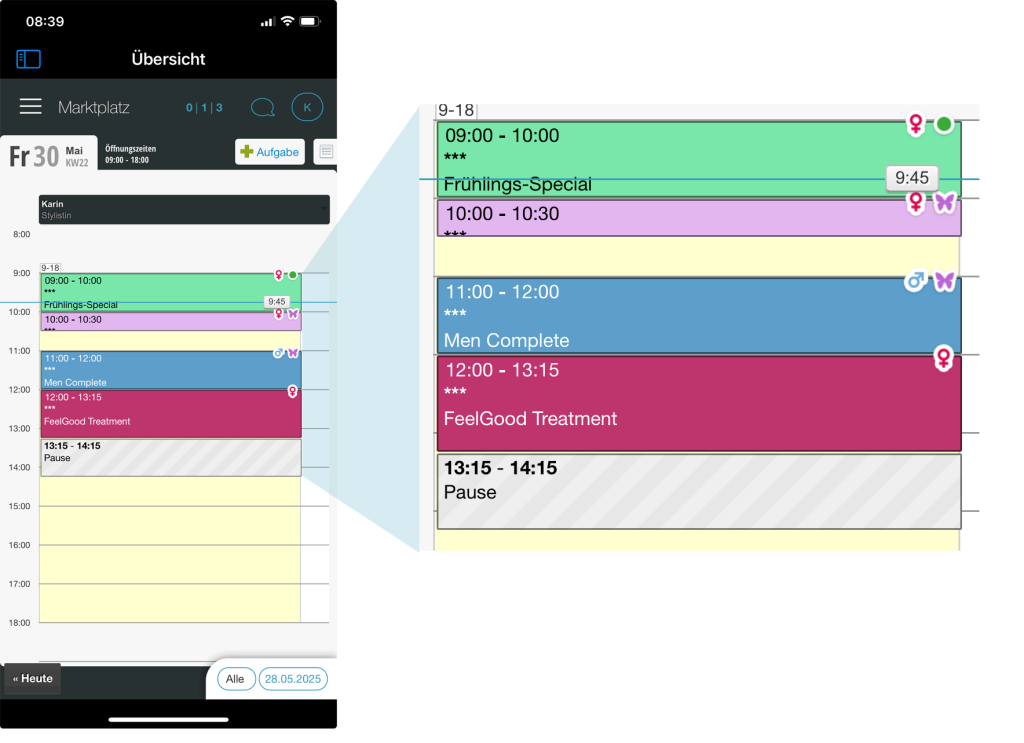
If you don't want a login to have access to customer data, but only to see upcoming appointments, you can activate "Hide customer data and block access to customer files". This way, customer data cannot be viewed and appointments cannot be opened or entered. Example view in the iOS app for a login with this restriction:
Block entering & editing appointments
If customer names are allowed to be seen, but appointments should not be edited or created, you can activate this permission.
Enable access to own dashboard
An employee's dashboard displays numerous data such as sales, time tracking including overtime or minus hours, reports and more. If employees should have access to parts of this data, you can activate the "Own dashboard may be viewed" option.
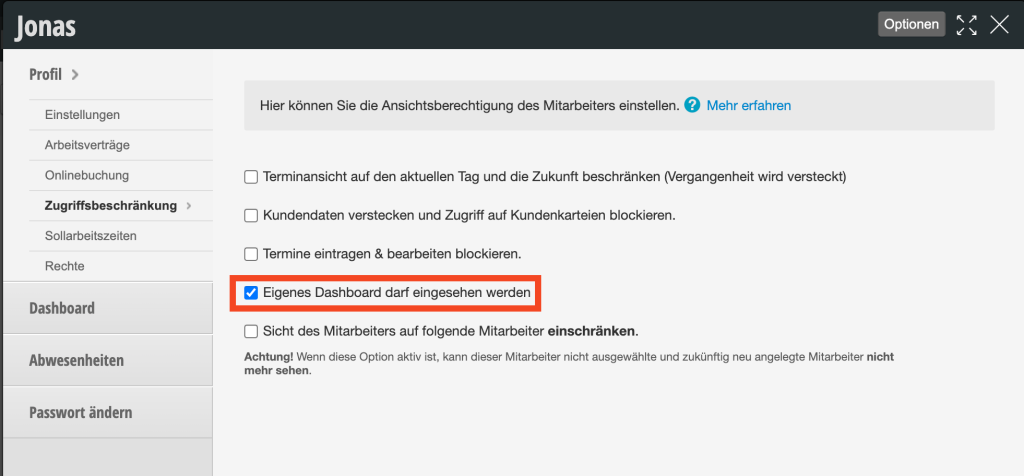
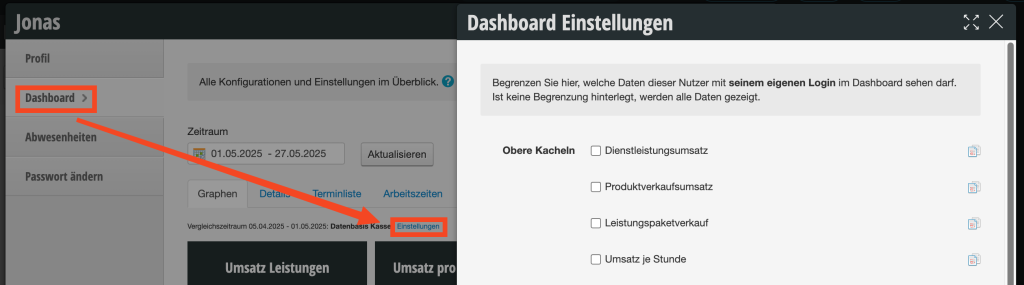
You can then determine in this person's dashboard which data they are allowed to see there. You can do this directly in the dashboard by clicking on "Settings":
Restrict employee's view of specific employees
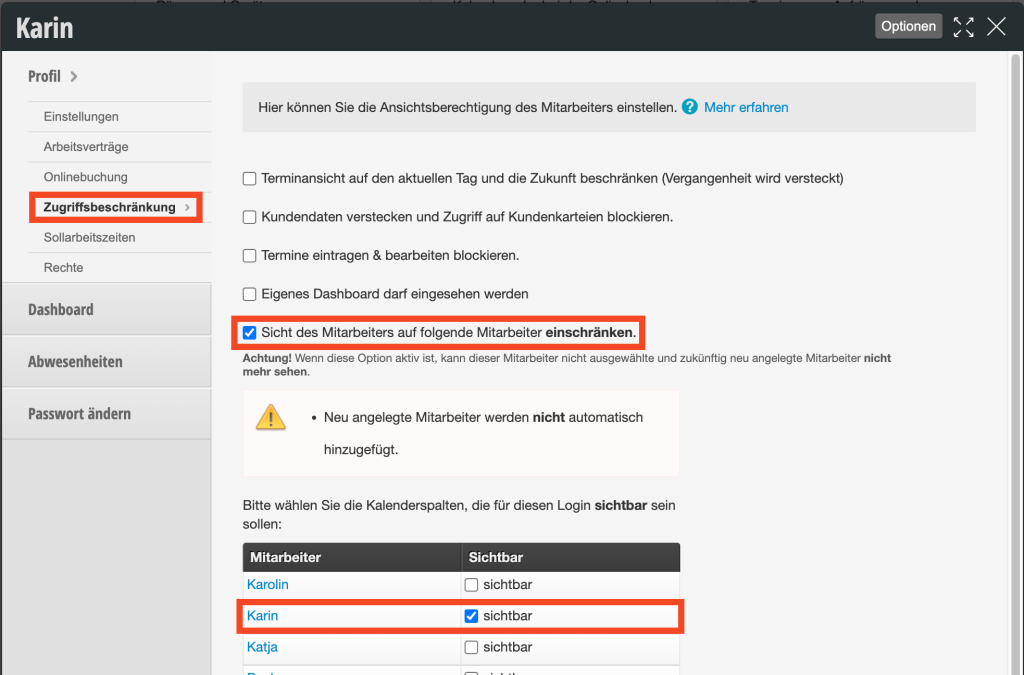
If you want a login to only see certain calendar columns (usually their own), you can activate this option. Important: Then select the permitted calendar column(s):
Access to Belbo from your mobile phone
Your employees can download the free Belbo App (iOS, Android) to their phone or log into the calendar via the website https://belbo.com/login (All users outside Switzerland) or https://belbo.ch/login (Swiss users).