
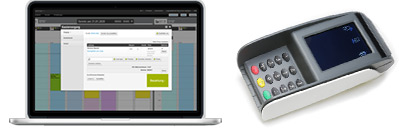
With Belbo, you can automatically forward payment amounts to your card terminal. This ensures that the invoice amount is transferred correctly during the payment process. This saves time and reduces the likelihood of errors.
Requirements
- You can install software on your computer or know the administrator password.
- You have access to your router's administration interface.
- You use Chrome Browser, Edge Browser or Firefox.
Requirements for your card terminal:
- ZVT operating mode is supported.
- The device is ready for operation and successful transactions have already been processed manually.
- Computer and terminal are on the same WLAN/LAN.
To be able to send an amount directly from the payment process to your terminal, the device must meet certain requirements. The devices found under Settings > Card Terminal have already been tested and used.

Step 1/5: Determine the device's IP address
Once the card terminal is installed and active, perform a manual payment to ensure the device is working properly.
Then determine the terminal's IP address on the network. This IP must be directly accessible from your computer. The device's IP is usually assigned by the router. However, you may need to fix the IP in the router so that it always receives the same IP address.
Log in to your router and determine the IP address assigned to the device by the router. Alternatively, you can use the "Find Device" function in the "Card Terminal" feature to determine all accessible devices.
Note: Check carefully whether the IP is accessible from your computer. This should be done in the "Communication Test" tab, see below.
Step 2/5: Contact your card terminal manufacturer!
To prepare the terminal for operation with Belbo, contact your manufacturer's hotline. You can usually find the number on the back of your card terminal. With the help of your device manufacturer, configure the following:
- Port Identification: Have the device manufacturer provide you with the port of the device. This is usually a 4- or 5-digit number. Write down the port. Alternatively, this port can also be found in the device's menu. Examples of common ports are 5577 and 20007.
- ZVT Mode: Enable ZVT mode. Write down the steps to activate ZVT.
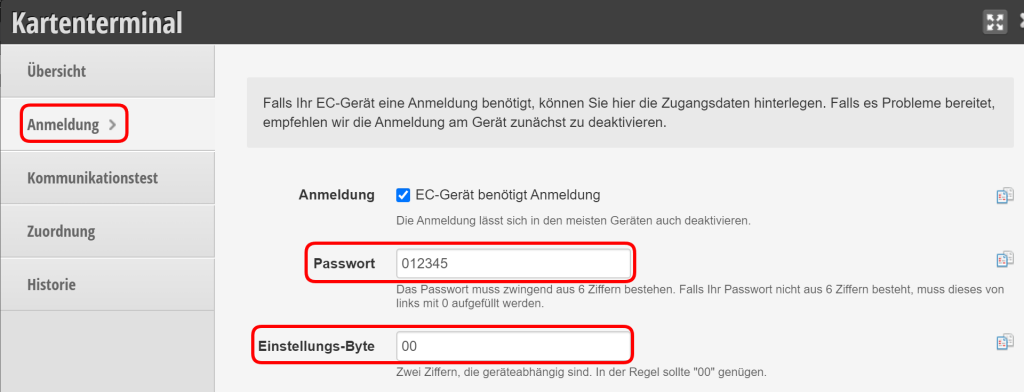
- Disable all ZVT operating mode options. The operating mode option "Login" should also be disabled to make the integration even easier. If the operating mode option 'Login' is still active, please enter the following in belbo under 'Login':
- The terminal must be set to communicate via Cash Register using TCP/IP.
Always have explained how to disable ZVT mode and write down the steps. If the integration fails or other issues occur, you can turn off ZVT mode and collect amounts manually.
Tip: You can find an instruction manual for standard Ingenico devices here.
Step 3/5: Install the Belbo Satellite
Please install the latest version of Belbo Satellite.
Step 4/5: Settings in Belbo
- Enable the "Card Terminal" module in your Belbo calendar under Settings > Add Function
- Select your device from the list.
- Enter the IP address of the card payment device (which you determined in the router or via "Find Device").
- Enter the port of the card payment device (which you obtained from the manufacturer).
- Check the entered data in the "Communication Test" tab.
If the communication test is not successful, the displayed problems must be resolved before proceeding. If there is a problem with the Satellite version or accessibility, check Step 2. If the device is not accessible under the IP and port, check your network settings or contact the device manufacturer to verify the data.
If you get stuck, please send us a screenshot so we may be able to provide tips.
Example of a correctly configured card terminal:

Step 5/5: Assignment of payment methods
Switch to the "Assignment" section and enable the payment methods that should be linked to the card terminal.

Test the card payment
- To test the connection, you can then start a payment process using one of the payment methods assigned in step 4.
- If the connection has been set up correctly, you will see the following message after selecting the payment method:
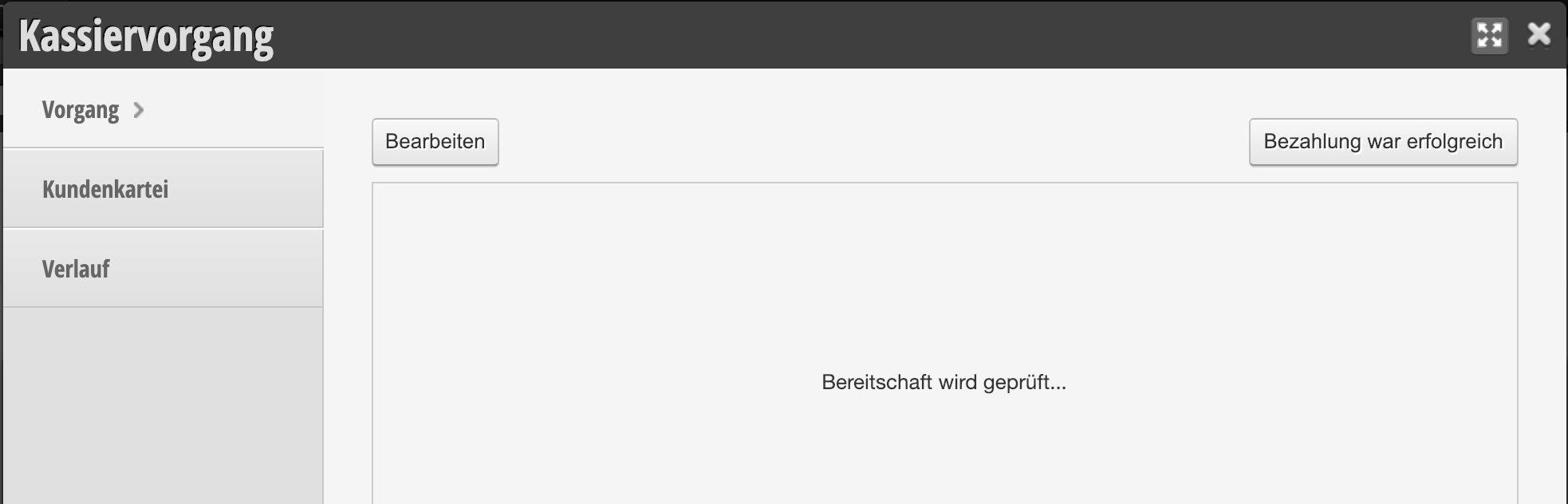
Your card terminal now displays the amount to be paid and can be used for payment.
View payments
In Belbo Satellite, you can click on "Status" to retrieve a list of past card terminal connections.
Card payments with SumUp
You can also accept payments via SumUp and book them correctly in Belbo for accounting purposes. More information about payment with SumUp can be found here.