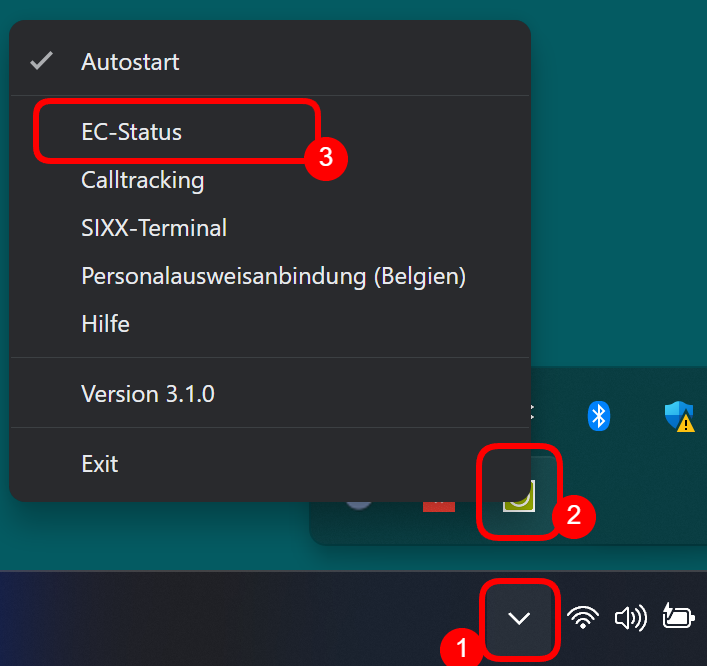
This article will help you troubleshoot if payments are not being transferred correctly to your card terminal. If you are using a SumUp device, this article is not relevant for you.
Below you will learn which basic points you should check – including the communication test, the stability of the network connection, the correct IP address and port, as well as possible device settings such as the login mode. Additionally, it explains how you can check the connection with simple tests.
First Step: Perform Communication Test
To narrow down the problem, it is important to know whether the payment has already worked. If this is the case, it is likely a network problem, which can be confirmed by the communication test in the "Card Terminal" function. Therefore, please first run the communication test in the function and send this screenshot to the help chat or by email to info@belbo.com, or take a photo with your phone if you cannot proceed further on your own.
Examples
The created screenshot might look something like this:
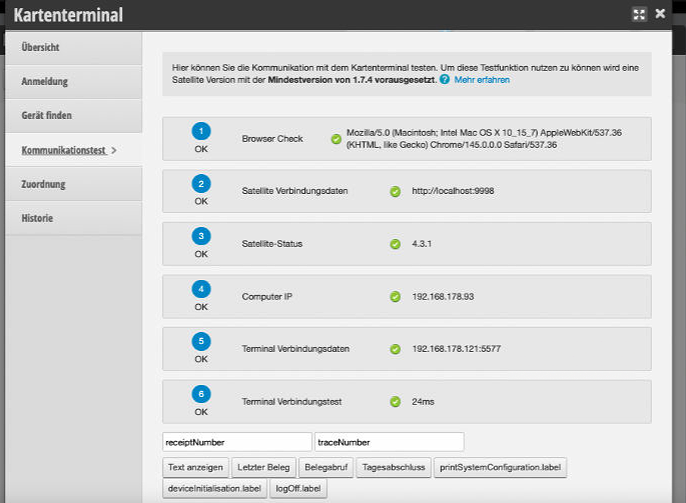
In this case, the device is basically ready for use. Please check during a checkout process whether the payment arrives at the device. In principle, you can already click the "Display Text" button at the bottom left to check if "BELBO" appears on the terminal's display. If this is the case, the communication is perfectly set up and the payments will work. If this is not the case, the problem is with the terminal and can be analyzed with the terminal hotline.
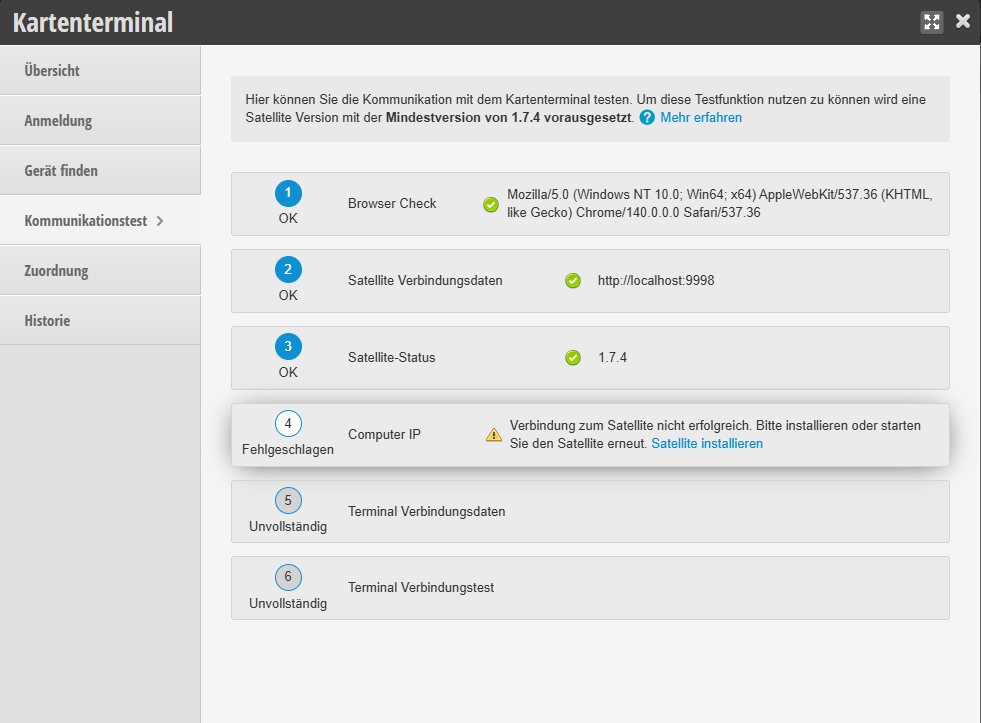
An example of a state in which the installation of the Satellite needs to be checked.
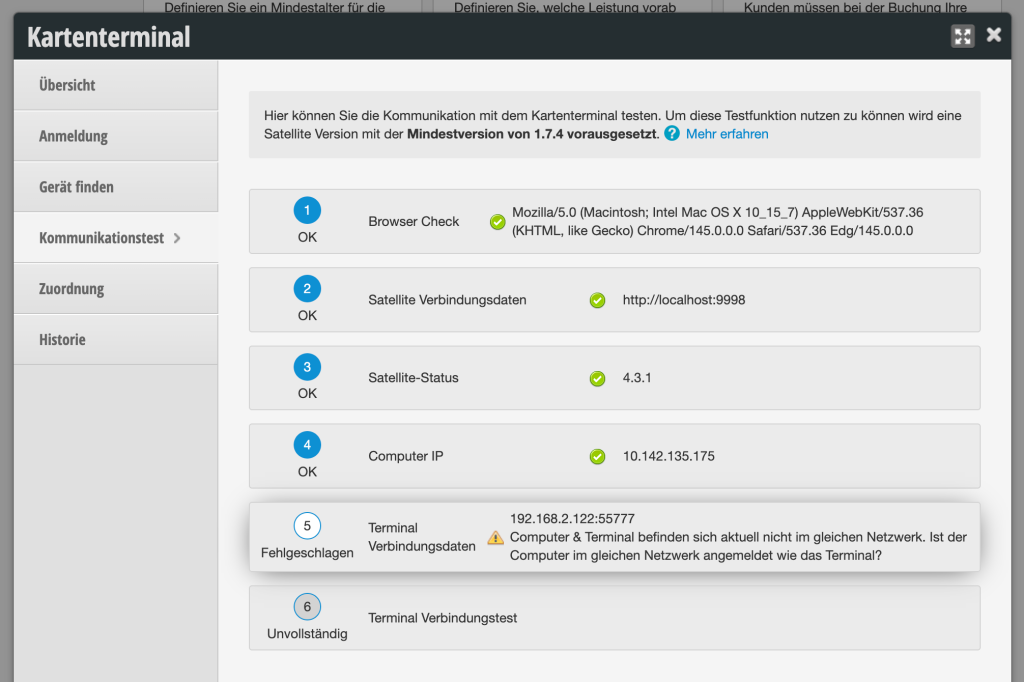
Here is a classic example of the terminal not being on the same network as the computer, possibly due to a WiFi switch.
The following summarizes tips for resolving the individual test levels of the communication test:
Level 1: Check Network Access in Browser
Depending on which step a problem occurs, you may be able to fix the problem yourself. For example, it is necessary to use Chrome, Edge or Firefox and allow access to the local network in this browser. Please check using the video whether access is allowed: https://www.youtube.com/watch?v=jIqkwOoKNHg.
Level 2: Check Belbo Satellite
Is the Belbo Satellite started and running? Check whether the Satellite is properly installed and running depending on the operating system: Installation Guide
Level 3: Check Device Accessibility
If the problem is that the device cannot be reached, there are the following options:
- Most common cause: You are not on the same WiFi as the device. Check whether the computer has accidentally switched to a guest WiFi.
- The card terminal has received a new IP, the router has been changed.
- Then you must determine the IP address of the device again. This is described in detail in the setup article.
- If necessary, contact your network administrator to check whether the IP address of the device is still correct.
Other Tips
The communication test is successful, but the payment process is not transmitted. A symbol of a crossed-out cash register appears on the device.
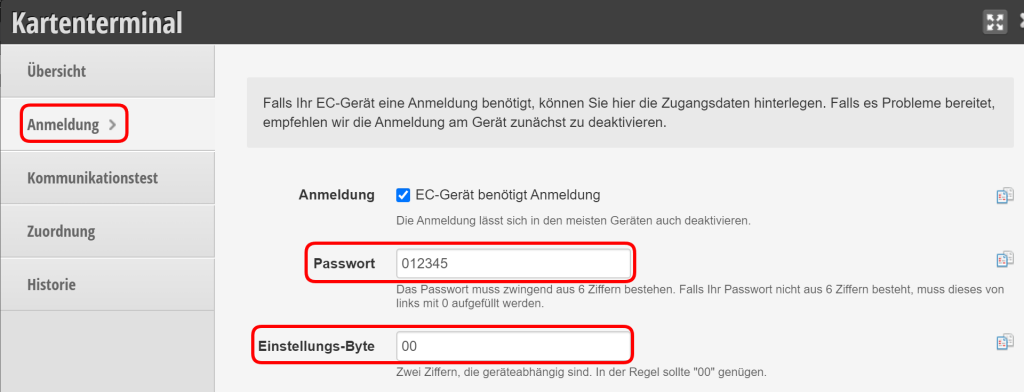
The communication test is successful, but payment processes are (partially) not transmitted to the device.