belbo
  • Overview
    • Getting to know Belbo
    • Location Settings
    • Switch to Belbo
    • Calendar View & Navigation
    • Recurring Appointments & Courses
    • Appointment Entry & Management
    • Logins & Permissions
    • Multiple Locations & Head Office
    • Manage Employees
    • Absences & Holidays
    • General
    • Working Hours
    • Time Tracking
    • Data Protection (GDPR)
    • Customer Communication (Email, SMS)
    • Customer Management & Records
    • Bonus & Loyalty Programs
    • Campaigns (Newsletter & SMS)
    • Marketing Consents (GDPR)
    • Tracking & Analytics
    • Overview
    • Services & Prices
    • Products
    • Service Packages & Subscriptions
    • Vouchers
    • Purchasing & Suppliers
    • Stock & Inventory
    • Scanning & Sales
    • Cost of goods & expenses
    • Design & Texts
    • Setup & Settings
    • Integration (Website, Google, Instagram, Facebook)
    • Online payment
    • Accounting & Exports
    • Cash Register Settings & Hardware
    • Checkout process
    • Daily Closing & Reports
    • TSE & Cash Register Anti-Tampering Ordinance
    • Export Overview
    • Employee Utilization
    • Revenue & Reports
    • Belbo Satellite
    • Printer
    • EC Terminal & Card Payment
    • Troubleshooting Hardware
    • Scanner & POS Devices
    • General Settings
    • API & Integrations
    • Notifications & Emails
    • Contracts & Legal
Skip to content

Collect appointment

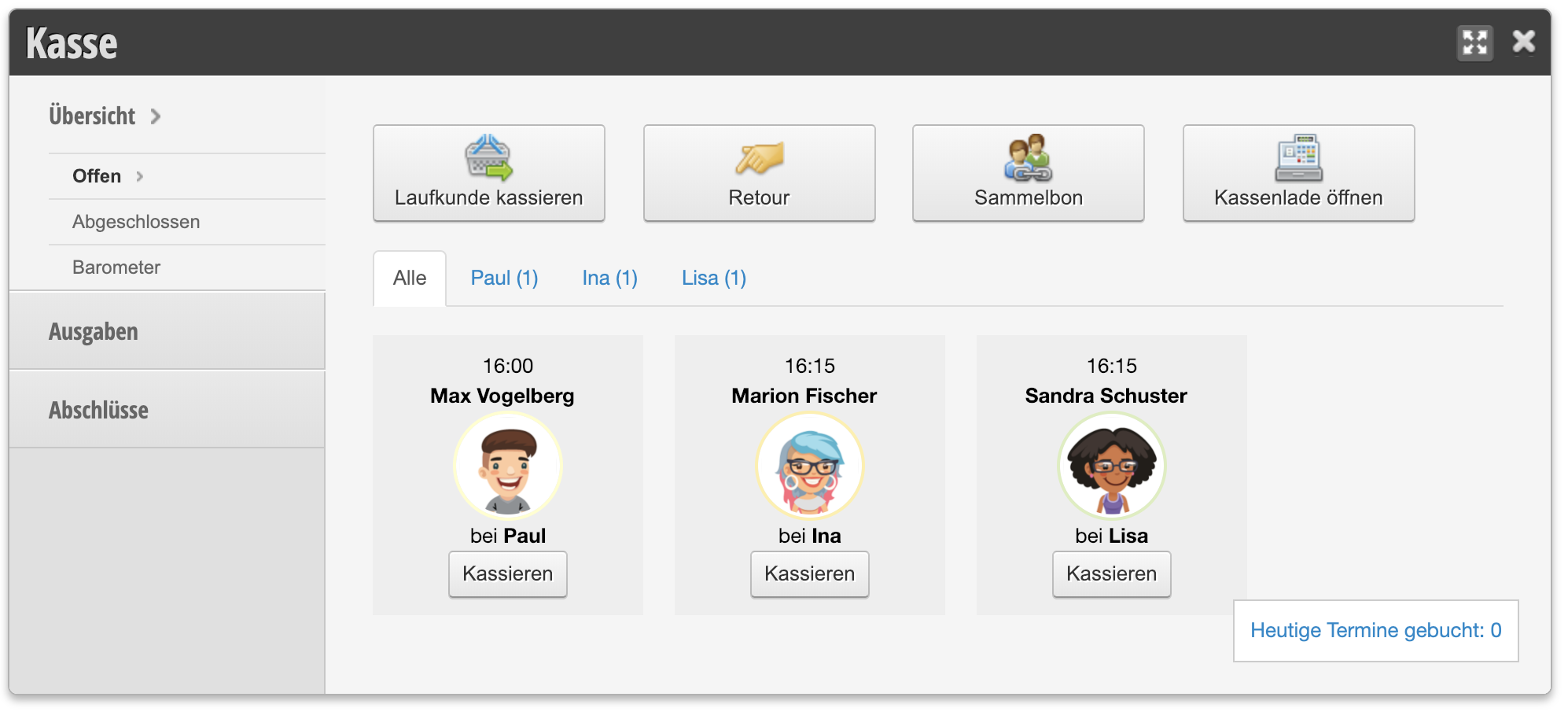
If you want to collect payment for an appointment that is already in the calendar, you can simply click on the appointment. You can also find current appointments in the Cash register overview.

Here you can learn how to collect payment from walk-in customers.

Collecting payment for an appointment in the cash register overview

  1. Click "Cash register" in the top right of the main navigation
  2. Select the upcoming appointment. All appointments of the day that have not yet been collected and are within the next 2 hours will be listed.
  3. Add the service or products that should be billed.
  4. Add discounts using the discount button and document why a discount was given.
  5. Change the number of services using the quantity link.
  6. Click "Payment" (this button only appears once at least one service has been added).
  7. Select the payment methods and click "complete".
  8. Print the receipt if desired.

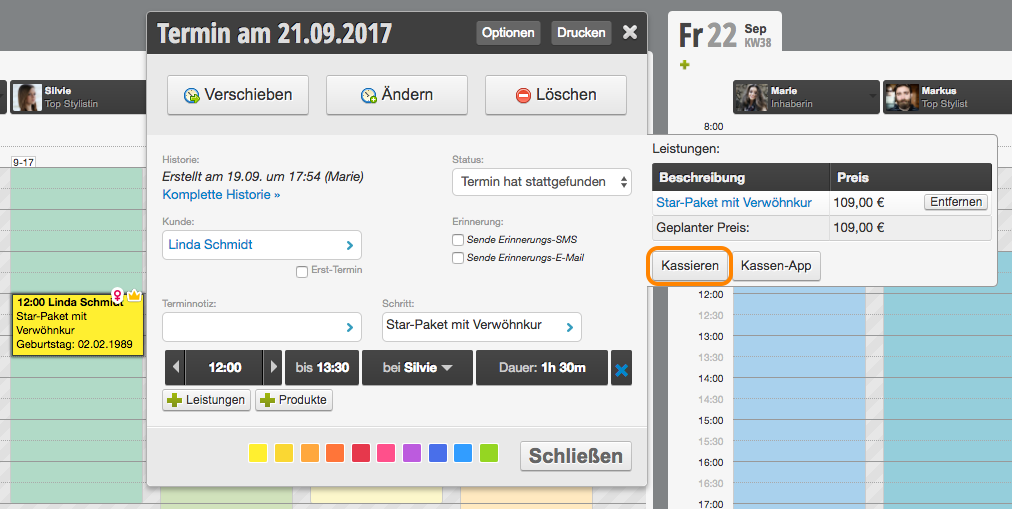
Collecting payment for an appointment in the calendar

  1. Click on the appointment in the calendar that should be collected.
  2. Click "Collect payment" on the right in the services table.
  3. Add the service or products that should be billed.
  4. Add discounts using the discount button and document why a discount was given.
  5. Change the number of services using the quantity link.
  6. Click "Payment" (this button only appears once at least one service has been added).
  7. Select the payment methods and click "complete".
  8. Print the receipt if desired.

For detailed information about the Belbo cash register system, please see our cash register documentation (PDF).
Categories: Appointment Entry & Management
Tags: kassieren, Termin kassieren
This manual is a service by belbo. Legal notice