
You can connect your mPOP cash register with Belbo to print receipts faster and open the cash drawer with one click.
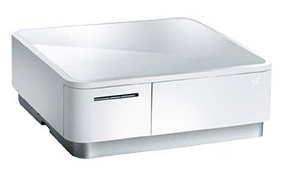
Please follow these steps:
- Step 1: Configure printer connection in Belbo
- Step 2: Download Belbo app from the App Store
- Step 3: Connect mPOP to iPad via Bluetooth
Step 1 of 3: Install Belbo App
Now open the App Store on your iPad and download the Belbo app.
Step 2 of 1: Connect cash drawer via Bluetooth
- Turn on the cash register so it can be found via Bluetooth
- Open the Bluetooth settings on your iPad and connect the cash register to the iPad
- Important: In the Bluetooth settings of your iPad, you can now enable the Belbo app to access Bluetooth.
Step 3 of 3: Connect cash drawer in the Belbo app
- Tap the blue icon in the top left of the Belbo app
- Go to "Receipt Printer" in the menu and then to "Bluetooth Cash Register"
- The mPOP device should now be selectable
Now open the app you downloaded above and log in. In the side menu you will find the menu item "Receipt Printer > Bluetooth Cash Register". Here you can select the mPOP cash register.
Test
Now you can cash an appointment in the app and print the receipt.