With Belbo, you can create an online gift certificate shop so your customers can buy and pay for gift certificates online. This way you generate additional revenue and offer your customers great added value.
Upload your logo to your AI assistant and give it the link to this help article. This creates a gift certificate design that you can use directly in the Belbo online gift certificate shop.
Requirements for the Online Gift Certificate Shop
The following settings are required to use the Belbo gift certificate shop:
- The gift certificate module is active. On the Settings page you will see the function "Gift Certificates & Discounts". If the function is not active, you can activate it under Settings > Add Function.
- The gift certificates to be sold are created. When the "Gift Certificates" function is active, you can create your gift certificate templates under Settings > Prices & Services > Gift Certificates.
- Your online payment is set up. An active Stripe or PayPal merchant account is configured under Settings > Online Payment.
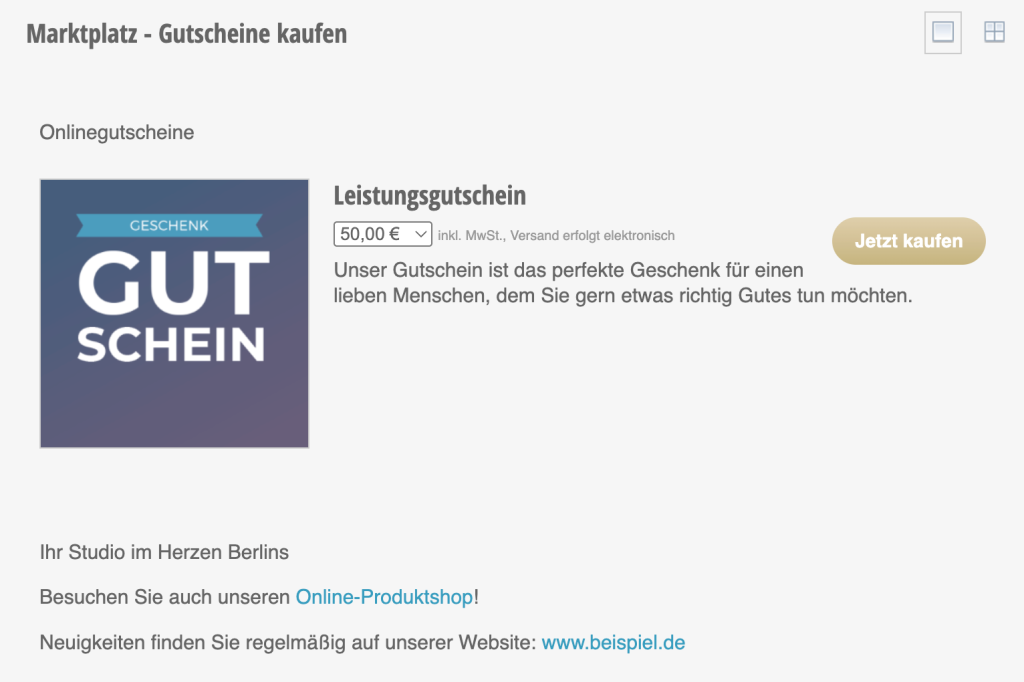
Example of a gift certificate shop:
Set up the Gift Certificate Shop
Enable the gift certificate shop under "Settings" by typing "gift certificate shop" in the search field at the top of the page or clicking the "Add Function" button.
Choose a gift certificate template or upload your own template: Customize gift certificate design
When a gift certificate is sold, a gift certificate sales email is sent. You can customize this under Settings » Gift Certificate Shop » Confirmation Email and add text. Describe any special features of the gift certificate here (redemption period, etc.).
Your gift certificate shop is now accessible at:https://<YourCustomerAccount>.belbo.com/gift-certificates
After all steps are completed, it is recommended to test the gift certificate shop. To do this, you can go to your online booking and add "/gift-certificates" to the URL. The gift certificate shop is also always visible in the navigation for logged-in customers.
Gift Certificate Price Levels
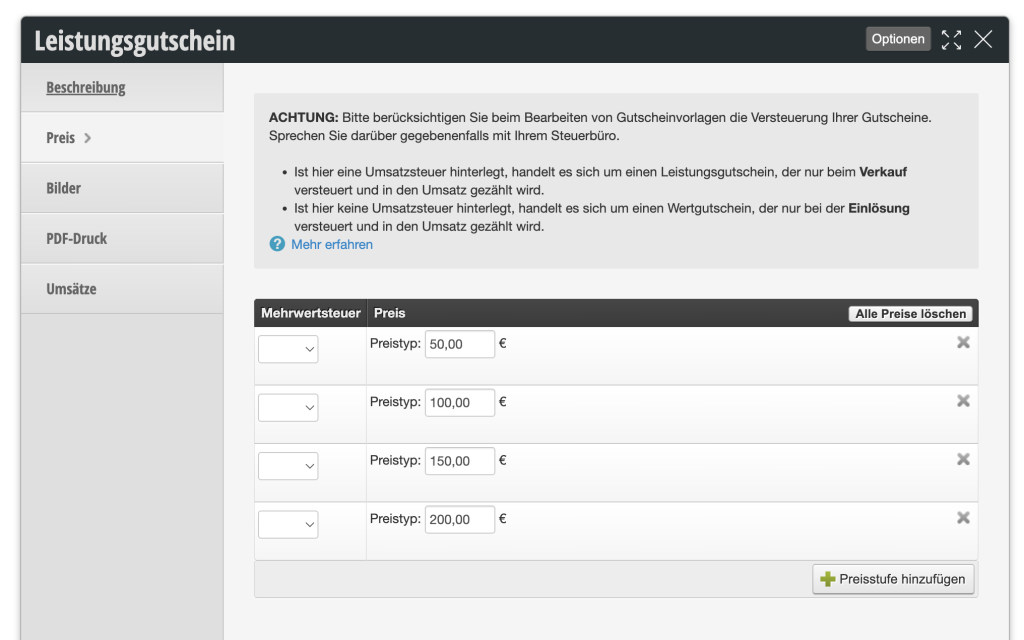
Create any gift certificate tiered pricing for multi-purpose gift certificates by entering multiple prices here:
Sell Discounted Gift Certificates
If you want to offer your customers a discount on purchasing gift certificates, you can set this in each gift certificate template.
- Go to "Gift Certificates" under Settings > Prices & Services.
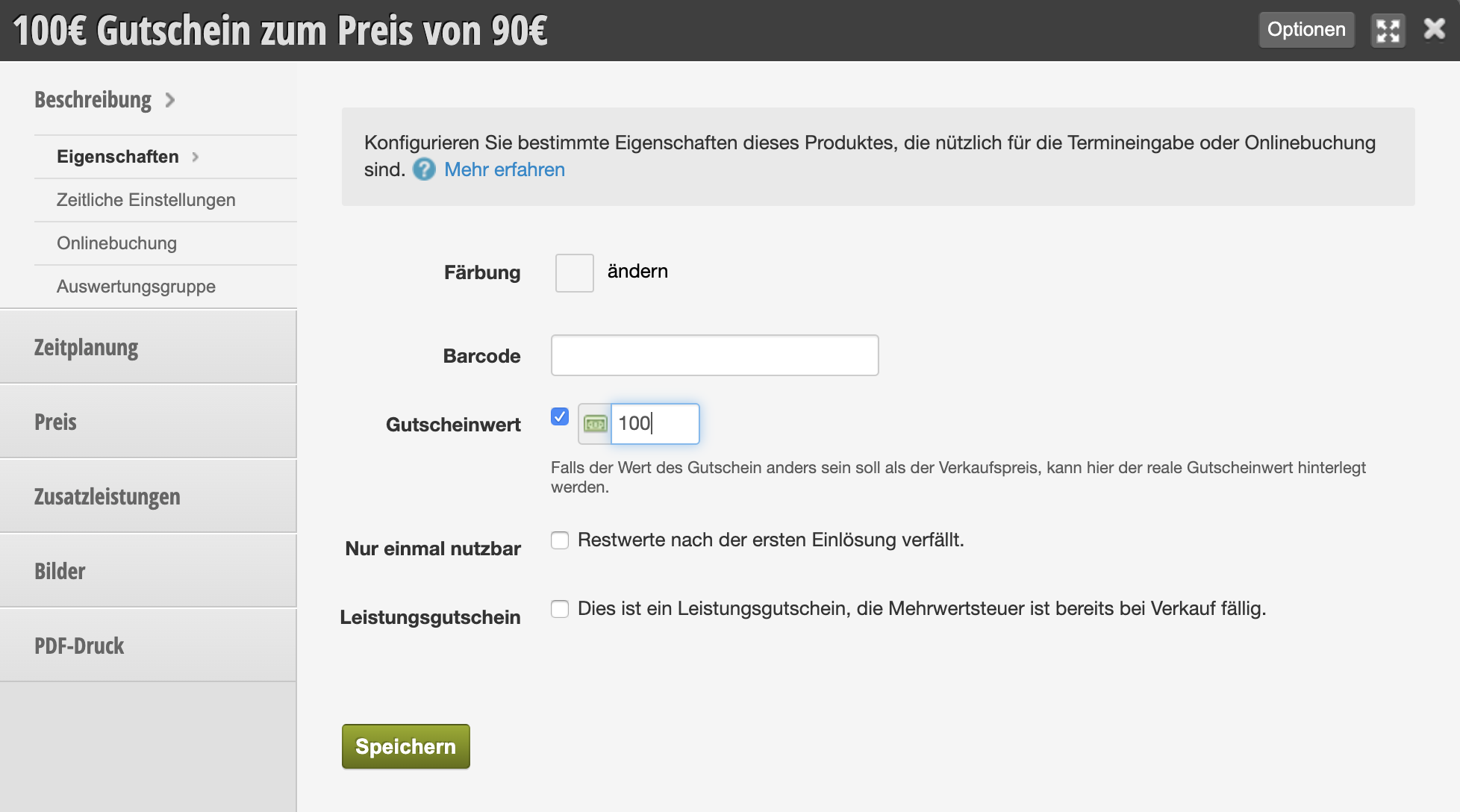
- Click on the desired gift certificate and select the "Properties" tab.
- Enable the "Gift Certificate Value" checkbox here and enter a value – in our example 100,-.
- Switch to the "Price" tab and enter the price that the customer should actually pay – in our example 90,-.
Set Gift Certificate Value
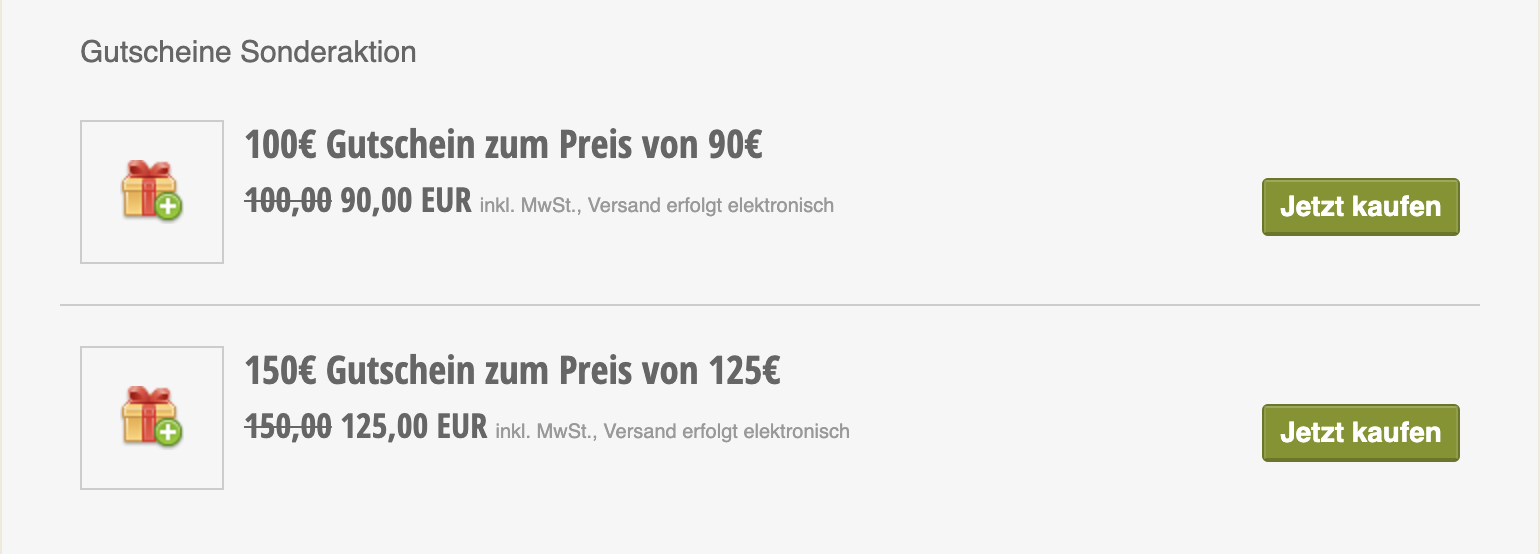
Discounted Gift Certificates in the Shop from Customer Perspective