If you use vouchers that you want to sell in your voucher shop or print on-site for your customers, you can create a template that will be used automatically.
Template Design
- First, select one of our templates under "Design".
- If you want to upload your own PDF template, select "Custom Template". You can then select the desired font in the "PDF Template" tab or upload your own PDF. Learn more about creating your own templates here.
Customize Design
Once you have selected a ready-made template, all voucher fields are already filled in correctly. However, you can modify the elements, for example edit font or font size.
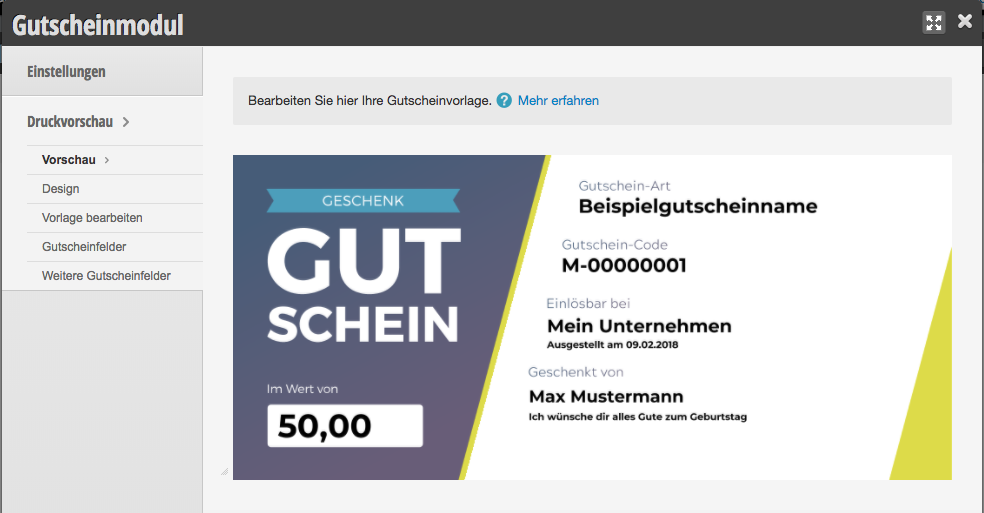
If you have uploaded your own PDF template, you must place the existing elements in the correct location. To do this, drag the elements to the desired position:
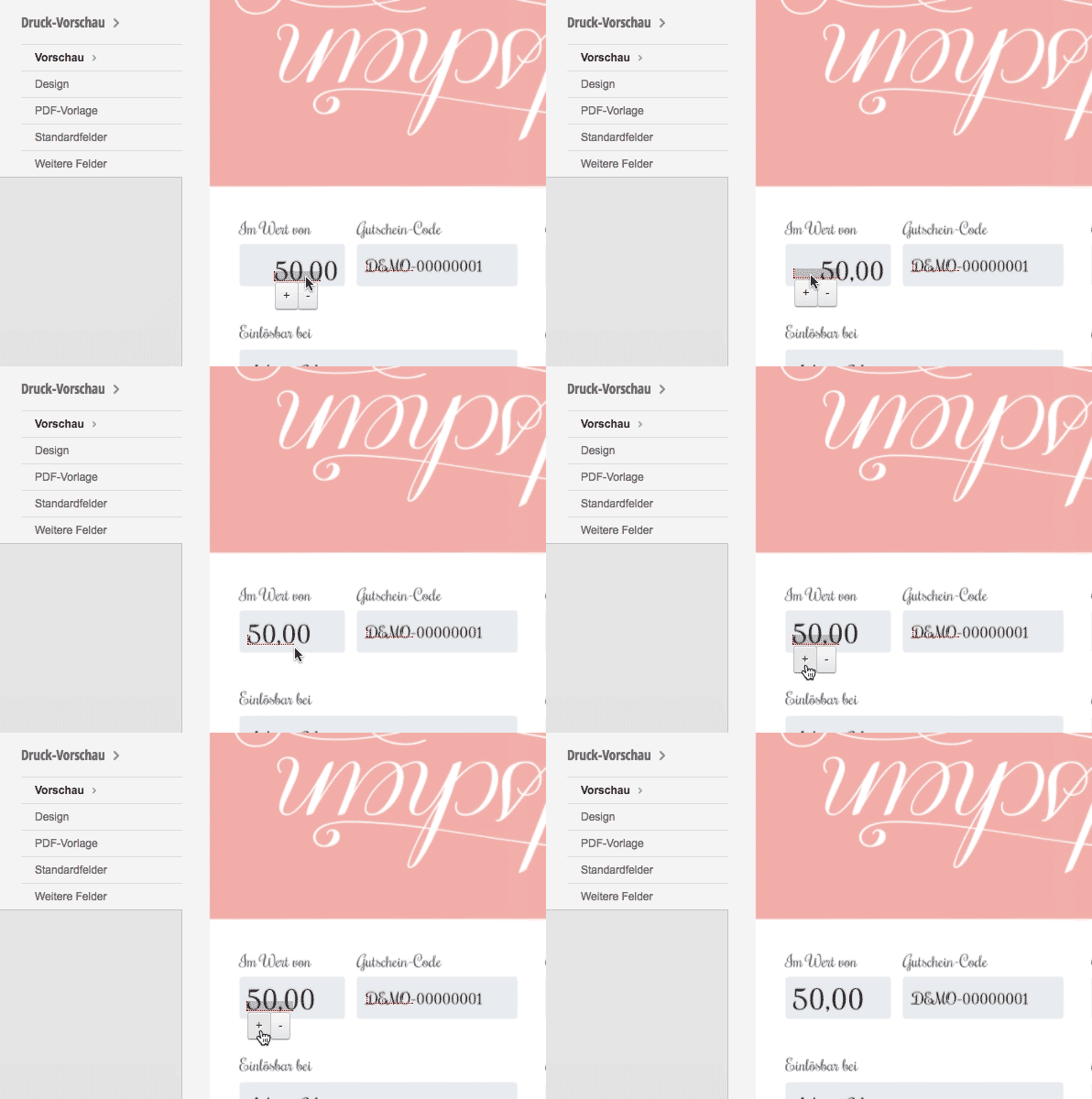
Some elements must be placed on the voucher. These include voucher value, voucher code, and voucher name. Other elements can be used as needed. These include purchaser name, purchaser free text, or location.
The placed elements can be fine-tuned in the menu items "Voucher Fields" and "Additional Voucher Fields".
Filling in individual content during the sales process
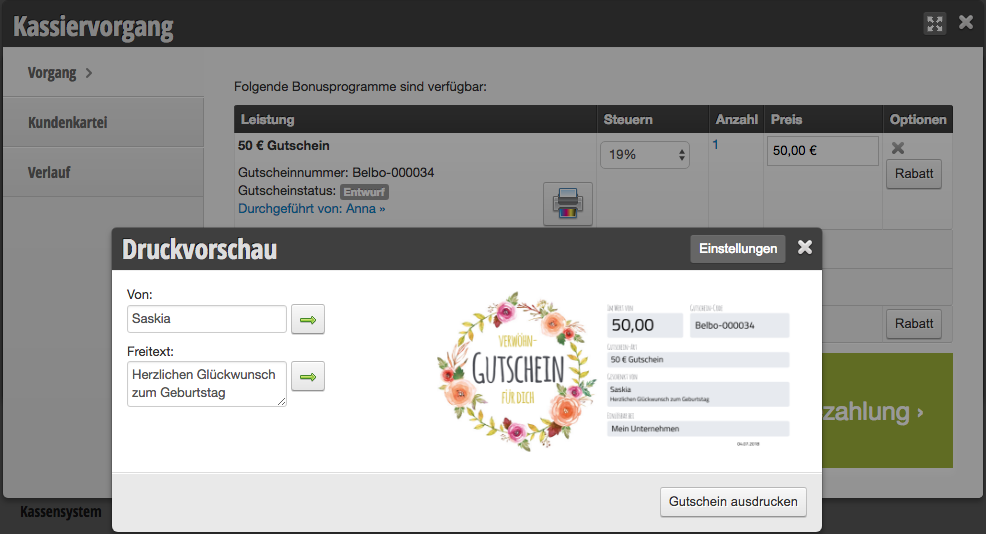
When you sell a voucher, you can enter the customer's name and personal message so that they will be printed on the voucher. After you have selected the voucher in the checkout process, you can click on the printer icon to add the name and message – if these are set up in your template.