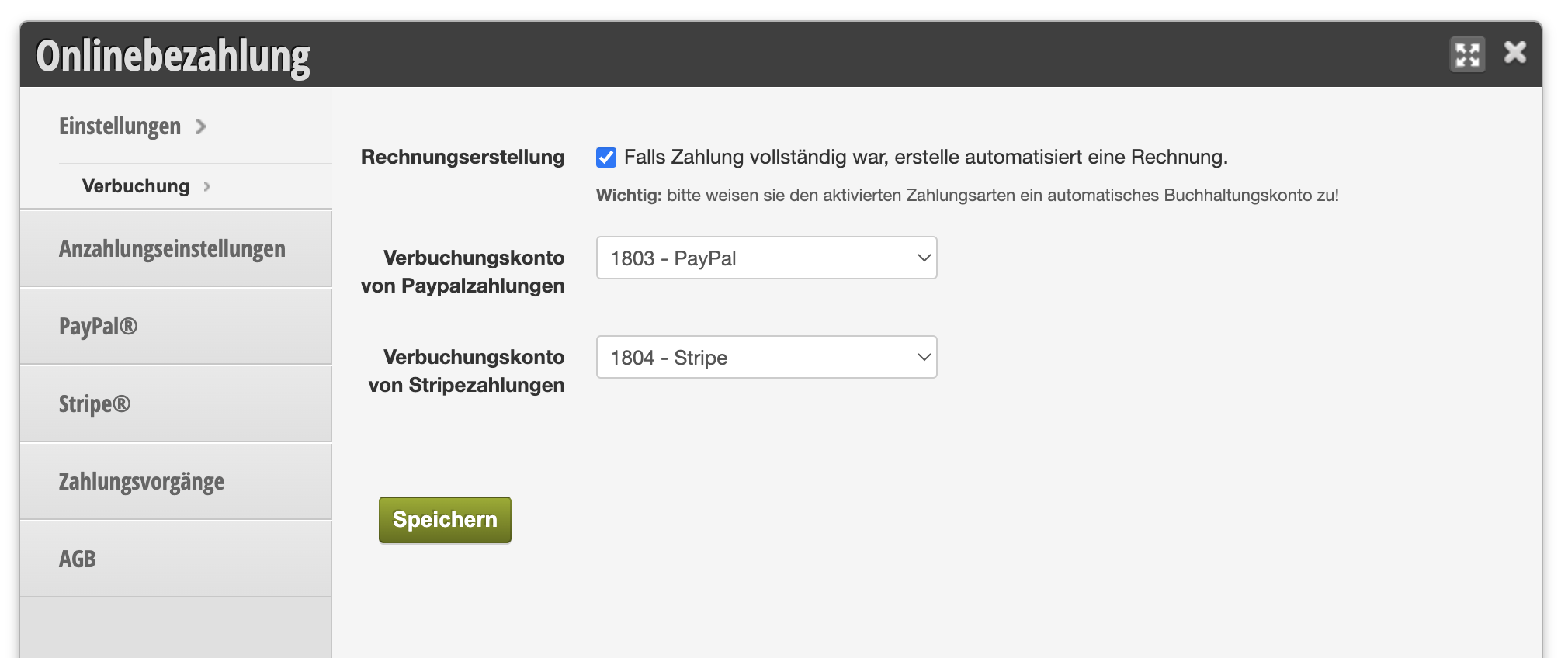
In the online payment settings, you can specify that online payments should be automatically recorded in the cash register. Here we explain what the advantages and disadvantages of this posting are and what the alternative is.
All vouchers and appointments that are paid on site via the cash register are recorded by the Belbo cash register system. For appointments and vouchers paid online, there is the option of manual or automatic posting.
Recommended: Keep automatic posting disabled
Appointments paid online
Appointments paid online are cashed in as usual after the appointment takes place. Here, the payment methods used online (for example, PayPal) are used and supplemented with additional payment methods if necessary, if further services or products are added on site, which are then paid in cash or by card (see also Split payment for online payments).
Vouchers paid online
Even if you disable the option, vouchers purchased online are already fully recorded in the cash register and do not need to be manually re-cashed. They appear in the daily closing statements. If vouchers are purchased after business closes, the daily closing statement may need to be recreated.
Automatic posting is activated
It is possible to automatically record online payments in the cash register. This setting always affects every type of online payment, both online purchased vouchers and full payment of appointments. Part payments for appointments are not automatically posted.
Consequences for appointments paid online
- Cashed appointments can no longer be rescheduled or would need to be cancelled and re-cashed if changes are made to the time.
- If the customer uses additional services on site or purchases additional products, the appointment must be cancelled and re-cashed.
Consequences for vouchers paid online
- Voucher sales from 00:00 to the time of the daily closing are automatically recorded in your daily closing statements.
- All voucher sales between closing time and 00:00 result in the closing that was made needing to be recreated the next day.
Correctly activate automatic posting
To set up the posting correctly, you need the accounting accounts for the displayed payment accounts in your chart of accounts. You can find out how to recreate these accounts if necessary in the article Add payment method.
- Assign the correct accounting accounts to the payment methods you offer.
- Activate the function by checking the box at the top of the page.
- If the function is activated but no or incorrect accounts are assigned, it can lead to errors in accounting and online payment!