If you want to add additional payment methods to the payment methods selectable in your cash register, you can do this yourself.
1) Add account to chart of accounts
First, an accounting account for the new payment method must exist in the chart of accounts of your cash register. These accounts have a name and a number (usually 4 digits). If the desired account does not yet exist, you can add it. However, it is not permitted to simply rename a payment account that was previously used for other purposes, for example if you discontinue credit card payment but introduce a new payment method at the same time.
Account number
Please consult with your tax office to find out which number must be assigned for the payment method. The number can be changed at any time. If you need the payment method quickly, you can choose a provisional number and add the correct information from your tax office as soon as possible. Each account number can only be used once. If the account mentioned by your tax office is already in use, please clarify this.
Name
You can assign the name of the payment method freely. We recommend not making it too long so that your cash register buttons remain clear. The name can be changed at any time. Please note the special features when naming voucher accounts (see below).
Create new account
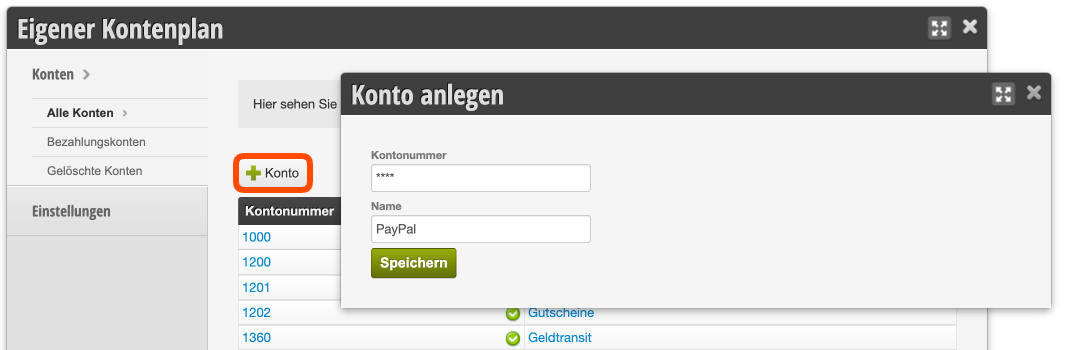
- In the "Custom Chart of Accounts" function, click "+ Account".
- Assign a number and name for the account and save your entry.
- The account is now saved and available to you. The following section explains how to define it as a payment method.
2) Define account as payment account
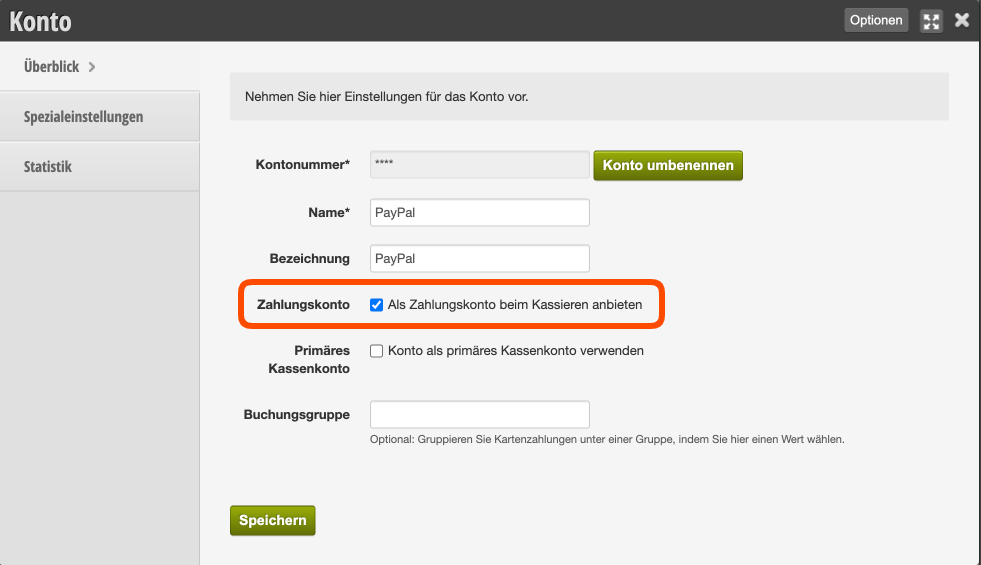
- Open the account that should be defined as a payment method.
- Enable the option "Offer as payment account when cashing" and save the change.
- In special cases only, another option needs to be set.
3) Order of payment methods in the cash register
The new payment method is immediately visible in your cash register and can be used as a payment method. You can set the order of the buttons in the "Custom Chart of Accounts" function. If you accept cash payments, we recommend always placing this button first.
- Under Settings » Custom Chart of Accounts » Payment Accounts you will find all accounts that are available as payment methods in your cash register.
- You can change the order by dragging the row with the mouse at the cross button on the far right to the desired position.
- The changes take effect immediately.
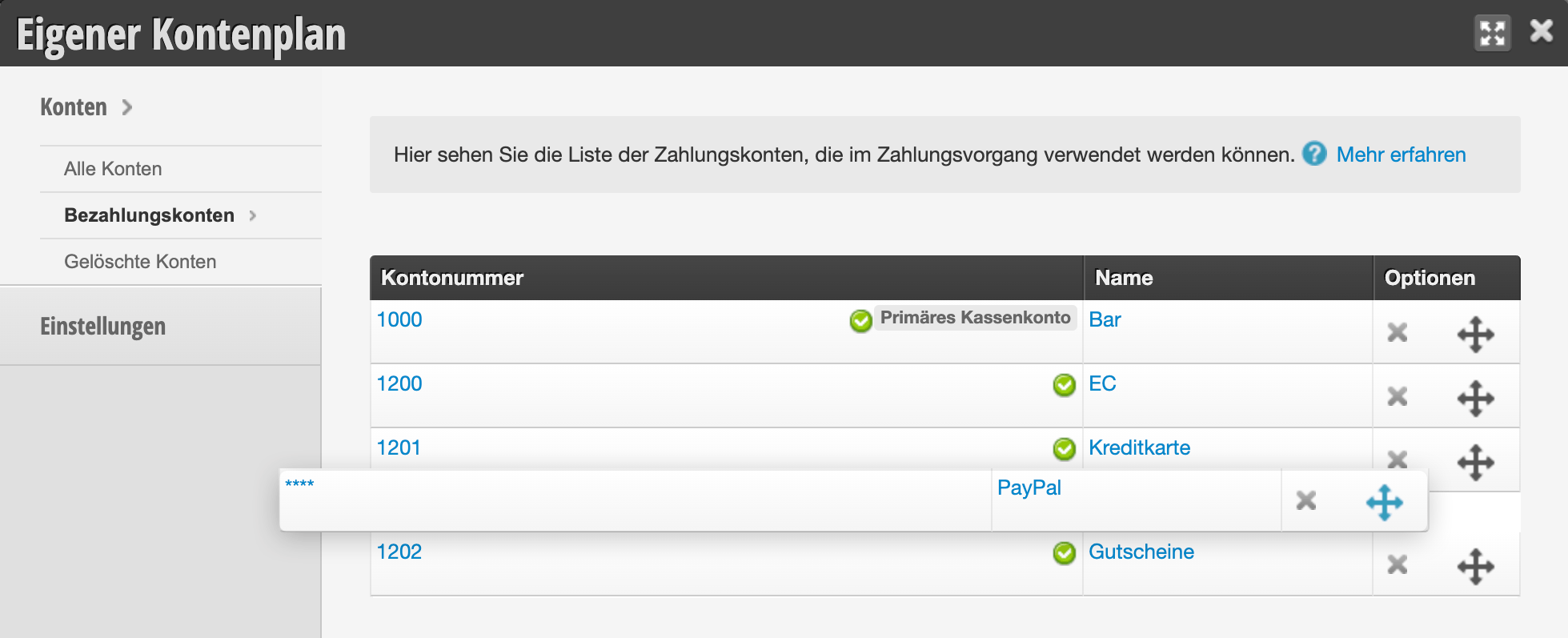
View of payment methods in the cash register:
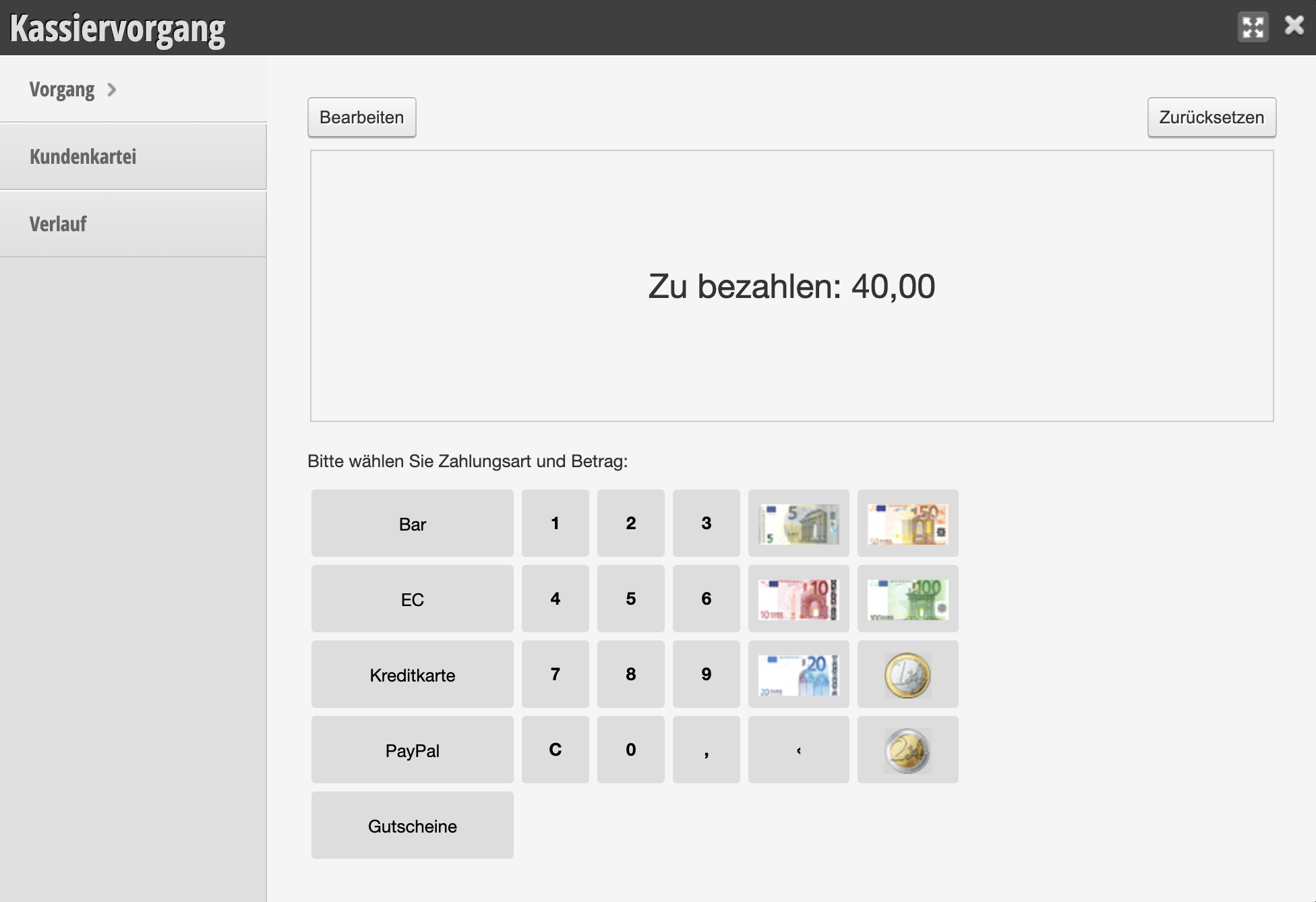
Your new payment method is now set up!
Special features when naming voucher accounts
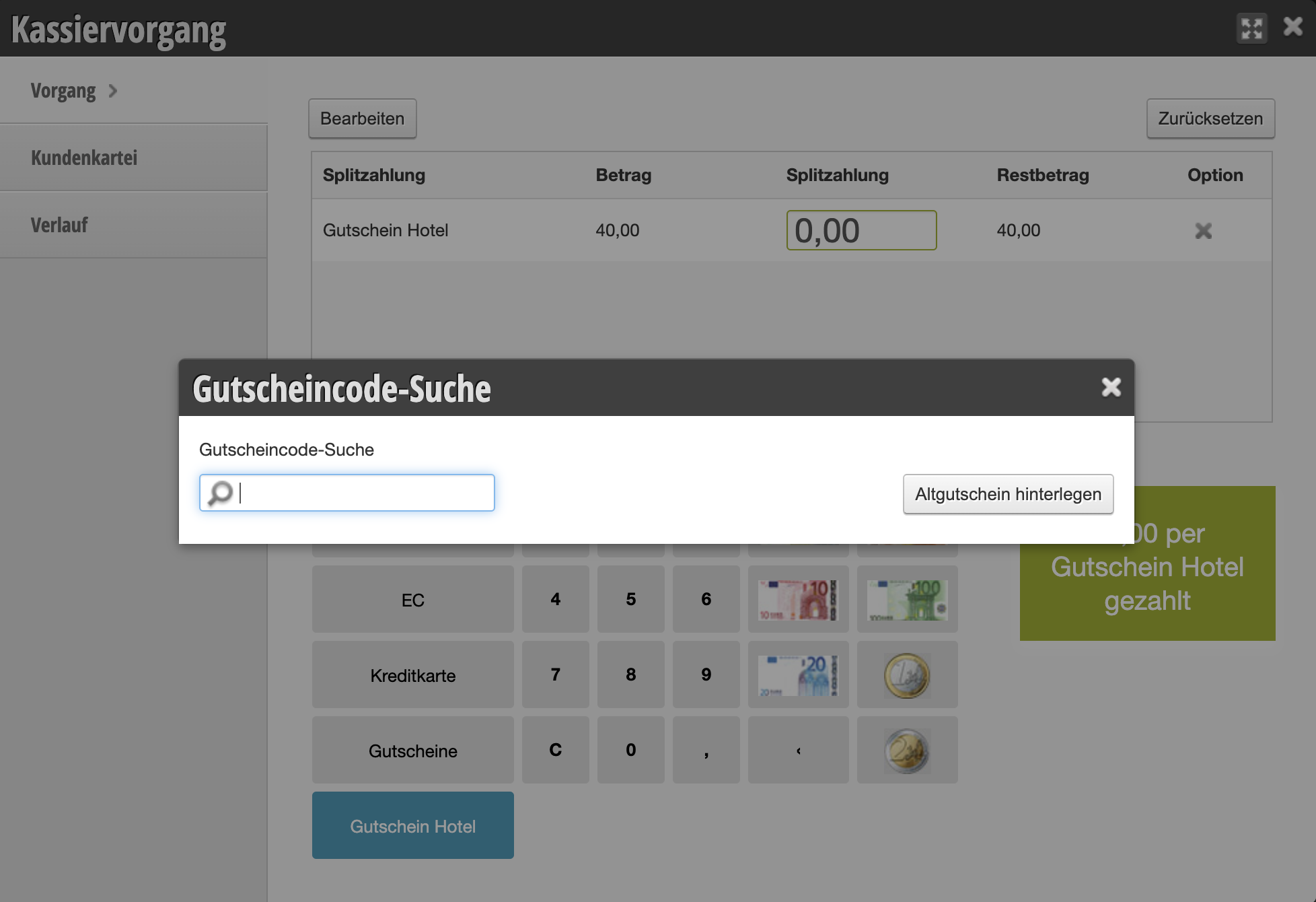
Normally you already have the payment method "Vouchers" in the cash register when you start with Belbo. However, if you want to distinguish between different types of vouchers, you can add additional voucher payment methods. Payment by voucher opens an input dialog where the voucher code can be entered. To also call up this dialog for self-created voucher payment methods, the name of the account must begin with the word "Voucher" or "Vouchers".
Special features when setting up card payment accounts
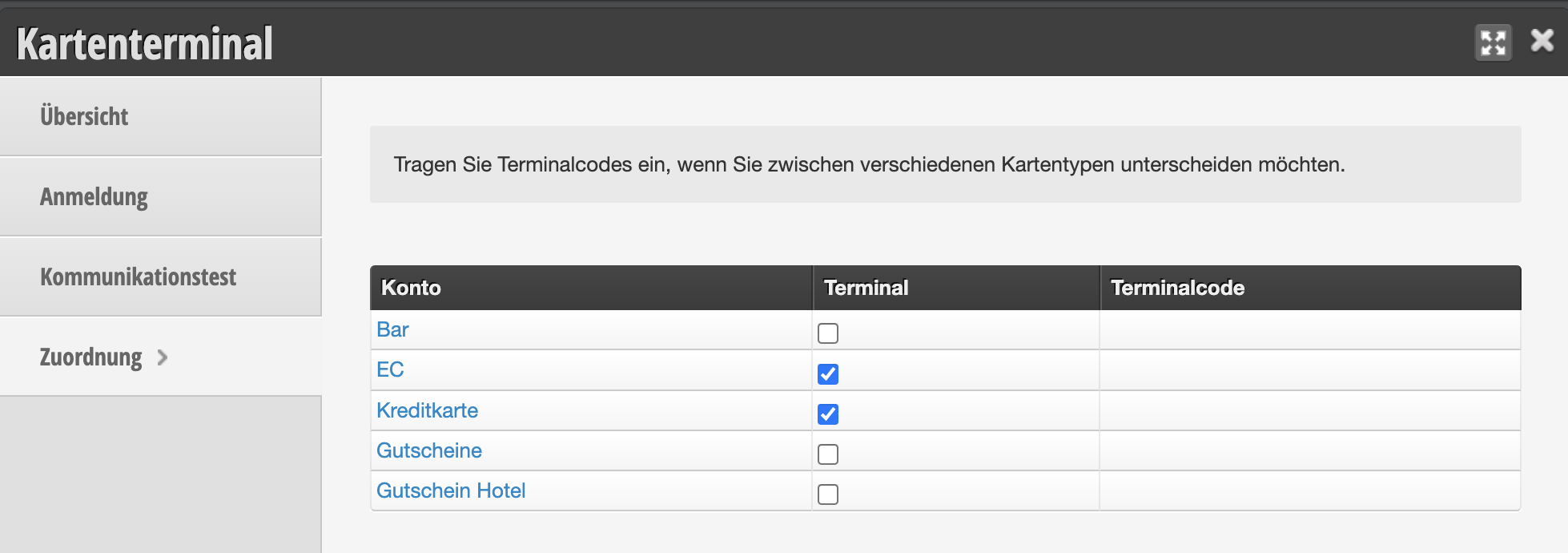
If you have connected your card reader via Belbo-Satellite, your cash register can send the amount to be paid to the device. If you have added a new card payment method, your cash register must be told that these amounts should also be sent to the device.
- Under Settings » Card Terminal » Assignment you will find all payment accounts.
- Enable the "Terminal" option here for all payment methods that should send the amount to your card reader.
- The changes take effect immediately.
Posting groups
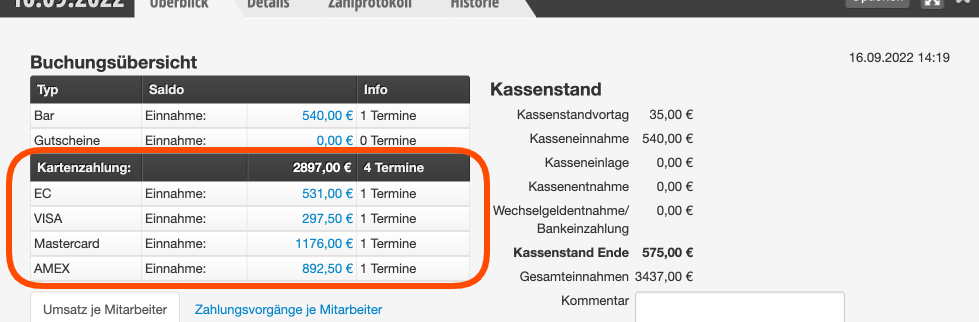
You may want to distinguish between different card types from an accounting perspective. In this case, these cards can be created as separate payment accounts. To still have a clear summary of these payment methods and their totals in the cash register, you can add a posting group to these accounts. It is important when naming the posting group that it has the same spelling in all related accounts.
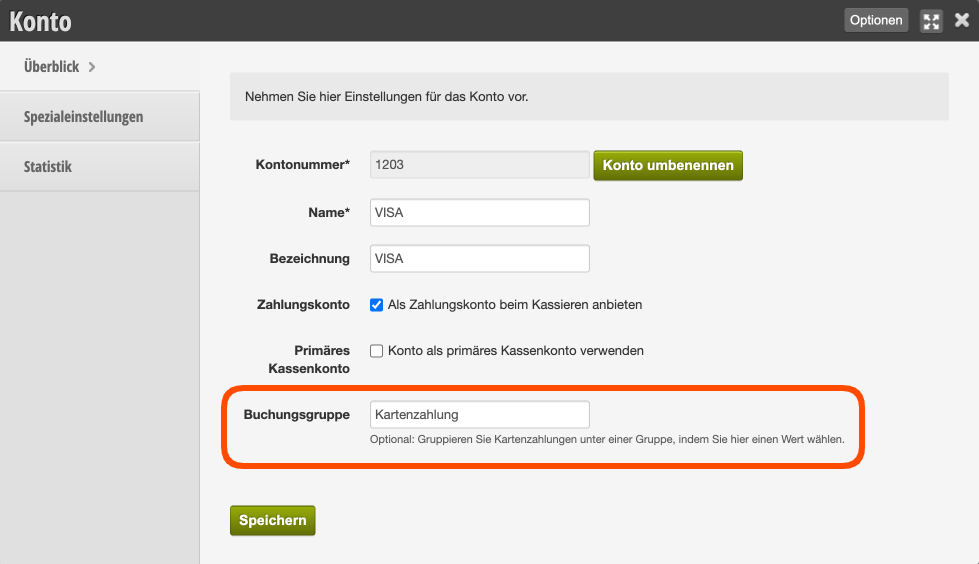
When creating the daily closing, you will then receive an overview that shows both the individual card types and the total sum of all payment methods in the posting group.