
You can create discounts in Belbo for cash register transactions and online bookings. Find out how here. You have numerous options available to configure your discounts according to your wishes.
Once you have created a discount, you can edit it.
Settings
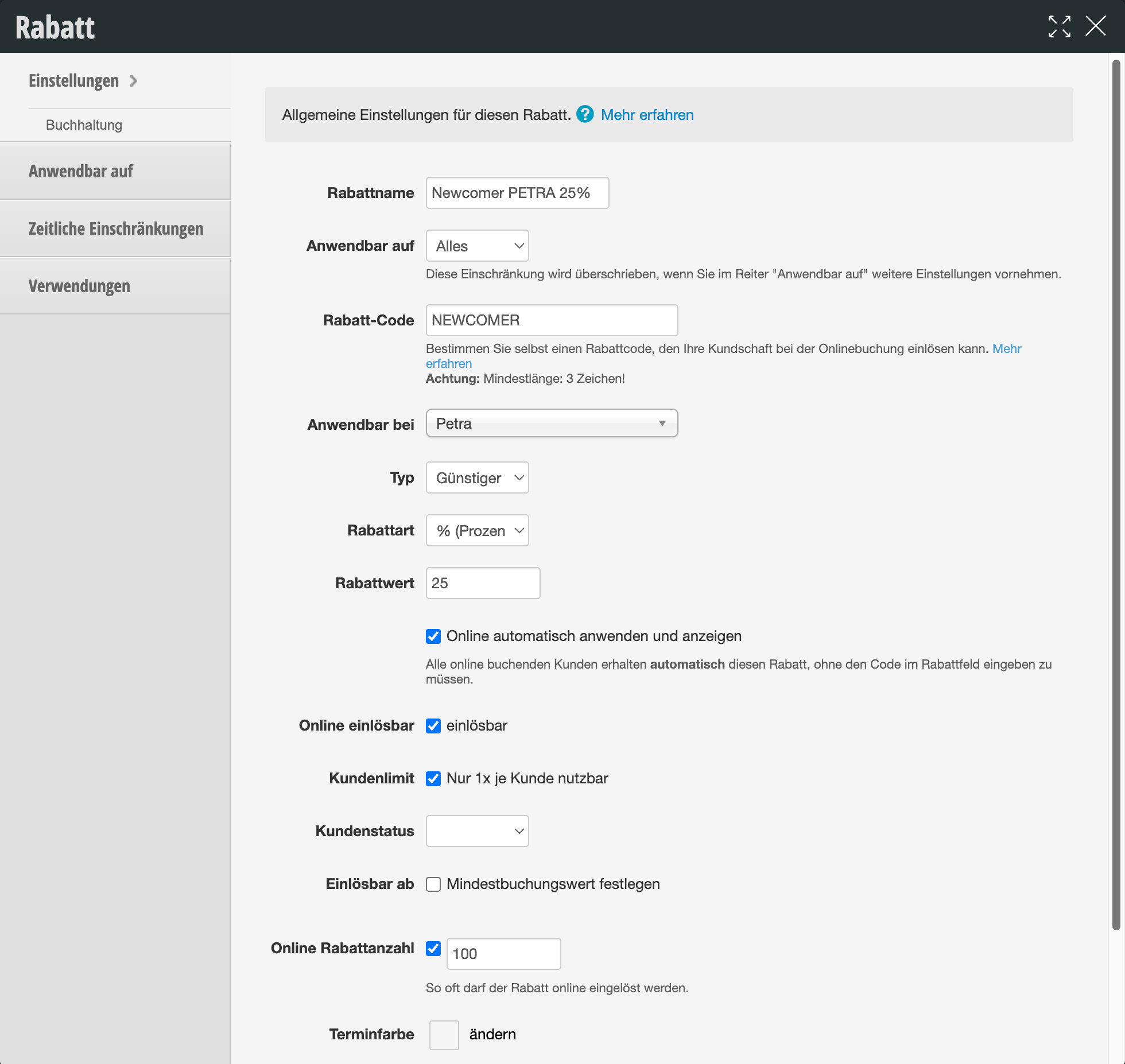
The following table shows all available settings options at a glance:
| Setting | Description |
|---|---|
| General | Discount Name Assign a name for your discount. |
| Applicable to Define what type of cash register items this discount applies to. This restriction will be overridden if you make additional settings in the "Applicable to" tab. | |
| Discount Code If your customers can redeem the discount during online booking, assign a code here (at least 3 characters). More on online redemption of discounts | |
| Discount Amount | Type "Cheaper" is recommended for discounts. The other options are special cases that usually do not apply. |
| Discount Type Define whether the discount is percentage-based or absolute. | |
| Discount Value Set the value, for example "10" for 10% discount or "5" for €5 absolute discount. | |
| Online Redemption | Apply and display automatically online All customers booking online automatically receive this discount without having to enter the code in the discount field. |
| Redeemable Online Define whether the discount can be redeemed online. | |
| Online Discount Count How many times the discount can be redeemed online. More on online redemption of discounts. | |
| Restrictions | Applicable to Restrict which employee this discount applies to. |
| Customer Limit Restrict that the discount can only be used once per customer. | |
| Customer Status You can restrict redemption to a specific customer status. | |
| Redeemable from Set a minimum booking value from which the discount can be redeemed. | |
| Appointment Color | Define whether online redeemed discounts should color the corresponding appointment. |
Applicable to
You can limit which services or products your discount applies to. This way it can be added to the cash register transaction without your employee having to ensure it is only assigned to a specific item.
Note: If you only want to restrict whether the discount is basically only applicable to services or products, you can do this in the "Settings" tab described above.
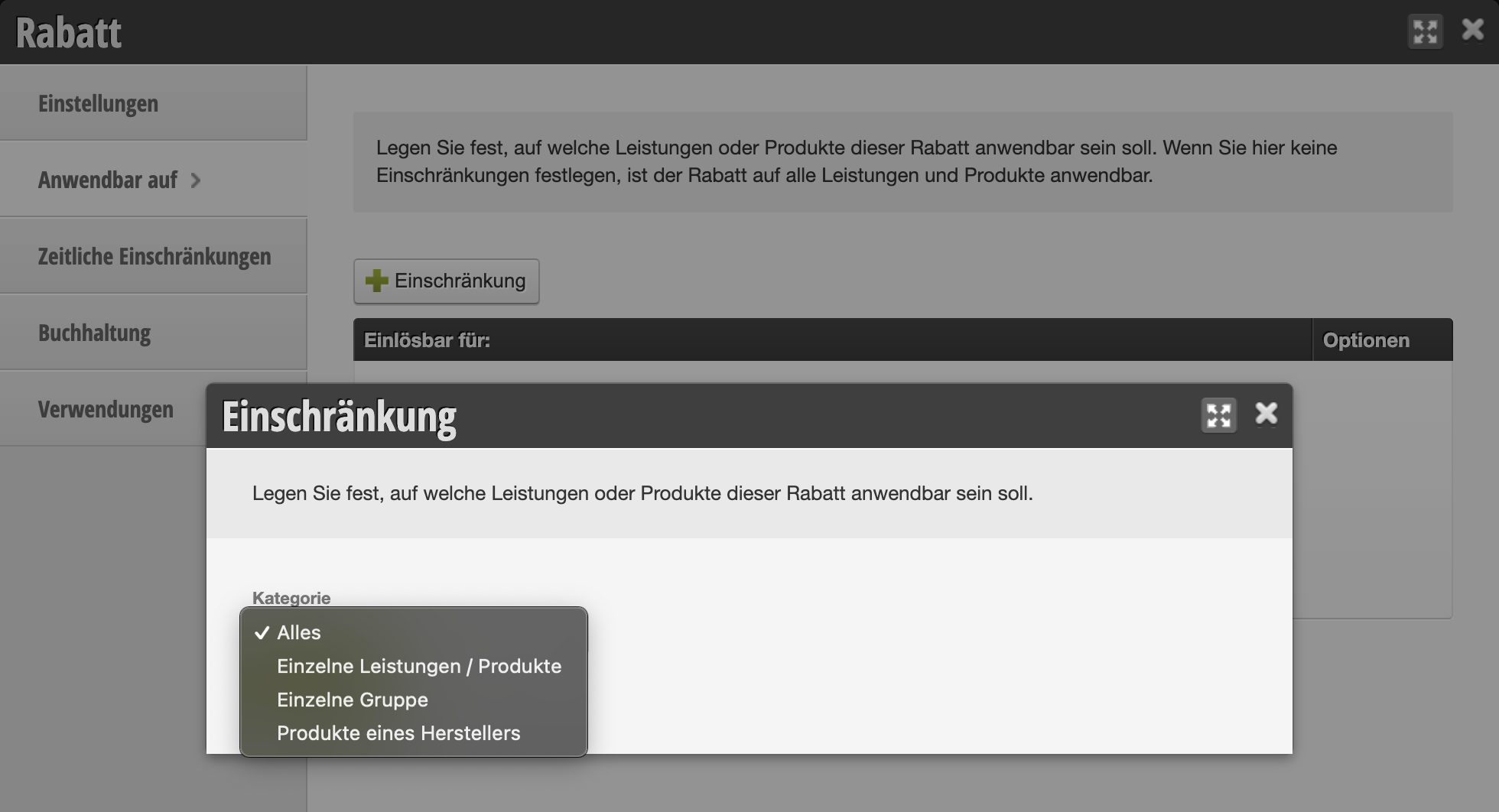
When creating restrictions, you can choose between different options.
Click on the following options to learn more:
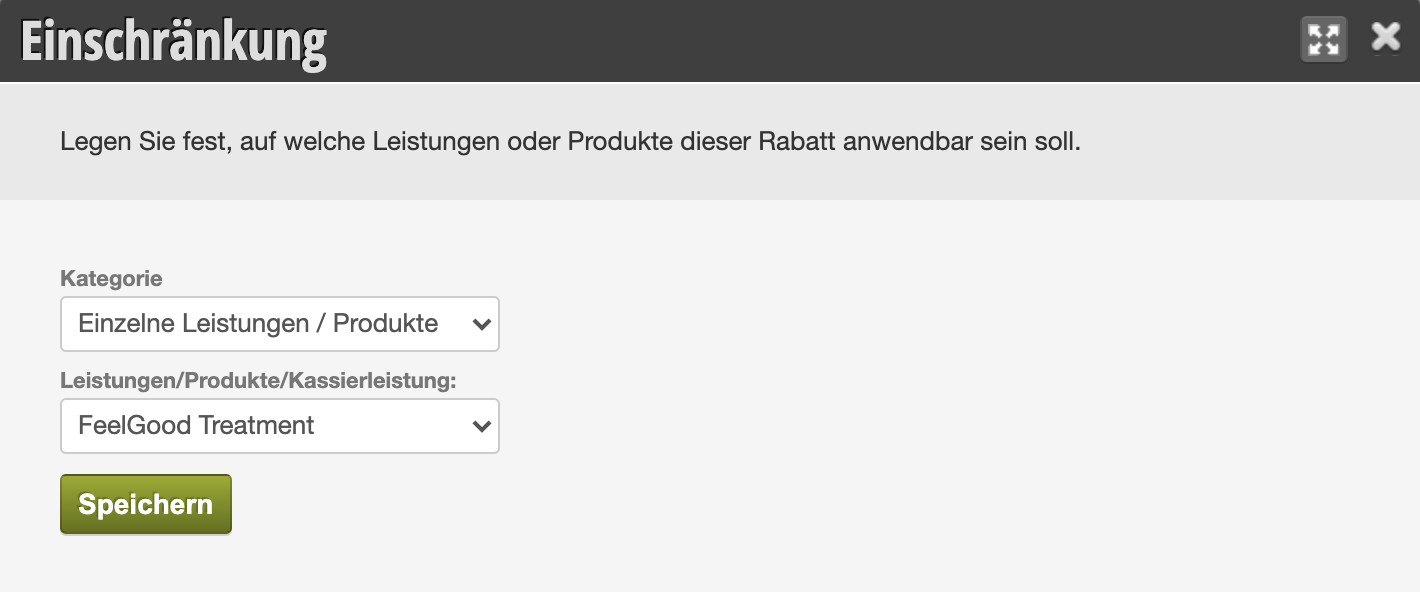
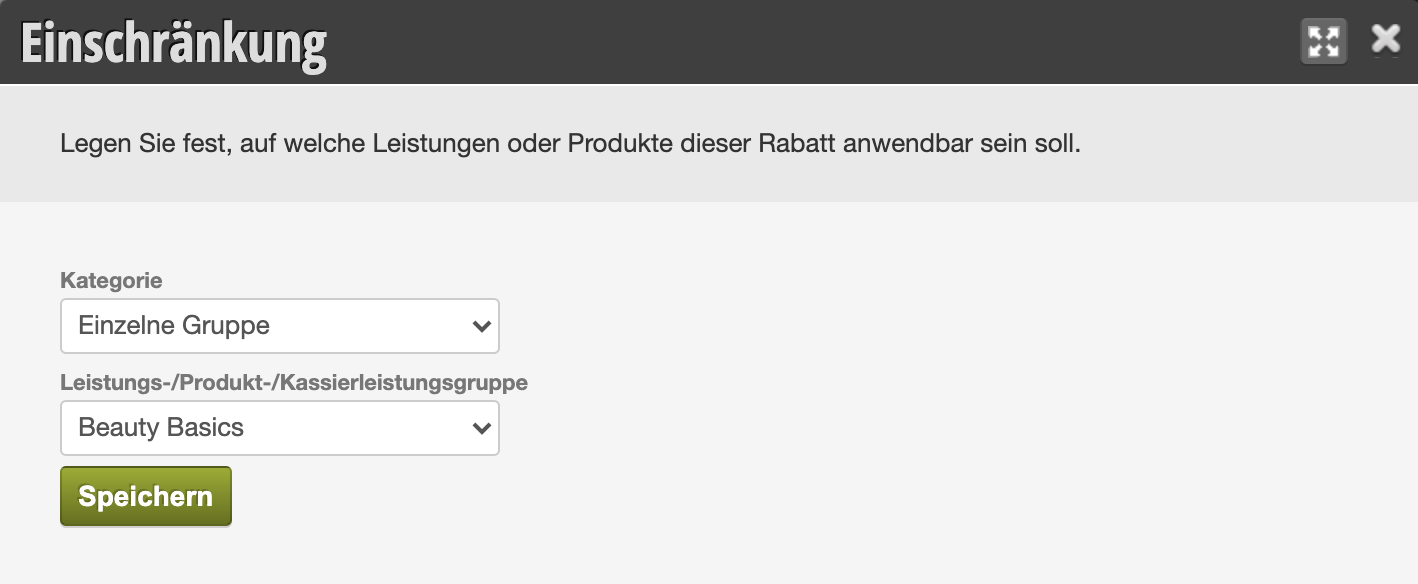
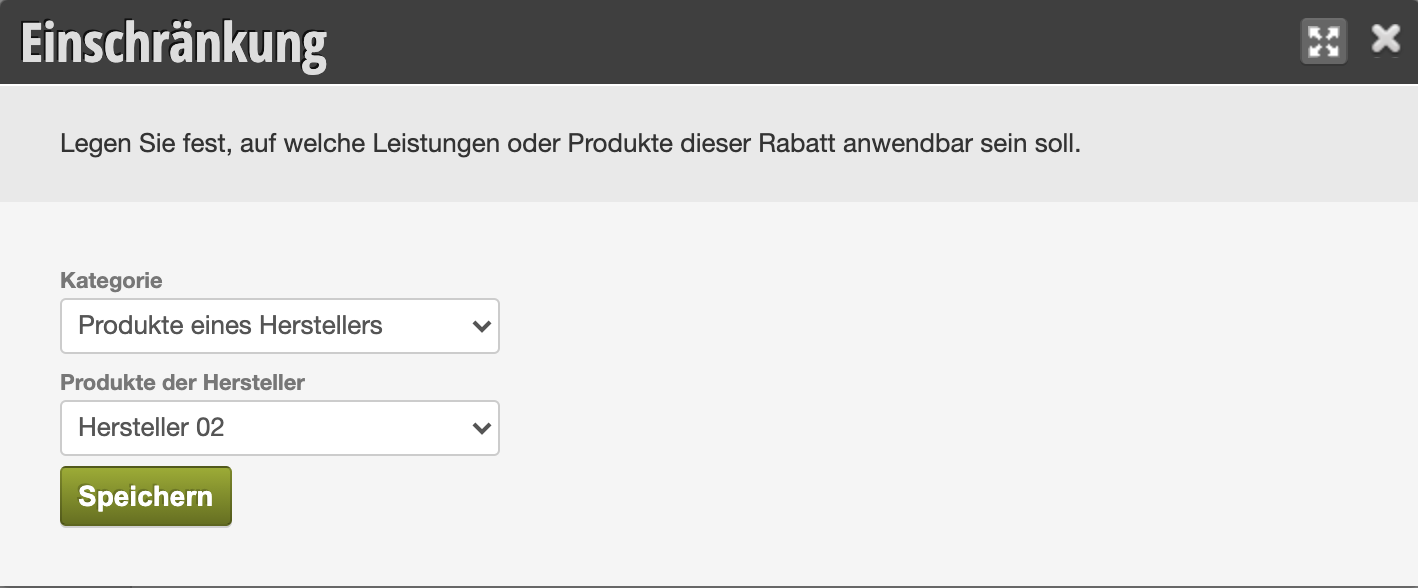 Haven't created any manufacturers yet? Find out how to add product manufacturers to your products here.
Time Restrictions
You can also limit the redemption of a discount to specific time periods. This can apply both to redemption in the cash register transaction and to redemption by the customer in the online booking.