
belbo
  • Overview
    • Getting to know Belbo
    • Location Settings
    • Switch to Belbo
    • Calendar View & Navigation
    • Recurring Appointments & Courses
    • Appointment Entry & Management
    • Logins & Permissions
    • Multiple Locations & Head Office
    • Manage Employees
    • Absences & Holidays
    • General
    • Working Hours
    • Time Tracking
    • Data Protection (GDPR)
    • Customer Communication (Email, SMS)
    • Customer Management & Records
    • Bonus & Loyalty Programs
    • Campaigns (Newsletter & SMS)
    • Marketing Consents (GDPR)
    • Tracking & Analytics
    • Overview
    • Services & Prices
    • Products
    • Service Packages & Subscriptions
    • Vouchers
    • Purchasing & Suppliers
    • Stock & Inventory
    • Scanning & Sales
    • Materials & Costs
    • Design & Texts
    • Setup & Settings
    • Integration (Website, Google, Instagram, Facebook)
    • Online payment
    • Accounting & Exports
    • Cash Register Settings & Hardware
    • Checkout process
    • Daily Closing & Reports
    • TSE & Cash Register Anti-Tampering Ordinance
    • Export Overview
    • Employee Utilization
    • Revenue & Reports
    • Belbo Satellite
    • Printer
    • EC Terminal & Card Payment
    • Troubleshooting Hardware
    • Scanner & POS Devices
    • General Settings
    • API & Integrations
    • Notifications & Emails
    • Contracts & Legal
Skip to content

Enter existing voucher

Vouchers that were not created via Belbo can be imported. If you do not have an import file available, you can enter legacy vouchers directly during the checkout process.

You can activate this feature under Settings > Voucher Module

If a customer wants to pay with a voucher, you can enter the voucher number during the checkout process to select and redeem the voucher. If the voucher was issued before you started using the POS system, this voucher number cannot be found by the system.

Requirement for entering legacy vouchers

All employees who are to be allowed to enter legacy vouchers require the corresponding permission. You can grant this under Settings > Employees > POS Permissions.
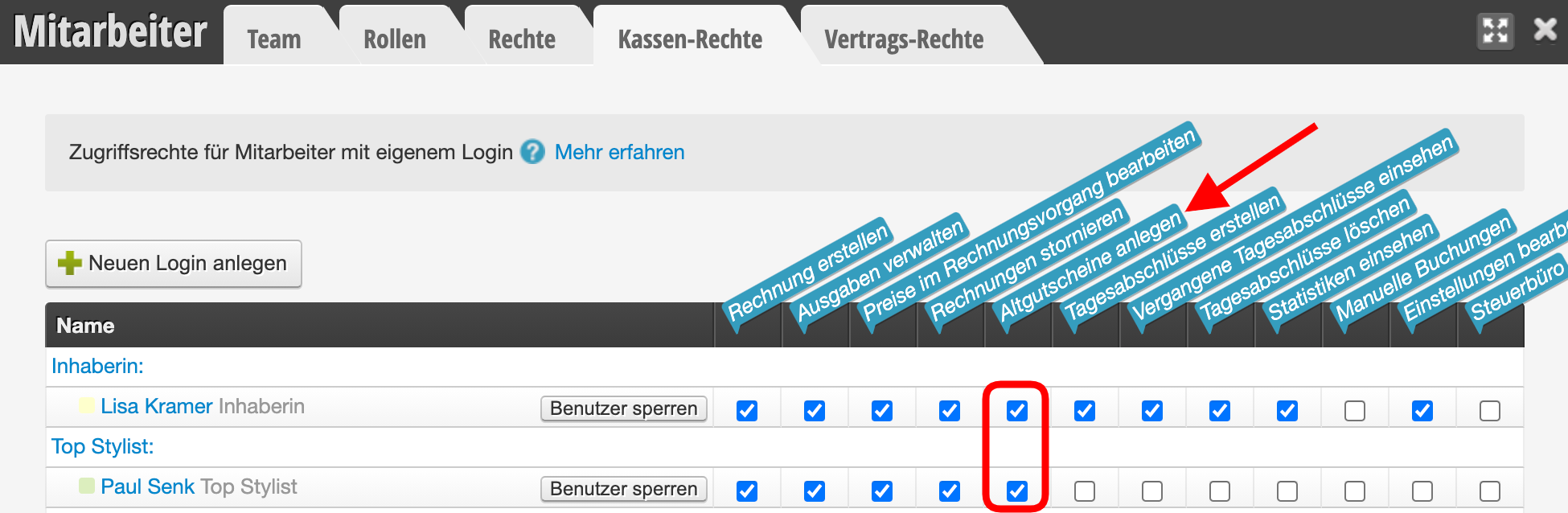
Entering legacy vouchers during the checkout process

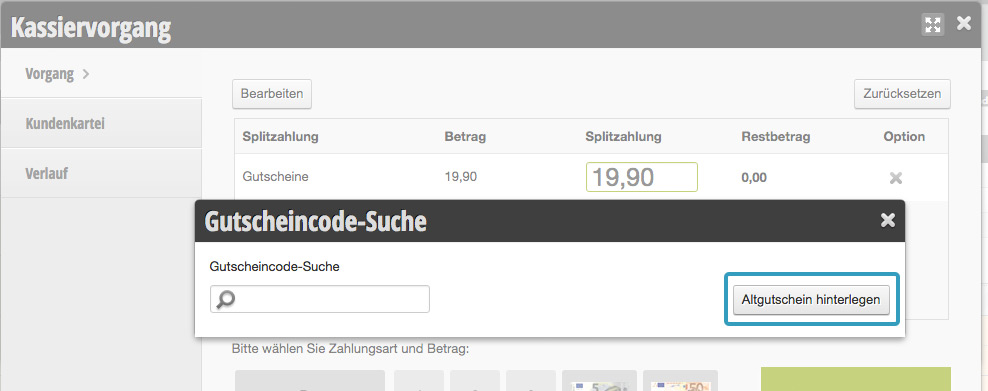
Check out the appointment as usual and select the payment method "Vouchers". Use the "Enter legacy voucher" button displayed during voucher entry:
In the following dialog, you then enter the data taken from the voucher brought in by the customer.
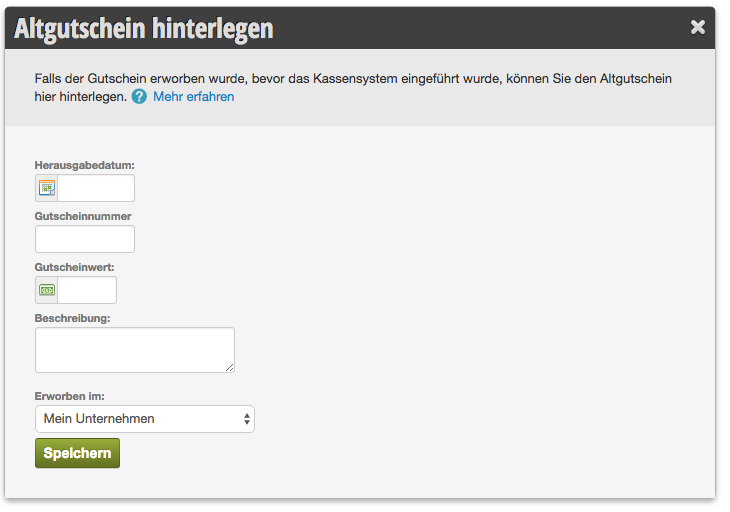
Once you have saved the voucher, it can be used for redemption immediately.

Legacy vouchers are scrutinized very closely by tax auditors. The original of every legacy voucher must be kept. The reason is that these have often been misused in the past to reduce revenue.
Categories: Vouchers
This manual is a service by belbo. Legal notice