
belbo
  • Overview
    • Getting to know Belbo
    • Location Settings
    • Switch to Belbo
    • Calendar View & Navigation
    • Recurring Appointments & Courses
    • Appointment Entry & Management
    • Logins & Permissions
    • Multiple Locations & Head Office
    • Manage Employees
    • Absences & Holidays
    • General
    • Working Hours
    • Time Tracking
    • Data Protection (GDPR)
    • Customer Communication (Email, SMS)
    • Customer Management & Records
    • Bonus & Loyalty Programs
    • Campaigns (Newsletter & SMS)
    • Marketing Consents (GDPR)
    • Tracking & Analytics
    • Overview
    • Services & Prices
    • Products
    • Service Packages & Subscriptions
    • Vouchers
    • Purchasing & Suppliers
    • Stock & Inventory
    • Scanning & Sales
    • Materials & Costs
    • Design & Texts
    • Setup & Settings
    • Integration (Website, Google, Instagram, Facebook)
    • Online payment
    • Accounting & Exports
    • Cash Register Settings & Hardware
    • Checkout process
    • Daily Closing & Reports
    • TSE & Cash Register Anti-Tampering Ordinance
    • Export Overview
    • Employee Utilization
    • Revenue & Reports
    • Belbo Satellite
    • Printer
    • EC Terminal & Card Payment
    • Troubleshooting Hardware
    • Scanner & POS Devices
    • General Settings
    • API & Integrations
    • Notifications & Emails
    • Contracts & Legal
Skip to content

Send vouchers via email to the customer

If you sell vouchers via the Belbo cash register, you can send the voucher to the customer as a PDF via email.

Examples of use:

  • A customer transfers you the amount for a voucher and wants to receive it via email.
  • A customer pays for the voucher in cash on site but doesn't want to take a paper voucher with them because they plan to give the voucher to a friend via email.

Redeem voucher

  1. Sell the voucher as normal, as described under Voucher sales via the cash register system.
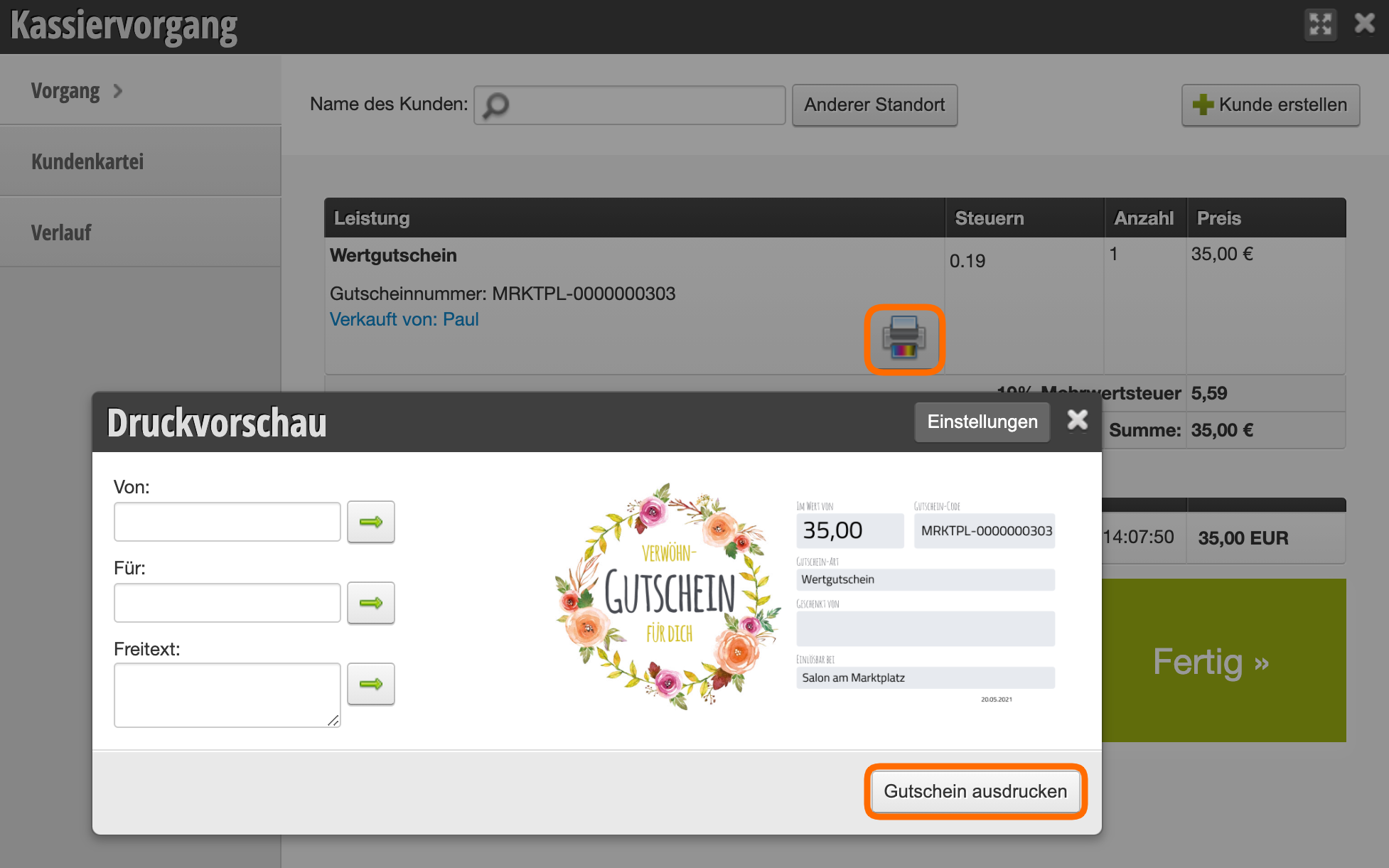
  2. In the completed cash transaction, click the colorful printer icon and then click "Print voucher".
  3. A dialog box opens that allows you to download the voucher as a PDF to your computer.
  4. Save the voucher and then send it to the customer via email using an email program.
Categories: Vouchers
This manual is a service by belbo. Legal notice