belbo
  • Overview
    • Getting to know Belbo
    • Location Settings
    • Switch to Belbo
    • Calendar View & Navigation
    • Recurring Appointments & Courses
    • Appointment Entry & Management
    • Logins & Permissions
    • Multiple Locations & Head Office
    • Manage Employees
    • Absences & Holidays
    • General
    • Working Hours
    • Time Tracking
    • Data Protection (GDPR)
    • Customer Communication (Email, SMS)
    • Customer Management & Records
    • Bonus & Loyalty Programs
    • Campaigns (Newsletter & SMS)
    • Marketing Consents (GDPR)
    • Tracking & Analytics
    • Overview
    • Services & Prices
    • Products
    • Service Packages & Subscriptions
    • Vouchers
    • Purchasing & Suppliers
    • Stock & Inventory
    • Scanning & Sales
    • Materials & Costs
    • Design & Texts
    • Setup & Settings
    • Integration (Website, Google, Instagram, Facebook)
    • Online payment
    • Accounting & Exports
    • Cash Register Settings & Hardware
    • Checkout process
    • Daily Closing & Reports
    • TSE & Cash Register Anti-Tampering Ordinance
    • Export Overview
    • Employee Utilization
    • Revenue & Reports
    • Belbo Satellite
    • Printer
    • EC Terminal & Card Payment
    • Troubleshooting Hardware
    • Scanner & POS Devices
    • General Settings
    • API & Integrations
    • Notifications & Emails
    • Contracts & Legal
Skip to content

Create and edit voucher templates

To sell vouchers in the checkout process or to manually enter them in the voucher overview, first create voucher templates.

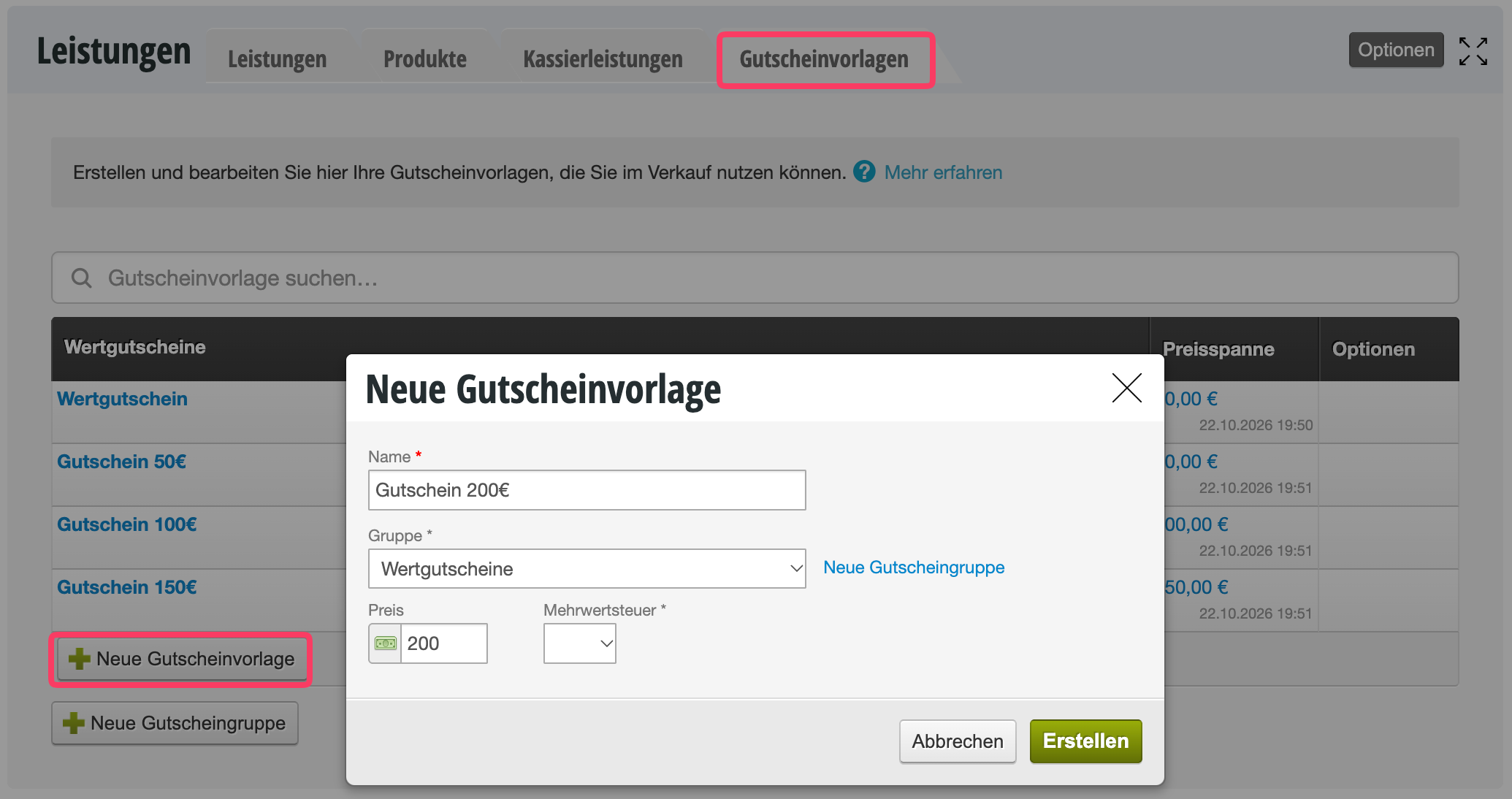
You can access this area via Settings > Prices & Services > Vouchers.
If this function is not activated, it can be activated via "Settings > Add Function".

Create new voucher templates

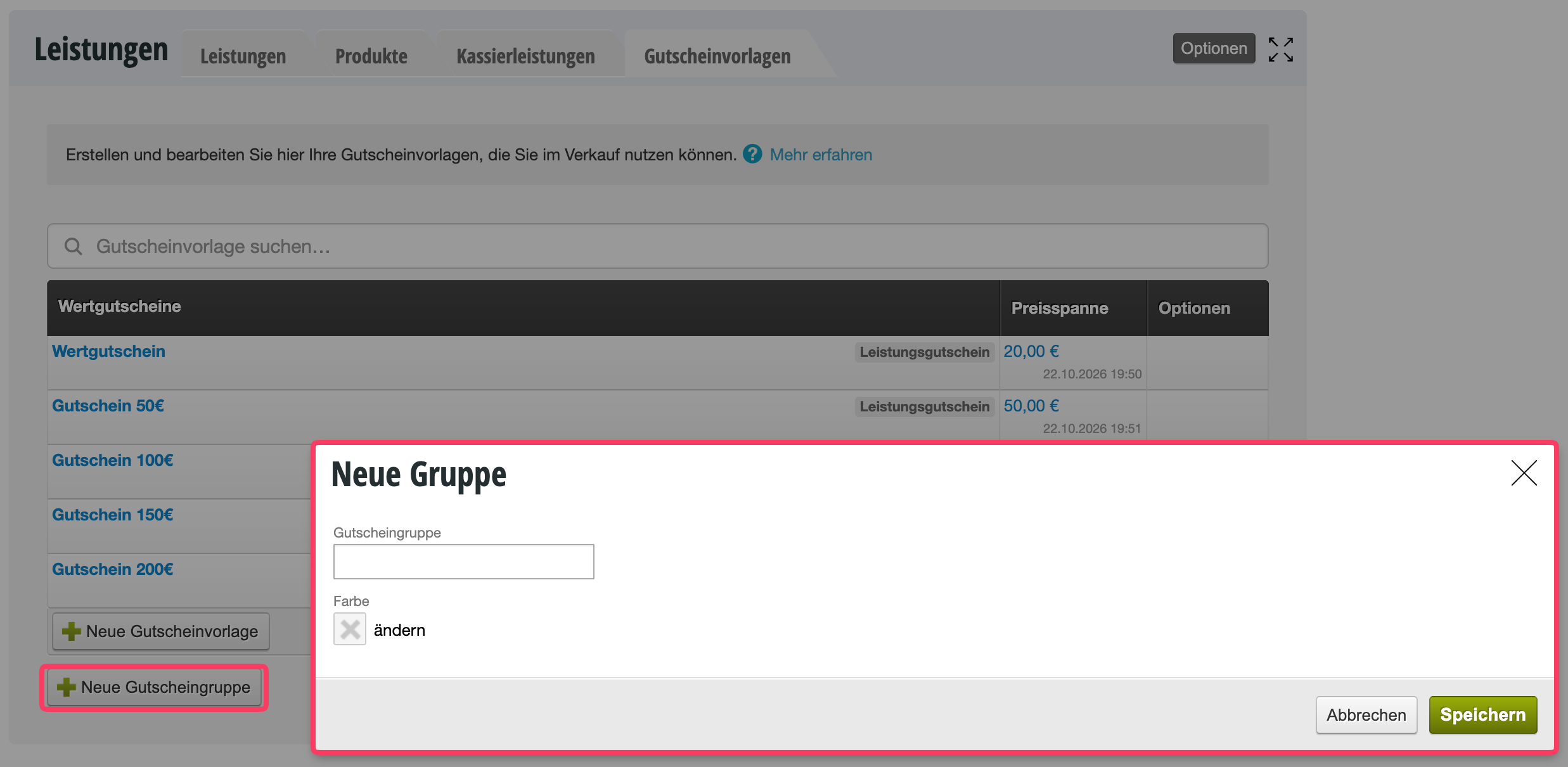
All vouchers are organized into clear voucher groups. If you haven't created a voucher group yet, first create a group using the + New Voucher Group button.
Then create a voucher template. You can either set up voucher templates for all frequently used voucher types ("50€ voucher", "100€ voucher", etc.) or create a template with a frequently used value that can be adjusted to the actual voucher value in each checkout process.

Application example:
Do you want to sell vouchers with a flexible value? Then create a voucher template with the name "Value Voucher" and a frequently used value (e.g., 50.00 euros). In the checkout process, the voucher value can be changed.
Tip: Avoid using a fixed voucher value in the name of the voucher template. If you change the voucher value later, it will differ from the name.

New voucher group

If you want to create a new voucher group to properly organize different voucher types, use the "New Voucher Group" button at the end of the overview list.

If you haven't created any vouchers yet, you can create new voucher groups in the voucher dialog.
More articles about vouchers

  • Voucher sales via the Belbo cash register system
  • Voucher redemption via the Belbo cash register system
  • Correct taxation of your vouchers
  • Voucher shop for your customers
For detailed information about the Belbo cash register system, see our cash register documentation (PDF).
Categories: Vouchers
Tags: Gutscheine
This manual is a service by belbo. Legal notice