
In the voucher module you will find an overview of vouchers already created or sold. If you use the cash register, you will find all vouchers sold via the cash register here.
Before using the voucher module
To manage your vouchers in the Belbo calendar, please first activate this function under "Settings" in the search field. Once activated, you can access the voucher module via the main navigation:
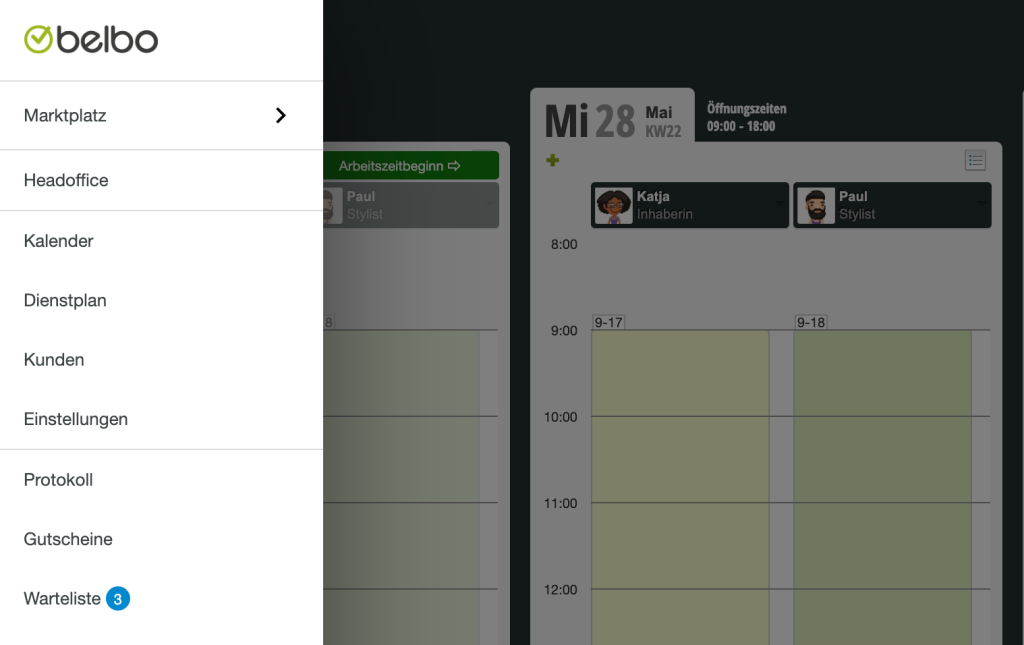
Before you can use vouchers, first create the desired voucher templates.
For instructions on creating voucher templates, see here
Creating vouchers
After creating voucher templates, you can create new vouchers. If you use the Belbo cash register, vouchers are sold via the cash register and not created manually! In this case, you will not find a corresponding button in the voucher module.
If you do not use the cash register system and still do not see a button, the cash register is probably still activated.
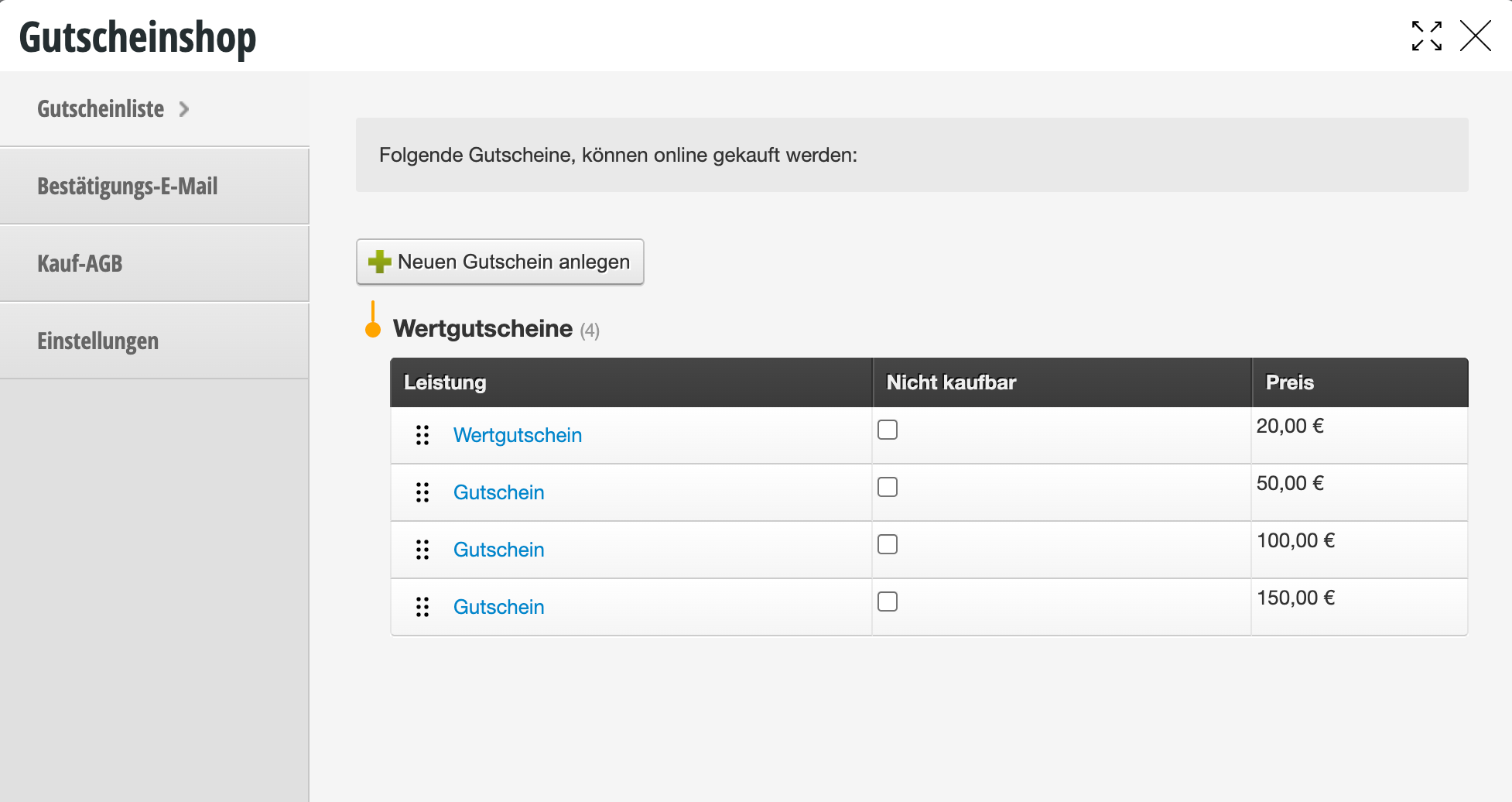
If you do not use the Belbo cash register system, you can manually enter your issued vouchers to keep track of your vouchers.
- Click on Vouchers in the top right of the calendar.
- Click on + Create Voucher and select a template.
- Change the issue date if necessary and set the voucher value.
- Save the voucher and write the specified number on the customer's paper voucher.
Issuing vouchers in paper form to your customers
If you already have paper voucher templates, note the number generated when creating it on the voucher you give to the customer. This way you can see exactly when and if it was redeemed or partially redeemed in the voucher overview and how much of the voucher value is left if applicable. If you want to print your vouchers yourself, you can upload a PDF template in each voucher template. You can download a sample template here. If you also want to sell vouchers online, you can set up your own voucher shop.
Redeeming vouchers
If you do not use the Belbo cash register system, you can record a voucher redemption in the voucher module.
- Click on Vouchers in the top right of the calendar.
- Select the voucher that the customer wants to redeem. You can also find it using the search field by entering the voucher number.
- Click on + Redemption and add the value to be redeemed. This can also be a partial redemption.
- After saving, you will see the total value of the voucher as well as the amount already redeemed.

More articles on the topic of vouchers
Settings
Voucher Number Prefix
In the voucher settings you can set an abbreviation that will be placed before your voucher numbers. This can be the current year or your company's initials.