belbo
  • Overview
    • Getting to know Belbo
    • Location Settings
    • Switch to Belbo
    • Calendar View & Navigation
    • Recurring Appointments & Courses
    • Appointment Entry & Management
    • Tasks
    • Overview
    • Multiple Locations & Head Office
    • Manage Employees
    • Logins
    • Rights
    • Overview
    • Absences & Holidays
    • Working Hours
    • Time Tracking
    • Overview
    • Data Protection (GDPR)
    • Customer Communication (Email, SMS)
    • Customer Management & Records
    • Overview
    • Bonus & Loyalty Programs
    • Campaigns (Newsletter & SMS)
    • Marketing Consents (GDPR)
    • Tracking & Analytics
    • Overview
    • Services & Prices
    • Service Packages & Subscriptions
    • Vouchers
    • Products
    • Purchasing & Suppliers
    • Inventory & Stock Counts
    • Scanning & Sales
    • Cost of Goods & Expenses
    • Overview
    • Design & Texts
    • Setup & Settings
    • Integration (Website, Google, Instagram, Facebook)
    • Online payment
    • Overview
    • Accounting & Exports
    • Cash Register Settings & Hardware
    • Checkout process
    • Daily Closing & Reports
    • TSE & Cash Register Anti-Tampering Ordinance
    • Overview
    • Export Overview
    • Employee Utilization
    • Revenue & Reports
    • Belbo Satellite
    • Printer
    • EC Terminal & Card Payment
    • Troubleshooting Hardware
    • Scanner & POS Devices
    • General Settings
    • API & Integrations
    • Notifications & Emails
    • Contracts & Legal
Skip to content
Services›Vouchers

Vouchers – Create PDF template for individual voucher

To set up your own gift voucher shop with Belbo, you must first create gift voucher templates. You can then assign a PDF template to each voucher template, so that your customers can print the voucher they purchased online, give it as a gift, or present it when visiting you.

You can access this area via Settings > Prices & Services > Gift Vouchers
If this function is not enabled, it can be activated via "Settings > Add Function".

Upload PDF Template

To assign a PDF template to a voucher, first click on the desired voucher and then on the submenu item "PDF Print". Select the + Document button and choose the file from your computer or tablet.

A PDF template can be created for you by your graphic design studio. Here you can find our sample template for testing and forwarding to your graphic design studio.

Set Print Coordinates

The voucher number and issue date are placed on every voucher purchased online. This is the only way your customer can redeem the voucher. In your PDF template, you should therefore provide a sufficiently large space with a white or light background color on which the code can be placed.

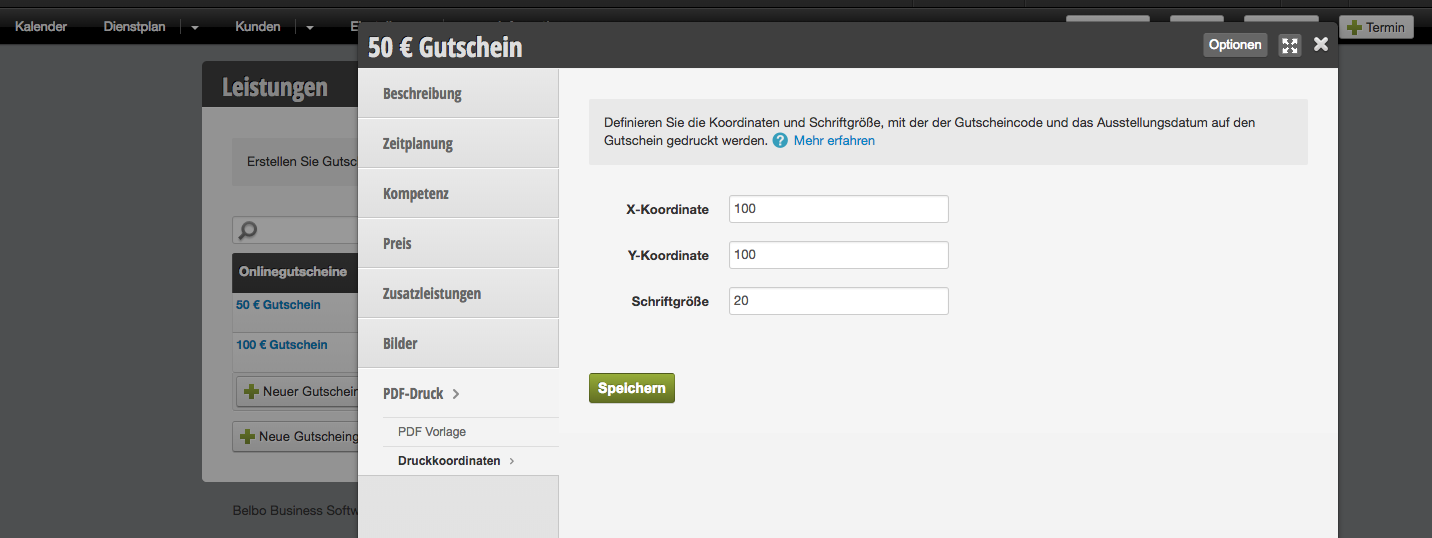
First, select the View Test Voucher button under "PDF Template". You will receive a sample view of your voucher template with the voucher code placed. To adjust the placement, you can change the x and y axes and font size under "Print Coordinates". After each time you save the new coordinates, test the test voucher until the result meets your expectations.

Example of a voucher with placed voucher code:
Categories: Vouchers
Tags: Druckkordinaten, Gutschein-Shop, Online-Gutschein, PDF-Vorlage

Have a question? Ask it here.

This manual is a service by belbo. Legal notice