
belbo
  • Overview
    • Getting to know Belbo
    • Location Settings
    • Switch to Belbo
    • Calendar View & Navigation
    • Recurring Appointments & Courses
    • Appointment Entry & Management
    • Logins & Permissions
    • Multiple Locations & Head Office
    • Manage Employees
    • Absences & Holidays
    • General
    • Working Hours
    • Time Tracking
    • Data Protection (GDPR)
    • Customer Communication (Email, SMS)
    • Customer Management & Records
    • Bonus & Loyalty Programs
    • Campaigns (Newsletter & SMS)
    • Marketing Consents (GDPR)
    • Tracking & Analytics
    • Overview
    • Services & Prices
    • Products
    • Service Packages & Subscriptions
    • Vouchers
    • Purchasing & Suppliers
    • Stock & Inventory
    • Scanning & Sales
    • Materials & Costs
    • Design & Texts
    • Setup & Settings
    • Integration (Website, Google, Instagram, Facebook)
    • Online payment
    • Accounting & Exports
    • Cash Register Settings & Hardware
    • Checkout process
    • Daily Closing & Reports
    • TSE & Cash Register Anti-Tampering Ordinance
    • Export Overview
    • Employee Utilization
    • Revenue & Reports
    • Belbo Satellite
    • Printer
    • EC Terminal & Card Payment
    • Troubleshooting Hardware
    • Scanner & POS Devices
    • General Settings
    • API & Integrations
    • Notifications & Emails
    • Contracts & Legal
Skip to content

Everything about: Logins & Permissions

Rights: Login


You can access this area via Settings > Employees > Permissions

This is the minimum permission required to view appointments in the calendar. Appointments can be edited from the browser. In the "Belbo Light" app, no appointments can be entered without this permission.


Note: If only this permission is set, no work time start and no work time end can be recorded from this login.

If a login should not have any permissions at all, at least this permission must be granted so that the login can view the calendar of the current location. Subsequently, restrictions can be defined in the user's profile. For more information, see here: Login with restricted permissions.

Example of use:

  • This permission can be granted for logins with minimal authorization.


For an overview of the meaning and assignment of permissions, see here.

Rights: Appointments

You can access this area via Settings > Employees > Rights

This is another minimal right that allows you to view and edit appointments in the calendar. This right is necessary for users of the "Belbo Light" app to be able to create appointments.

Furthermore, this right enables the editing of daily notes.

Example use case:

  • This right can be granted for logins with minimal authorization.
You can find an overview of the meaning and assignment of rights here.

Permissions: View prices

You can access this area via Settings > Employees > Rights

Restrict whether an employee can view cash register information and prices via their own login, for example from home.

Attention: If the right is not granted, the cash register is completely disabled for this login.

Example use case:

  • This right is active for most logins and necessary for cash register use.
  • Prevent employees from having access to prices and the cash register from home with their own login
An overview of the meaning and assignment of rights can be found here.

Rights: Services & Online Booking Process

You can access this area via Settings > Employees > Rights

Employees with the "Services & Online Booking Process" right can create, edit, and delete services as well as edit the special online booking process.

Use case example:

  • Prevent employees from editing service times & prices and unnecessarily extending them
  • This right is often set for owners and senior staff members
For an overview of the meaning and assignment of rights see here.

Rights: Configuration

You can access this area via Settings > Employees > Permissions

The configuration permission is linked to many settings. You should therefore only grant this permission to selected employees who are familiar with Belbo. In general, this permission allows editing, deleting and creating for all things that do not have their own permission.

This permission enables, among other things:

  • Editing competencies of a service
  • Creating, editing employees and rooms and changing permissions
  • Editing services (outside of scheduling and competencies)
  • Creating marketing campaigns
  • Editing and creating customer fields
  • Location settings and account settings
  • Editing calendar settings
  • Editing email and SMS templates
  • In any case: All functions for which there is no separate permission
Example of use:

  • Often this permission is set for owners and senior employees
For an overview of the meaning and assignment of permissions, see here.

Right: Statistics & Reports

You can access this area via Settings > Employees > Rights

Employees who have the right "Statistics & Reports" have access to various statistics & reports.

Example of use:

  • This right is often set for owners and senior employees
For an overview of the meaning and assignment of rights see here.

Rights: Invoices

You can access this area via Settings > Employees > Permissions

Employees with the "Invoices" permission can view and download Belbo invoices in the account settings.

Use case example:

  • This is suitable for employees responsible for accounting.
An overview of the meaning and assignment of permissions can be found here.

Law: Customer Message Error Messages

You can access this area via Settings > Staff > Permissions

Reminder and confirmation emails are important for your customers.

With the "Customer Messages Error Notifications" permission, you will receive notifications when a dispatch fails. This notification lands in your "Internal Messages" if you have enabled this feature.

Example:

  • A customer has a new mobile number and the reminder SMS no longer arrive.
You can find an overview of the meaning and assignment of permissions here.

Rights: Customer Fields

You can access this area via Settings > Employees > Rights

With additional customer fields, you can customize your customer database to your needs.

The customer fields right allows you to create and edit customer fields.

Example of use:

  • Often this right is set for owners and senior employees
For an overview of the meaning and assignment of rights, see here.

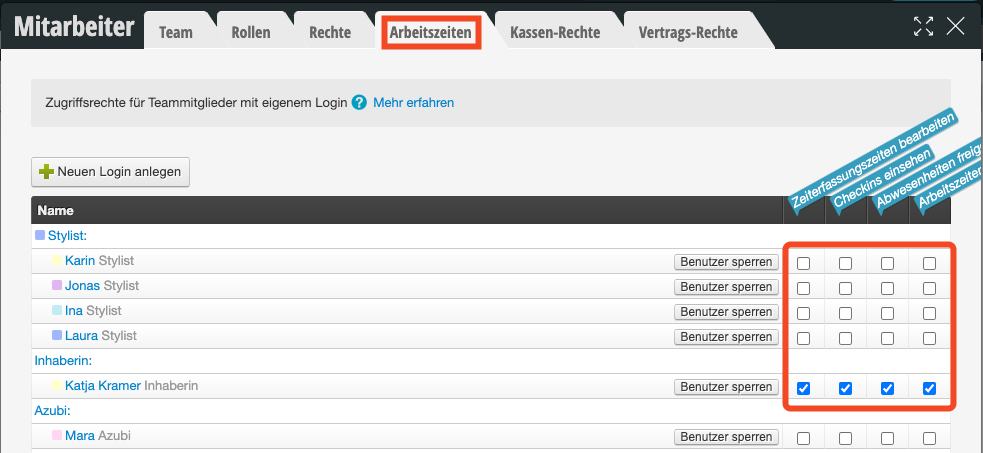
Rights: Edit time tracking entries


You can access this area via Settings > Employees > Rights

With the Time Tracking function, you can record the exact working hours of your employees.

If you use the Time Tracking function, employees with this right can correct recorded working hours, delete them, or add forgotten logouts.


Use case example:

  • If your employees forget to log out or in, the times can be corrected with this right
  • This right is often set for owners and senior employees


An overview of the meaning and assignment of rights can be found here.

All articles on time tracking at a glance:

Time Tracking Overview »

Recording via Target Hours »

Time Tracking Evaluation »

  • Time Tracking via the Duty Schedule
  • Getting Started with Time Tracking
  • Right: Edit Time Tracking Records

Post navigation

← Older posts
Newer posts →
This manual is a service by belbo. Legal notice