
belbo
  • Overview
    • Getting to know Belbo
    • Location Settings
    • Switch to Belbo
    • Calendar View & Navigation
    • Recurring Appointments & Courses
    • Appointment Entry & Management
    • Logins & Permissions
    • Multiple Locations & Head Office
    • Manage Employees
    • Absences & Holidays
    • General
    • Working Hours
    • Time Tracking
    • Data Protection (GDPR)
    • Customer Communication (Email, SMS)
    • Customer Management & Records
    • Bonus & Loyalty Programs
    • Campaigns (Newsletter & SMS)
    • Marketing Consents (GDPR)
    • Tracking & Analytics
    • Overview
    • Services & Prices
    • Products
    • Service Packages & Subscriptions
    • Vouchers
    • Purchasing & Suppliers
    • Stock & Inventory
    • Scanning & Sales
    • Cost of goods & expenses
    • Design & Texts
    • Setup & Settings
    • Integration (Website, Google, Instagram, Facebook)
    • Online payment
    • Accounting & Exports
    • Cash Register Settings & Hardware
    • Checkout process
    • Daily Closing & Reports
    • TSE & Cash Register Anti-Tampering Ordinance
    • Export Overview
    • Employee Utilization
    • Revenue & Reports
    • Belbo Satellite
    • Printer
    • EC Terminal & Card Payment
    • Troubleshooting Hardware
    • Scanner & POS Devices
    • General Settings
    • API & Integrations
    • Notifications & Emails
    • Contracts & Legal
Skip to content

Special Booking Process

Basically, all your services are available for online booking if you have not specified within the service that it should not be available for online booking. If you only want to offer certain categories or want to ask some selection questions before the booking process, you can activate the special booking process.

You can access this area via Settings > Special Booking Process
If this function is not activated, it can be activated via "Settings > Add Function".

To make online booking as optimal as possible for you and your customers, you have complete freedom in designing your booking page.

You can decide whether you want to show all your services in an overview on the booking page, or whether you want to guide your customers through a few questions about the services that would best suit them.


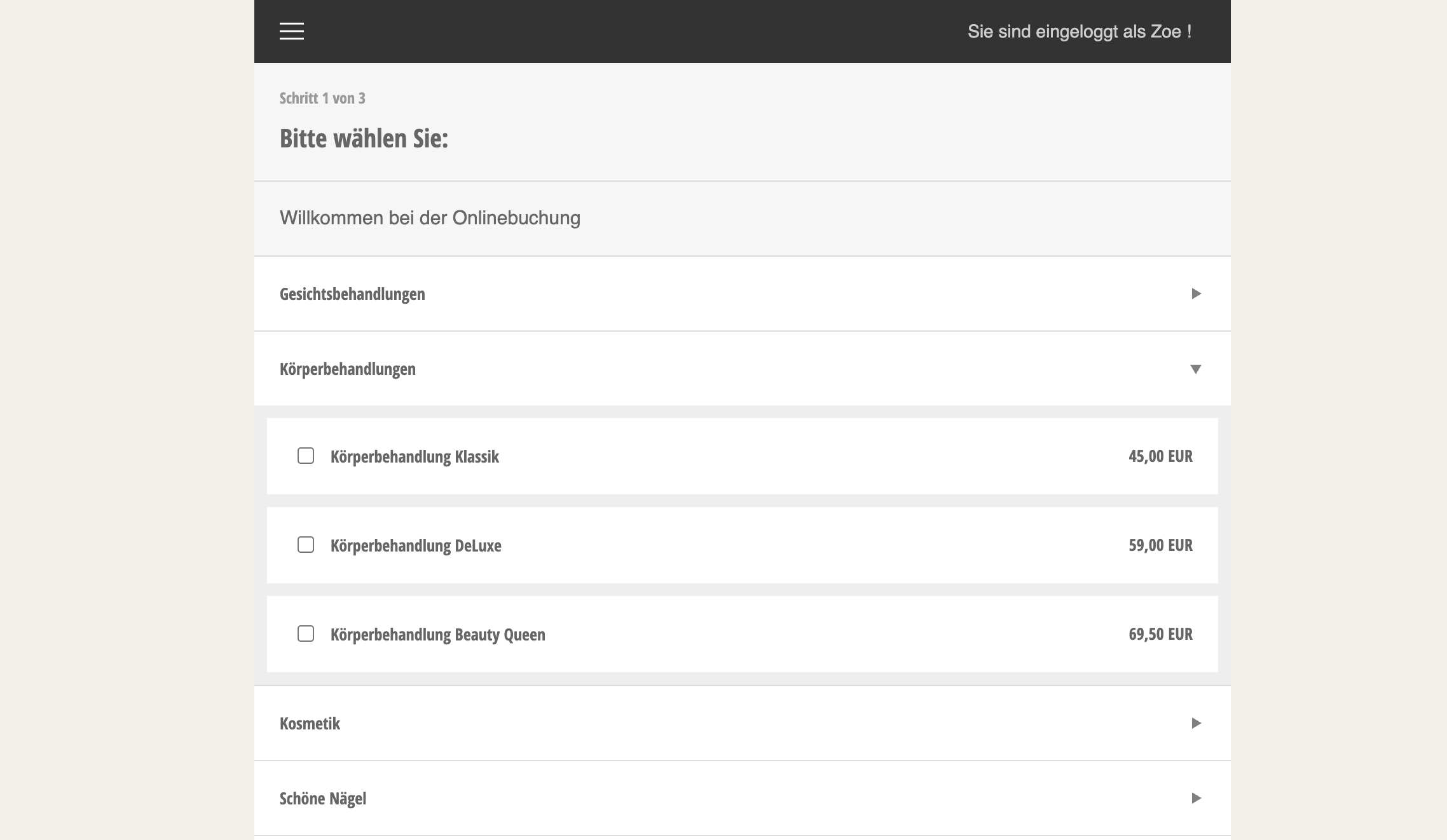
Example of overview page

On the overview page, you can offer all service groups that you want to offer online in an expandable list.
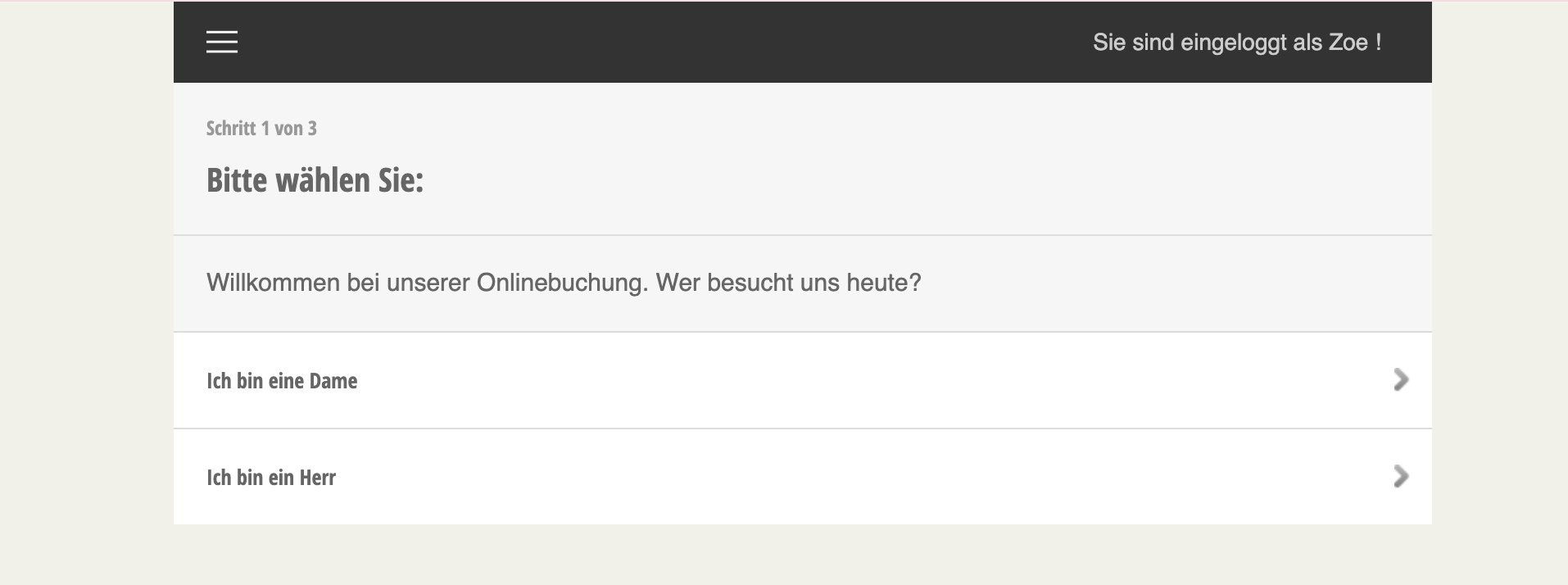
Example of questionnaire
In the questionnaire, you can first collect some information about the customer in order to then offer him only the appropriate services.


Creating an overview page

Short video on creating online booking with overview page:

To edit or supplement your service list, first click on Edit online booking.
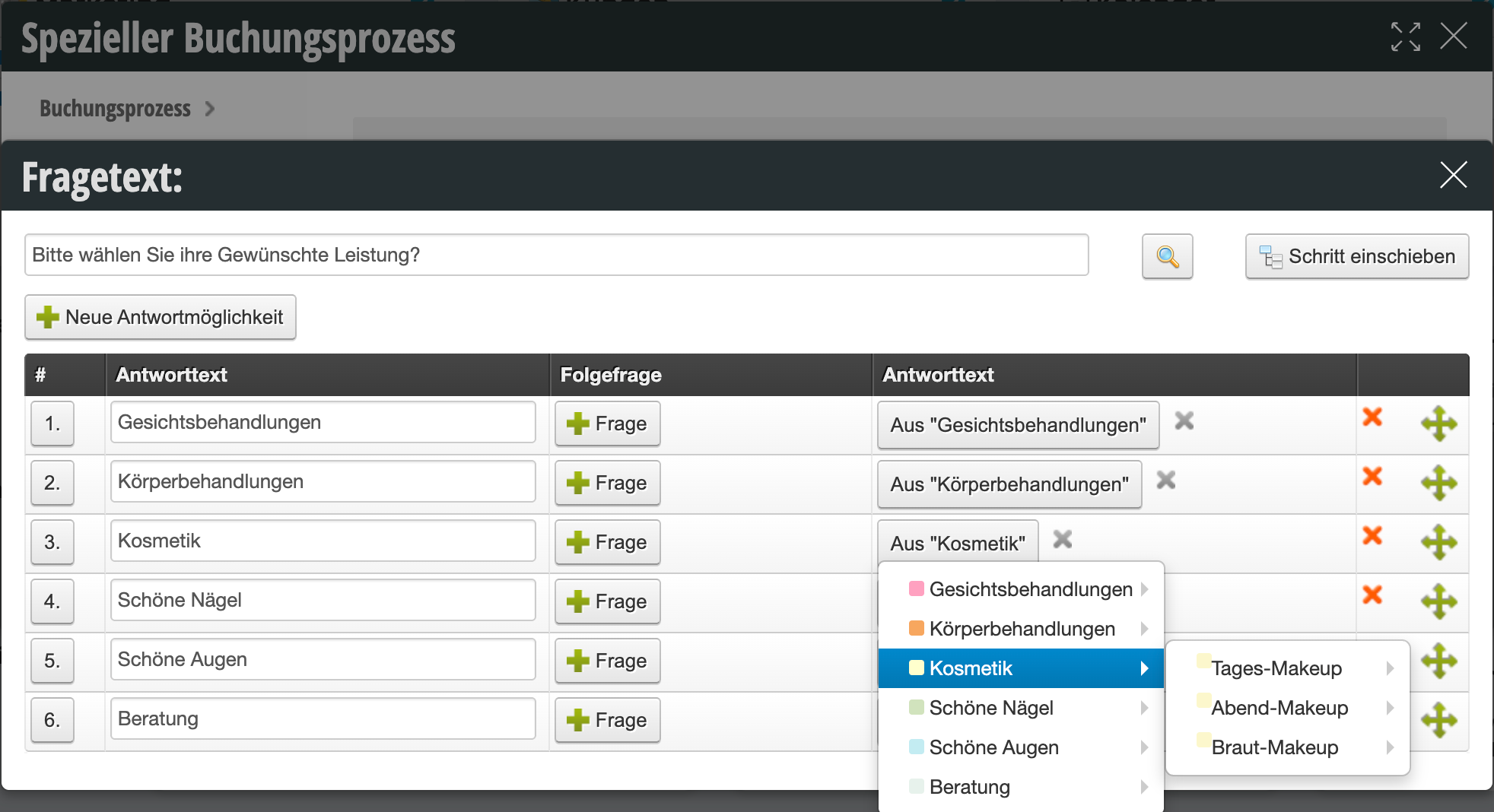
Question texts
You can customize the texts of your online booking. If you decide on the service overview, we recommend text such as "Please select the desired services:".

Add service groups to online booking
To add a new service group, click on new answer option. A new empty line is created at the end of the existing list. Click on no service linked to select a service group. If you click on the name of the group, all services it contains will be made available for online booking. If you click directly on a service, that service itself will be added to the list.

To exclude individual services in an online available service group from online booking, please go to the online booking settings of the respective service.

Edit offered service groups
Remove service groups: By clicking the red X at the end of each row, that group or service is removed from online booking. The services are not deleted from your calendar, but can no longer be booked online.

Move service groups: The order of your services displayed here corresponds to the order in online booking. If you want to change the order, you can "grab" each row at the right end and move it to the desired position.


Creating a questionnaire

If you want to offer your customers only the services that are suitable for them and not your entire service list, you can create a questionnaire. This way, the customer will then be directed to a dedicated service overview which provides the services that are suitable for him.

Examples of frequently asked initial questions:

  • Are you male or female?
  • Are you already a member?
  • Have you been with us before?
  • Would you also like a coloring or just a cut and styling?

Short video on creating questions and follow-up questions:

Question texts
To create a questionnaire, first formulate the initial question.
Then create the desired answer options that your customers can select online.
Then click the + Question button to create a new questionnaire page.
Here you can create the service groups that match the question (see above) or formulate further questions that the user must answer first before being shown the services on a further subpage.

Edit questions
Remove questions: By clicking the red X at the end of each row, that answer and all follow-up questions are removed from online booking.

Move service groups: The order of your answers displayed here corresponds to the order in online booking. If you want to change the order, you can "grab" each row at the right end and move it to the desired position.

Important articles on online booking:

  • Edit online booking settings
  • Different online booking processes for different customer groups
Categories: Appointment Entry & Management
Tags: Leistungen buchbar machen, nicht online buchbar, Onlinebuchung, Onlinebuchung bearbeiten
This manual is a service by belbo. Legal notice