
Service groups serve to categorize your services. If you offer many different services, it makes sense to organize them into service groups to maintain an overview.
Learn more about product groups here.
Create service groups
To create a new service group, scroll to the end of your service list and click the "Create new service group" button.

Then enter the name of the category and optionally assign a color.
Important: If you want the category to be displayed when creating appointments or during the checkout process, activate "Offer for manual appointment entry and online booking".
If you use the cash register, you can assign accounting accounts.
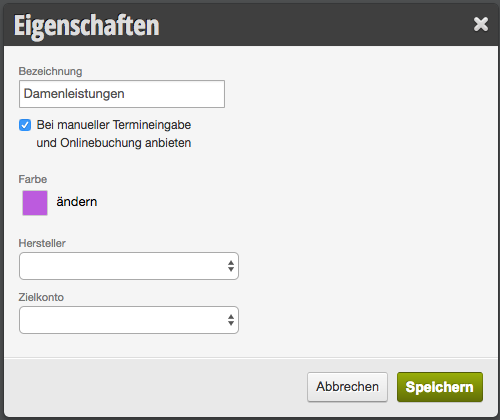
Then click "Save".
Edit service groups
To edit a service group, click on the name of the group. You can now rename it, change its color, or modify settings.
Delete service group
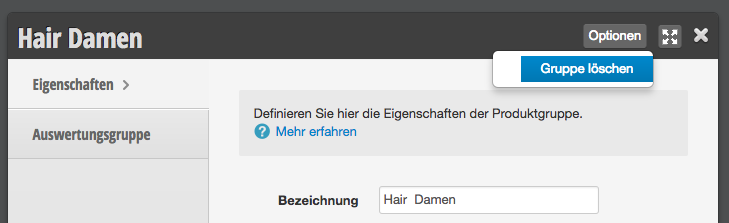
To delete a group, click on the name of the service group and select "Options > Delete group" in the top right.
Duplicate service group
Duplicating groups makes sense when they contain similar services. For example, when dividing services for short and long hair. To do this, hover your mouse over the service group you want to copy. Some symbols will appear next to the group name. Click the "duplicate page" icon.

A new group named "Group name (Copy)" will appear.
A new group named "Group name (Copy)" will appear.
Move service group
To move a service group, first hover your mouse over the service group you want to move. Some symbols will appear next to the group name. Click the green cross symbol and hold down the mouse button while you drag the entire service category to the desired location.