Customer fields are additional fields that you can create in every customer file card.
Basically, "Name", "First Name", "Email Address", "Customer Status" and "Phone" are already present in the customer file. If you also want to enter additional data such as "Address", "Birthday" or "Skin Type", you can create as many customer fields as you want.
You can access this area via
Settings > Customer Settings > Customer Fields.
Edit customer fields
To create a customer field, click on +Customer Field in Customer File Settings > Customer Fields.
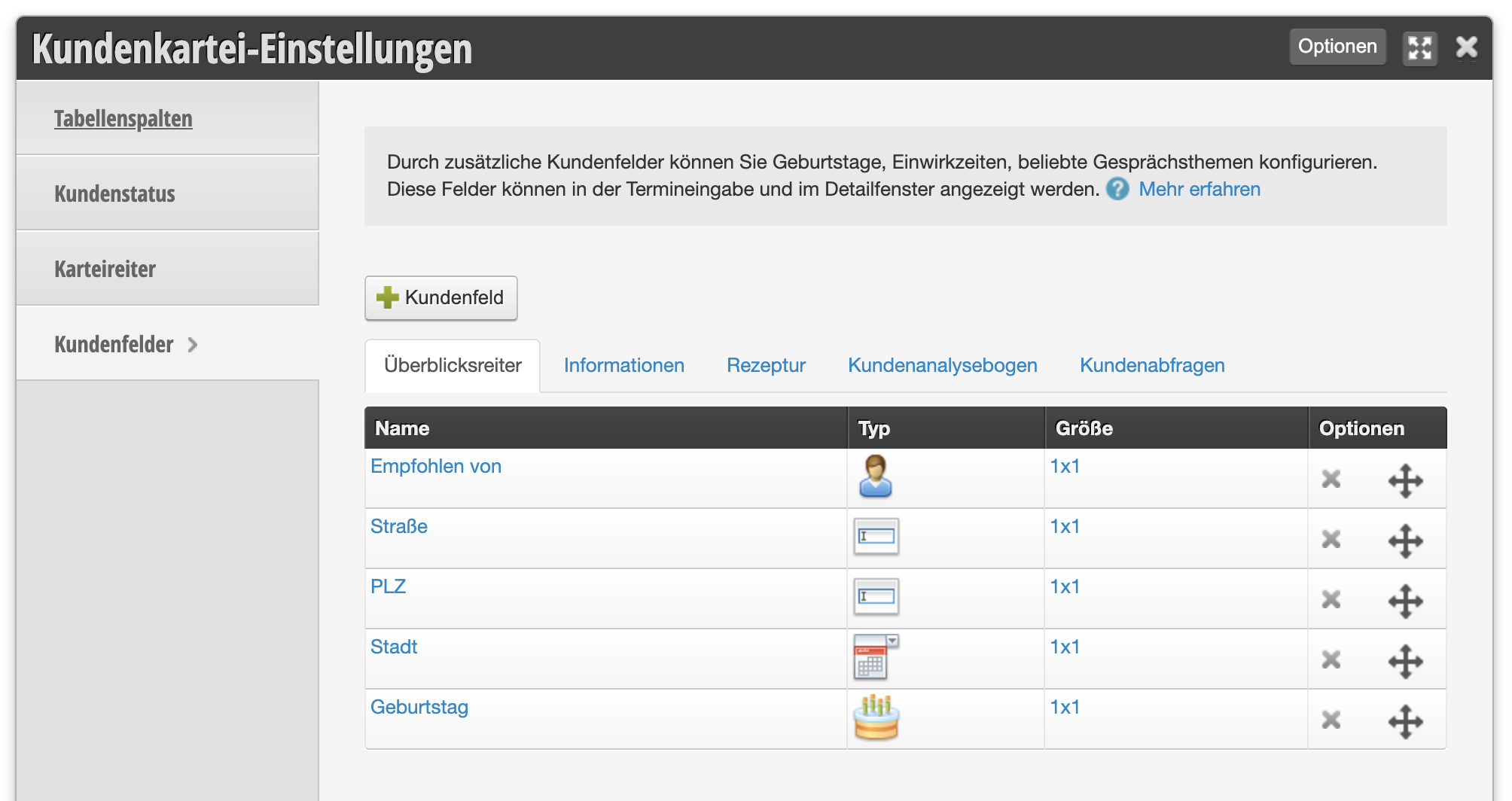
Field properties
Overview
Field name
Describe here the information you want to collect. The name appears in every customer file.
Example of use:
If you want to add a field for Birthday, call it "Birthday". For Street and house number, "Street & No." is suitable.
Field type
Depending on the type of information you want to store, different field types are suitable, which you probably know from the Internet and from software applications.
Examples:
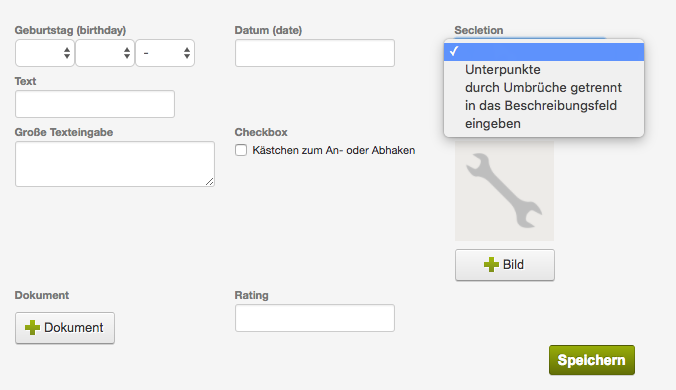
Description
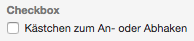
For the Checkbox field type:
Enter here the text that should be displayed next to the checkbox.
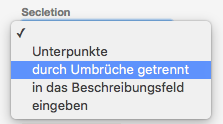
For the Select field type:
Enter here the text options that should be available for selection. Separate the lines by line breaks:
Icon for calendar
Here you can select a symbol image that appears in the calendar
as soon as you set "Checkbox" as the field type and
activate it in the customer file.
Example of use in a gym:
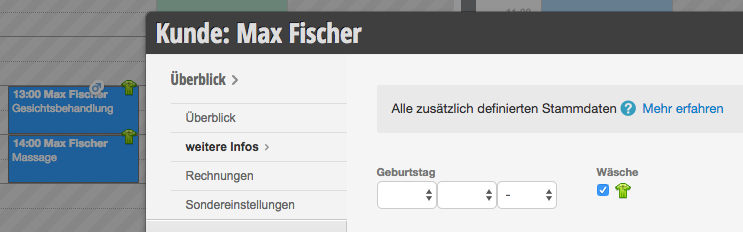
You want to see a small symbol at the appointment of each customer who pays for their sports clothes to be washed at your facility after training. Create the field "Laundry", select "Checkbox" as the field type and set an appropriate icon. When you activate this field in the customer file, the selected icon will appear at the appointment.
Required field
This field must be filled in for an appointment to be saved.
Customers can only register online if they fill in this field.
Visibility
Tab
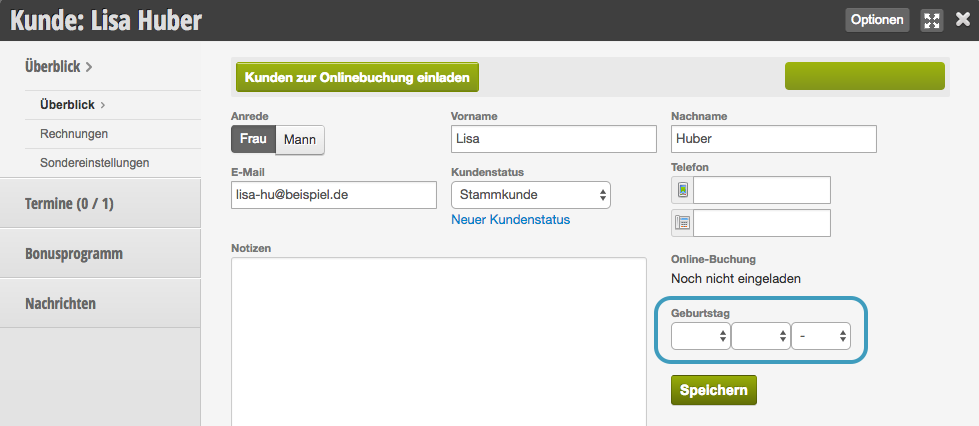
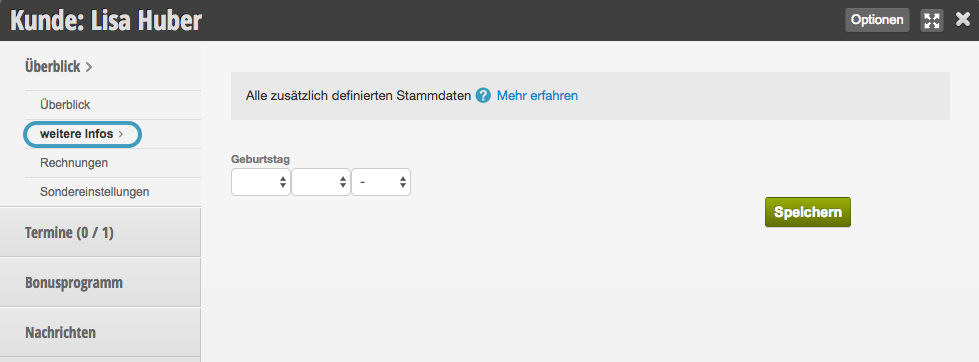
If you leave the "Tab" field empty, your customer field will appear on the main page of every customer file. If you click on it and enter a name, you add it to a tab. If there is no tab with the entered name yet, a new tab will be created.
New customer field on the main page:
New customer field with tab "Additional Info":
Hide field
Use this function for data fields that you no longer want to display in the customer file, but don't want to delete completely.
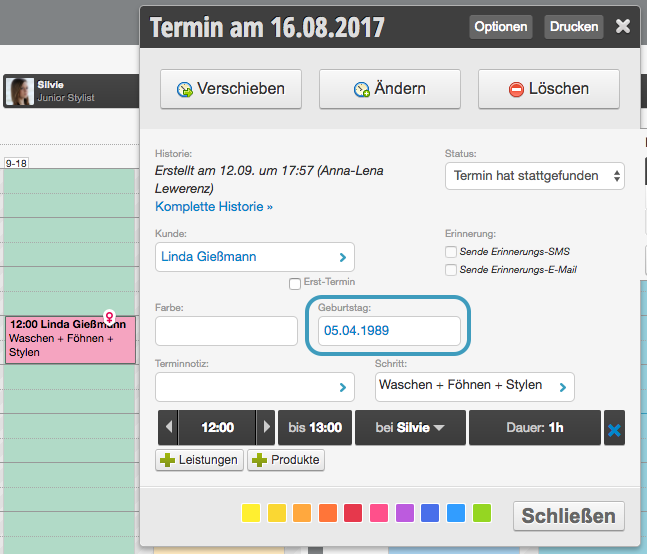
Show in appointment detail
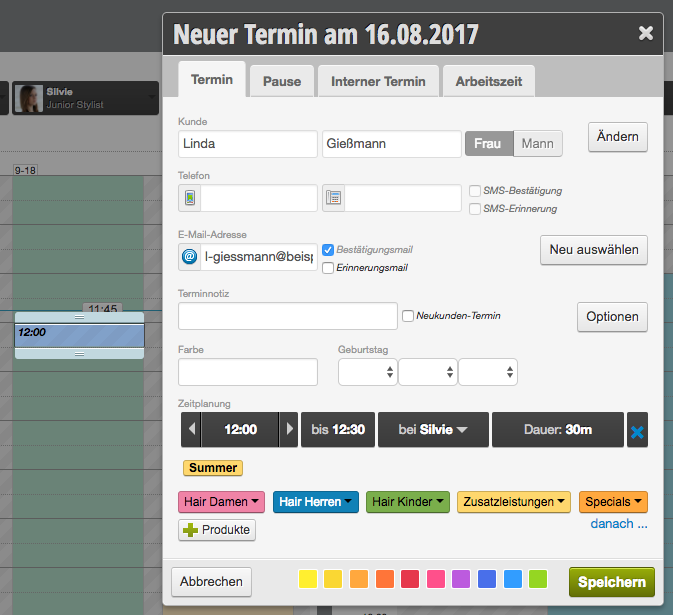
Your customer field appears in the appointment detail (after you click on an appointment). Recommended for data needed during the appointment.
Show in appointment entry form
Your customer field appears in the appointment entry form. Recommended for important data.
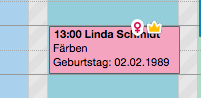
Show in calendar
This field is displayed directly in the appointment.
Payment process
If you use the Belbo cash system, you can query unfilled data during the payment process.
Example of use:
You want to store the birthdays of all customers so you can congratulate your customers on their birthday and increase customer loyalty. Unfortunately, many customer files are missing the birth date. During the payment process, a popup appears that reminds the employee to ask the customer for their birthday if the field in their file is still empty.
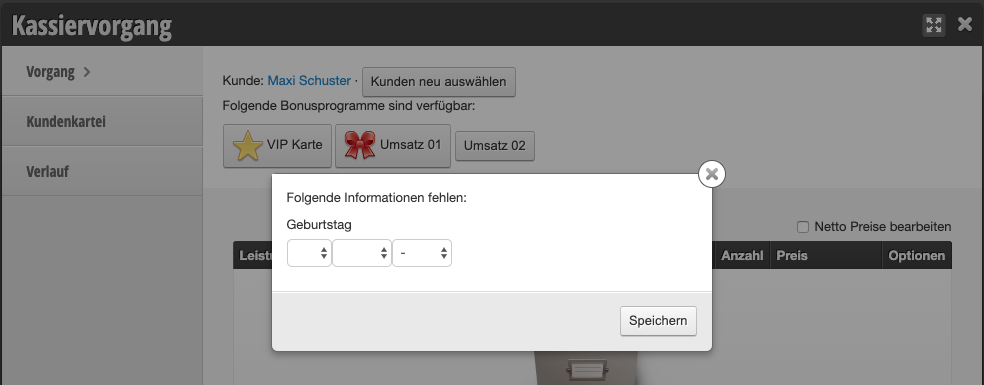
Please only use this function for fields that should be filled in all customer files.
Online booking
During registration on your online booking page, this field will be requested. Recommended for data such as Birthday and Address.
Customer search preview
This field is displayed in the result list of the customer search. This is suitable for information that helps you select the correct customer.
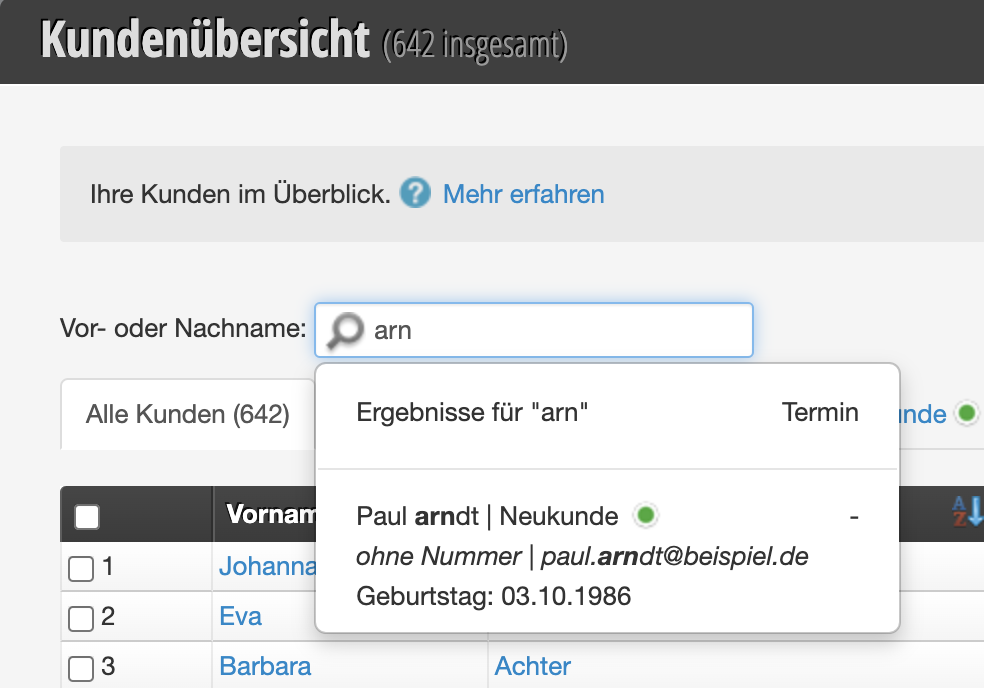
In the example above, the customer's birthday is also displayed.
Display
Width and height in file
Determine how much space the field takes up in the customer file.
Tip: If you use the "Birthday" field type and regularly maintain your customers' birthdays, you can use the birthday list and the automatic birthday greetings.
If you create many customer fields, you can group them using file tabs within a customer file and organize your customer files clearly. More about file tabs can be found here.
If you want your customers to fill in certain customer or appointment fields during online booking, use the service fields.
