
In every customer file you will find all important information about your customer. Here you can invite them to online booking, store information, prohibit online booking for this customer and much more.
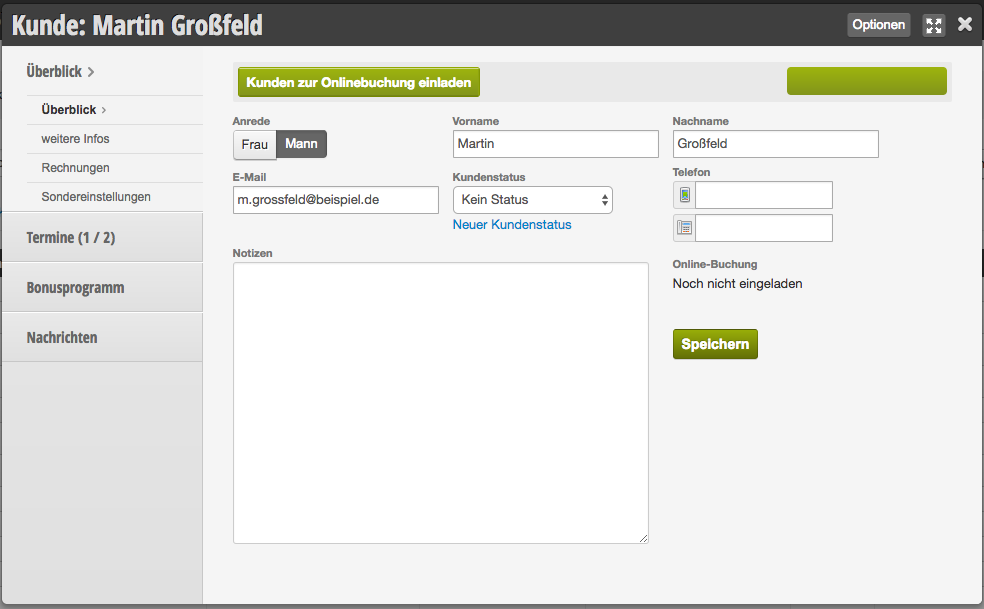
Opening the customer file
Open customer file in the customer overview
Each customer has their own file, which you can open by clicking on the customer name in the customer overview.
Open customer file in the calendar
If you click on an appointment in the calendar, you will also reach the customer file when you select the blue linked customer name.
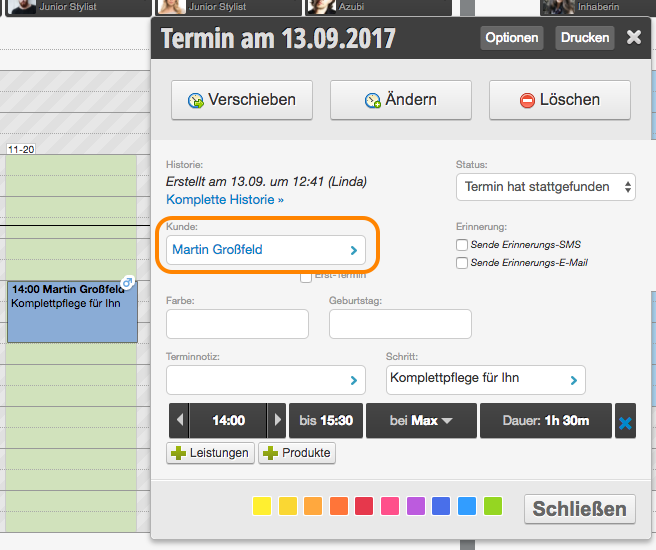
Customer fields
Salutation
If you specify the customer's gender, customer messages such as reminder or confirmation texts can be personalized in the salutation.
Furthermore, you can send targeted messages to male and female customers in the marketing functions.
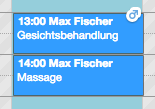
In the calendar, you can see the gender in the form of a pictogram directly on the appointment if you enable this function in the calendar settings.
First and last name
If you provide the customer's name, customer messages such as reminder or confirmation texts can be personalized in the salutation.
Please pay attention to capitalization from the start so that the customer salutation appears professional.
Email
Only if the email address is provided can your customer receive reminder, confirmation and marketing emails.
Customer status
With the help of customer status, you can assign the customer to a specific customer group.
Advantages of customer status:
- Identify the customer in the calendar directly as a regular customer, new customer, family member etc.
- Create targeted newsletters and round SMS for each customer group
- See the number of your customers per customer group in the customer overview
Phone
Only if the mobile phone number is provided can your customer receive reminder, confirmation and marketing SMS.
Notes
Here you can store information and notes about the customer that can be viewed by all staff members. Customers cannot view this information.
Invite customer to online booking
Once you have entered an email address for the customer, you can invite them to online booking with a single click.
This is particularly useful when you
- do not allow self-registration in online booking, but only want to enable selected customers for online booking
- have convinced a customer on-site of the benefits of online booking and want to send them the access data directly.
Block customers
After you have invited your customer to online booking, you can also block them again. Once blocked, they will not be able to book appointments online using the specified email address.
Add custom customer fields
If you want to supplement the existing customer fields with additional data, you can create new customer fields.
Activatable functions
Special settings
You can create specific times for each of your services for every customer. Learn more about special settings here.
Invoices
If you use the Belbo cash register system, you can view the customer's invoices in each customer file.
Bonus program
You can create stamp and bonus cards to manage them directly in your calendar. Learn more about bonus programs here.
Contracts
If you enable contract management, you can assign contracts in each customer file.
Absences
If you enable absences, you can store absences in each customer file.
Merge duplicate customer files
If you have accidentally created multiple customer files for one customer, you can merge the duplicates.