belbo
  • Overview
    • Getting to know Belbo
    • Location Settings
    • Switch to Belbo
    • Calendar View & Navigation
    • Recurring Appointments & Courses
    • Appointment Entry & Management
    • Logins & Permissions
    • Multiple Locations & Head Office
    • Manage Employees
    • Absences & Holidays
    • General
    • Working Hours
    • Time Tracking
    • Data Protection (GDPR)
    • Customer Communication (Email, SMS)
    • Customer Management & Records
    • Bonus & Loyalty Programs
    • Campaigns (Newsletter & SMS)
    • Marketing Consents (GDPR)
    • Tracking & Analytics
    • Overview
    • Services & Prices
    • Products
    • Service Packages & Subscriptions
    • Vouchers
    • Purchasing & Suppliers
    • Stock & Inventory
    • Scanning & Sales
    • Cost of goods & expenses
    • Design & Texts
    • Setup & Settings
    • Integration (Website, Google, Instagram, Facebook)
    • Online payment
    • Accounting & Exports
    • Cash Register Settings & Hardware
    • Checkout process
    • Daily Closing & Reports
    • TSE & Cash Register Anti-Tampering Ordinance
    • Export Overview
    • Employee Utilization
    • Revenue & Reports
    • Belbo Satellite
    • Printer
    • EC Terminal & Card Payment
    • Troubleshooting Hardware
    • Scanner & POS Devices
    • General Settings
    • API & Integrations
    • Notifications & Emails
    • Contracts & Legal
Skip to content

Customers: Duplicates

If your customer database contains multiple customer records with identical characteristics, a submenu item Duplicates will appear in each of these records. If it is the same person who was accidentally created twice, you can merge the customer records to maintain clean data.


This article describes how to merge duplicates within a customer record. To identify duplicate customer records you can use the duplicate finder. Learn more about the duplicate finder here.

Merging duplicates

If you encounter duplicates in a customer record, you can merge them.

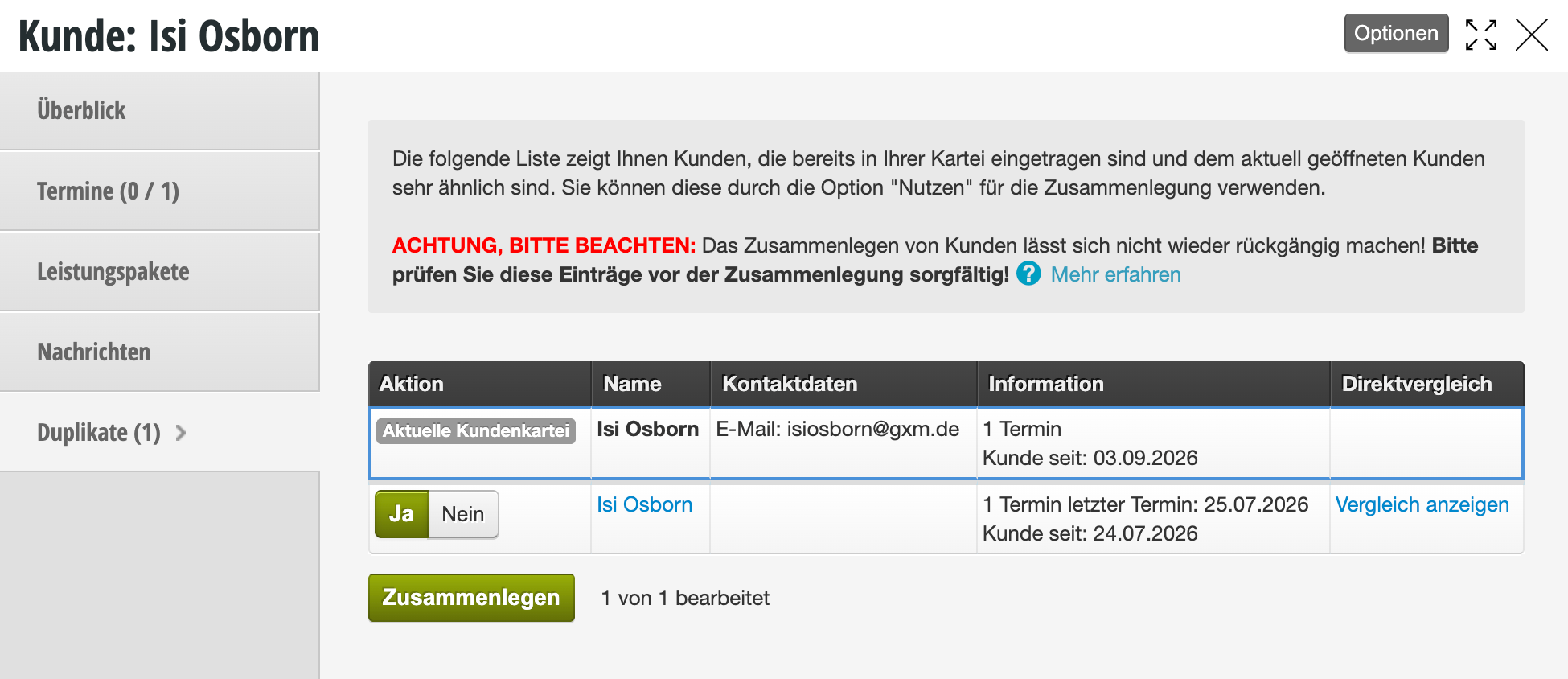
In the row of each duplicate is the "use" button.
If it is black (active), this customer card will be merged.
If a customer listed in the list should not be merged with the current customer record, click "use". The button turns white (inactive) and this customer record remains untouched.

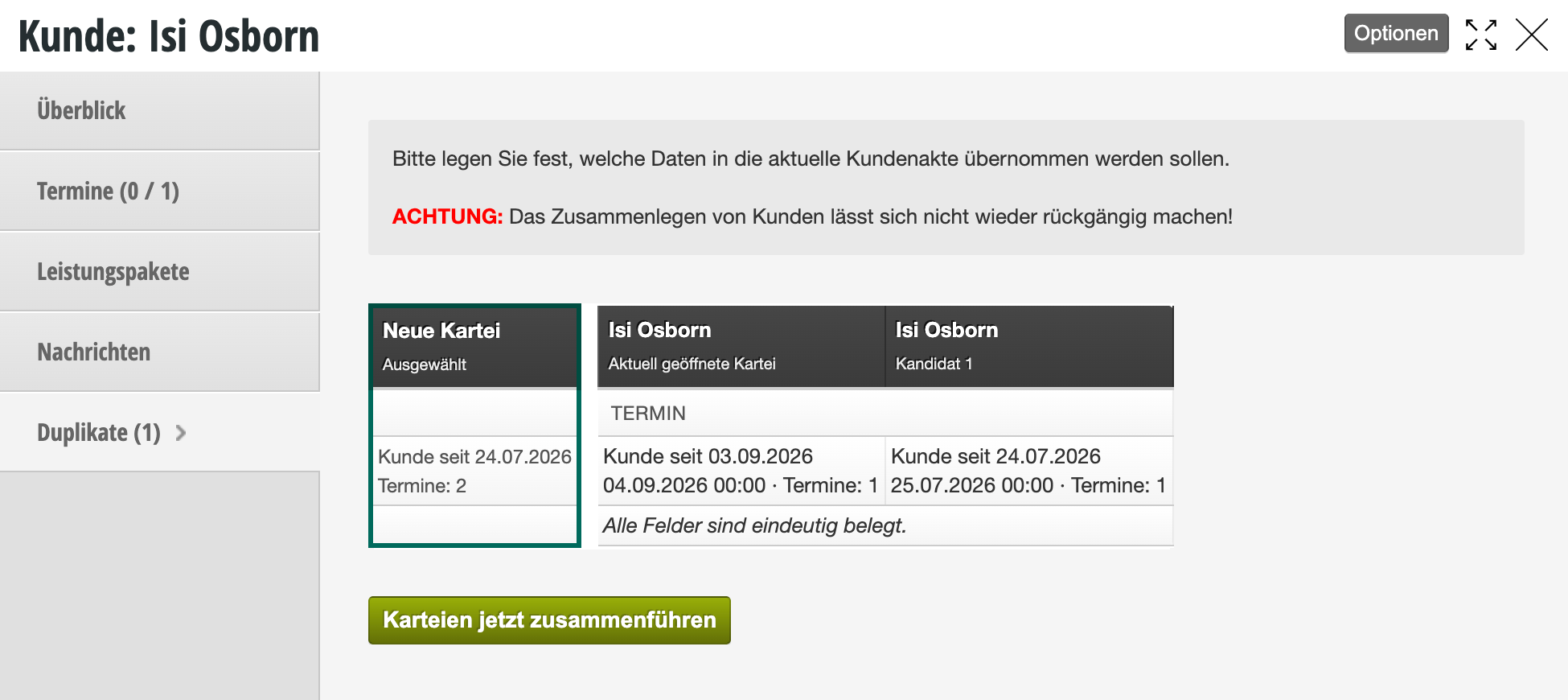
After clicking "Merge", you will enter the comparison view where you can specify which data will be included in the new record.

The column titled "New" contains the data that will be included in the new record. Select the correct data from any conflicting data, or manually enter the correct data. Then click "Save".

The customer records are now merged. All data and appointments have been transferred and remain available.


Duplicates – ignored suggestions

If a duplicate is ignored during merging, you can use this trick to find the disappeared duplicate.

Duplicates are not found - trick


Avoiding duplicates

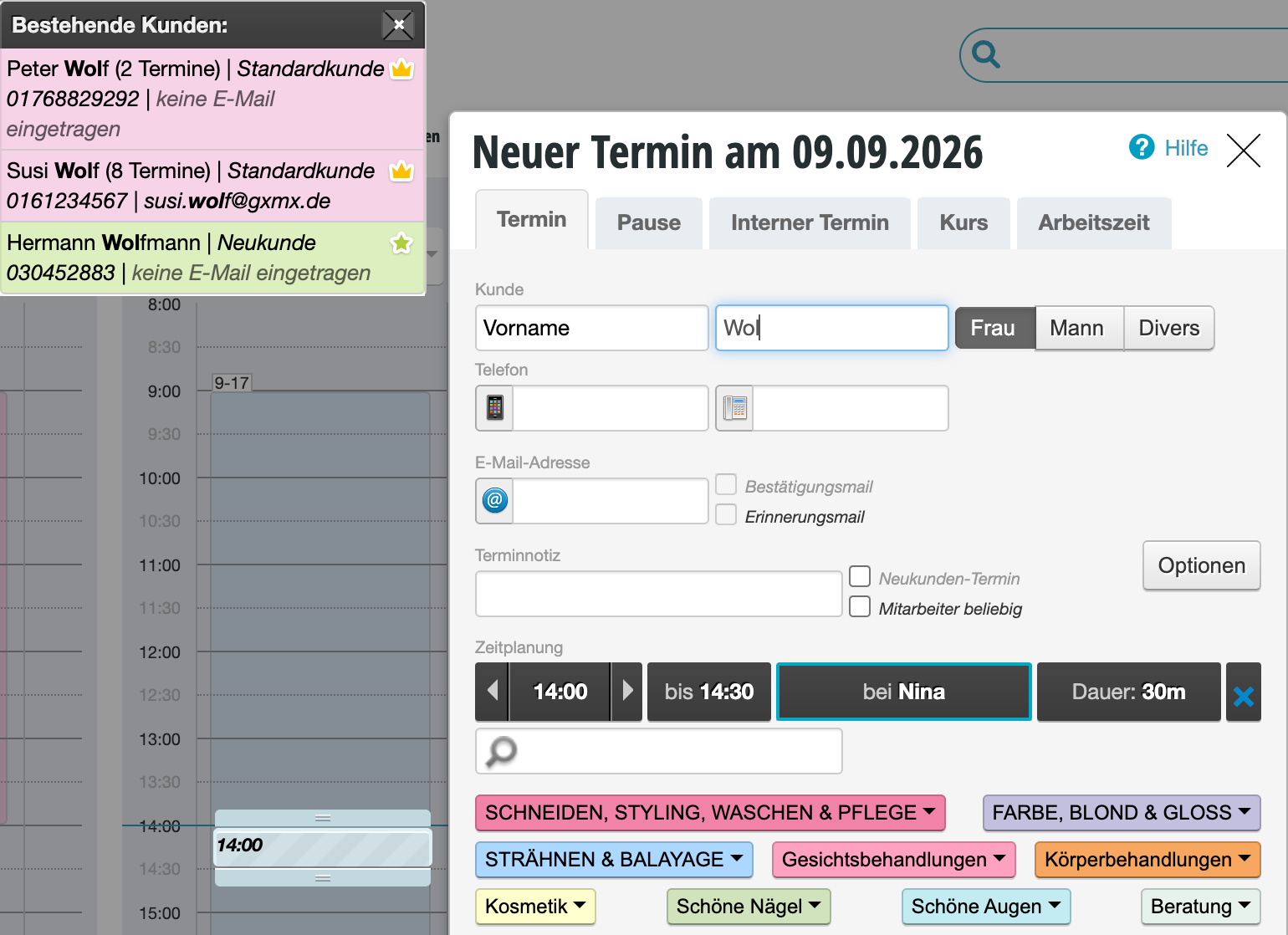
Duplicates are created by re-entering customer data in the calendar. As soon as you enter the initial letters of the name in the appointment dialog, you will receive suggestions for existing customers.
When you enter an appointment for an existing customer, you should also click on the name suggestion. Only if it is a new customer with a similar name should you enter the name manually. After you save the new appointment, a new customer record is automatically created for this customer.

Selecting an existing customer when entering an appointment:

[video_embed][/video_embed]


Learn more about customer records here.

Categories: Customer Management & Records
Tags: doppelte Kunden, Duplikate
This manual is a service by belbo. Legal notice