belbo
  • Overview
    • Getting to know Belbo
    • Location Settings
    • Switch to Belbo
    • Calendar View & Navigation
    • Recurring Appointments & Courses
    • Appointment Entry & Management
    • Logins & Permissions
    • Multiple Locations & Head Office
    • Manage Employees
    • Absences & Holidays
    • General
    • Working Hours
    • Time Tracking
    • Data Protection (GDPR)
    • Customer Communication (Email, SMS)
    • Customer Management & Records
    • Bonus & Loyalty Programs
    • Campaigns (Newsletter & SMS)
    • Marketing Consents (GDPR)
    • Tracking & Analytics
    • Overview
    • Services & Prices
    • Products
    • Service Packages & Subscriptions
    • Vouchers
    • Purchasing & Suppliers
    • Stock & Inventory
    • Scanning & Sales
    • Materials & Costs
    • Design & Texts
    • Setup & Settings
    • Integration (Website, Google, Instagram, Facebook)
    • Online payment
    • Accounting & Exports
    • Cash Register Settings & Hardware
    • Checkout process
    • Daily Closing & Reports
    • TSE & Cash Register Anti-Tampering Ordinance
    • Export Overview
    • Employee Utilization
    • Revenue & Reports
    • Belbo Satellite
    • Printer
    • EC Terminal & Card Payment
    • Troubleshooting Hardware
    • Scanner & POS Devices
    • General Settings
    • API & Integrations
    • Notifications & Emails
    • Contracts & Legal
Skip to content

Customer Management

You can access this area by clicking on the Customers menu item.

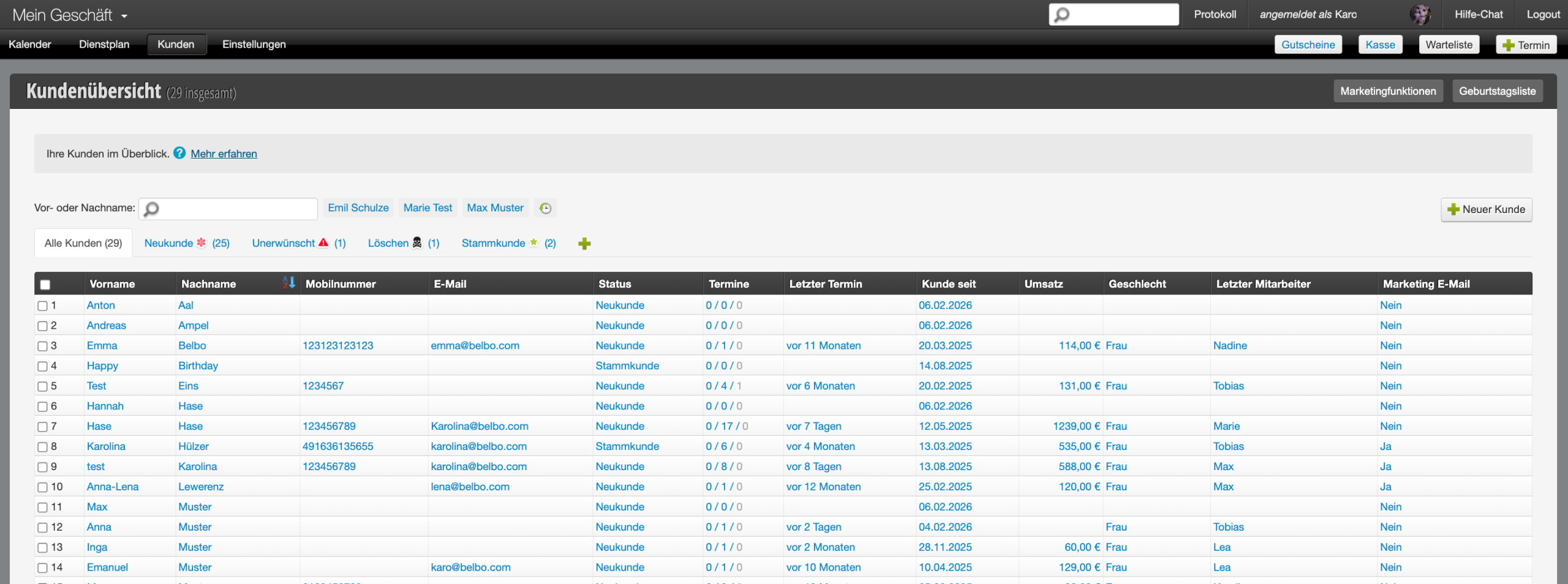
In customer management, all your customers are listed. You can see the total number of customers and your customer groups – sorted by new customers and the various customer statuses.

View and edit customer data
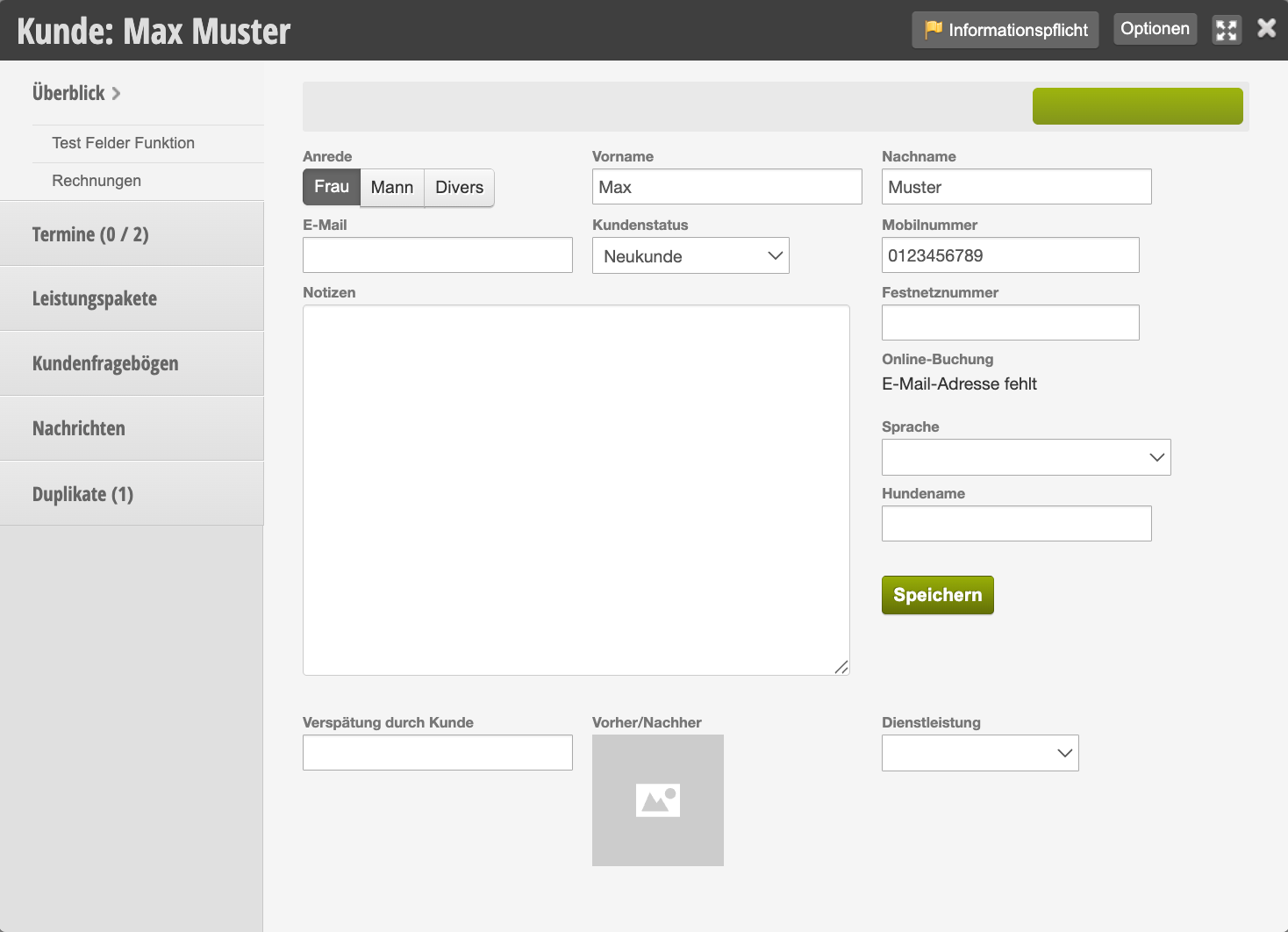
Once you click on the customer name highlighted in blue, you will be taken to the customer's customer file where you can view and edit all information about this customer.


Find customers
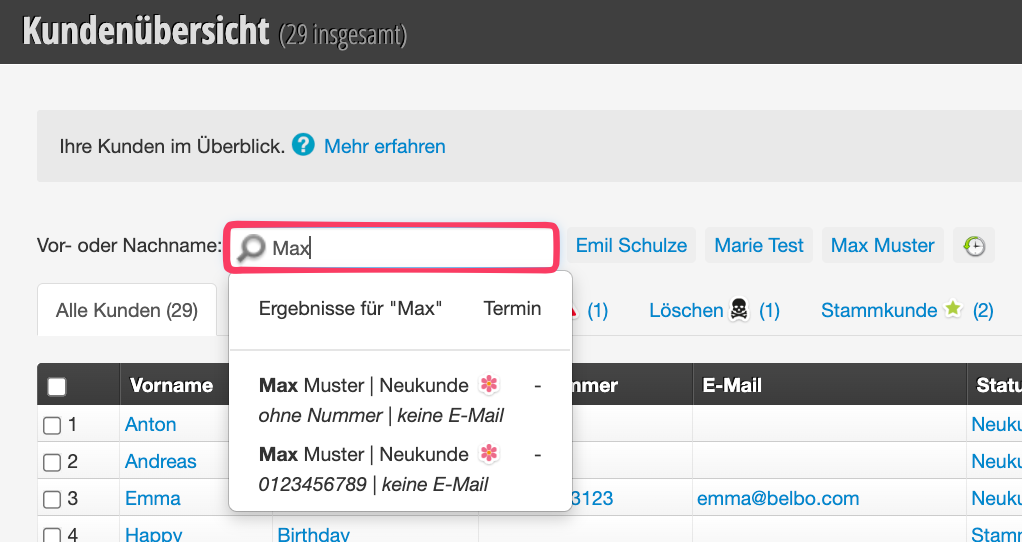
To find specific customers, you can use the search field at the top of the page.


Filter customers

To avoid lengthy searching: Use filter combinations to narrow down your customer list specifically. This way, with just a few clicks, you will see exactly the selection you are looking for.


Search customers with filters
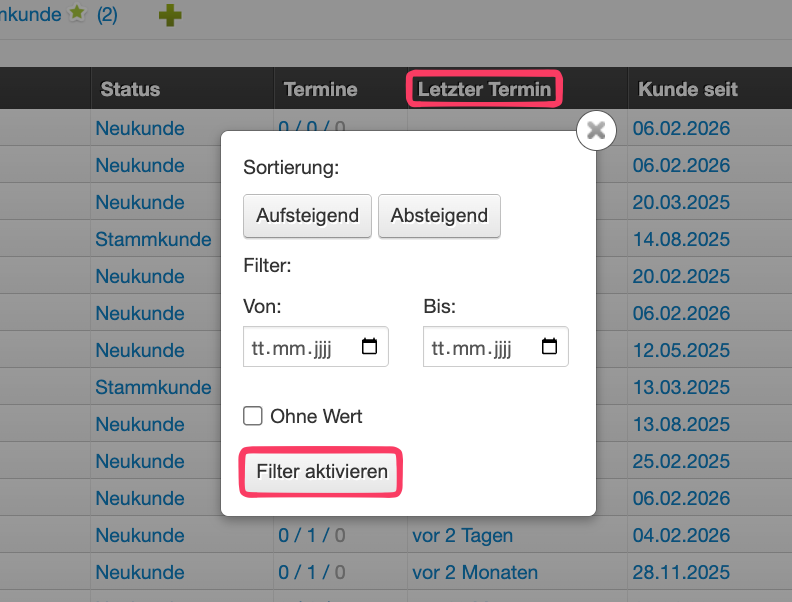
As soon as you click on one of the table columns, you will be taken to the filter overview and can select various filters, for example to search for customers who haven't been there for a while.

Search customers with additional filters
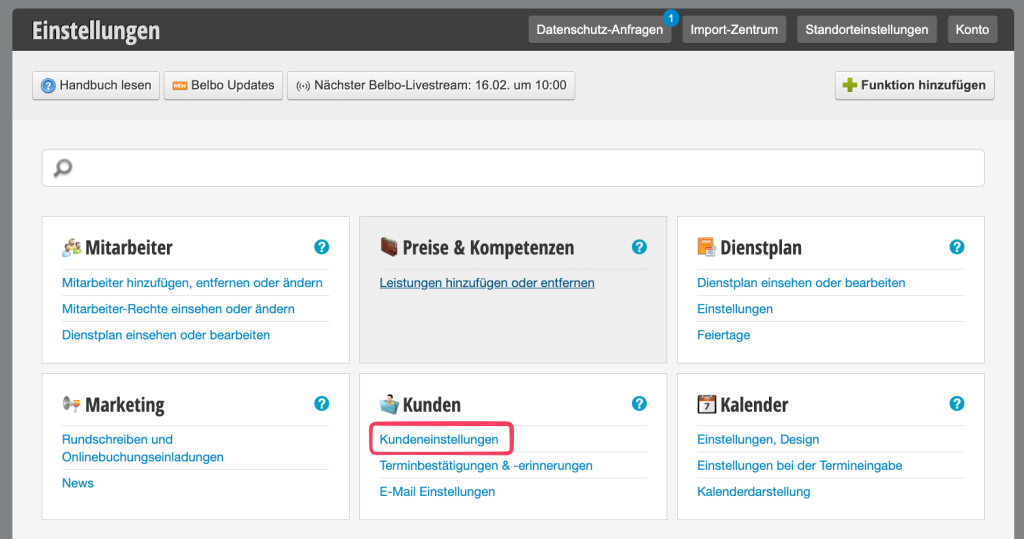
Want to expand your search? For example, if you want to search for your highest-revenue customer, you can do this with the help of additional table columns. To do this, you must go to settings and click on "Customer settings".

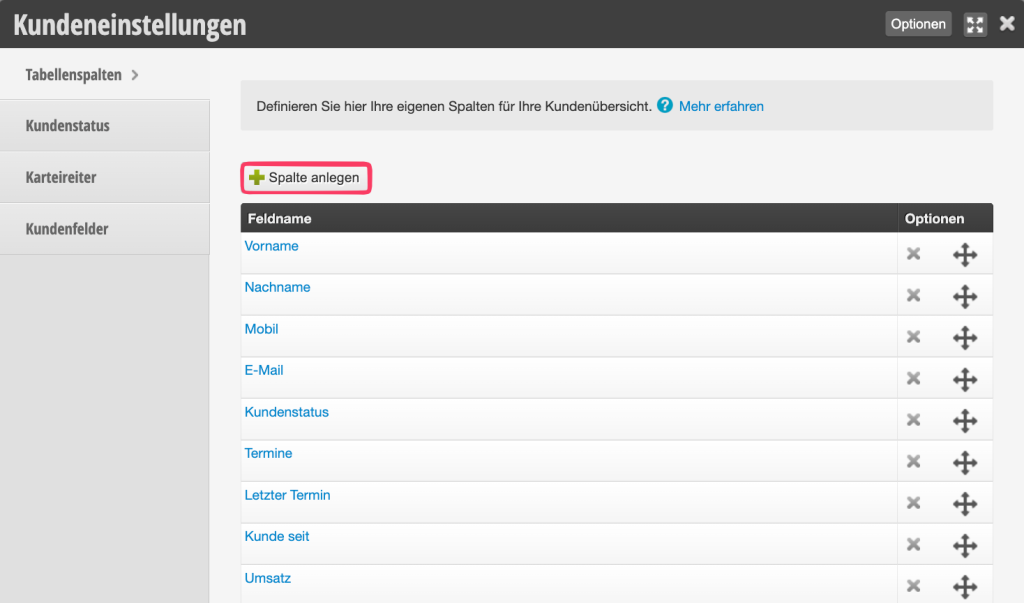
In the "Table columns" tab, you will find a "+Create column" button. Here you can select all the table columns you need.

Afterwards, you can return to the customer overview and filter as usual.

Categories: Customer Management & Records
This manual is a service by belbo. Legal notice