
It occasionally happens that multiple customer records are created with identical values. These are duplicates. To find duplicates quickly and easily, we have developed a function for this: The Duplicate Finder.
In the Suggestion tab, all duplicate suggestions in your customer records are displayed.
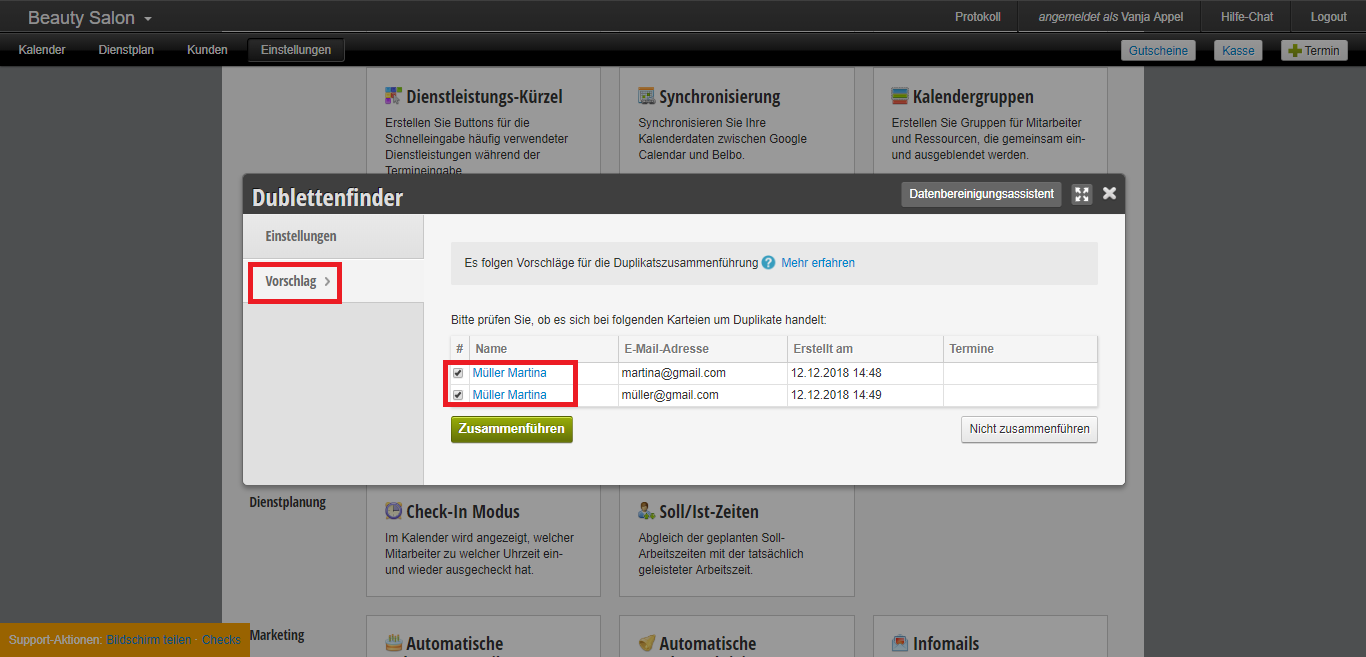
Check the boxes next to the duplicates you want to merge and click the green "Merge" button.
Duplicate Merging
After clicking Merge, you will see a comparison between the customer records to be merged in the next step.
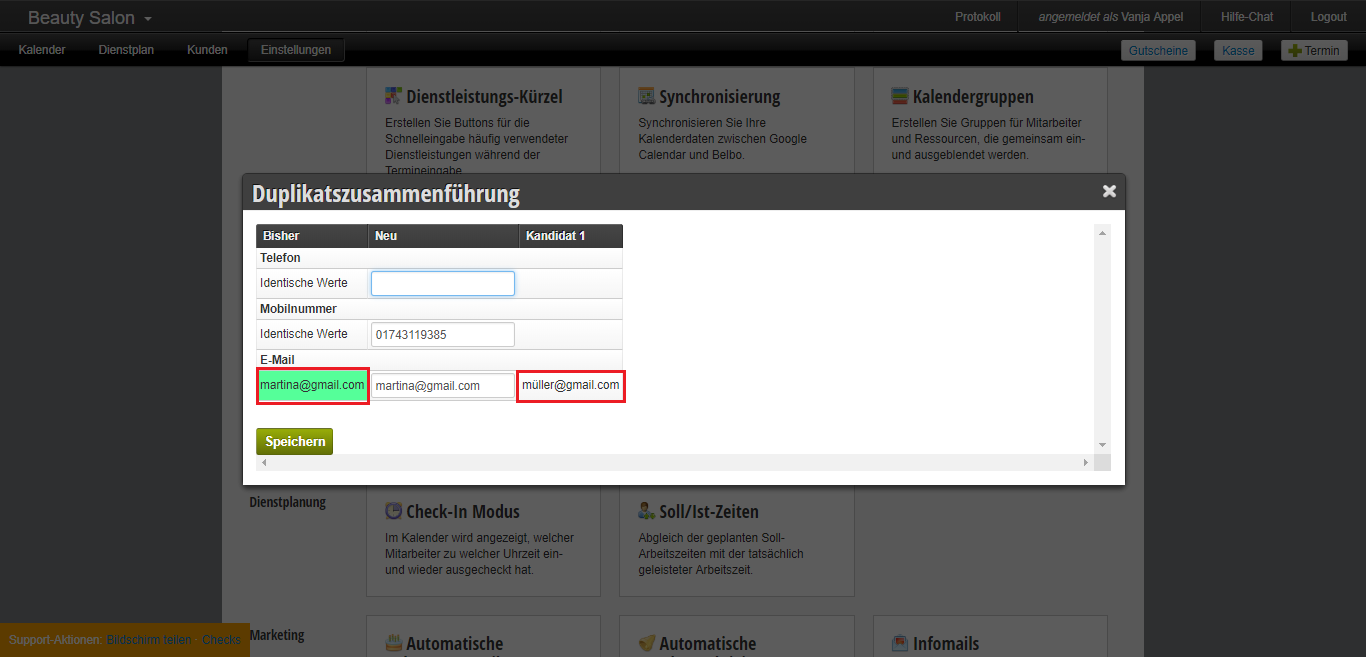
In our example, we have two customer records with identical first and last names but different email addresses.
At this point, you have the opportunity to verify the accuracy of the customer data and select the correct data.
The data highlighted in green will be transferred to the new customer record.
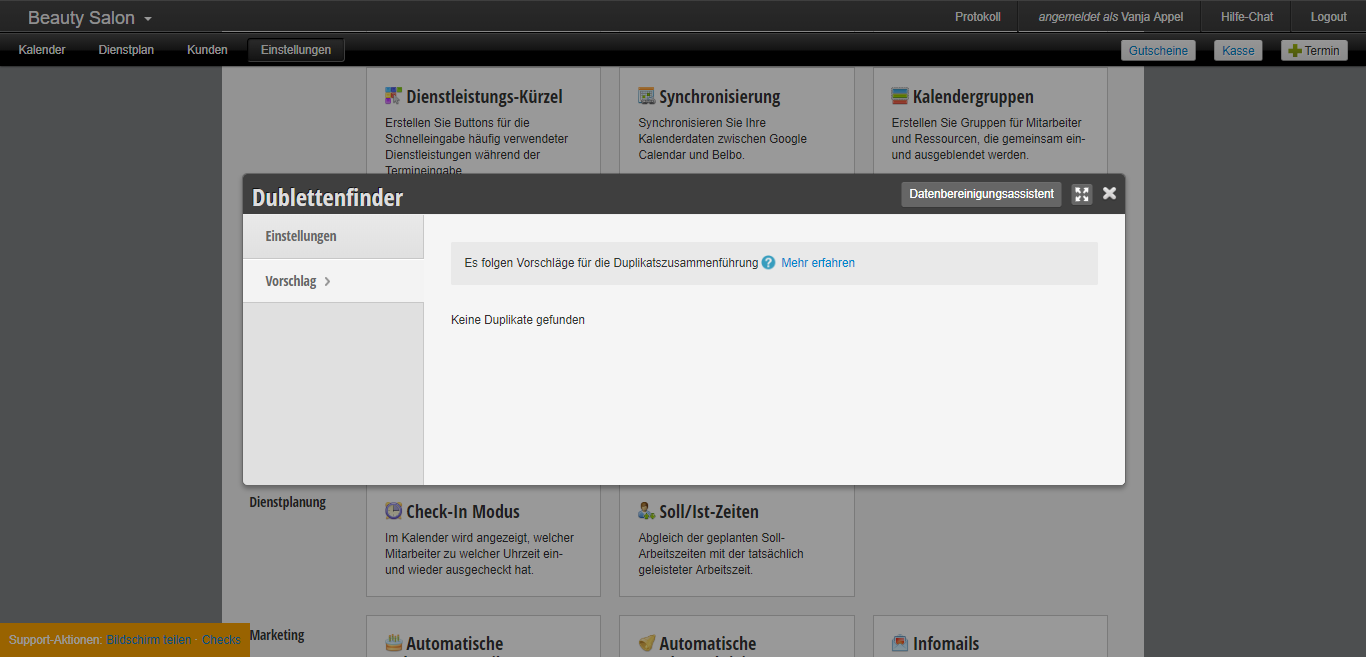
Once you have merged all the duplicates suggested by the system, no further suggestions will be displayed.
Data Cleaning Assistant
With the help of the Data Cleaning Assistant, you can clean up your customer records. Customers who haven't been seen in years or inactive records due to incomplete names can be removed with the click of a button.
There are three options to choose from:
- Records that have no appointments and are older than... (Records older than the specified date will be removed from your customer database)
- Customers whose last appointment was longer ago than... (You also have customers in your database who haven't come to you for years. Using this option, inactive customers will be removed from the database.)
- Customers for whom no contact details (email address, mobile number, or landline number) are stored. Select this option if you want to remove incorrectly entered customer records.
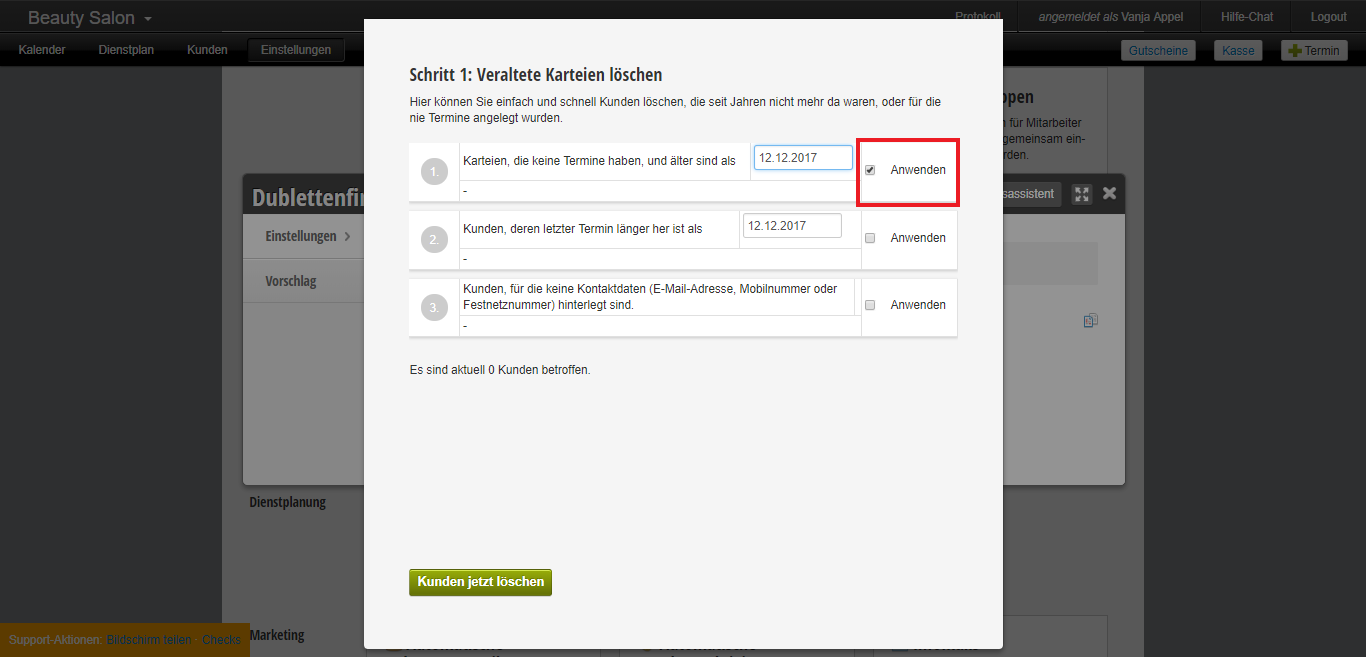
Once you have selected one or more options, click the "Delete Customers Now" button.
This way, old, inactive, and faulty customer records are quickly and easily removed from the database using the Data Cleaning Assistant.
Display Duplicates in Calendar
To simplify regular checking for duplicates, you can have the calendar display which customers of the day have duplicates. This is shown with a small note in the area of the current date:

To enable this function, you can select the option "Show duplicates per day in calendar" in the Settings tab of the "Duplicate Finder" module.