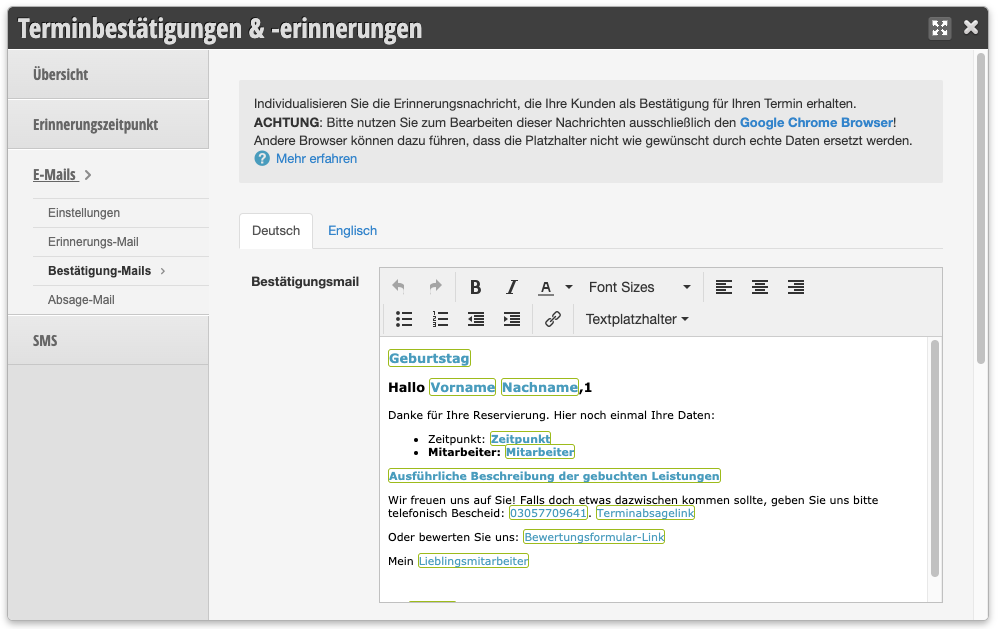
You can reach this area via Settings > Appointment Confirmations & Reminders.
Confirmation texts are sent as soon as you save an appointment in the calendar or your customer has booked an appointment online. The confirmation summarizes the booked appointment and your customer is assured of having booked a binding appointment. Confirmations can be sent via email and SMS. Email confirmations are always included free of charge in your Belbo calendar, sending SMS messages incurs costs according to the package you have booked.
Please use the Google Chrome Browser to edit the confirmation texts. Other browsers may not be able to interpret the placeholder function correctly. This can result in placeholders not being displayed correctly in the emails sent to your customers.
Email Confirmation
AI Tip
Let your AI assistant write the text for your appointment confirmation. Copy the prompt below and answer the short follow-up questions. The placeholders for salutation, appointment, and address are already built in, so you can paste the text directly into Belbo.
Check the text after saving in the email preview. This way you can immediately see if the salutation and appointment data are displayed correctly.
Write me a text for the email that confirms a booked appointment to my customers. I use the salon software Belbo, which automatically inserts salutation, salon name, and appointment data. Belbo sets the subject itself, so I only need the email text.
Please ask me briefly before writing:
1. whether I address my customers with "du" (informal) or "Sie" (formal),
2. whether I write as an individual (I) or on behalf of a team (we),
3. whether the price and duration of the appointment should appear in the email,
4. whether I would like to include notes, e.g., until when the appointment can be canceled, where to park, or what to bring.
Use exclusively these Belbo placeholders for salutation, salon name, and appointment data, written exactly as shown, with percent signs and in capital letters:
Salutation:
%LIEBEANREDEOHNENAME% becomes "Liebe" or "Lieber" (Dear). Then follows %VORNAME%. This is the appropriate salutation for the informal form: %LIEBEANREDEOHNENAME% %VORNAME%,
%SEHRGEEHRTEANREDE% becomes "Sehr geehrte Frau Nachname" or "Sehr geehrter Herr Nachname" (Dear Mrs./Mr.). This is the appropriate salutation for the formal form: %SEHRGEEHRTEANREDE%,
%LIEBEANREDE% becomes "Liebe Frau Vorname Nachname" or "Lieber Herr Vorname Nachname", a more personal salutation for the formal form.
%VORNAME% becomes the first name, %NACHNAME% becomes the last name.
Salon and appointment:
%ACCOUNT% becomes my salon name, e.g., "Good Hair Day".
%LOCATION% becomes the address, e.g., "Pappelallee 78, 10437 Berlin".
%WOCHENTAG% becomes the day of the week, e.g., "Saturday".
%TAG% becomes the date with year, e.g., "03.10.2026".
%UHRZEIT% becomes the time without "Uhr" (o'clock), e.g., "09:30". Always write "Uhr" after it.
%LEISTUNGEN% becomes the booked services.
%ALLEMITARBEITER% becomes the names of staff members, e.g., "Ramona K.".
%DAUER% becomes the duration, e.g., "15 minutes".
%PREIS% becomes the price or "free of charge".
%MANAGE_APPOINTMENT% becomes a link with the text "Manage appointment", where you can reschedule or cancel the appointment.
Rules:
- Never write out words like "Liebe", "Lieber", or "Sehr geehrte" yourself, always use the appropriate placeholder. Belbo inserts the correct form depending on the customer.
- After %SEHRGEEHRTEANREDE% and %LIEBEANREDE%, no additional name follows, it's already included there.
- Summarize the appointment data in a block with labeled lines, exactly like this:
Appointment: %WOCHENTAG%, %TAG% at %UHRZEIT% o'clock
Service: %LEISTUNGEN%
With: %ALLEMITARBEITER%
Address: %LOCATION%
If you want price and duration, add the lines "Duration: %DAUER%" and "Price: %PREIS%". Don't build price and duration into complete sentences.
- Place %MANAGE_APPOINTMENT% on its own line, directly after a short sentence like "If you want to reschedule or cancel the appointment:".
- Sign with %ACCOUNT%, e.g., "Your team from %ACCOUNT%" or just "%ACCOUNT%".
- Don't invent any additional placeholders, rules, or offers that I haven't mentioned.
- Don't write a subject line.
Provide only the email text as plain text without formatting so I can insert it directly into Belbo. Write me two versions: one brief and one slightly more detailed.
Define text placeholders in the email
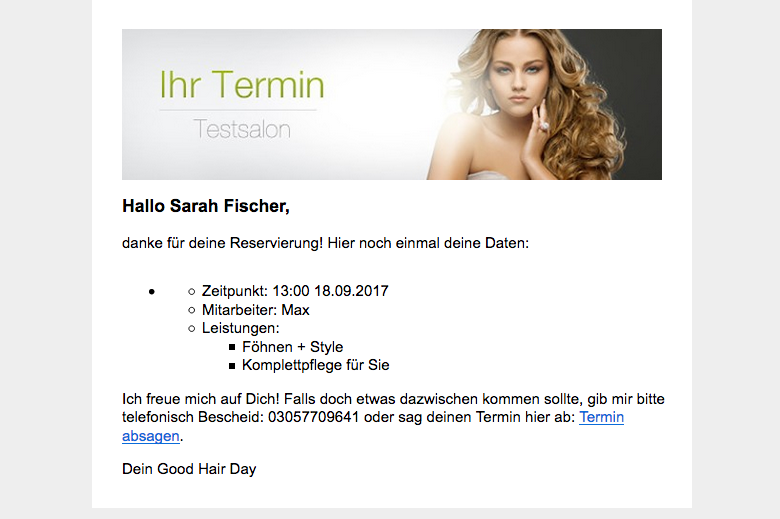
The blue-green highlighted fields within the confirmation text are placeholders. They are replaced by actual text in the confirmation email.
Example of email with text placeholders
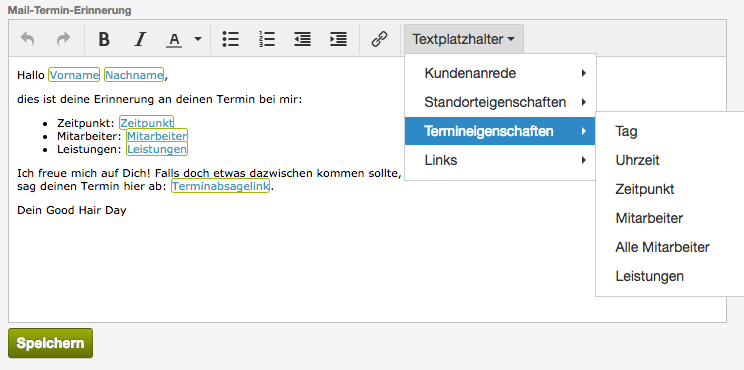
Types of placeholders
In the header area of the text input field, you will find the menu item Text placeholders. Here you can view all available types of placeholders.
Using placeholders
Click in the text at the position where you want to insert the placeholder. Then go to the Placeholders menu item and select the desired placeholder. It will appear as a blue-green highlighted area in the text. Short video on using placeholders:
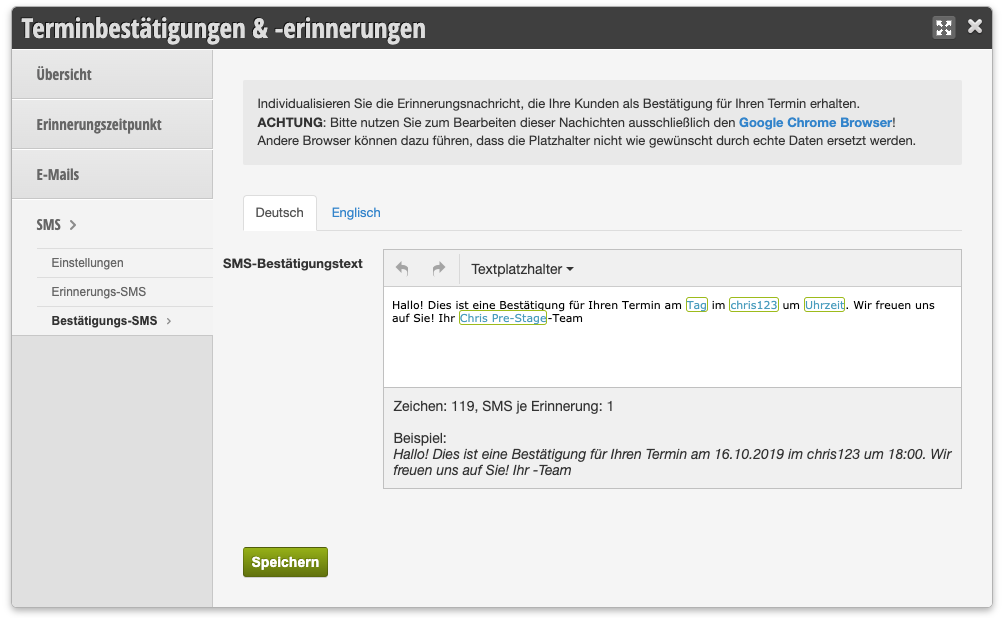
SMS Confirmation
If the SMS function is active in your calendar, you can send SMS confirmations in addition to email confirmations. Placeholders can also be used in SMS messages.
Please make sure that your SMS texts do not exceed 160 characters. To estimate how long your confirmation SMS will actually be after the placeholders are implemented, there is a preview below the SMS confirmation text. If you expressly wish to write longer SMS messages, please note that according to international standards, 2 SMS will be sent, which will result in double costs.
In the respective settings, you can specify whether message sending is already automatically activated or must be activated manually when entering an appointment.