
belbo
  • Overview
    • Getting to know Belbo
    • Location Settings
    • Switch to Belbo
    • Calendar View & Navigation
    • Recurring Appointments & Courses
    • Appointment Entry & Management
    • Logins & Permissions
    • Multiple Locations & Head Office
    • Manage Employees
    • Absences & Holidays
    • General
    • Working Hours
    • Time Tracking
    • Data Protection (GDPR)
    • Customer Communication (Email, SMS)
    • Customer Management & Records
    • Bonus & Loyalty Programs
    • Campaigns (Newsletter & SMS)
    • Marketing Consents (GDPR)
    • Tracking & Analytics
    • Overview
    • Services & Prices
    • Products
    • Service Packages & Subscriptions
    • Vouchers
    • Purchasing & Suppliers
    • Stock & Inventory
    • Scanning & Sales
    • Cost of goods & expenses
    • Design & Texts
    • Setup & Settings
    • Integration (Website, Google, Instagram, Facebook)
    • Online payment
    • Accounting & Exports
    • Cash Register Settings & Hardware
    • Checkout process
    • Daily Closing & Reports
    • TSE & Cash Register Anti-Tampering Ordinance
    • Export Overview
    • Employee Utilization
    • Revenue & Reports
    • Belbo Satellite
    • Printer
    • EC Terminal & Card Payment
    • Troubleshooting Hardware
    • Scanner & POS Devices
    • General Settings
    • API & Integrations
    • Notifications & Emails
    • Contracts & Legal
Skip to content

Manually plan availability for your rooms and devices

To use rooms and equipment in the calendar and block them in parallel to specific services, you must enter availability for them. These behave just like the work schedules for your employees.

You can access this area via the main menu item Work Schedule

This article describes the manual creation of availability for your rooms and equipment. We recommend using automatic working hours for resources, so they are always available within your opening hours.

➔ Go to the instructions for activating automatic working hours

If you do not want your rooms and equipment to be automatically available during opening hours, you can of course also manually set the availability. This is useful if:

  • Your resource should be bookable not during the entire opening time, but only in the afternoon, for example.
  • You use the resource to limit services to specific days of the week or times.
  • You want to flexibly set the availability again and again.

Manually create availability ("work schedules") for rooms and equipment

After you have created your rooms and equipment, you can find them in the work schedule and assign availability to them.

Short video on maintaining availability for rooms and equipment:

Initially, only human employees are displayed in the work schedule. To display your rooms and equipment, first go to all employees and select the desired rooms and equipment.
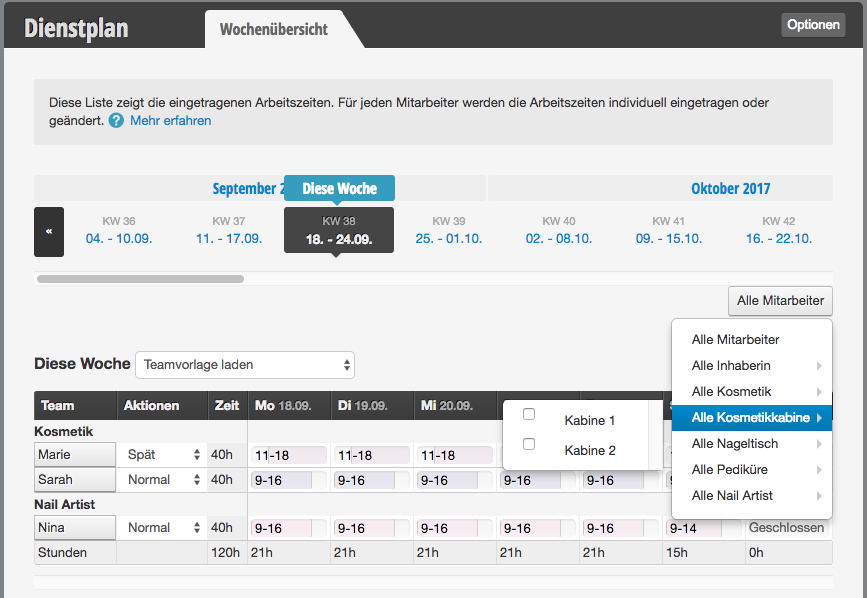
You can then enter the availability in the same way as described in detail under Create work schedule.

How to link your services with the required rooms and equipment to avoid double bookings, you can find out here.

Categories: Appointment Entry & Management
Tags: Dienstplanung, Räume, Ressourcen
This manual is a service by belbo. Legal notice