In scheduling, you can specify how long a service takes and what steps it consists of.
Basic settings for appointment steps
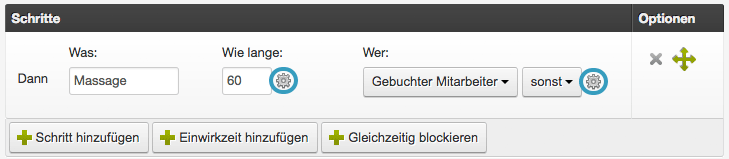
What (Name of the step)
Set the name here that will be entered in the calendar for you, so your employees know which service should be performed.
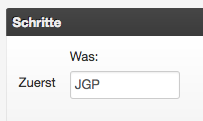
This label is not visible to your customers and can also be an abbreviation that is understood within your team (for example, "JGP" instead of "Bachelorette package").
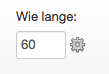
How long (Duration)
Here you specify the duration of the service. If this service consists of multiple steps, the duration of the individual steps adds up to the total duration of the service.
Who (Employee)
At this point it usually says "booked employee".
Only change the selection here if you are creating multiple steps, one of which should be performed by a different employee. Under "Competencies" you can specify which employees are available for this service.
Application example:
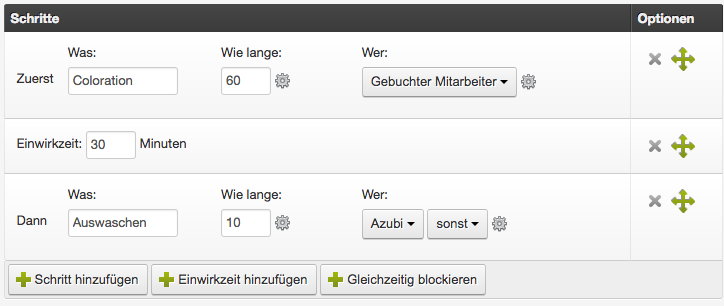
The service "Coloration" consists of "Apply color", processing time, and "Rinse out color". The rinsing should always be done by an apprentice, so you can assign this step to the apprentice.
Options
Using the symbols on the far right of each row, you can delete steps (gray cross) or move them (green anchor tool).
Services with multiple steps and processing time
If you offer services that consist of multiple steps, you can also display these steps in the calendar. This is especially important if certain steps should be assigned to different employees.
Add appointment steps
Click "Add step" to add a step to your service. Determine the name (automatically pre-filled with "Work") and the duration of the step.
Example of a multi-step appointment:
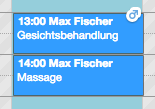
Processing times
If you want to enter a processing time during which no employee is blocked, click "Add processing time" and set the duration.
Learn more about
processing times here.
Example of a multi-step appointment with processing time:
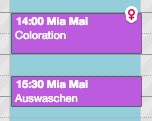
Simultaneous blocking of rooms and equipment
If you want to block a specific room or equipment for your service, you can set this in the time settings. This prevents rooms or equipment from being double-booked.
Example of correctly blocking the manicure table for a manicure:
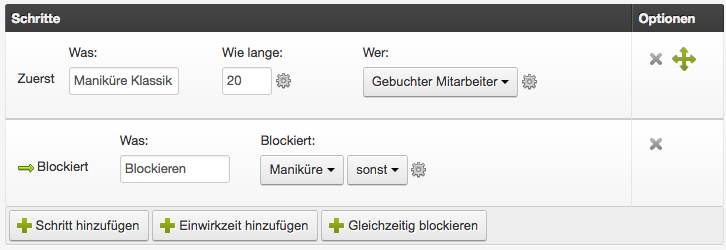
Add blocking
Click "Block simultaneously" to add a block to the last created step. The block applies exclusively to this step and automatically has the same length. Then specify under "Blocked" which room (or which other employee) should be blocked during this step. If you have multiple rooms of the same function, you can also enter the name of the
category (for example, "all manicure tables").
Example of an appointment with a blocked manicure table:
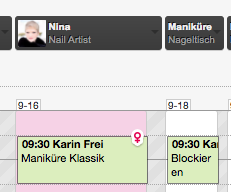
Learn everything about managing rooms and equipment here.
Delete blocking
If you want to delete the assigned block, click the gray cross on the right side of the row.
Advanced settings
Here you will find fine-tuning of your appointment steps for specific use cases.
Time not visible to customers
If you insert a preparation or cleanup step at the end of a service, this time should not be visible to the customer, as he or she might otherwise expect a longer treatment. Activate this option for such appointment steps.
Automatically assign to free employee when moving
If you move an appointment, not all originally planned employees may be available. This setting makes moving easier by automatically assigning free employees to your calendar.
Performing employee defines price
If your employees charge different prices for the same treatment, you can specify here which price is used for multi-step appointments.
Allow overlap
Prevents blocking of an employee during this step.
Do not block, but only guarantee availability
Does not block an employee or resource, but only checks whether the calendar unit specified in the step has recorded work time.
Application example:
The new Summer Night Special is only available on summer evenings. If you create a resource called "Summer evening" and assign it work times from 18:00 to 20:00, this service can only be booked at this time if you set the blocking of this resource in the service. To avoid having to create the same resource 5 times for 5 employees, activate the field at "Do not block timewise, but only guarantee availability".
Treat time as supervised processing time
Treats the time as supervised processing time.
Assistant step
Assistant step
If supervised processing time, this step is not shortened…
If supervised processing time, this step is not shortened when a service is to be embedded.
Exceptions for scheduling
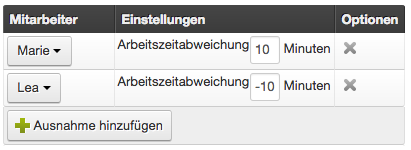
If certain employees need more or less time for this step, you can specify this here.
Click "Add exception" and select the employee for whom a deviation should be set. Then enter the time deviation that should be subtracted from or added to the total duration of the step. Positive times extend the step by that number of minutes, negative times reduce the duration of the step.
Example of an employee with a 10-minute deviation: