
belbo
  • Overview
    • Getting to know Belbo
    • Location Settings
    • Switch to Belbo
    • Calendar View & Navigation
    • Recurring Appointments & Courses
    • Appointment Entry & Management
    • Logins & Permissions
    • Multiple Locations & Head Office
    • Manage Employees
    • Absences & Holidays
    • General
    • Working Hours
    • Time Tracking
    • Data Protection (GDPR)
    • Customer Communication (Email, SMS)
    • Customer Management & Records
    • Bonus & Loyalty Programs
    • Campaigns (Newsletter & SMS)
    • Marketing Consents (GDPR)
    • Tracking & Analytics
    • Overview
    • Services & Prices
    • Products
    • Service Packages & Subscriptions
    • Vouchers
    • Purchasing & Suppliers
    • Stock & Inventory
    • Scanning & Sales
    • Materials & Costs
    • Design & Texts
    • Setup & Settings
    • Integration (Website, Google, Instagram, Facebook)
    • Online payment
    • Accounting & Exports
    • Cash Register Settings & Hardware
    • Checkout process
    • Daily Closing & Reports
    • TSE & Cash Register Anti-Tampering Ordinance
    • Export Overview
    • Employee Utilization
    • Revenue & Reports
    • Belbo Satellite
    • Printer
    • EC Terminal & Card Payment
    • Troubleshooting Hardware
    • Scanner & POS Devices
    • General Settings
    • API & Integrations
    • Notifications & Emails
    • Contracts & Legal
Skip to content

Exposure Times

If your services require processing times during which the employee can serve another customer, you can add and manage these in your Belbo calendar.

You can access this area via Settings > Processing Times
If this function is not enabled, it can be activated via "Settings > Add Function".

Meaning of Processing Time

You can divide each service into as many steps as you like. For more information about your service settings, see here.
A processing time can be inserted between two steps. It creates a "gap" between the steps of the service. Colleagues or online booking customers can book services into this gap as long as they do not exceed the length of the processing time.
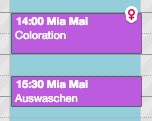
Example:
In a hair salon, color services are regularly booked. While the color is processing, the employee can perform a short service with another customer (for example, a men's or children's haircut).


By setting up the processing time, you increase your employees' workload. Customers who book online will find appointment suggestions available during the processing time in the booking process, and colleagues on site can also enter appropriately short appointments during processing times.
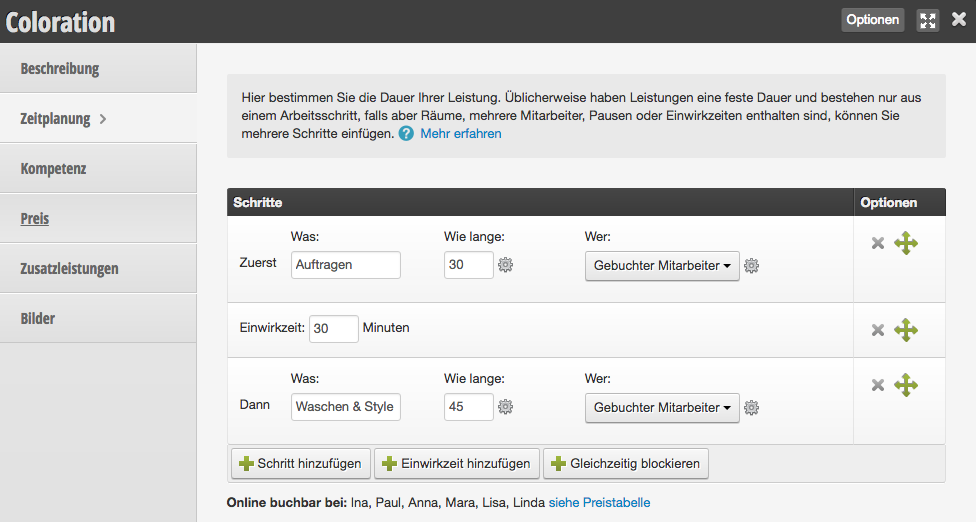
Enter processing time correctly
You can enter a processing time in each service. To do this, go to Settings > Prices & Skills > "desired service" > Scheduling.


Manage processing times
The Processing Times module under "Settings > Processing Times" gives you an overview of all services with processing time.

Categories: Services & Prices
Tags: Einwirkzeit, Pause in Termin
This manual is a service by belbo. Legal notice