
In Belbo you also need to maintain the service times of your rooms and equipment. This ensures that the required equipment is always available for booking. If you wish, you can also automate this process.
Prerequisites for automatic working hours
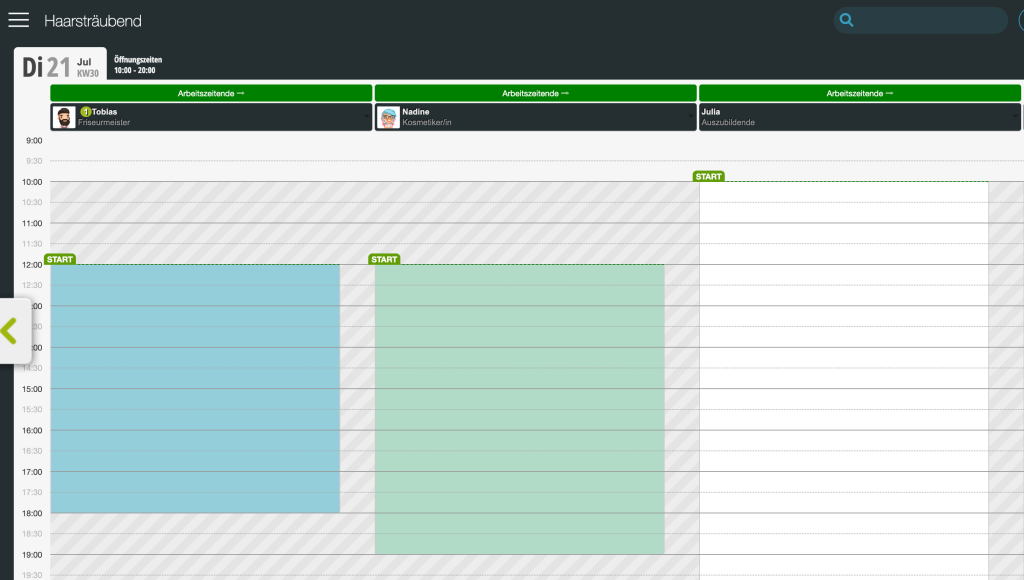
The automatic working hours are based on the opening hours entered in the calendar. It is therefore important that your opening hours are correctly entered. Your opening hours are displayed in your calendar as gray hatched areas. They serve as a visual guide in the calendar and have no effect on the availability of your employees. It is therefore quite possible that any opening hours that may have been entered incorrectly so far have had no impact on your daily operations and were therefore not noticed or corrected.
- Check the opening hours in the calendar. These are normally located to the right of each date tab.
- If the opening hours are hidden, use the hatched areas in the calendar as a guide.
- To adjust the opening hours, proceed as described here.
Example of hatched opening hours in the calendar:
Activate automatic working hours
- Click on the desired resource in the calendar and select "View profile". If the resources are hidden in your calendar, you can open the profile under Settings > Rooms and Equipment.
- Activate the "Automatic Working Hours" function.
- Save your entry.
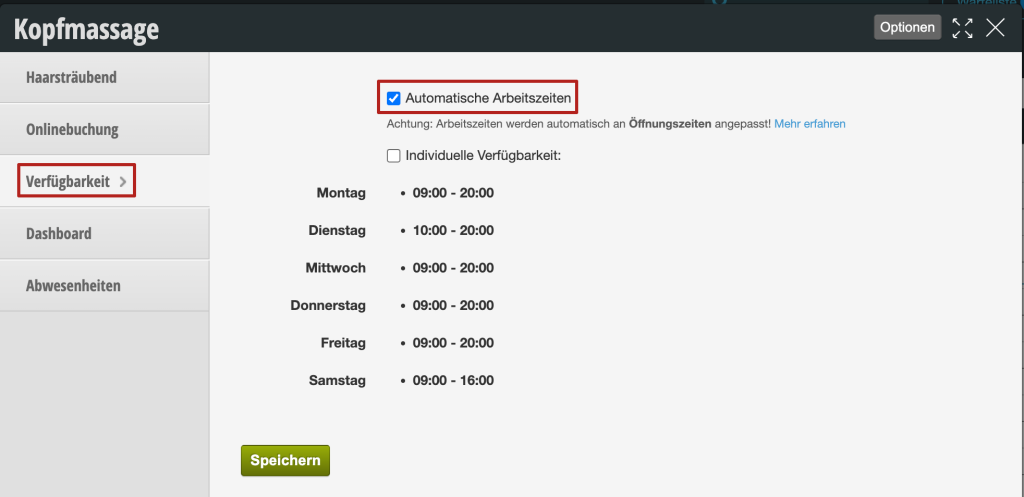
After saving, the working hours for the selected resource will be automatically entered within the opening hours. From now on, this process will be repeated every time the calendar is reloaded until you deactivate the function again.
Block rooms & equipment with automatic working hours
To block rooms and equipment with automatic working hours, proceed as follows:
- Drag the desired time in the calendar with your mouse.
- In the appointment dialog that opens, click on "Internal Appointment".
- Enter the reason for the blocking and save your entry.
In the background, the availability ("working hours") of the resource is still entered. However, the blocking prevents the resource from being booked.
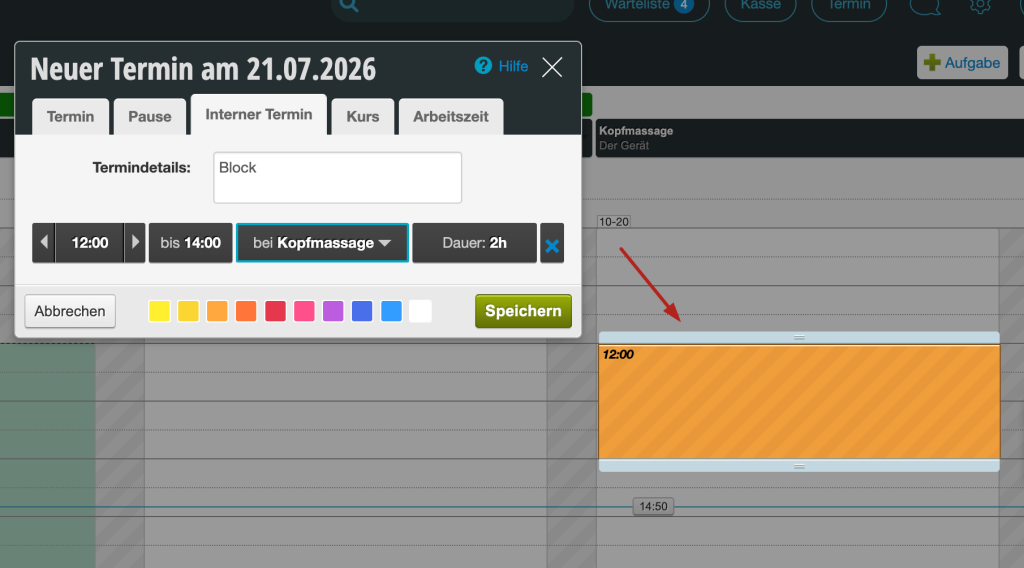
If your rooms and equipment are hidden in the calendar, please click on "All" in the bottom right of the calendar and select the rooms and equipment to be displayed.
Automatic working hours in the schedule
You can also recognize automatic working hours in the schedule. Employees and resources for which this function is activated have a corresponding symbol (green circular arrow) at their name:

Rooms and equipment marked this way do not need to be manually transferred into the future.
Enter working hours manually
If you do not want your rooms and equipment to be automatically available within the opening hours, you can of course also enter the availability manually. This is suitable if:
- Your resource should not be bookable during the entire opening time, but only in the afternoon, for example.
- You are using the resource to limit services to specific days of the week or times.
- You want to enter the availability flexibly again and again.
In this case, do not activate the automatic working hours in the resource profile. To learn how to enter availability manually, see here.