belbo
  • Overview
    • Getting to know Belbo
    • Location Settings
    • Switch to Belbo
    • Calendar View & Navigation
    • Recurring Appointments & Courses
    • Appointment Entry & Management
    • Logins & Permissions
    • Multiple Locations & Head Office
    • Manage Employees
    • Absences & Holidays
    • General
    • Working Hours
    • Time Tracking
    • Data Protection (GDPR)
    • Customer Communication (Email, SMS)
    • Customer Management & Records
    • Bonus & Loyalty Programs
    • Campaigns (Newsletter & SMS)
    • Marketing Consents (GDPR)
    • Tracking & Analytics
    • Overview
    • Services & Prices
    • Products
    • Service Packages & Subscriptions
    • Vouchers
    • Purchasing & Suppliers
    • Stock & Inventory
    • Scanning & Sales
    • Materials & Costs
    • Design & Texts
    • Setup & Settings
    • Integration (Website, Google, Instagram, Facebook)
    • Online payment
    • Accounting & Exports
    • Cash Register Settings & Hardware
    • Checkout process
    • Daily Closing & Reports
    • TSE & Cash Register Anti-Tampering Ordinance
    • Export Overview
    • Employee Utilization
    • Revenue & Reports
    • Belbo Satellite
    • Printer
    • EC Terminal & Card Payment
    • Troubleshooting Hardware
    • Scanner & POS Devices
    • General Settings
    • API & Integrations
    • Notifications & Emails
    • Contracts & Legal
Skip to content

Limit services to specific weekdays or times

You can specify that selected services can only be booked on certain days or at specific times.


Note: This method via a resource is no longer intended for simple, fixed time rules. It is only worthwhile if availability times change from week to week (e.g., rotating shift schedules). In all other cases – including one-time or permanently fixed restrictions – please always use Booking Limits.


Example use case:

  • On Halloween, you want to offer a special promotional service in the afternoon, which should not be available on other days.

If you want to set up regular restrictions (e.g., "Student Day on Tuesdays"), Booking Limits are suitable.


Create a Resource

  1. To limit a service, you can create a resource. To do this, go to Settings > Rooms and Equipment (or click "Add Function" if this feature is not yet enabled).
  2. Assign a role and a meaningful name for the resource:
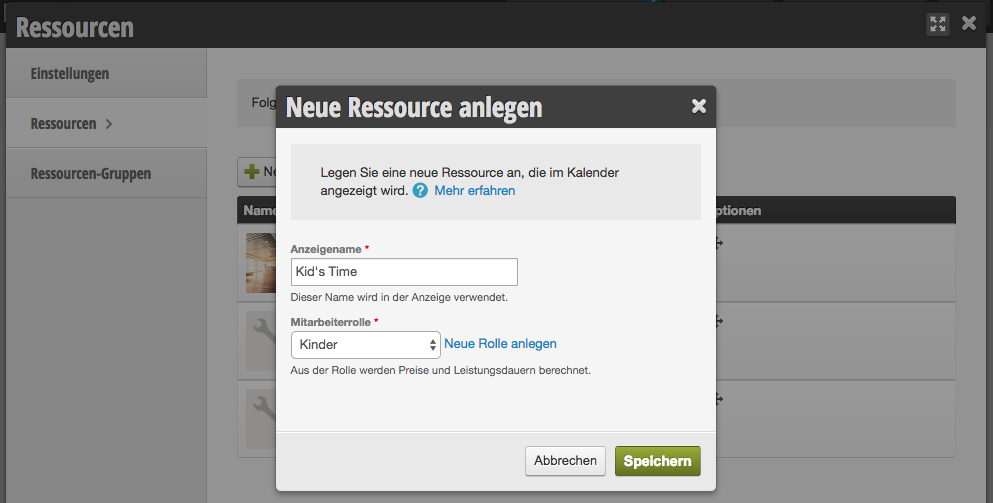
    Create resource with role and name
  3. If you don't want the resource to be displayed in the calendar, you can click on the resource after saving and select the "Hide in Calendar" checkbox.


Link Services with the Resource

  1. Go to Settings > Prices and Competencies and select the desired service that should be time-limited.
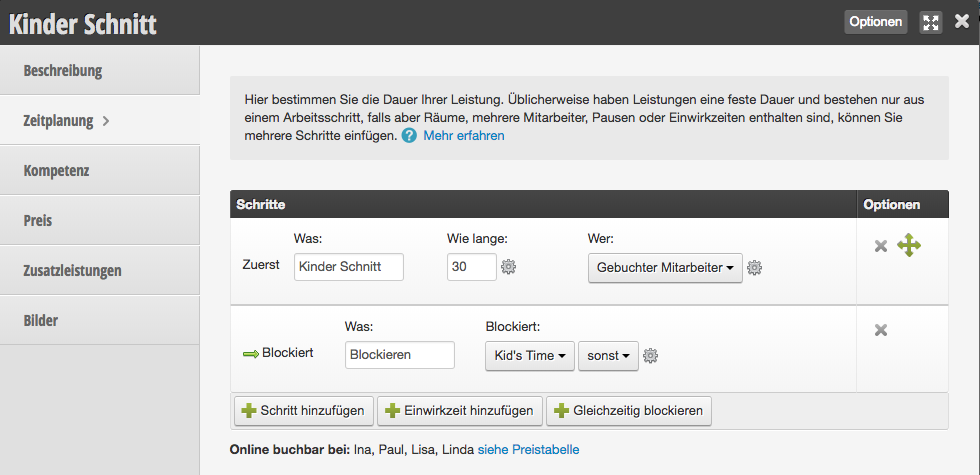
  2. Link the resource by clicking "block simultaneously" in the scheduling section and selecting the resource here:
    Link resource with service
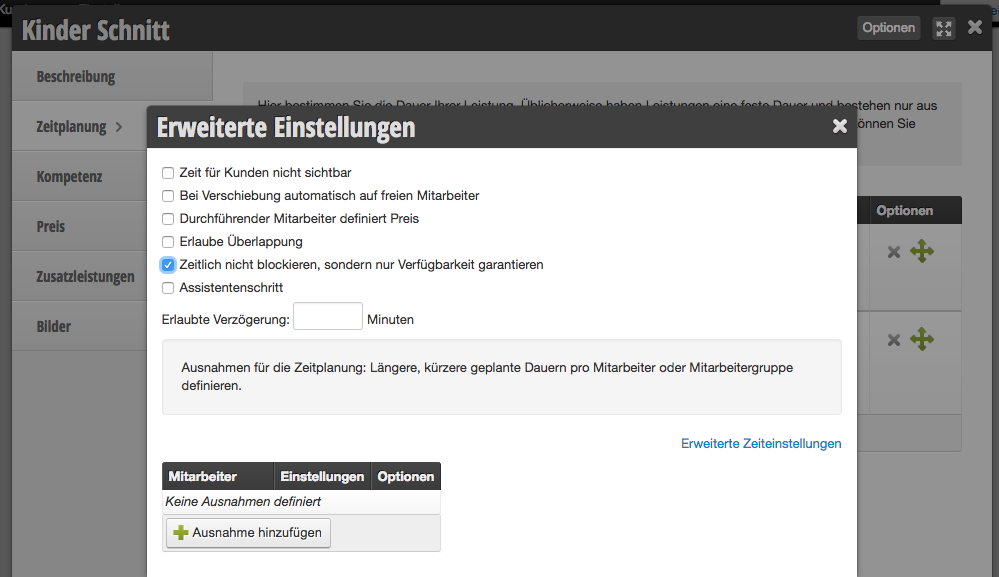
  3. Click on the gear icon next to the resource to specify that the resource should be available rather than blocked:
    Guarantee resource availability instead of blocking

Set Resource Availability

  1. Go to the schedule and select the resource from the "All Staff" button on the right in the white selection button.
  2. Now enter all times during which the service can be booked.
  3. If this is not a one-time action, you can transfer the week into the future.
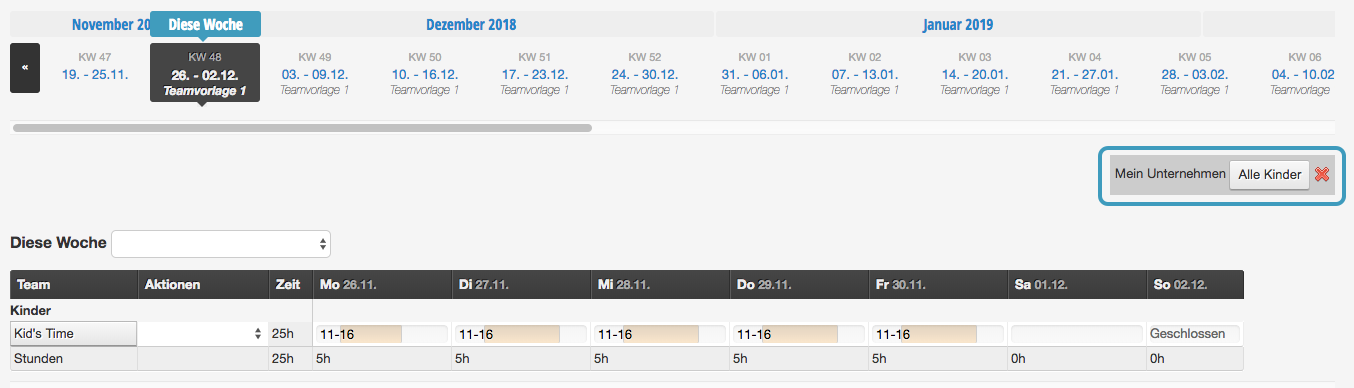
    Enter resource availability times in schedule

From now on, the service can only be booked online during the times created in the schedule. If you have enabled strict product mode, your calendar will also report if the service is entered by an employee outside the scheduled time.

Categories: Services & Prices
Tags: zeitliche Begrenzung
This manual is a service by belbo. Legal notice