
belbo
  • Overview
    • Getting to know Belbo
    • Location Settings
    • Switch to Belbo
    • Calendar View & Navigation
    • Recurring Appointments & Courses
    • Appointment Entry & Management
    • Logins & Permissions
    • Multiple Locations & Head Office
    • Manage Employees
    • Absences & Holidays
    • General
    • Working Hours
    • Time Tracking
    • Data Protection (GDPR)
    • Customer Communication (Email, SMS)
    • Customer Management & Records
    • Bonus & Loyalty Programs
    • Campaigns (Newsletter & SMS)
    • Marketing Consents (GDPR)
    • Tracking & Analytics
    • Overview
    • Services & Prices
    • Products
    • Service Packages & Subscriptions
    • Vouchers
    • Purchasing & Suppliers
    • Stock & Inventory
    • Scanning & Sales
    • Cost of goods & expenses
    • Design & Texts
    • Setup & Settings
    • Integration (Website, Google, Instagram, Facebook)
    • Online payment
    • Accounting & Exports
    • Cash Register Settings & Hardware
    • Checkout process
    • Daily Closing & Reports
    • TSE & Cash Register Anti-Tampering Ordinance
    • Export Overview
    • Employee Utilization
    • Revenue & Reports
    • Belbo Satellite
    • Printer
    • EC Terminal & Card Payment
    • Troubleshooting Hardware
    • Scanner & POS Devices
    • General Settings
    • API & Integrations
    • Notifications & Emails
    • Contracts & Legal
Skip to content

Strict Product Mode

You can create appointments in your calendar outside working hours or assign services to employees as an exception, even if these are not provided for in the competency settings of your service. This gives you some flexibility when entering appointments, but can also lead to errors in the hustle and bustle of everyday life.

Your calendar can warn you as soon as you enter an appointment that is not correctly entered with regard to the time or competency settings. To do this, you can activate the Strict Product Mode.

You can access this area via Settings > Calendar > Appointment Entry.

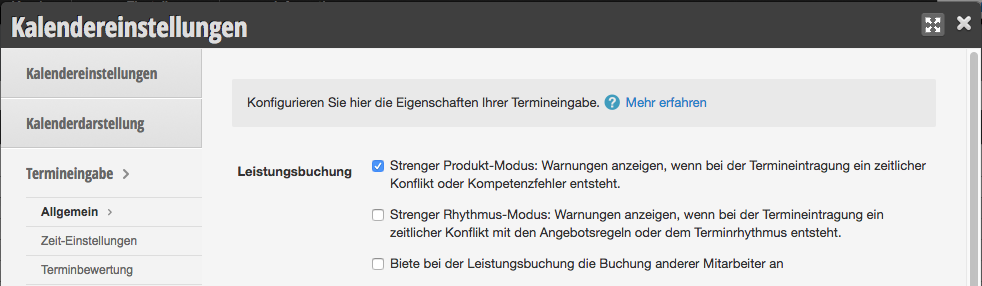
Activating Strict Product Mode

In the Calendar Settings under Appointment Entry, you can activate Strict Product Mode.
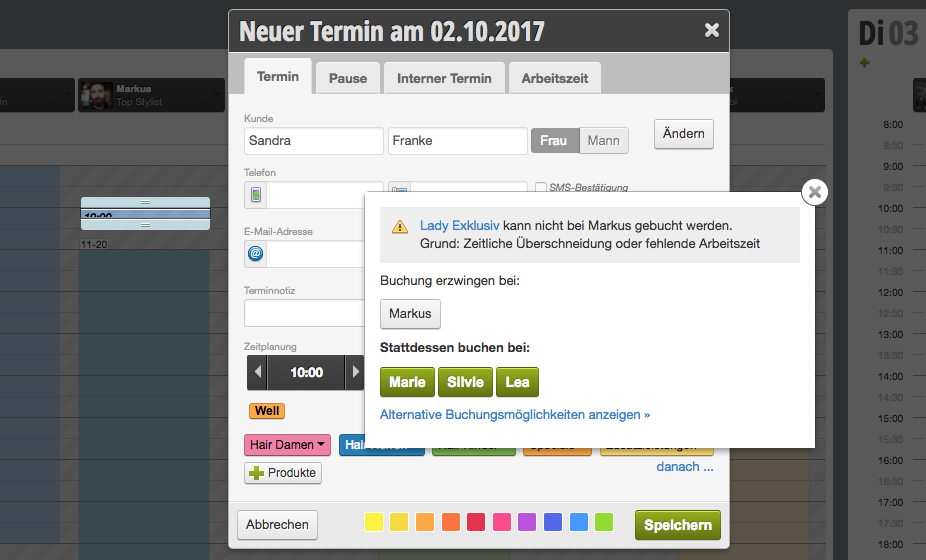
Warning in the Calendar

As soon as you enter an appointment that is outside working hours or does not fall within the employee's competency, your calendar suggests alternative booking options. If you still want to enter the appointment as planned, you can force the booking.
Note: Your customers can of course never book services online that are outside working hours or competency settings – regardless of whether you have activated Strict Product Mode or not.

Categories: Products
Tags: Eingabehilfe, Streng, Termineingabe
This manual is a service by belbo. Legal notice