Here you can define how your calendar should behave when entering appointments.
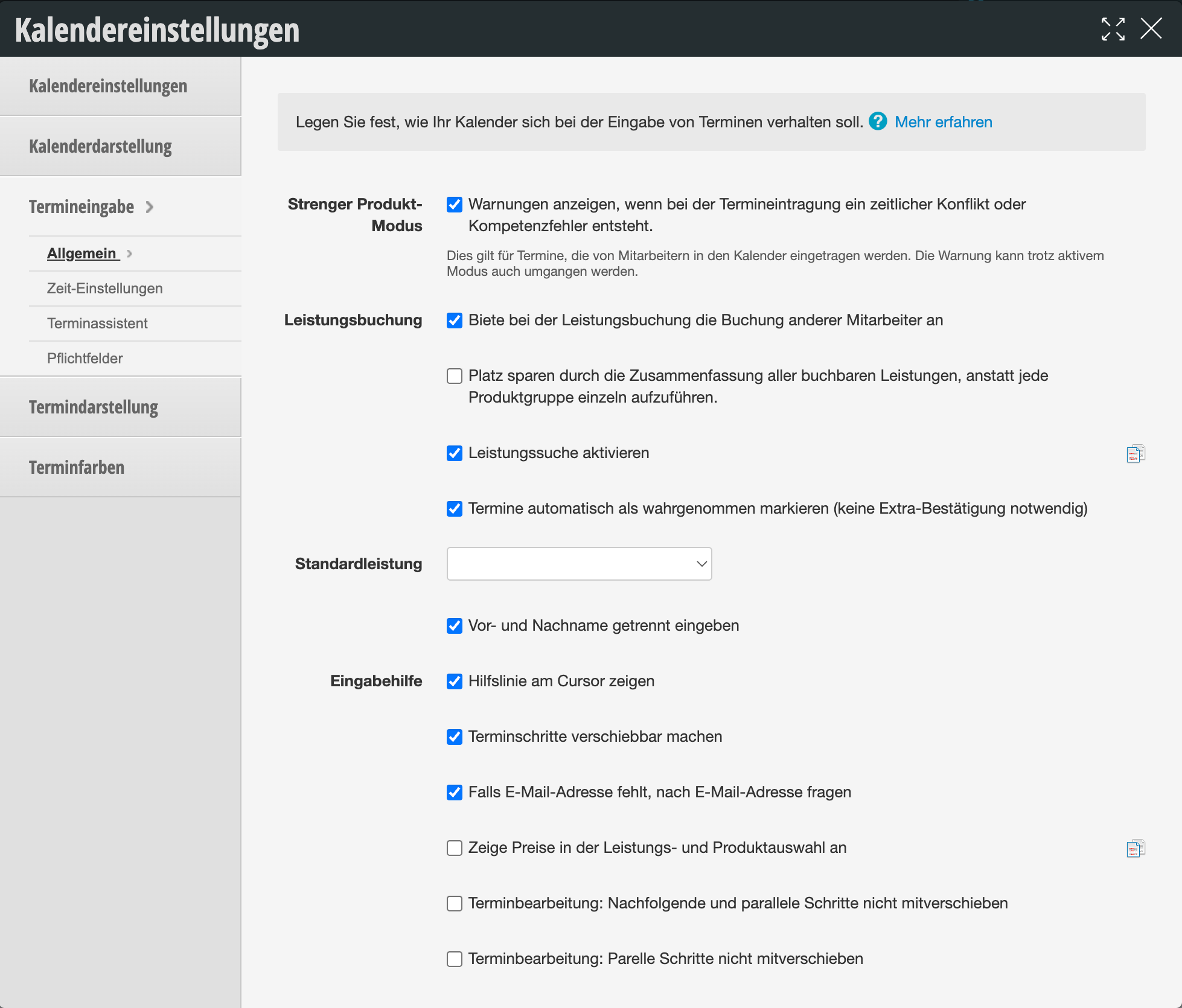
You can access this dialog via Settings > Calendar Settings > Appointment Entry > General. The following table shows an overview of all available settings:
| Setting | Description |
|---|---|
| Strict Product Mode |
"Show warnings if a time conflict or competency error occurs when entering an appointment"
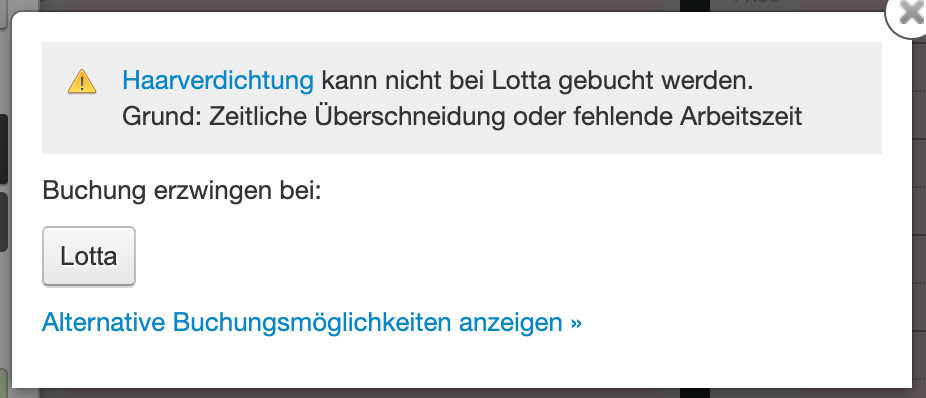
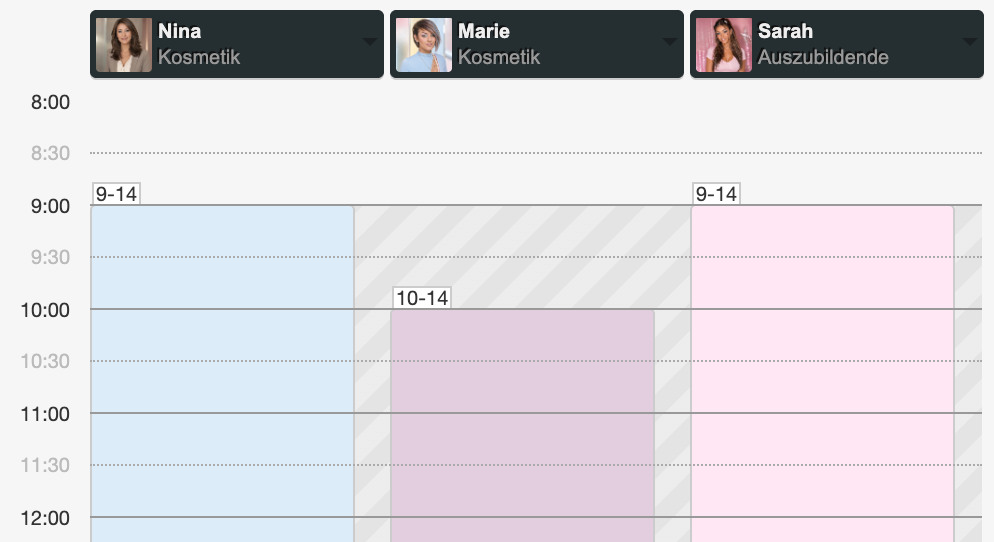
The Strict Product Mode warns you as soon as a booking is not possible within working hours. If the mode is disabled, you can book appointments that fall outside a staff member's working hours or competencies. If it is enabled, the calendar alerts you that the appointment extends beyond the staff member's working time or that this staff member does not have the competency for the booked service. If you create an appointment with a staff member who has no competency or available time, other staff members who can perform the service will be suggested. The warning applies to appointments entered by staff members in the calendar and can be overridden in individual cases even when the mode is active. Example of warning message with Strict Product Mode enabled: |
| Service Booking |
"Offer booking of other staff members when selecting a service"
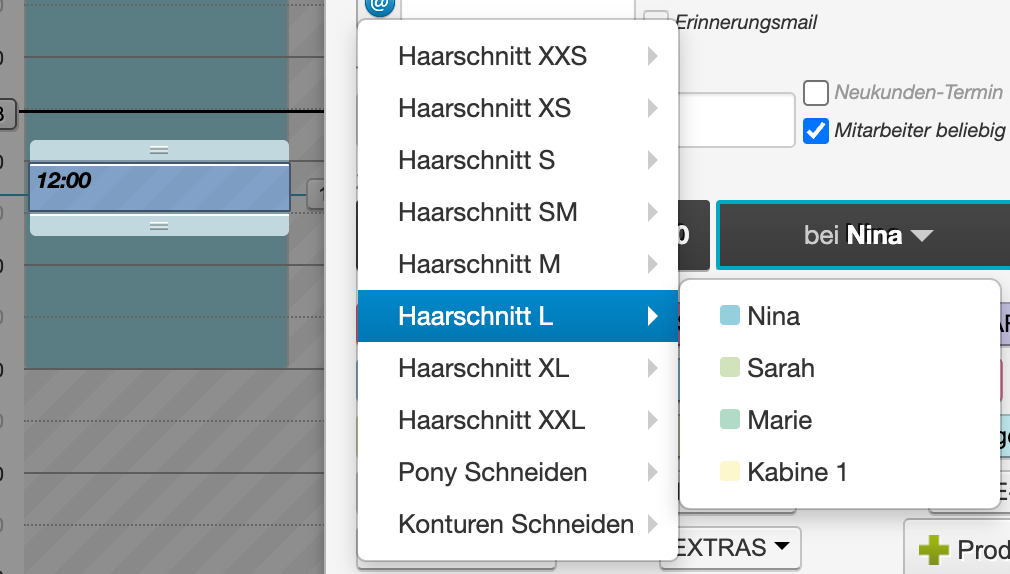
When this option is enabled, you have the ability to select a specific staff member directly when choosing a service. This is particularly useful for appointments with multiple services. Staff members are selectable for each service: |
| Service Booking |
"Save space by combining all bookable services instead of listing each product group individually"
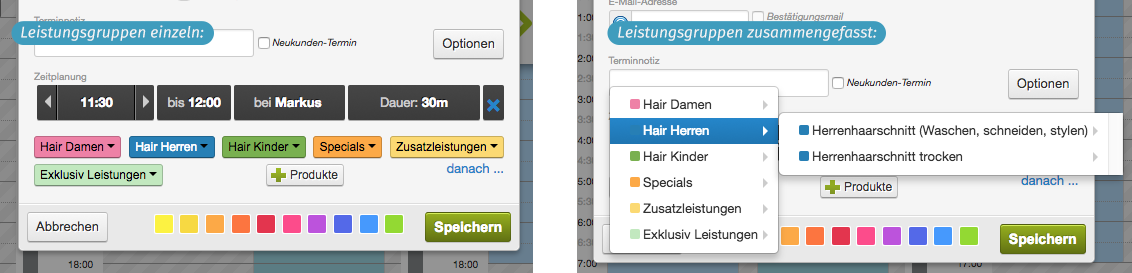
If you have many service categories, it may make sense to combine them in a single button instead of listing each product group separately in appointment entry. Example of individual and combined calendar groups in appointment entry: |
| Enable Service Search | When entering appointments, your services are selectable in dropdown menus. If you additionally want a search field to quickly search for services, you can enable it here.
|
| Automatically Mark Appointments as Attended |
"Automatically mark appointments as attended (no extra confirmation needed)"
Here you can specify whether you need to record for each appointment whether it took place or was cancelled, or whether you only need to manually mark cancellations. More information on how to document customer reliability can be found here. |
| Default Service | If you define a default service here, it will be automatically entered whenever you create an appointment in the calendar. This is suitable for businesses that primarily offer one service. This may apply to EMS studios, for example. |
| Enter First and Last Name Separately | If you disable this option, only the last name will be requested when entering an appointment. |
| Input Help |
"Show guide line at cursor"
The guide line at the cursor is a help line that always moves with your mouse and makes it easier to enter appointments in the calendar. You can also disable this. Guide line with time display in calendar: |
| Input Help |
"Make appointment steps movable"
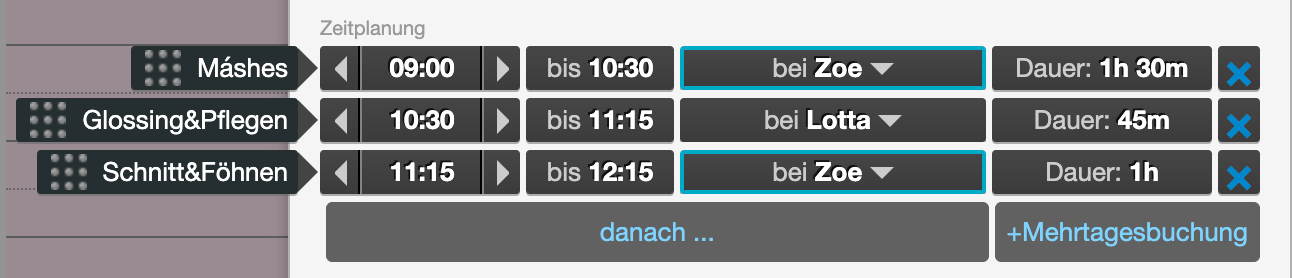
You see appointment steps for multi-step appointments. This allows you to distinguish individual steps and move them around. Example of appointment with movable appointment steps: Short video on movable appointment steps: |
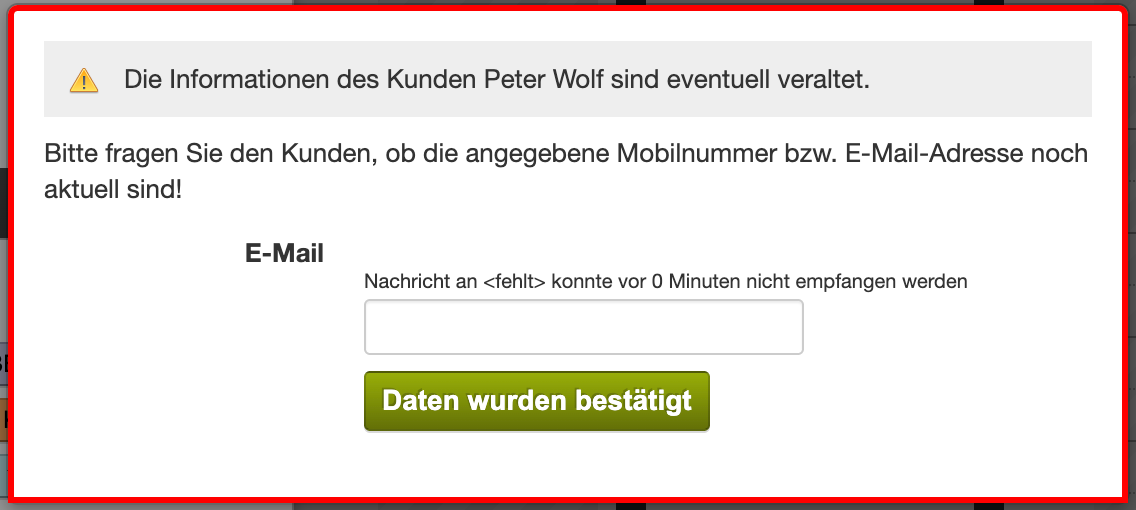
| If Email Address is Missing, Ask for Email Address | If a confirmation or reminder email failed to reach the recipient on the last delivery attempt, the system will ask you to verify the data when creating the next appointment for the same customer.
|
| Show Prices in Service and Product Selection | Displays the prices of services and products directly in the selection menu of appointment entry, so staff members can see the price when selecting without having to open the appointment separately. |
| Appointment Editing: Do Not Move Subsequent and Parallel Steps | When you move the time of one step in a multi-step appointment, subsequent and parallel steps are automatically moved by default. With this option, you disable this automatic moving when editing appointments. |
| Appointment Editing: Do Not Move Parallel Steps | A narrower variant of the previous option: Only parallel appointment steps will no longer be automatically moved when another step is moved, while subsequent steps remain unaffected. |