In the calendar settings, you can customize the appearance and behavior of your Belbo calendar precisely to your needs.
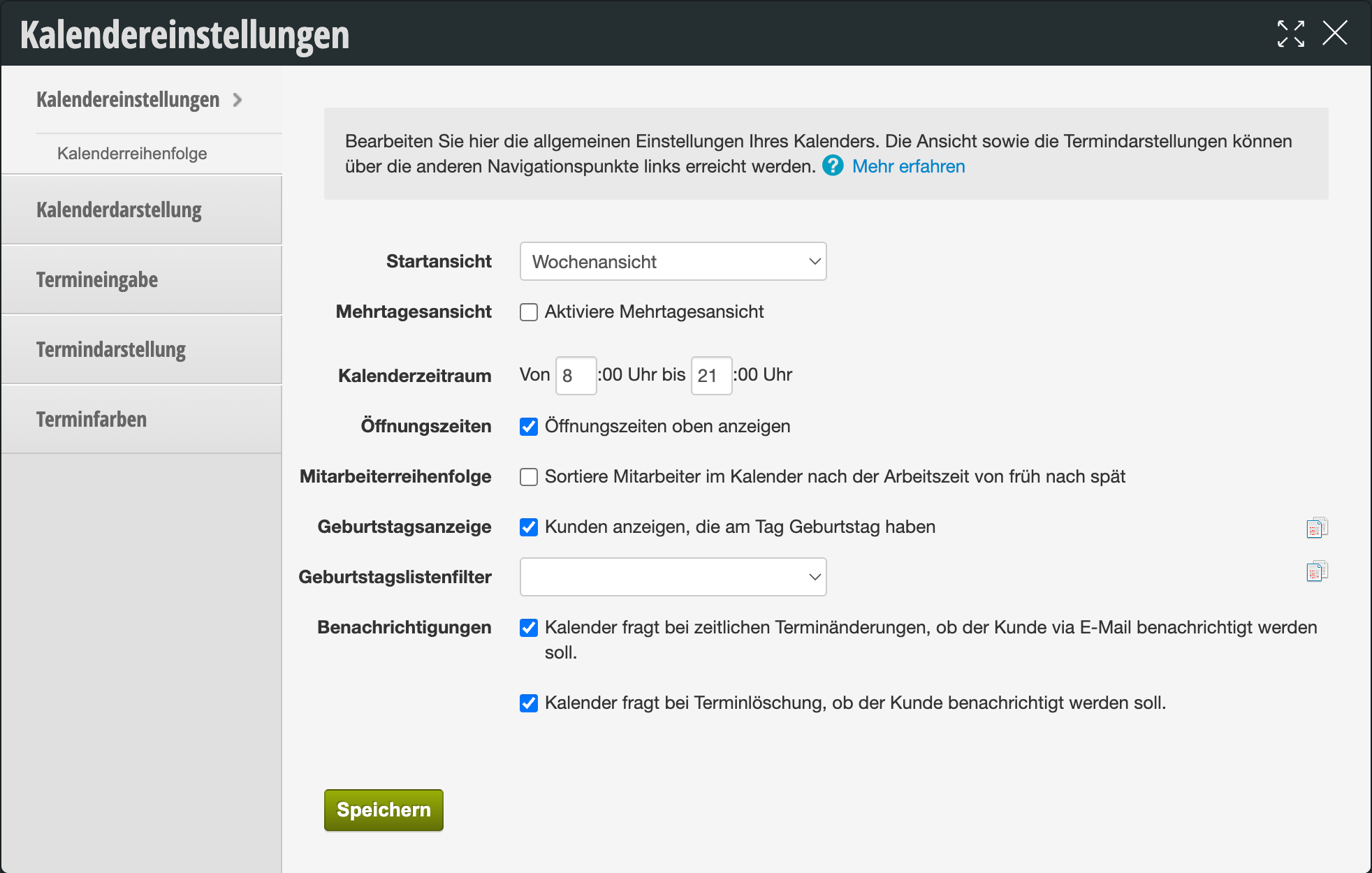
The following table provides an overview of all available settings:
| Setting | Description |
|---|---|
| Start View | The default view determines whether you see a single day, consecutive days, or the entire week when you start the calendar. Depending on your team size and monitor size, you can choose your preferred view. |
| Multi-Day View |
„Enable multi-day view"
In addition to the normal calendar view, displays a view that shows multiple consecutive days side by side instead of just a single day or an entire week. Useful when the day view feels too cramped and the week view too cluttered. |
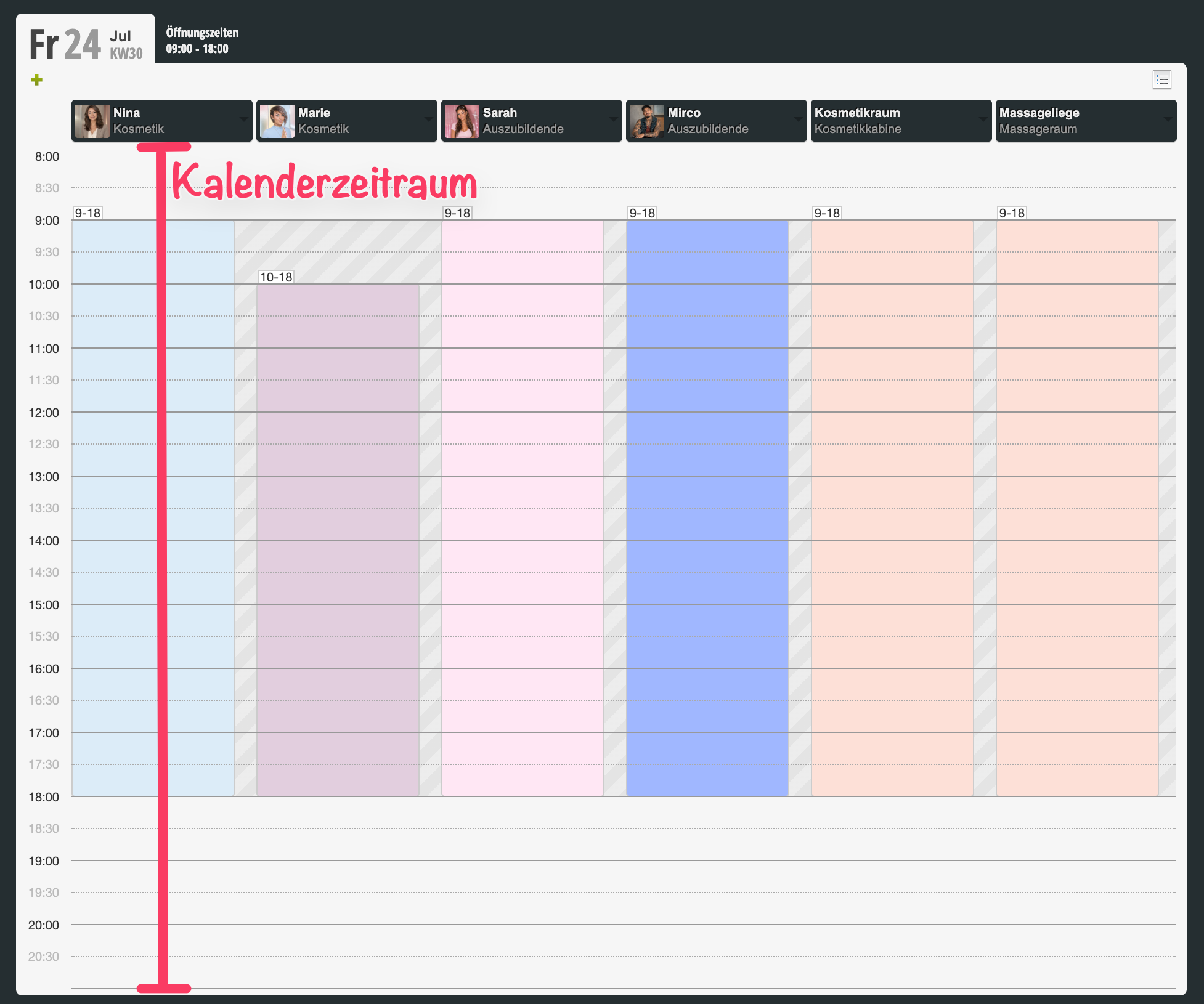
| Calendar Time Range | Here you set the time range that will be displayed in the calendar. We recommend setting it one hour before the first opening time through one or two hours after the last closing time. For opening hours of 09:00 – 19:00, a suitable calendar time range would be 08:00 – 21:00.
Example of a calendar time range from 08:00 to 21:00: |
| Opening Hours |
„Show opening hours above"
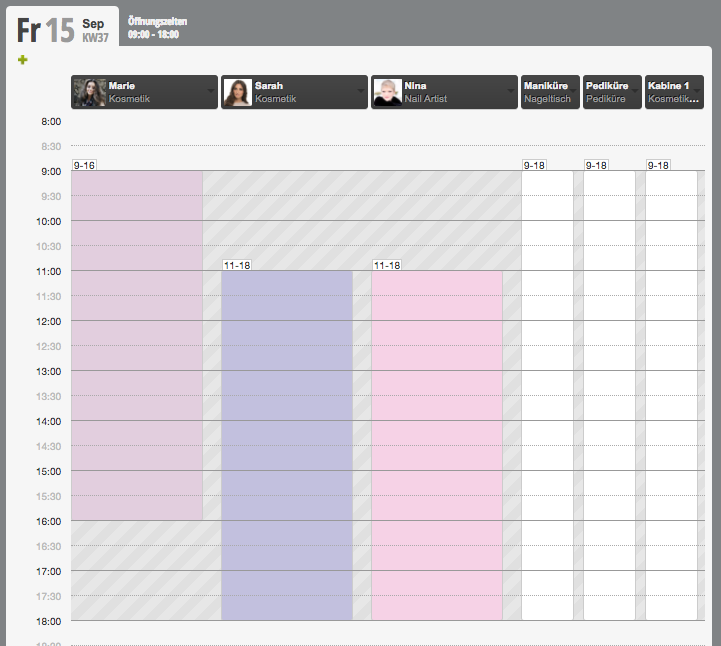
Specify whether you want the opening hours displayed for each day in the calendar. Example of opening hours displayed next to the date: |
| Employee Order |
„Sort employees in the calendar by work time from early to late"
Normally, all employees have a fixed order in the calendar. If you want your employees to be sorted instead by their work start time, you can set this here. |
| Birthday Display |
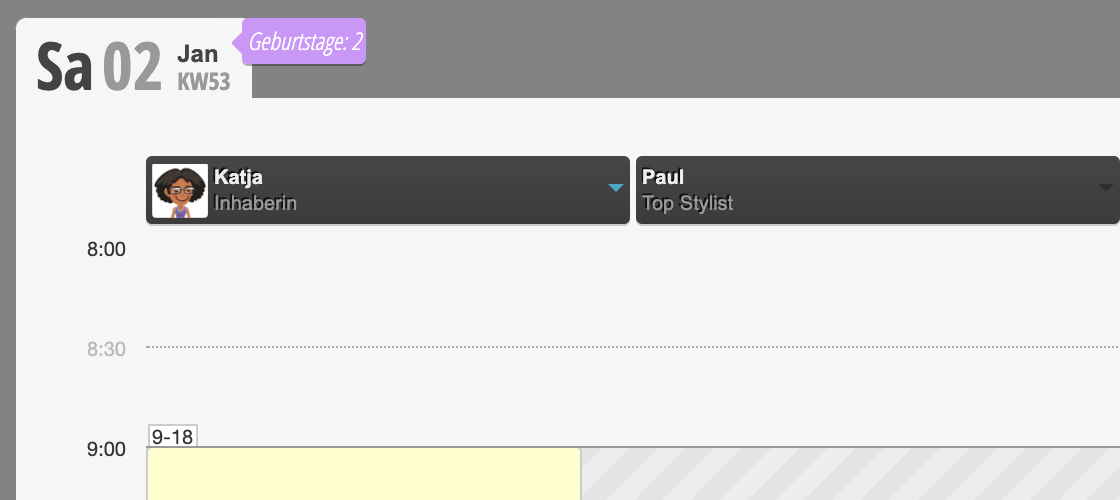
„Show customers who have a birthday on the day"
You can display in the calendar which of your customers have a birthday on the respective day.
|
| Birthday List Filter | Here you can specify which customers should be considered in the birthday display, allowing you to ensure that only regular or recently visiting customers are contacted. |
| Notifications |
„Calendar asks whether to notify the customer via email when appointment times change"
When you reschedule an appointment, the calendar can send a corresponding message to the customer when this option is enabled. You can confirm or decline sending this message with a click. |
| Notifications |
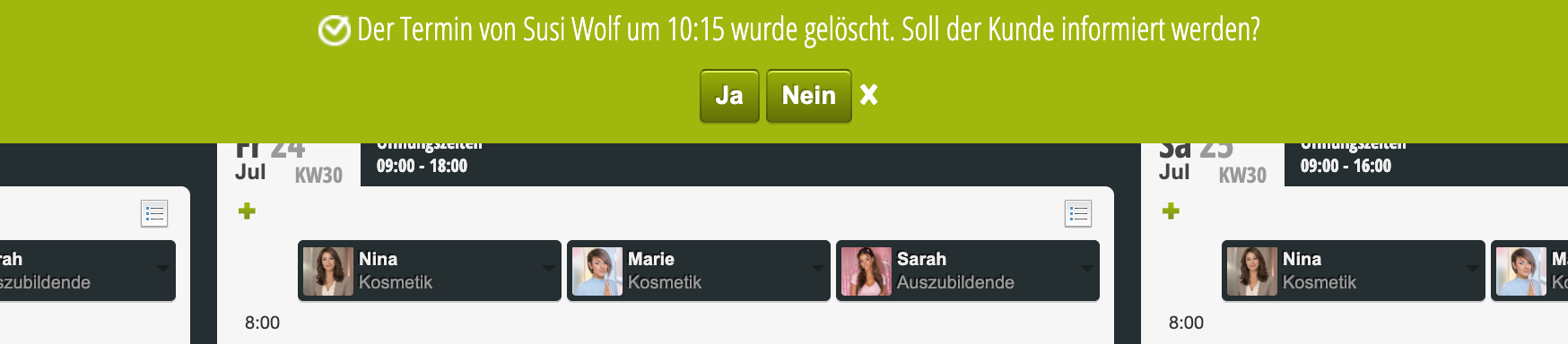
„Calendar asks whether to notify the customer when an appointment is deleted"
When you delete an appointment, the calendar can send a corresponding message to the customer when this option is enabled. You can confirm or decline sending this message with a click.
|