Set up the basic settings for your cash register here and define how the cash register system and booked appointments behave.
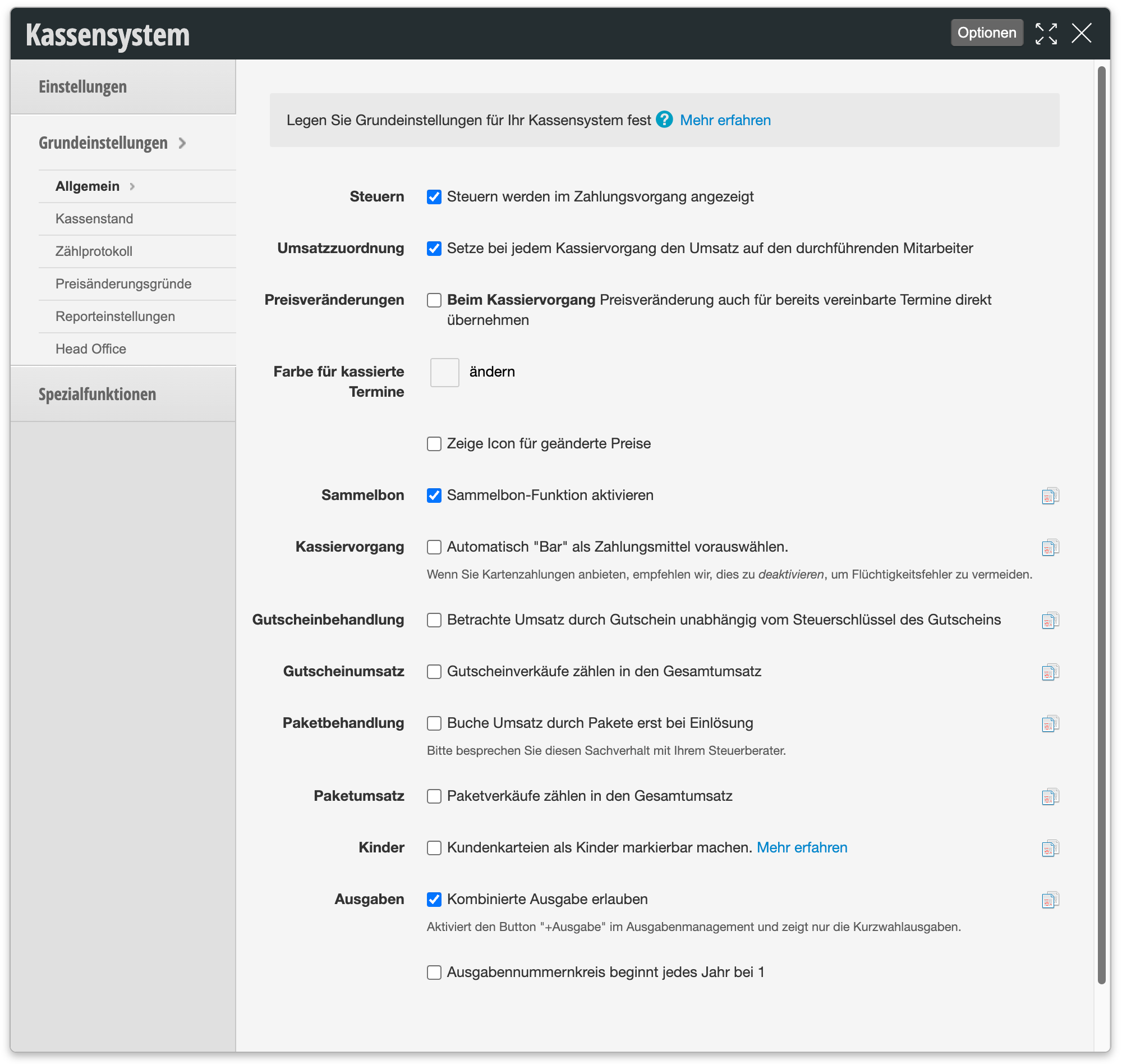
You can access this dialog via Settings > Cash Register > Basic Settings > General. The following table provides an overview of all available settings:
| Setting | Description |
|---|---|
| Taxes |
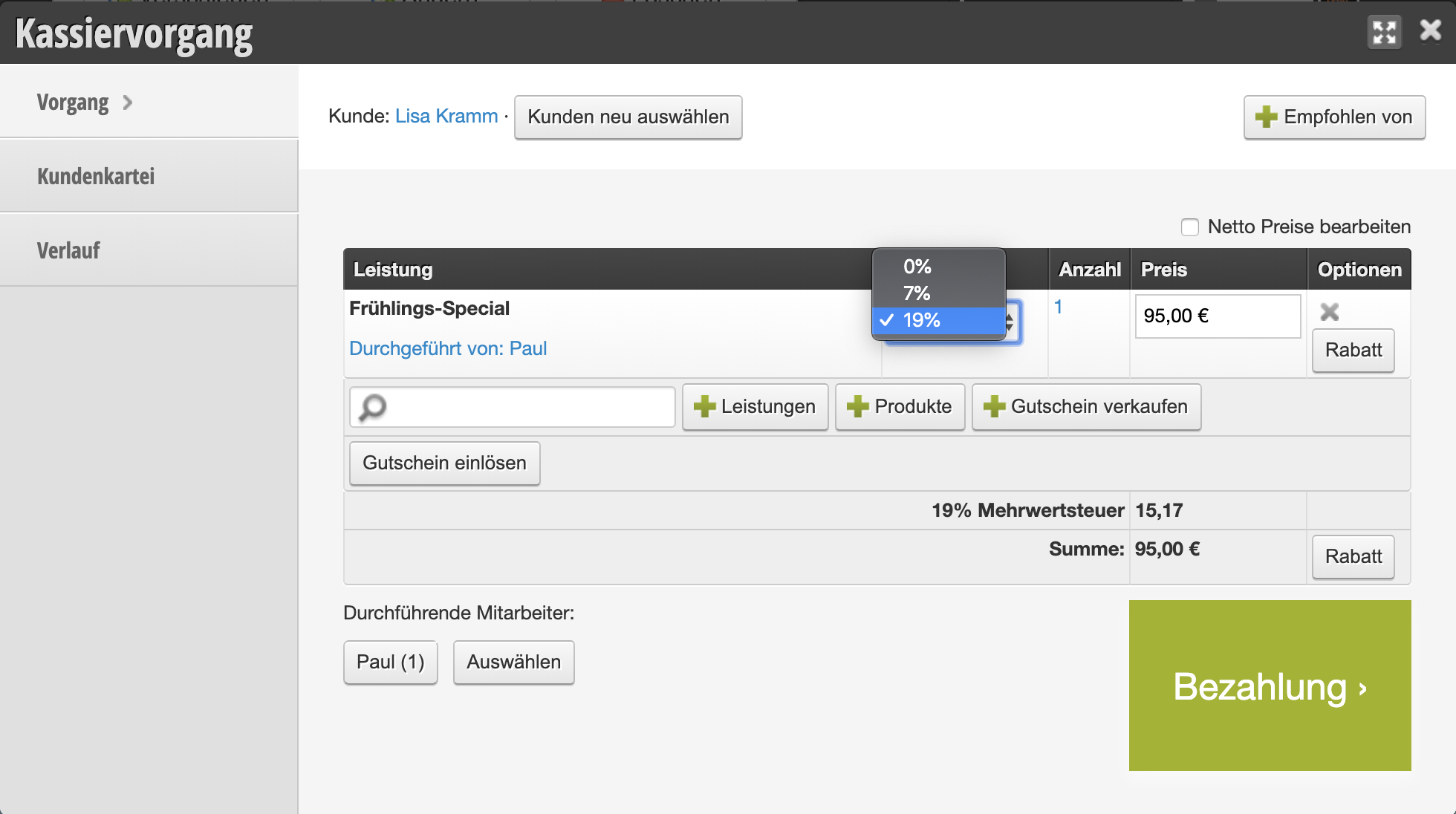
"Display taxes in the cash register process"
Displays the VAT during the cash register process. If this option is enabled, the tax can also be edited directly while checking out. |
| Revenue Allocation |
"Set revenue to the executing employee with each cash register process"
When appointments are moved, the revenue allocation is not automatically transferred to the new employee by default. With this option, the reassignment occurs automatically. Employee revenues are relevant for evaluations such as the Barometer, among other things. |
| Price Changes |
"Also apply price changes for already booked appointments directly during the cash register process"
When you change the prices of your services, new prices are normally not transferred to already booked appointments. With this option, already booked appointments are adjusted directly. |
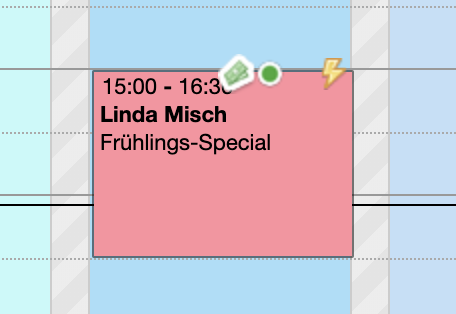
| Color for Booked Appointments | Highlights already booked appointments in the calendar with its own, freely selectable color so that billed appointments are recognizable at a glance. Use "change" to set the desired color. |
| Icon for Changed Prices |
"Show icon for changed prices"
Marks appointments with manually changed prices in the calendar with a lightning bolt symbol, so that price changes by employees are immediately recognizable. |
| Combined Receipt |
"Activate combined receipt function"
Activates the combined receipt function, which allows multiple appointments to be paid together. |
| Cash Register Process |
"Automatically preselect 'Cash' as payment method"
Basically, the payment method must be selected during the cash register process before it can be completed. If cash is frequently used, "Cash" can be automatically preselected as the payment method. |
| Voucher Treatment |
"Treat revenue from vouchers independently of the voucher's tax code"
Determines whether the revenue booked during voucher sales is treated independently of the tax code stored in the voucher. If in doubt, discuss this setting with your tax advisor. |
| Voucher Revenue |
"Voucher sales count toward total revenue"
Determines whether voucher sales are included in the reported total revenue at the time of sale or only upon redemption of the voucher. |
| Package Treatment |
"Only book revenue from packages upon redemption"
Determines whether revenue from the sale of a service package is booked immediately upon sale or only proportionally upon each redemption of a contained service. |
| Package Revenue |
"Package sales count toward total revenue"
Determines whether the sale of a service package is included in the reported total revenue at the time of sale. |
| Children |
"Make customer records markable as children"
Allows customer records to be marked as "child". If this data is maintained, child revenue can be evaluated more accurately, for example, in the Barometer. |
| Expenses |
"Allow combined expense"
Activates the "+Expense" button in the expense management and displays only the quick-dial expenses there. |
| Expense Number Range |
"Expense number range starts at 1 each year"
Determines whether the sequential numbering of expense receipts starts over at 1 each year or continues continuously throughout the years. |