belbo
  • Overview
    • Getting to know Belbo
    • Location Settings
    • Switch to Belbo
    • Calendar View & Navigation
    • Recurring Appointments & Courses
    • Appointment Entry & Management
    • Logins & Permissions
    • Multiple Locations & Head Office
    • Manage Employees
    • Absences & Holidays
    • General
    • Working Hours
    • Time Tracking
    • Data Protection (GDPR)
    • Customer Communication (Email, SMS)
    • Customer Management & Records
    • Bonus & Loyalty Programs
    • Campaigns (Newsletter & SMS)
    • Marketing Consents (GDPR)
    • Tracking & Analytics
    • Overview
    • Services & Prices
    • Products
    • Service Packages & Subscriptions
    • Vouchers
    • Purchasing & Suppliers
    • Stock & Inventory
    • Scanning & Sales
    • Cost of goods & expenses
    • Design & Texts
    • Setup & Settings
    • Integration (Website, Google, Instagram, Facebook)
    • Online payment
    • Accounting & Exports
    • Cash Register Settings & Hardware
    • Checkout process
    • Daily Closing & Reports
    • TSE & Cash Register Anti-Tampering Ordinance
    • Export Overview
    • Employee Utilization
    • Revenue & Reports
    • Belbo Satellite
    • Printer
    • EC Terminal & Card Payment
    • Troubleshooting Hardware
    • Scanner & POS Devices
    • General Settings
    • API & Integrations
    • Notifications & Emails
    • Contracts & Legal
Skip to content

Collective receipt

With the "Combined Receipt" function, you can pay for multiple appointments together.

You will find this function when you click on "Cashier" in the top right corner and then on "Combined Receipt".

Activate the function

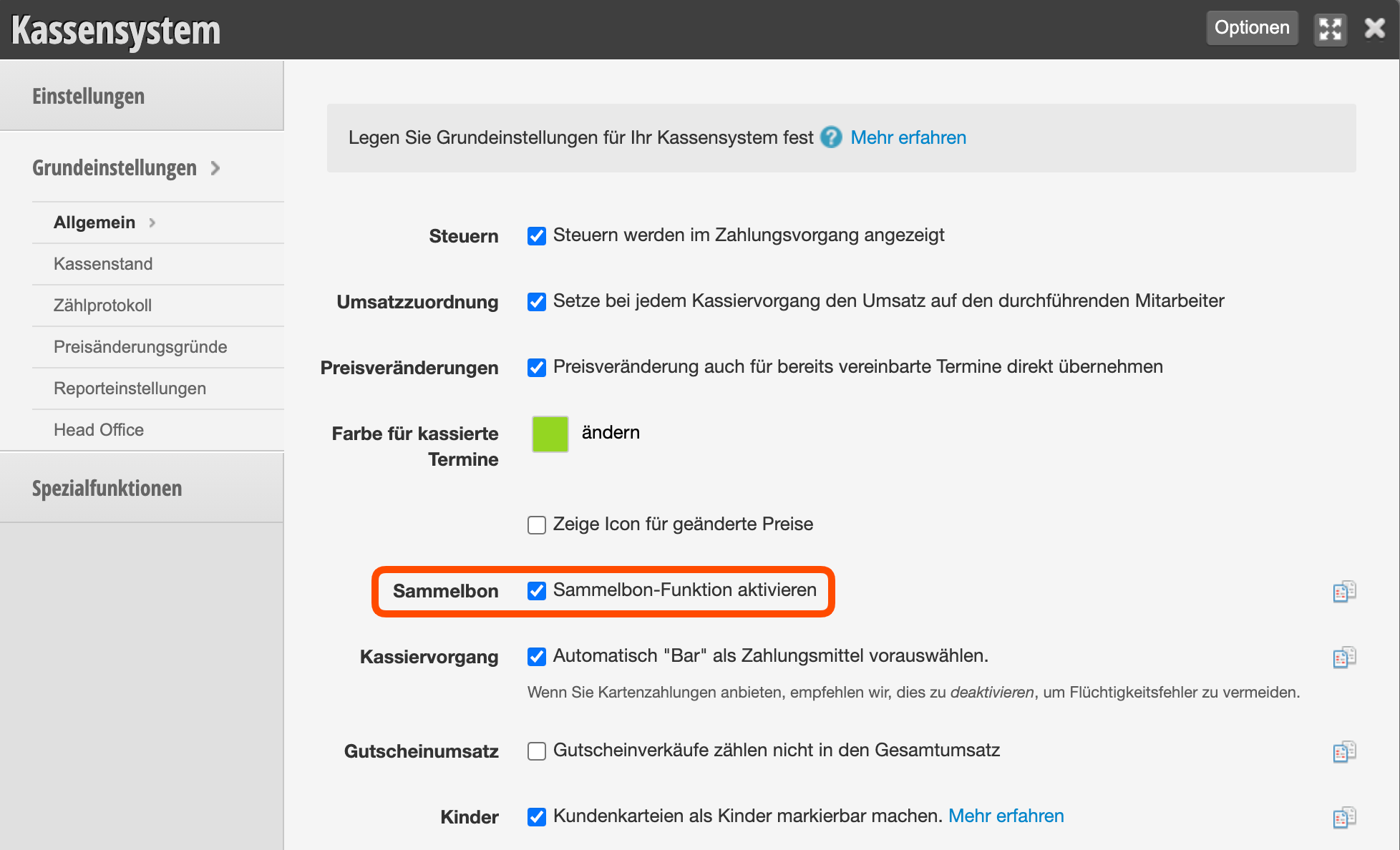
If you cannot find a Combined Receipt button in your cashier, the function must be activated first.

  1. Under Settings > Cashier System select the "Basic Settings" tab.
  2. Here you can activate the "Combined Receipt" function.
  3. Save your entry.

Collect payment for multiple appointments together

To start a joint payment, you need at least 2 open appointments.
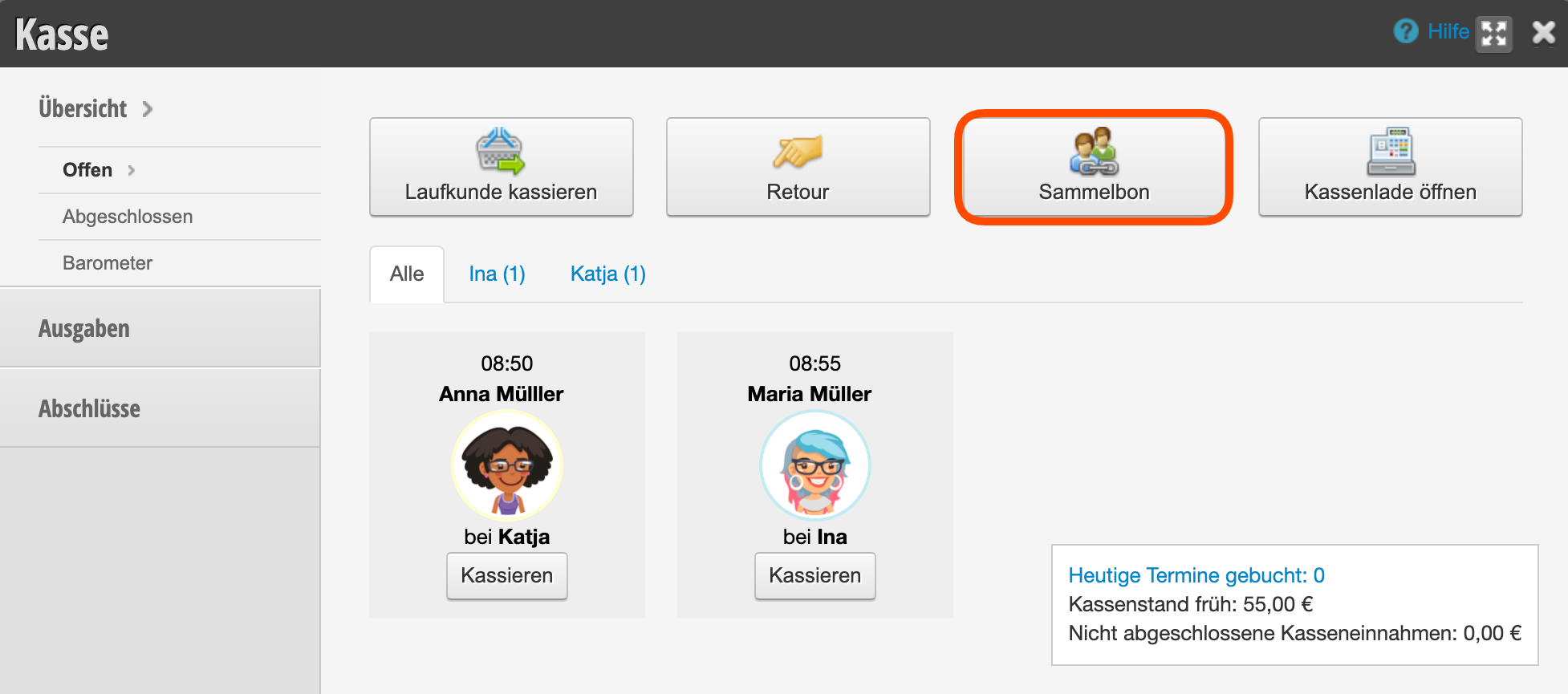
Example: Anna and Maria Müller are mother and daughter and they pay together for the booked services.
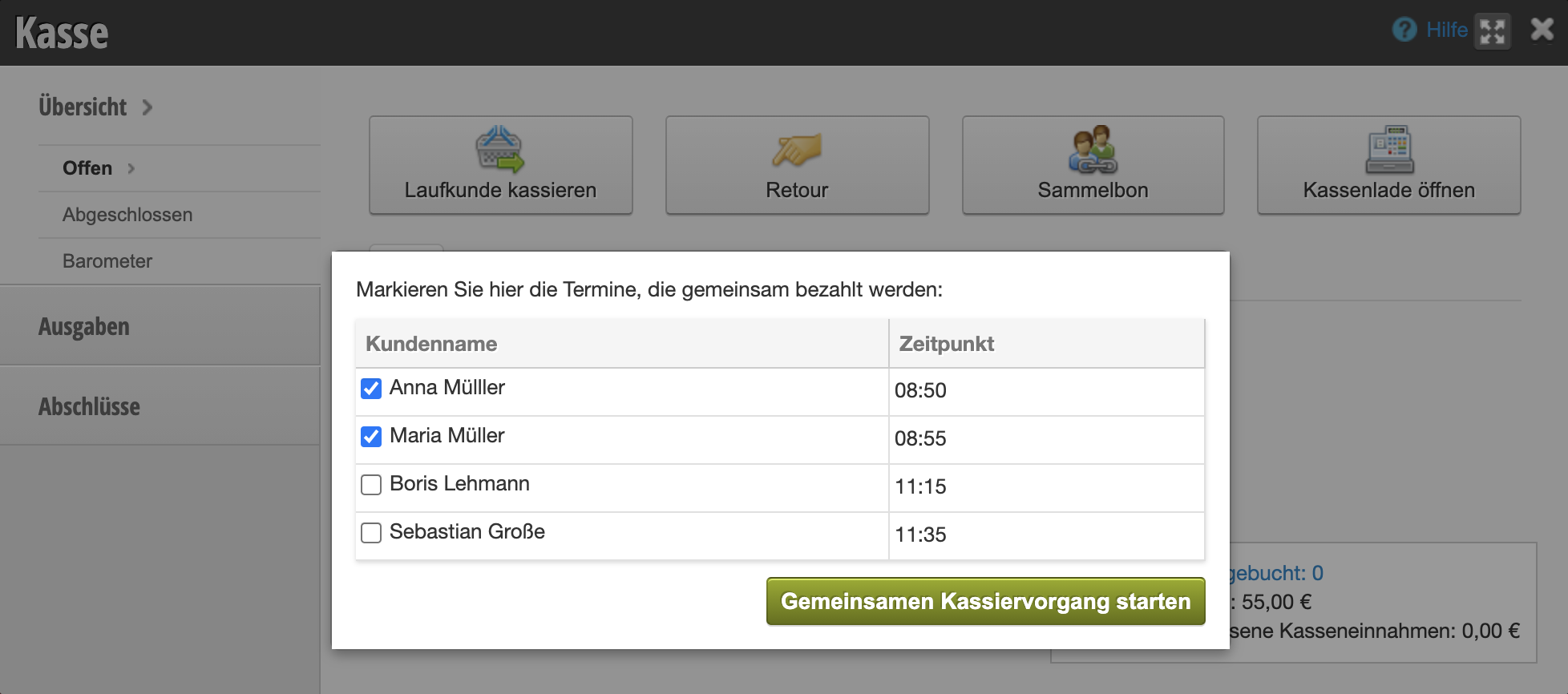

When you click on Combined Receipt, you first get a list of all open appointments. In this step, you mark the appointments that should be paid together.

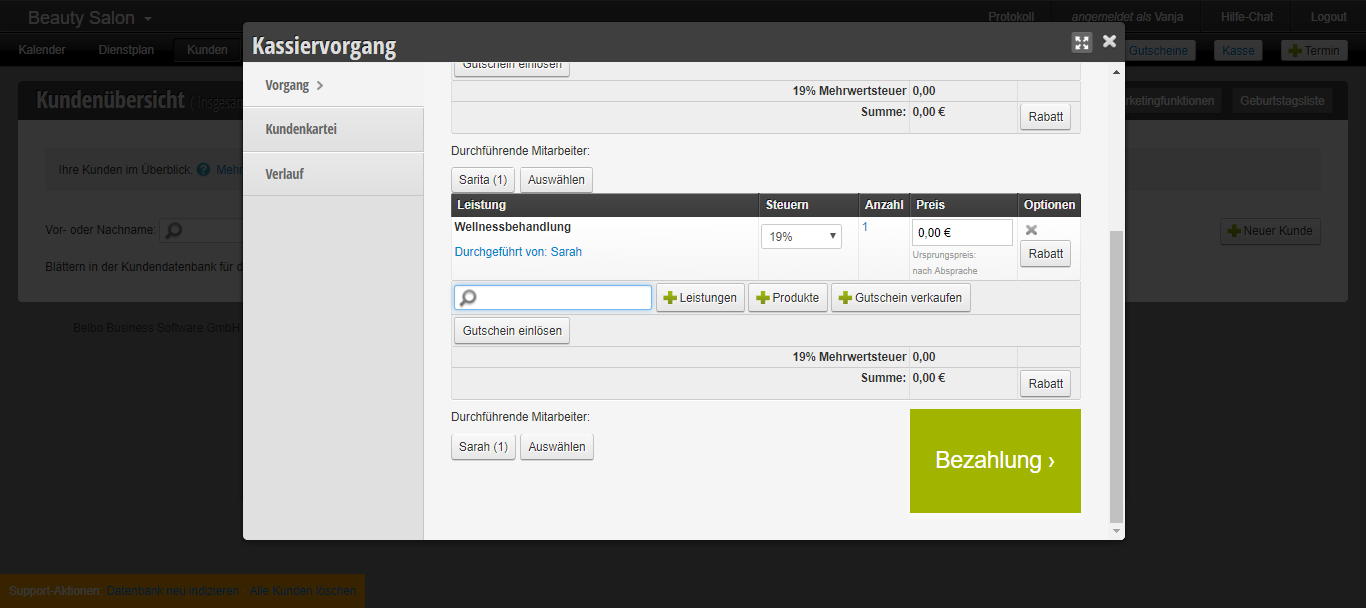
The next step is the joint payment process. In the payment process you can see the booked services of the individual customers. Here you can edit or add services or products.
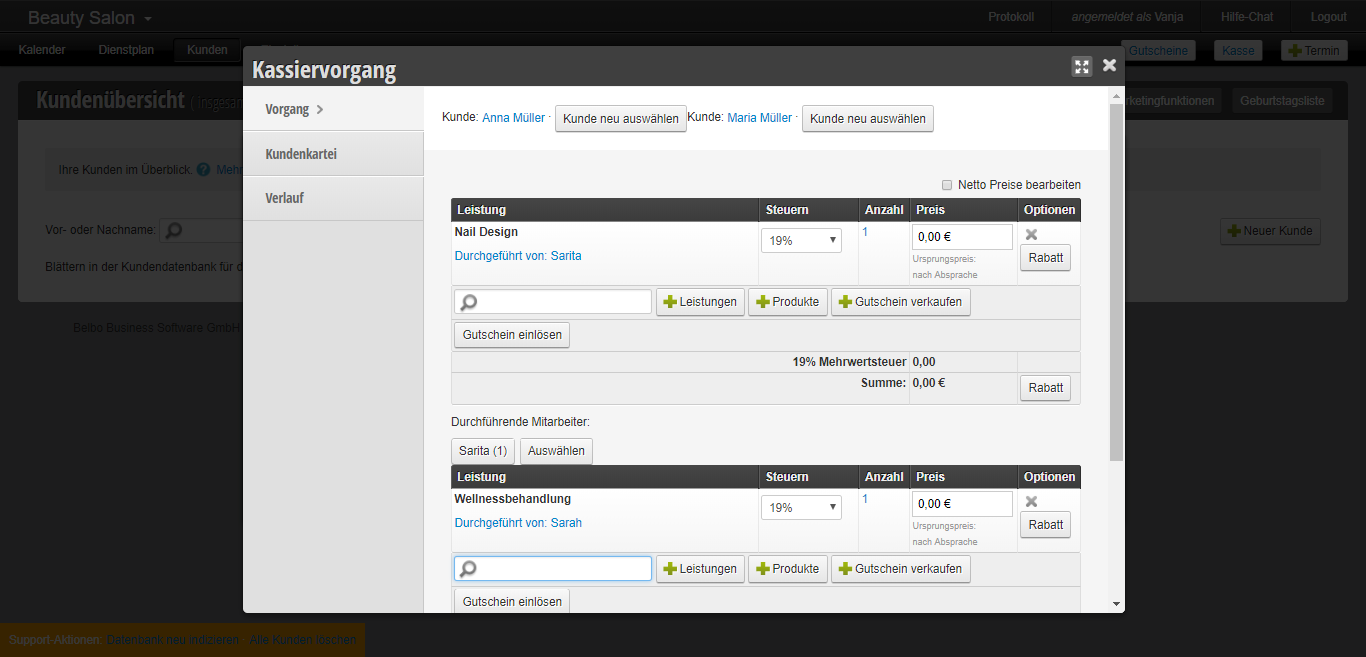
Once you have reviewed everything, click on Payment and complete the payment process.
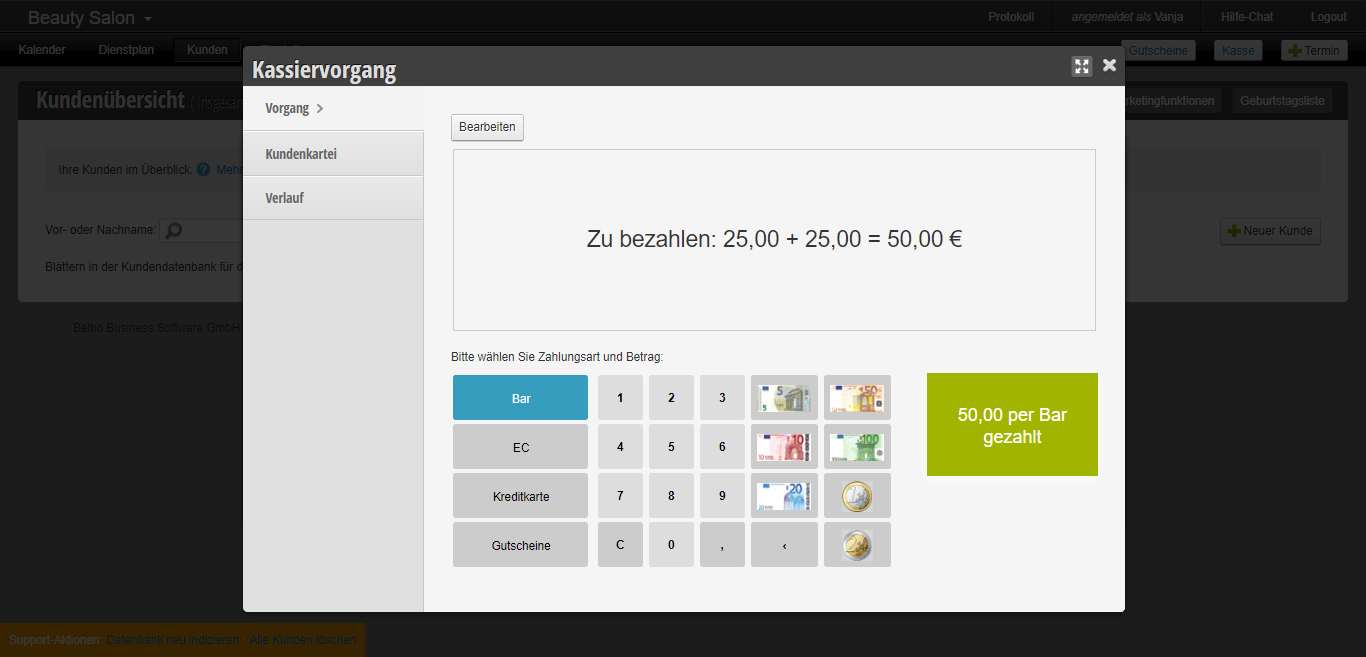
This is what the joint payment process looks like. In our example, the booked services for each customer cost 25.00 euros each. By clicking the green button, the payment process is completed.
Categories: Checkout process
Tags: Sammelbon, Termine gemeinsam bezahlen
This manual is a service by belbo. Legal notice