
If a person does not appear at the scheduled appointment and you would like to issue a cancellation invoice, you can do this in the Belbo cash register system.
Prerequisites
- Your customers should be informed in advance that a cancellation invoice will be issued if they cancel too late. Suitable places for this include the confirmation and reminder emails or the texts in the online booking. Your own terms and conditions are also useful here. Please note that we cannot advise you on the wording of these texts.
- The service "Cancellation fee" or similar has already been created. Alternatively, the original service can simply be retained.
- The A4 invoices should be set up if you plan to send the invoice as a PDF by email.
- The payment method "Invoice/Transfer" has already been set up correctly. Additionally, the payment method "Customer credit" can be created. The cash register will then remind you at the customer's next appointment that he is adding the overdue amount.
Create a cancellation invoice
If you notice that a person does not appear at the scheduled appointment, or if they cancel very short notice, you can set the appointment status to "cancelled". This is important because the text on the invoice will adjust accordingly.
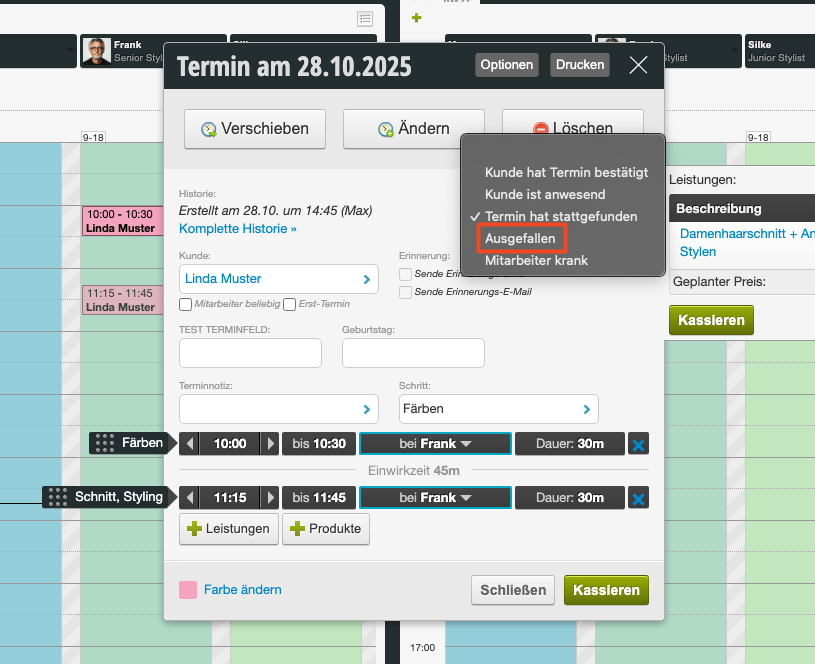
Now the appointment can be charged by clicking "Process Payment".
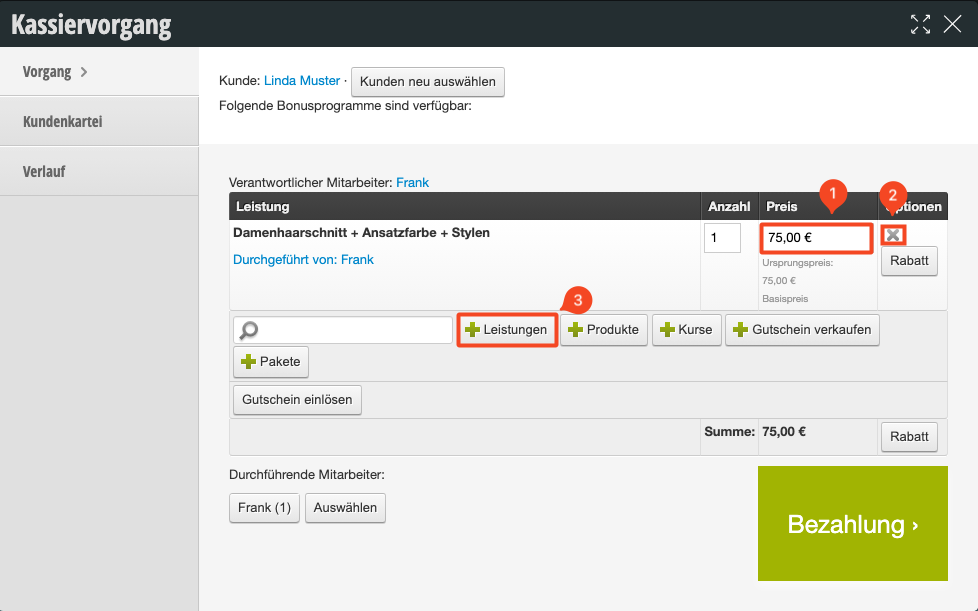
- In the payment process, the price can be changed (1), for example if only half of the amount should be charged.
- Alternatively, the service can be removed (2) and replaced with the "Cancellation fee" service (3).
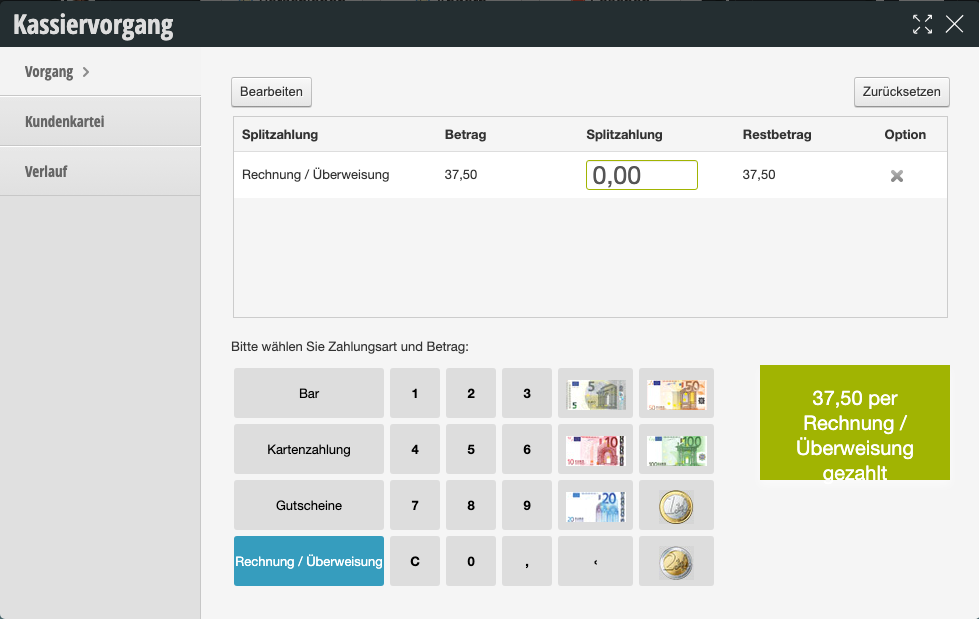
- The appointment is then processed with the appropriate payment method (e.g. "Invoice / Transfer" or "Customer credit").
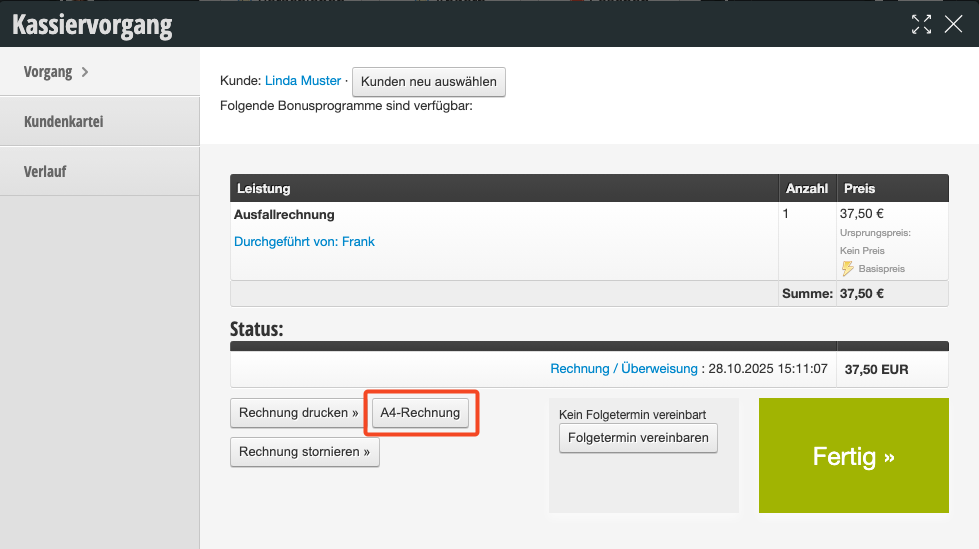
Afterwards, the invoice can be sent by email to the person or printed and delivered in another way.
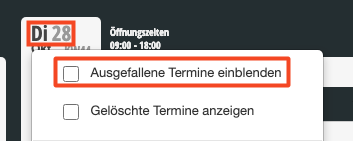
By the way: If your calendar settings are set to hide cancelled appointments, you can click on the date to show them again:
Our tips for measures against unreliable customers can be found here.
An overview of outstanding invoices and how to record payment receipt can be found here.